
Google Tasks
Google Keep

Google Tasks vs Google Keep

Google Tasks vs Google Keep: Hva er forskjellen og hva passer din arbeidsflyt?

Begge verktøyene følger gratis med din Google-konto, men de løser svært forskjellige problemer. Denne guiden forklarer nøyaktig når du skal bruke hver av dem, og hvordan TasksBoard gjør Google Tasks til den klare vinneren for strukturert arbeid.

Brukes av over 2 millioner mennesker. Gratis å starte.


Google Tasks vs Google Keep: Funksjonssammenligning

Feature
Google Tasks
Google Keep
Forfallsdatoer og påminnelser Due dates and reminders Kun påminnelser (via Keep-påminnelser)
Underoppgaver Subtasks
Organiser etter prosjekt / liste Organize by project/list Kun merkelapper
Google Calendar-integrasjon Google Calendar integration
Fritekstnotater Freeform notes
Bildeinnfanging Image capture
Talememoer Voice memos
Kanban-brettvisning Kanban board view Via TasksBoard
Teamdeling av brett Team board sharing Via TasksBoard Kun samarbeidsnotater
Gmail-integrasjon Gmail integration

Feature-by-feature comparison

Google Tasks is for actionable to-dos; Google Keep is for notes and capture. See how each tool handles reminders, lists, and collaboration.

Google Tasks 6 Google Keep 3 It's a tie 1

Due dates and reminders

Winner: Google Tasks

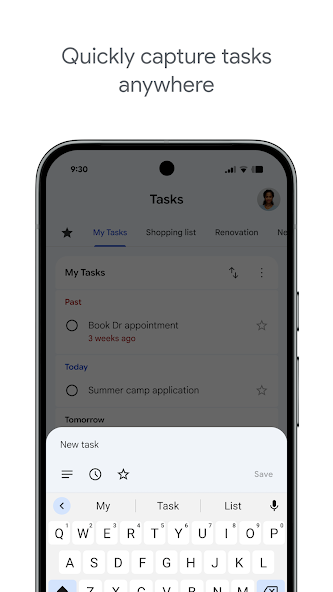
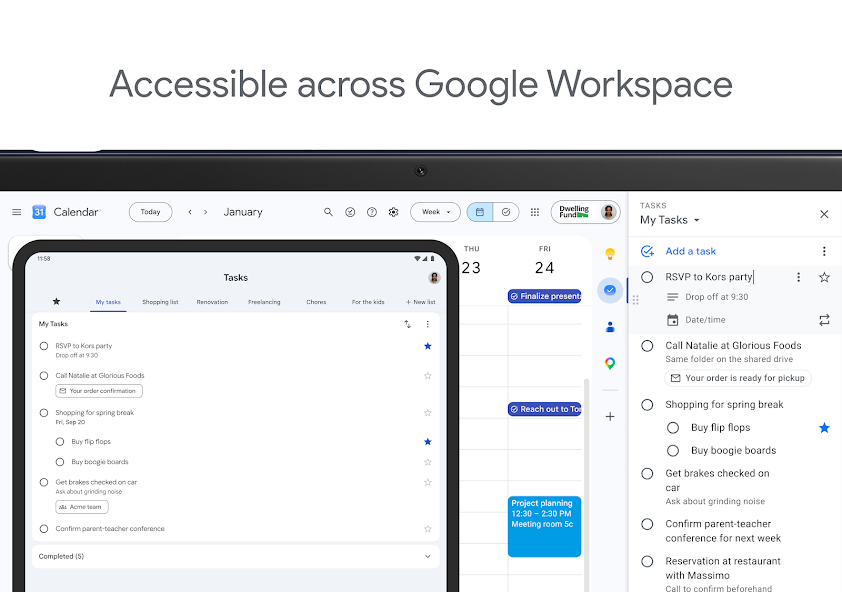
Google Tasks is built around due dates, deadlines, and notifications synced through Google Calendar.

Google Keep supports note reminders; newer flows save reminders in Google Tasks and surface them in Calendar.

Google Tasks Winner
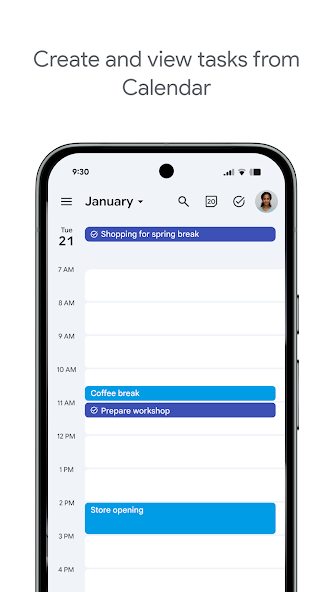
Due dates and reminders — left column screenshot
Task due dates in Calendar.
Google Keep
Due dates and reminders — right column screenshot
Note reminders linked to Tasks.

Winner: Google Tasks

Google Tasks is purpose-built for due dates, deadlines, and Calendar-synced reminders.

Subtasks

Winner: Google Tasks

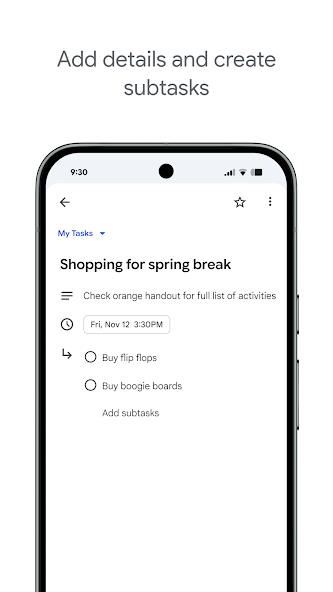
Google Tasks nests true subtasks under a parent task for step-by-step execution.

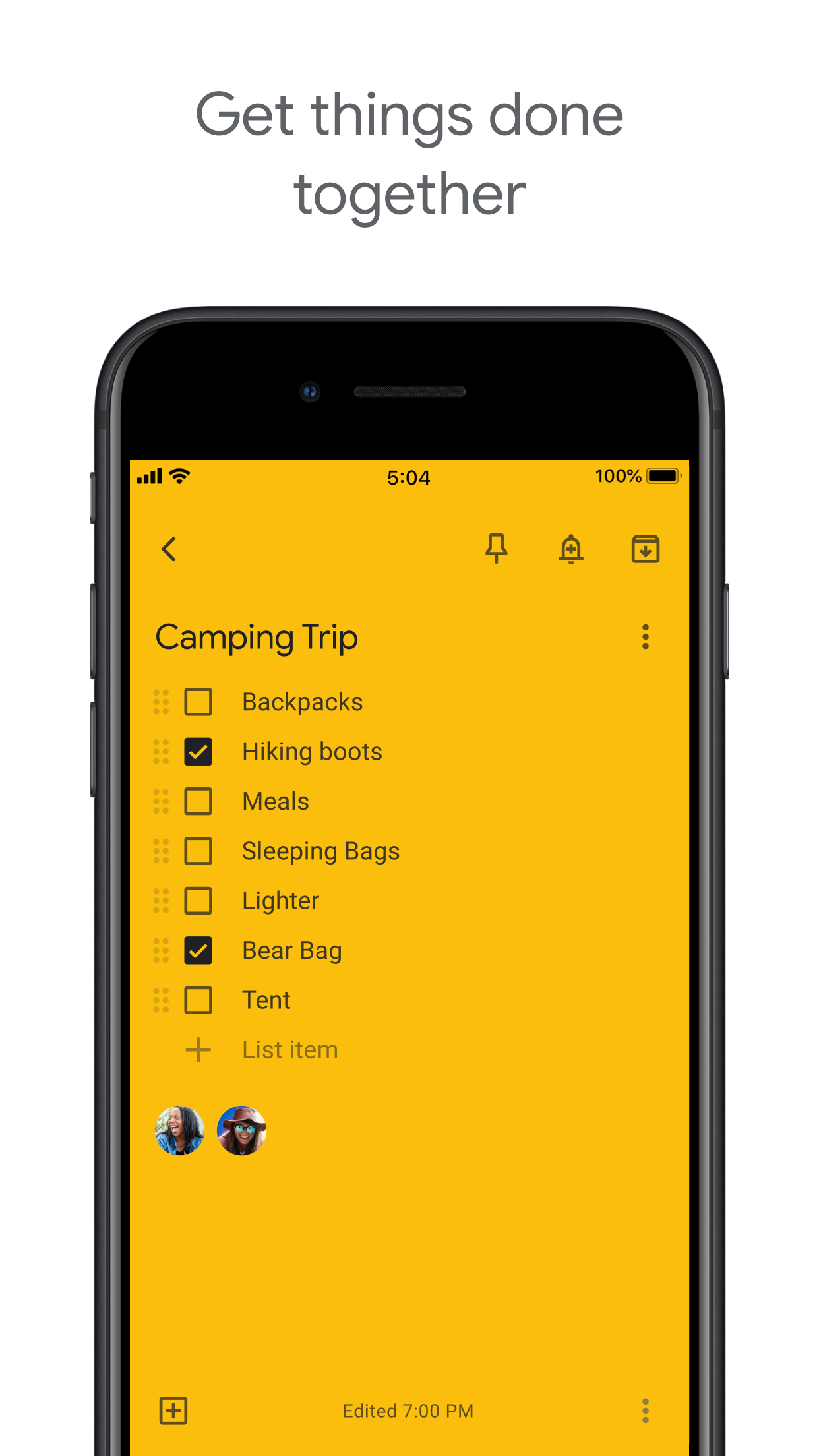
Keep supports checklists inside a note, but not dedicated parent-child task entities.

Google Tasks Winner
Subtasks — left column screenshot
Parent task with subtasks.
Google Keep
Subtasks — right column screenshot
Checklist items in a note.

Winner: Google Tasks

True parent-child subtask entities beat checklist items inside a note for step-by-step execution.


Organize by project or list

Winner: Google Tasks

Google Tasks uses multiple named lists with drag-and-drop reordering and sorting.

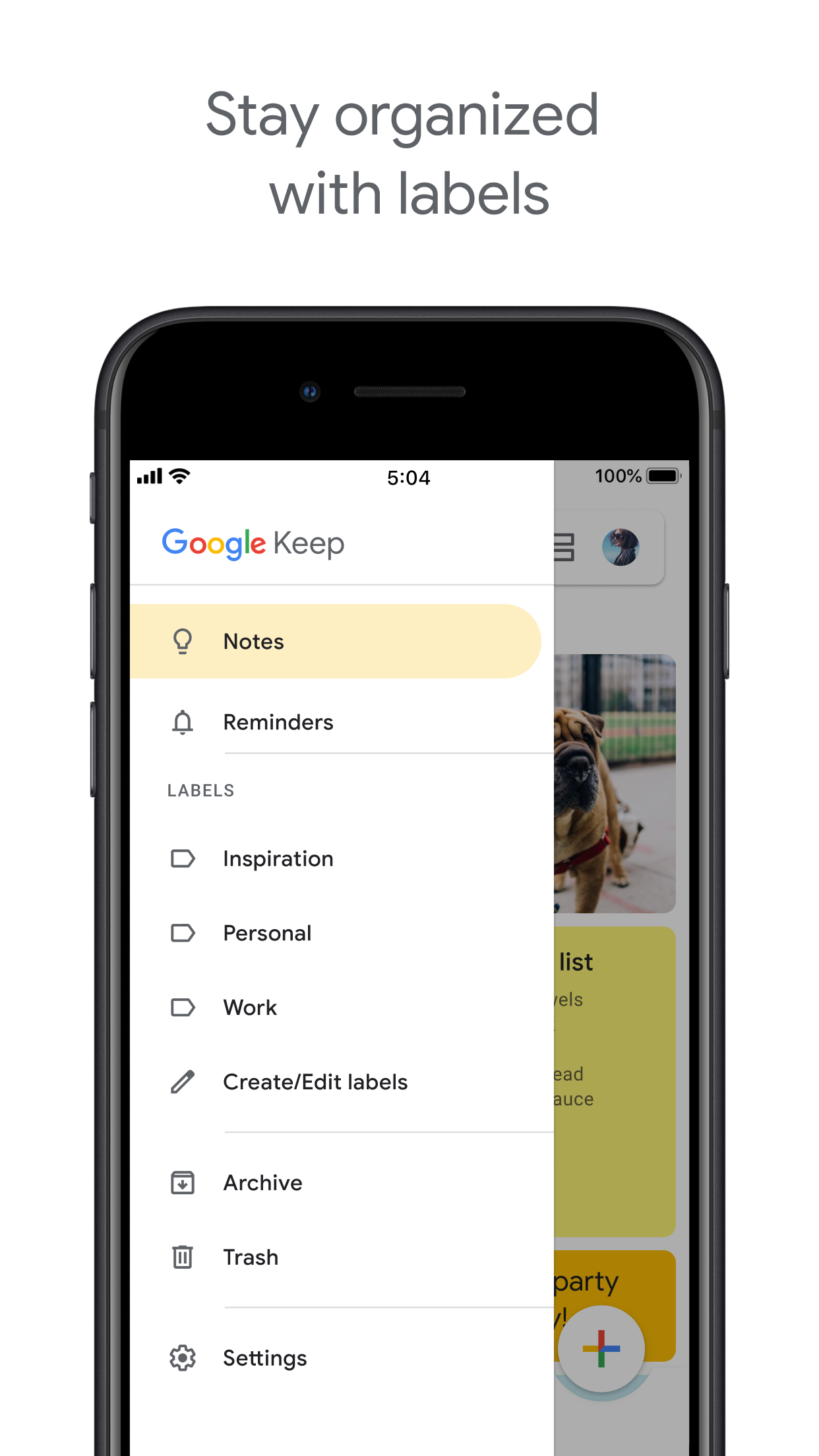
Keep organizes by labels, colors, and pinned notes in a card grid.

Google Tasks Winner
Organize by project or list — left column screenshot
Named task lists.
Google Keep
Organize by project or list — right column screenshot
Labels and pinned notes.

Winner: Google Tasks

Named task lists with drag-and-drop ordering suit project workflows better than a note card grid.


Google Calendar integration

Winner: Google Tasks

Dated tasks appear in Google Calendar natively. Plan events and to-dos together.

Keep reminders can appear in Calendar when saved through the Google Tasks integration.

Google Tasks Winner
Google Calendar integration — left column screenshot
Tasks on your Calendar grid.
Google Keep
Google Calendar integration — right column screenshot
Reminders via Tasks bridge.

Winner: Google Tasks

Dated tasks appear on your Google Calendar grid natively — the core planning integration for to-dos.


Freeform notes

Winner: Google Keep

Google Tasks has lightweight detail fields optimized for completion, not long-form writing.

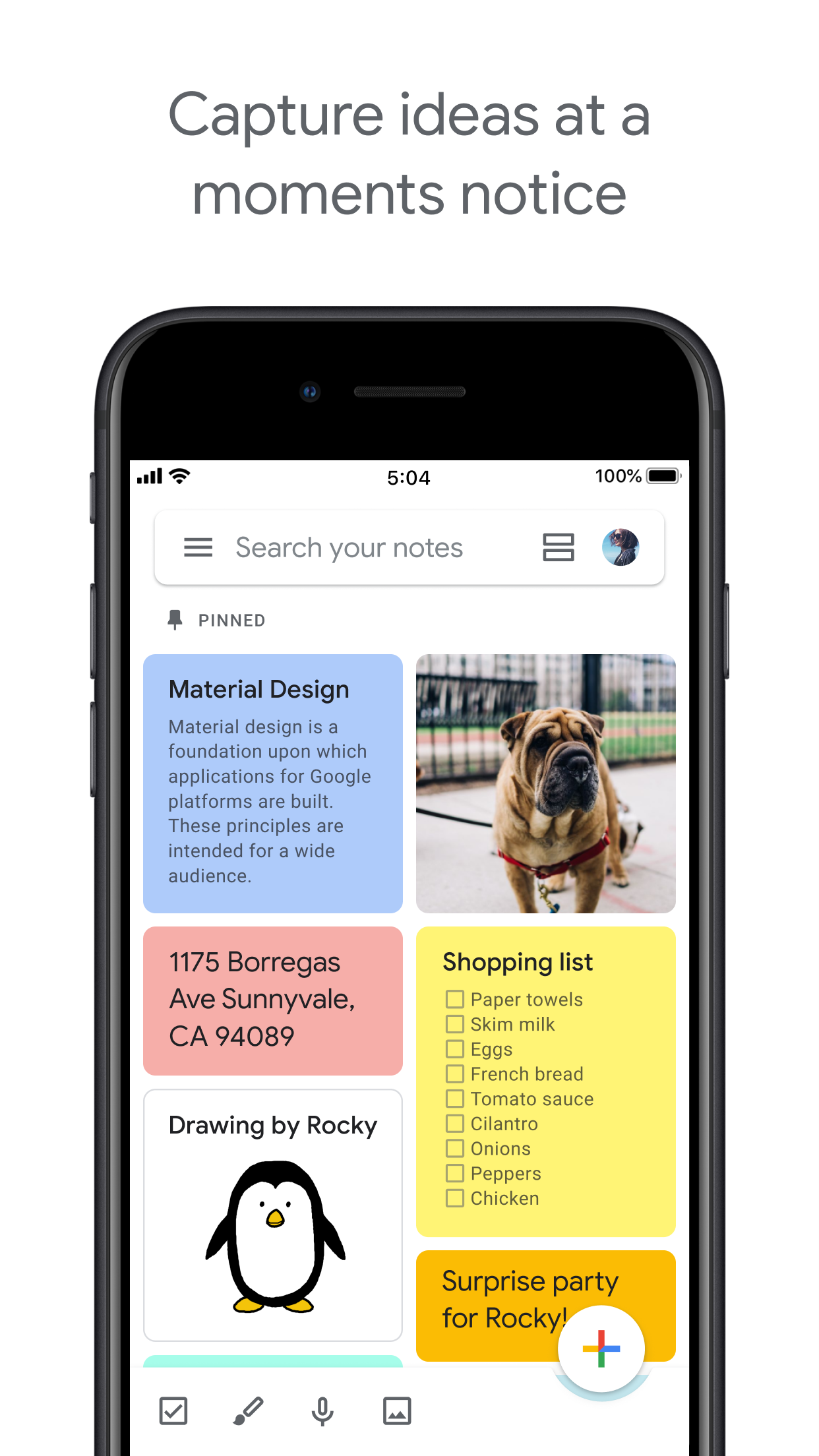
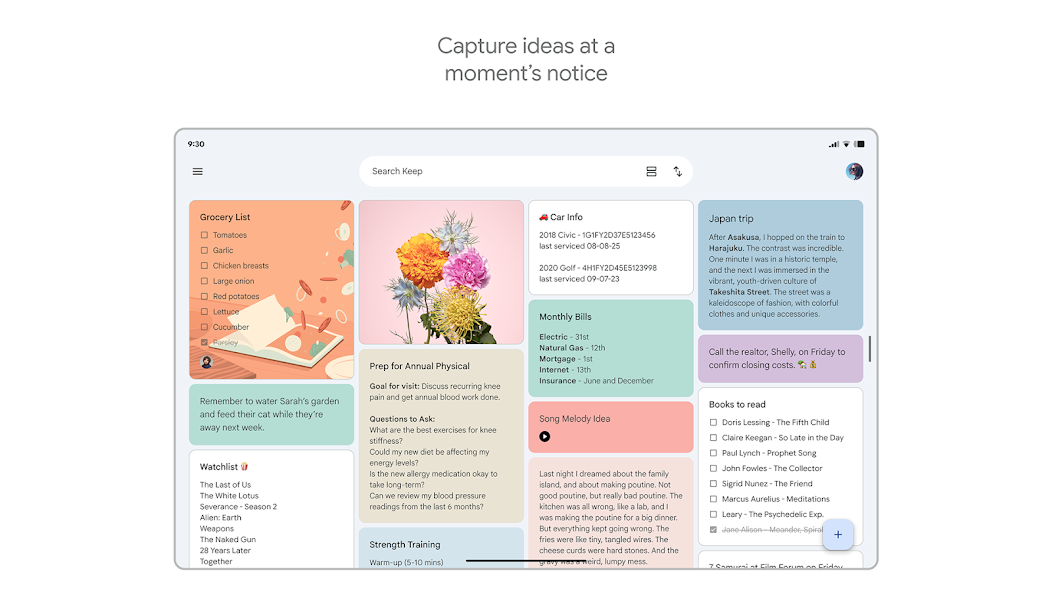
Keep is purpose-built for freeform notes, brainstorming, and quick capture.

Google Tasks
Freeform notes — left column screenshot
Task detail fields.
Google Keep Winner
Freeform notes — right column screenshot
Freeform note editor.

Winner: Google Keep

Keep is purpose-built for freeform notes, brainstorming, and quick unstructured capture.


Image capture

Winner: Google Keep

Google Tasks does not support image attachments on tasks.

Keep lets you snap photos, attach images from your library, or scan documents directly into a note.

Google Tasks
Image capture — left column screenshot
Text-based tasks only.
Google Keep Winner
Image capture — right column screenshot
Image notes and scans.

Winner: Google Keep

Keep lets you snap photos, attach images, and scan documents — Google Tasks is text-only.


Voice memos

Winner: Google Keep

Google Tasks focuses on typed task entry with optional Assistant on Android.

Keep records audio notes you can play back and transcribe later.

Google Tasks
Voice memos — left column screenshot
Typed task capture.
Google Keep Winner
Voice memos — right column screenshot
Audio note recording.

Winner: Google Keep

Keep records audio notes you can play back; Google Tasks focuses on typed task entry.


Kanban board view

Winner: Google Tasks

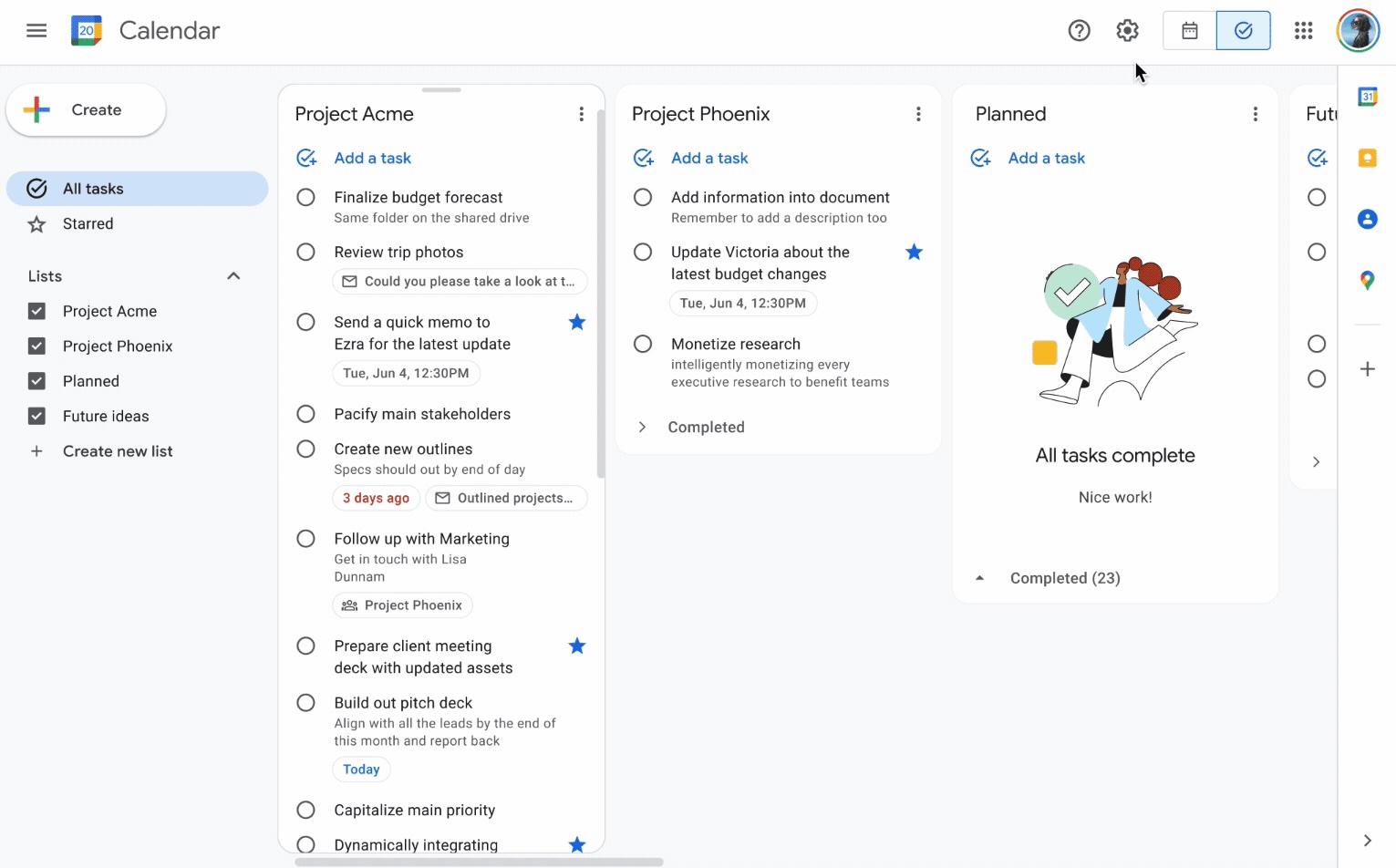
Google Tasks is list-based. TasksBoard adds kanban columns for project-stage visibility.

Keep shows notes in a grid or list — no column-based workflow board.

Google Tasks Winner
Kanban board view — left column screenshot
Kanban via TasksBoard.
Google Keep
Kanban board view — right column screenshot
Grid and list note views.

Winner: Google Tasks

TasksBoard adds kanban columns for project-stage visibility; Keep has no workflow board.


Team board sharing

It's a tie

TasksBoard enables shared kanban boards on Google Tasks for cross-platform teams.

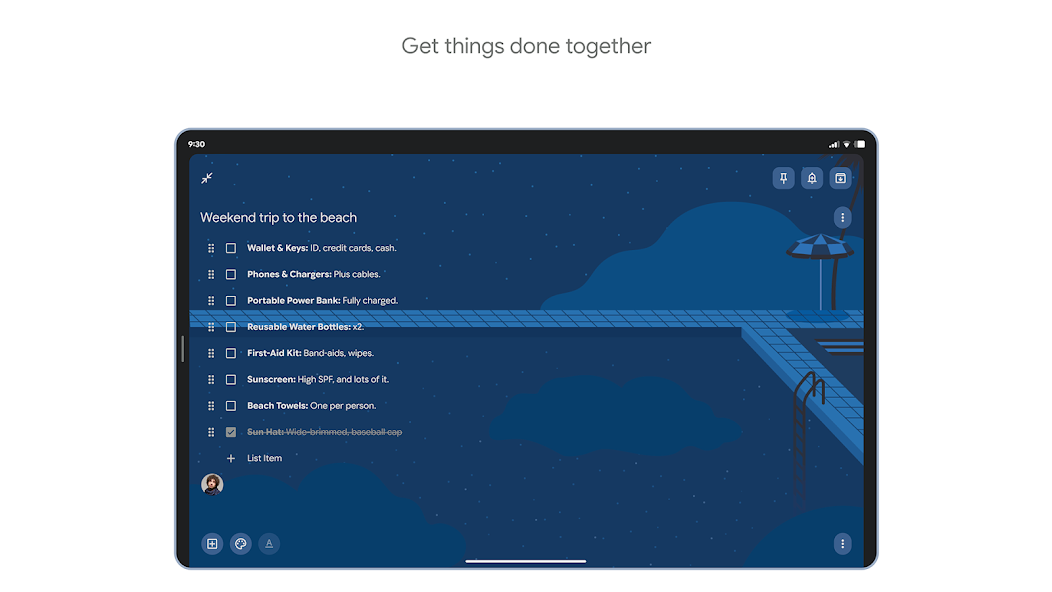
Keep supports real-time collaborative notes and checklists with other Google accounts.

Google Tasks
Team board sharing — left column screenshot
Shared boards via TasksBoard.
Google Keep
Team board sharing — right column screenshot
Collaborative Keep notes.

It's a tie

Both support collaboration — TasksBoard for shared task boards, Keep for real-time collaborative notes. Different jobs.


Gmail integration

Winner: Google Tasks

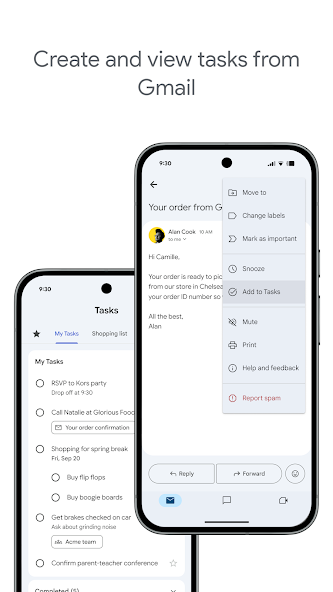
Turn any email into a Google Task with one click. The task links back to the original message.

Keep is available in the Gmail side panel for note-taking, but not for structured task workflows.

Google Tasks Winner
Gmail integration — left column screenshot
Add to Tasks from Gmail.
Google Keep
Gmail integration — right column screenshot
Keep side panel in Gmail.

Winner: Google Tasks

Turn any Gmail message into a linked Google Task in one click — structured task workflows from email.


Elsket av tusenvis av brukere

4.8 / 5 fra 1000+ anmeldelser i Chrome Web Store

"Always have 101 things to do and this helps me organize and prioritize like no other app can. It syncs to my phone and laptop, and when I add dates to tasks, they automatically integrate into my Google Calendar, which is immensely convenient. I can look at my daily, weekly, and monthly overview in Google Calendar and clearly see how much I was able to accomplish! Great tool indeed. Excited to see how it will evolve over time."

PR Parina Ramjee avatar
Parina Ramjee

"Seriously, makes my tasks easier to share with the team, and the free version is quite nice for our little office. Eventually, we will expand, and this is definitely a great tool to do that! Syncs with my Workspace and Calendar."

CC Chase Cattrall avatar
Chase Cattrall

"I love the simple, intuitive interface and the Add to Tasks feature, especially as I work through my emails! Sharing my tasks is also easy. Overall, outstanding and simple to use, and that means a lot with too many complex tasks out there!"

GC Greg Cantori avatar
Greg Cantori

"Great too for managing daily routine and plan tasks. Would be perfect if it was updated for generating reports for statistics. For google tasks and google calendar"

NV Nick Vlasov avatar
Nick Vlasov

Ofte stilte spørsmål

Hva er hovedforskjellen mellom Google Tasks og Google Keep?

Google Tasks er et strukturert gjøremålsverktøy med forfallsdatoer, underoppgaver og Google Calendar-integrasjon. Google Keep er en fritekst-notatapp med støtte for tekst, bilder, talememoer og fargekodede merkelapper. Tasks er for handlinger; Keep er for innfanging.

Hva er best for arbeidsoppgaver, Google Tasks eller Google Keep?

Google Tasks er bedre for arbeidsoppgaver. Den støtter tidsfrister, underoppgaver, Gmail-integrasjon og synkroniseres med Google Calendar. Keep er bedre for å fange opp notater og ideer raskt, men den gir ikke strukturen som trengs for å administrere arbeid på en pålitelig måte.

Kan jeg konvertere et Google Keep-notat til en Google Task?

Ikke direkte i appene. Den anbefalte arbeidsflyten er å manuelt opprette en oppgave i Google Tasks basert på informasjonen i Keep-notatet. Noen brukere kopierer innholdet fra Keep-notatet inn i oppgavebeskrivelsen eller notatfeltet.

Støtter Google Tasks påminnelser som Google Keep?

Google Tasks støtter forfallsdatoer, som utløser påminnelser i Google Calendar. Google Keep har sitt eget påminnelsessystem med stedsbaserte påminnelser. For tidsbaserte påminnelser knyttet til en kalender, er Google Tasks med forfallsdatoer det mer pålitelige alternativet.

Kan du dele oppgaver i Google Tasks som notater i Google Keep?

Standard Google Tasks støtter ikke deling. Google Keep tillater deling av notater med andre Google-brukere. TasksBoard legger imidlertid til teamdeling i sanntid til Google Tasks, du kan dele et helt brett med teammedlemmer og tildele oppgaver.

Hva legger TasksBoard til i Google Tasks som gjør det bedre enn Keep?

TasksBoard gir Google Tasks et Kanban-brett i fullskjerm, teamdeling, dra-og-slipp-oppgavebehandling og en dagsvisning som kombinerer oppgaver med Google Calendar-hendelser. Dette forvandler den strukturerte naturen til Tasks til et komplett produktivitetssystem som Keep ikke kan matche.

Finnes det en app som kombinerer Google Tasks og Google Keep?

Ingen enkeltapp slår sammen begge deler naturlig. Den praktiske arbeidsflyten de fleste avanserte brukere følger er: fang opp i Keep, behandle i Tasks, og bruk deretter TasksBoard til å administrere Tasks med et fullskjerm Kanban-grensesnitt og teamdeling.


Kom i gang

Gjør Google Tasks til ditt primære produktivitetsverktøy

Logg på med Google og få et Kanban-brett i fullskjerm for dine Google Tasks. Gratisplanen inkluderer ubegrensede oppgaver, brettvisning og synkronisering med kalender.

Ingen kredittkort kreves. Dine Google Tasks-data forblir i Google.