
Google Tasks vs Google Keep

Google Tasks vs Google Keep

Google Tasks vs Google Keep: What's the Difference and Which One Fits Your Workflow?

Both tools come free with your Google account, but they solve very different problems. This guide breaks down exactly when to use each, and how TasksBoard makes Google Tasks the clear winner for structured work.

Used by 2M+ people. Free to start.


Google Tasks vs Google Keep: Feature Comparison

Feature Google Tasks Google Keep
Due dates and reminders
Reminders only (via Keep Reminders)
Subtasks
Subtasks
Organize by project / list
Organize by project/list
Labels only
Google Calendar integration
Freeform notes
Freeform notes
Image capture
Image capture
Voice memos
Voice memos
Kanban board view
Kanban board view
Via TasksBoard
Team board sharing
Team board sharing
Via TasksBoard Collaborative notes only
Gmail integration
Gmail integration

Feature-by-feature comparison

Google Tasks is for actionable to-dos; Google Keep is for notes and capture. See how each tool handles reminders, lists, and collaboration.

Feature 1

Due dates and reminders

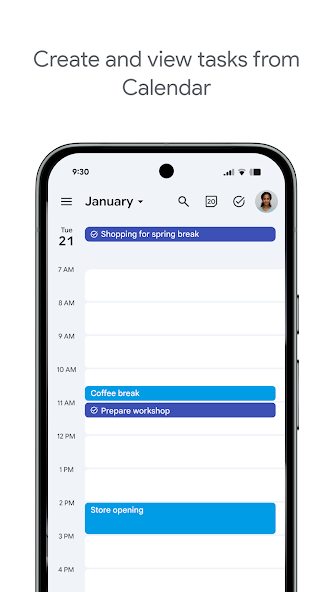
Google Tasks is built around due dates, deadlines, and notifications synced through Google Calendar.

Google Keep supports note reminders; newer flows save reminders in Google Tasks and surface them in Calendar.

Google Tasks
Due dates and reminders — left column screenshot
Task due dates in Calendar.
Google Keep
Due dates and reminders — right column screenshot
Note reminders linked to Tasks.

Winner: Google Tasks

Google Tasks is purpose-built for due dates, deadlines, and Calendar-synced reminders.

Feature 2

Subtasks

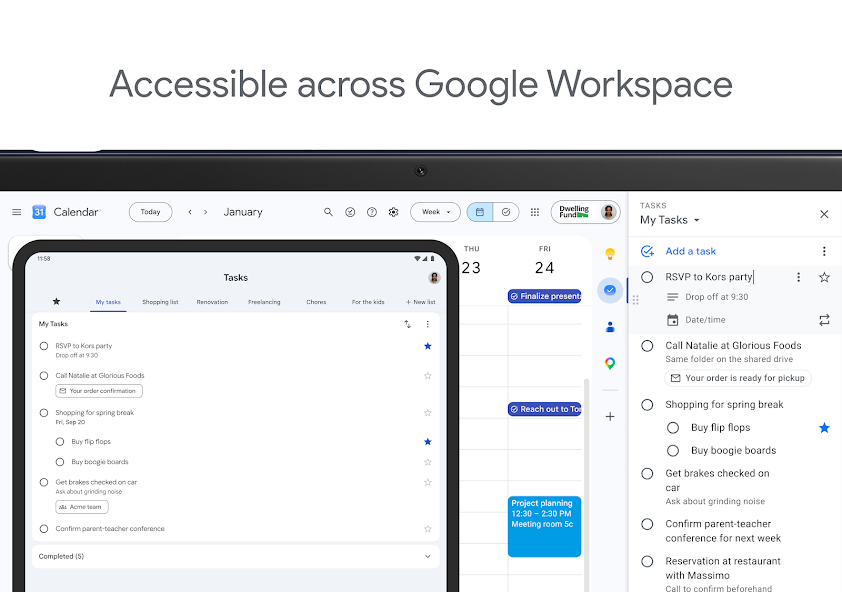
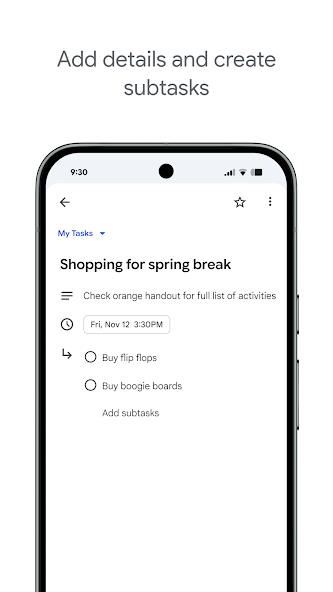
Google Tasks nests true subtasks under a parent task for step-by-step execution.

Keep supports checklists inside a note, but not dedicated parent-child task entities.

Google Tasks
Subtasks — left column screenshot
Parent task with subtasks.
Google Keep
Subtasks — right column screenshot
Checklist items in a note.

Winner: Google Tasks

True parent-child subtask entities beat checklist items inside a note for step-by-step execution.


Feature 3

Organize by project or list

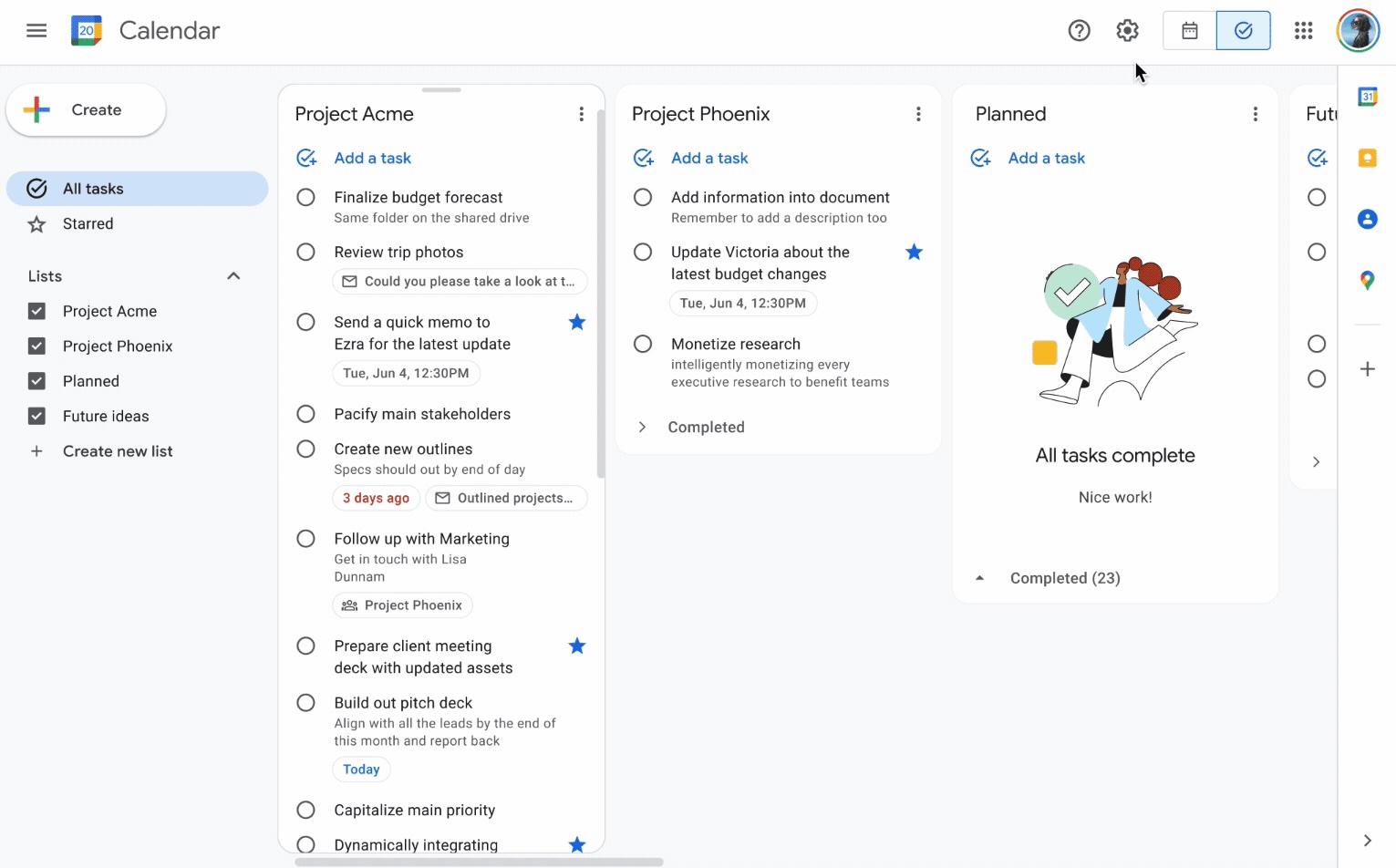
Google Tasks uses multiple named lists with drag-and-drop reordering and sorting.

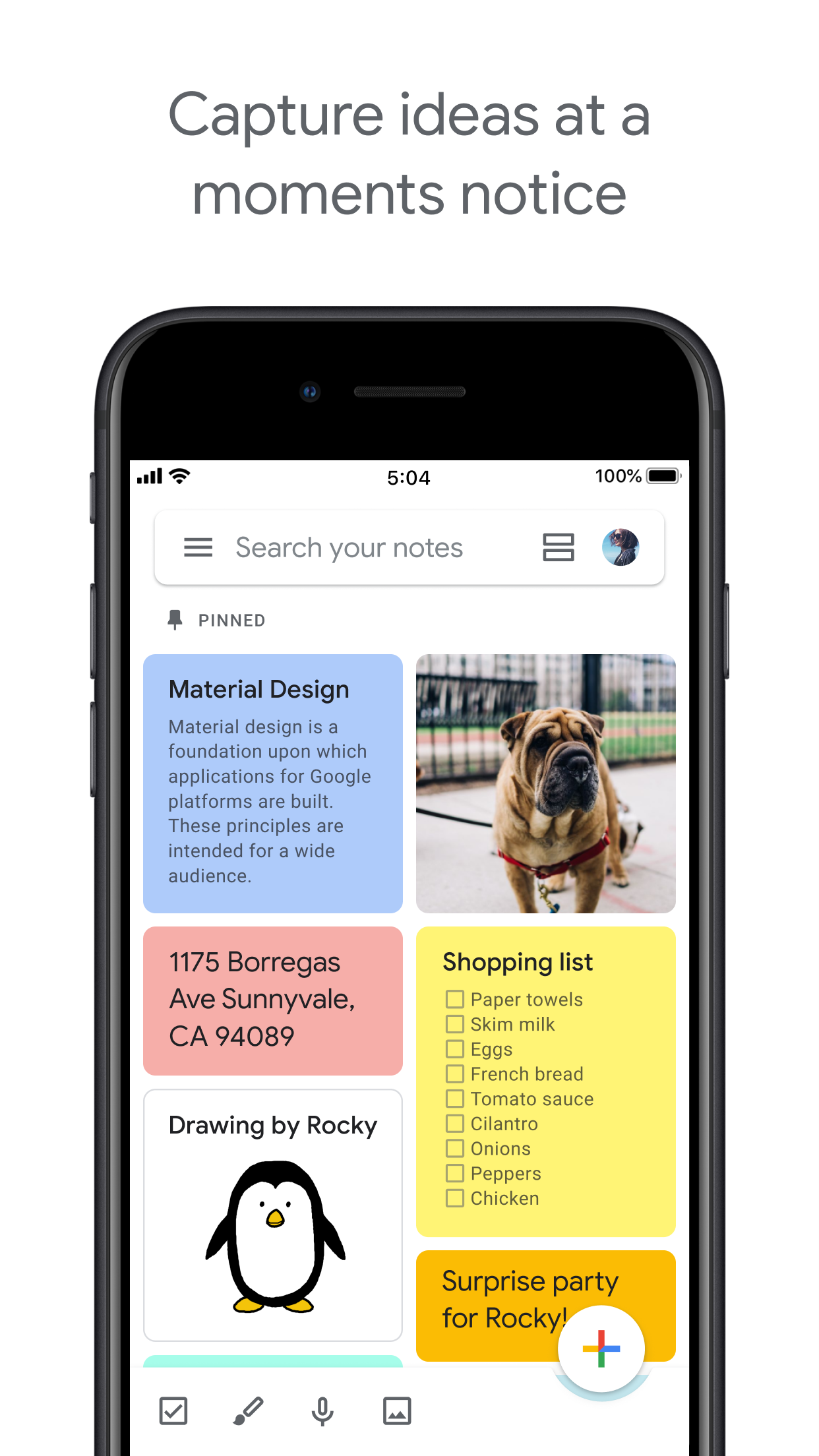
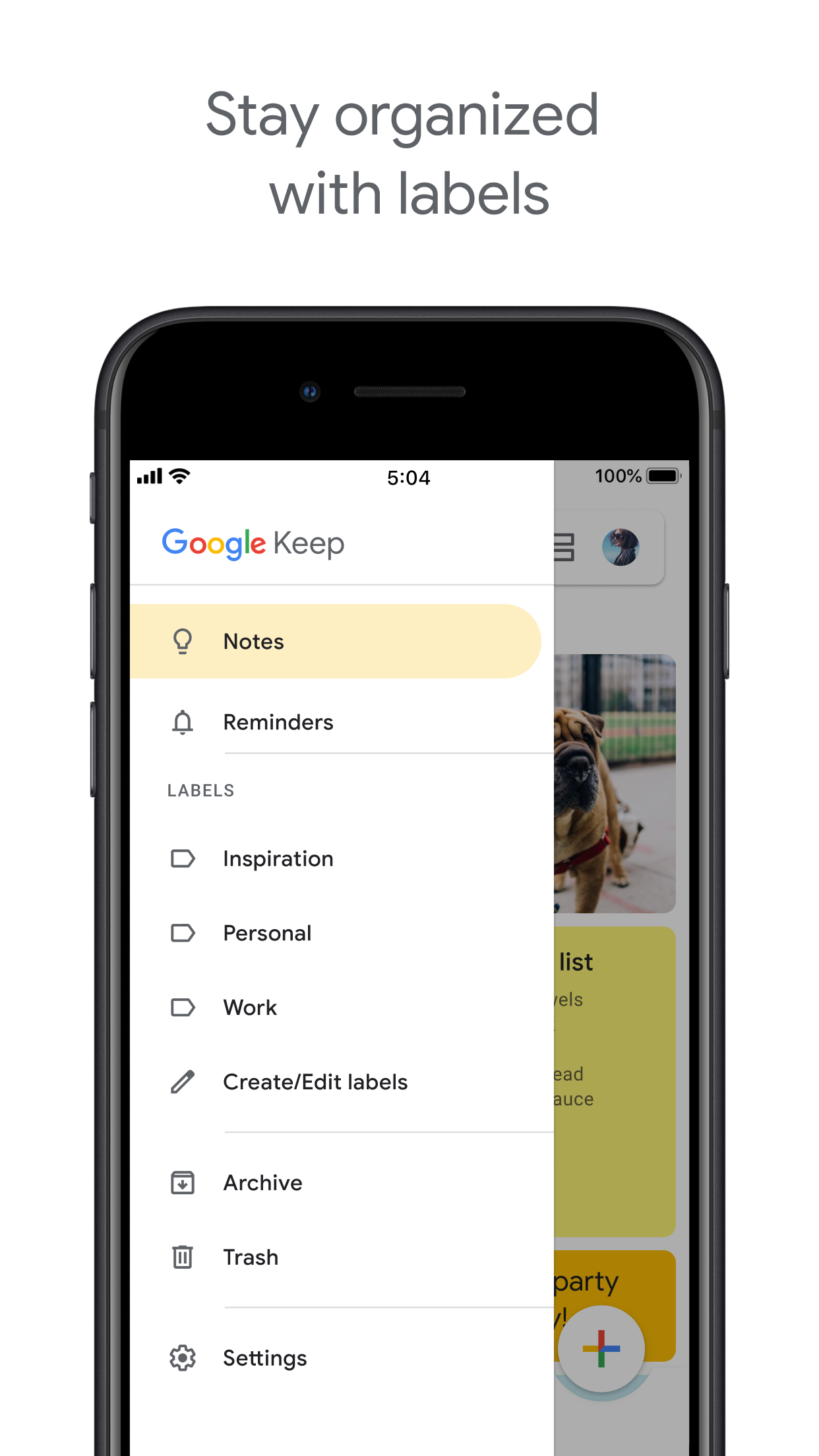
Keep organizes by labels, colors, and pinned notes in a card grid.

Google Tasks
Organize by project or list — left column screenshot
Named task lists.
Google Keep
Organize by project or list — right column screenshot
Labels and pinned notes.

Winner: Google Tasks

Named task lists with drag-and-drop ordering suit project workflows better than a note card grid.


Feature 4

Google Calendar integration

Dated tasks appear in Google Calendar natively. Plan events and to-dos together.

Keep reminders can appear in Calendar when saved through the Google Tasks integration.

Google Tasks
Google Calendar integration — left column screenshot
Tasks on your Calendar grid.
Google Keep
Google Calendar integration — right column screenshot
Reminders via Tasks bridge.

Winner: Google Tasks

Dated tasks appear on your Google Calendar grid natively — the core planning integration for to-dos.


Feature 5

Freeform notes

Google Tasks has lightweight detail fields optimized for completion, not long-form writing.

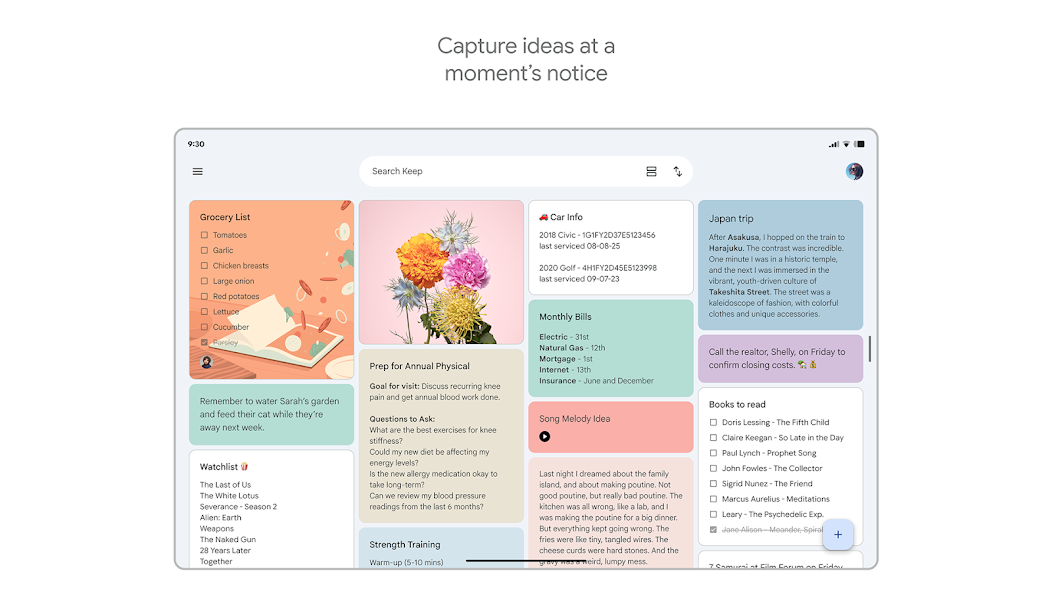
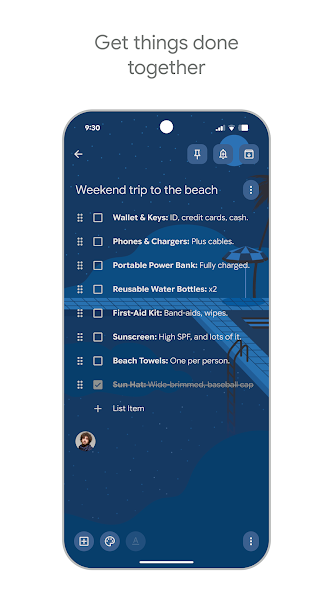
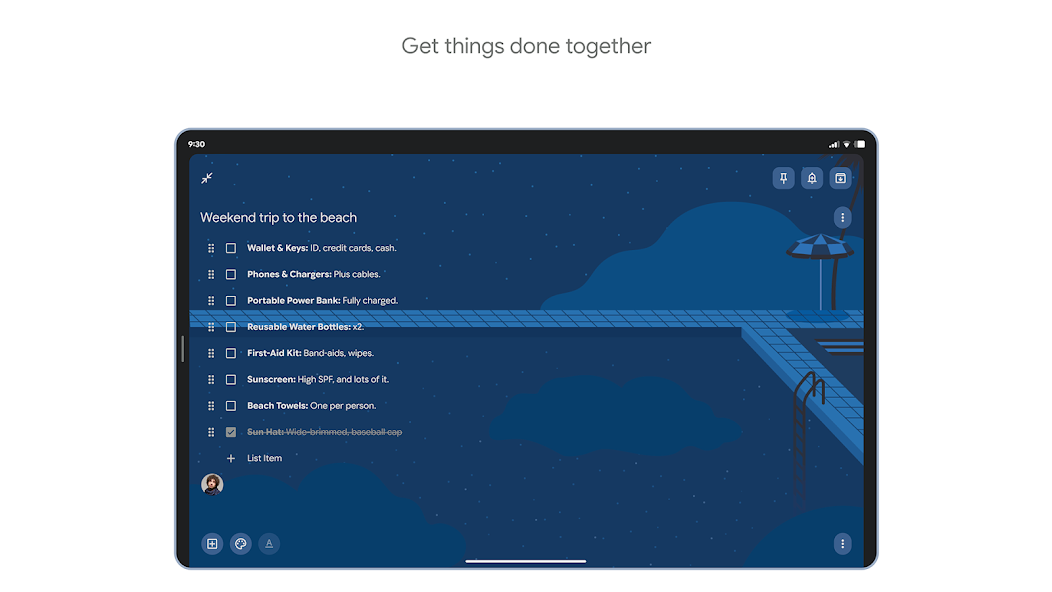
Keep is purpose-built for freeform notes, brainstorming, and quick capture.

Google Tasks
Freeform notes — left column screenshot
Task detail fields.
Google Keep
Freeform notes — right column screenshot
Freeform note editor.

Winner: Google Keep

Keep is purpose-built for freeform notes, brainstorming, and quick unstructured capture.


Feature 6

Image capture

Google Tasks does not support image attachments on tasks.

Keep lets you snap photos, attach images from your library, or scan documents directly into a note.

Google Tasks
Image capture — left column screenshot
Text-based tasks only.
Google Keep
Image capture — right column screenshot
Image notes and scans.

Winner: Google Keep

Keep lets you snap photos, attach images, and scan documents — Google Tasks is text-only.


Feature 7

Voice memos

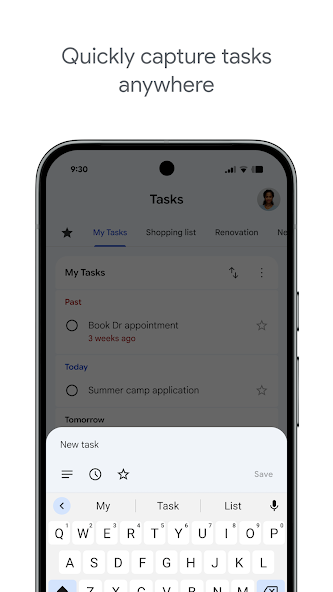
Google Tasks focuses on typed task entry with optional Assistant on Android.

Keep records audio notes you can play back and transcribe later.

Google Tasks
Voice memos — left column screenshot
Typed task capture.
Google Keep
Voice memos — right column screenshot
Audio note recording.

Winner: Google Keep

Keep records audio notes you can play back; Google Tasks focuses on typed task entry.


Feature 8

Kanban board view

Google Tasks is list-based. TasksBoard adds kanban columns for project-stage visibility.

Keep shows notes in a grid or list — no column-based workflow board.

Google Tasks
Kanban board view — left column screenshot
Kanban via TasksBoard.
Google Keep
Kanban board view — right column screenshot
Grid and list note views.

Winner: Google Tasks

TasksBoard adds kanban columns for project-stage visibility; Keep has no workflow board.


Feature 9

Team board sharing

TasksBoard enables shared kanban boards on Google Tasks for cross-platform teams.

Keep supports real-time collaborative notes and checklists with other Google accounts.

Google Tasks
Team board sharing — left column screenshot
Shared boards via TasksBoard.
Google Keep
Team board sharing — right column screenshot
Collaborative Keep notes.

It's a tie

Both support collaboration — TasksBoard for shared task boards, Keep for real-time collaborative notes. Different jobs.


Feature 10

Gmail integration

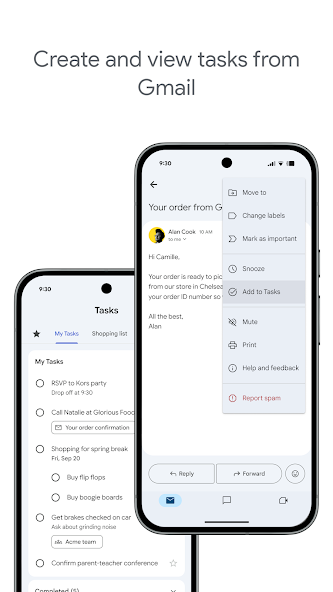
Turn any email into a Google Task with one click. The task links back to the original message.

Keep is available in the Gmail side panel for note-taking, but not for structured task workflows.

Google Tasks
Gmail integration — left column screenshot
Add to Tasks from Gmail.
Google Keep
Gmail integration — right column screenshot
Keep side panel in Gmail.

Winner: Google Tasks

Turn any Gmail message into a linked Google Task in one click — structured task workflows from email.


Loved by thousands of users

4.8 / 5 from 1,000+ reviews on the Chrome Web Store

"Always have 101 things to do and this helps me organize and prioritize like no other app can. It syncs to my phone and laptop, and when I add dates to tasks, they automatically integrate into my Google Calendar, which is immensely convenient. I can look at my daily, weekly, and monthly overview in Google Calendar and clearly see how much I was able to accomplish! Great tool indeed. Excited to see how it will evolve over time."

PR Parina Ramjee avatar
Parina Ramjee

"Seriously, makes my tasks easier to share with the team, and the free version is quite nice for our little office. Eventually, we will expand, and this is definitely a great tool to do that! Syncs with my Workspace and Calendar."

CC Chase Cattrall avatar
Chase Cattrall

"I love the simple, intuitive interface and the Add to Tasks feature, especially as I work through my emails! Sharing my tasks is also easy. Overall, outstanding and simple to use, and that means a lot with too many complex tasks out there!"

GC Greg Cantori avatar
Greg Cantori

"Great too for managing daily routine and plan tasks. Would be perfect if it was updated for generating reports for statistics. For google tasks and google calendar"

NV Nick Vlasov avatar
Nick Vlasov

Frequently asked questions

What is the main difference between Google Tasks and Google Keep?

Google Tasks is a structured to-do list tool with due dates, subtasks, and Google Calendar integration. Google Keep is a freeform note-taking app with support for text, images, voice memos, and color-coded labels. Tasks is for actions; Keep is for capture.

Which is better for work tasks, Google Tasks or Google Keep?

Google Tasks is better for work tasks. It supports deadlines, subtasks, Gmail integration, and syncs with Google Calendar. Keep is better for capturing notes and ideas quickly, but it does not provide the structure needed for managing work reliably.

Can I convert a Google Keep note into a Google Task?

Not directly in the apps. The recommended workflow is to manually create a task in Google Tasks based on the information in your Keep note. Some users copy the Keep note content into the task description or notes field.

Does Google Tasks support reminders like Google Keep?

Google Tasks supports due dates, which trigger reminders in Google Calendar. Google Keep has its own reminder system with location-based reminders. For time-based reminders tied to a calendar, Google Tasks with due dates is the more reliable option.

Can you share tasks in Google Tasks like notes in Google Keep?

Native Google Tasks does not support sharing. Google Keep allows sharing notes with other Google users. However, TasksBoard adds real-time team sharing to Google Tasks, you can share an entire board with teammates and assign tasks.

What does TasksBoard add to Google Tasks that makes it better than Keep?

TasksBoard gives Google Tasks a full-screen Kanban board, team sharing, drag-and-drop task management, and a today view that combines tasks with Google Calendar events. This turns the structured nature of Tasks into a complete productivity system that Keep cannot match.

Is there an app that combines Google Tasks and Google Keep?

No single app merges both natively. The practical workflow most power users follow is: capture in Keep, process into Tasks, then use TasksBoard to manage Tasks with a full-screen Kanban interface and team sharing.


Get started

Make Google Tasks your primary productivity tool

Sign in with Google and get a full-screen Kanban board for your Google Tasks. Free plan includes unlimited tasks, board view, and Calendar sync.

No credit card required. Your Google Tasks data stays in Google.