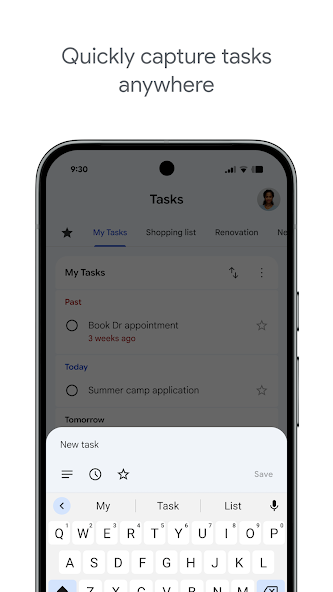

Google Tasks
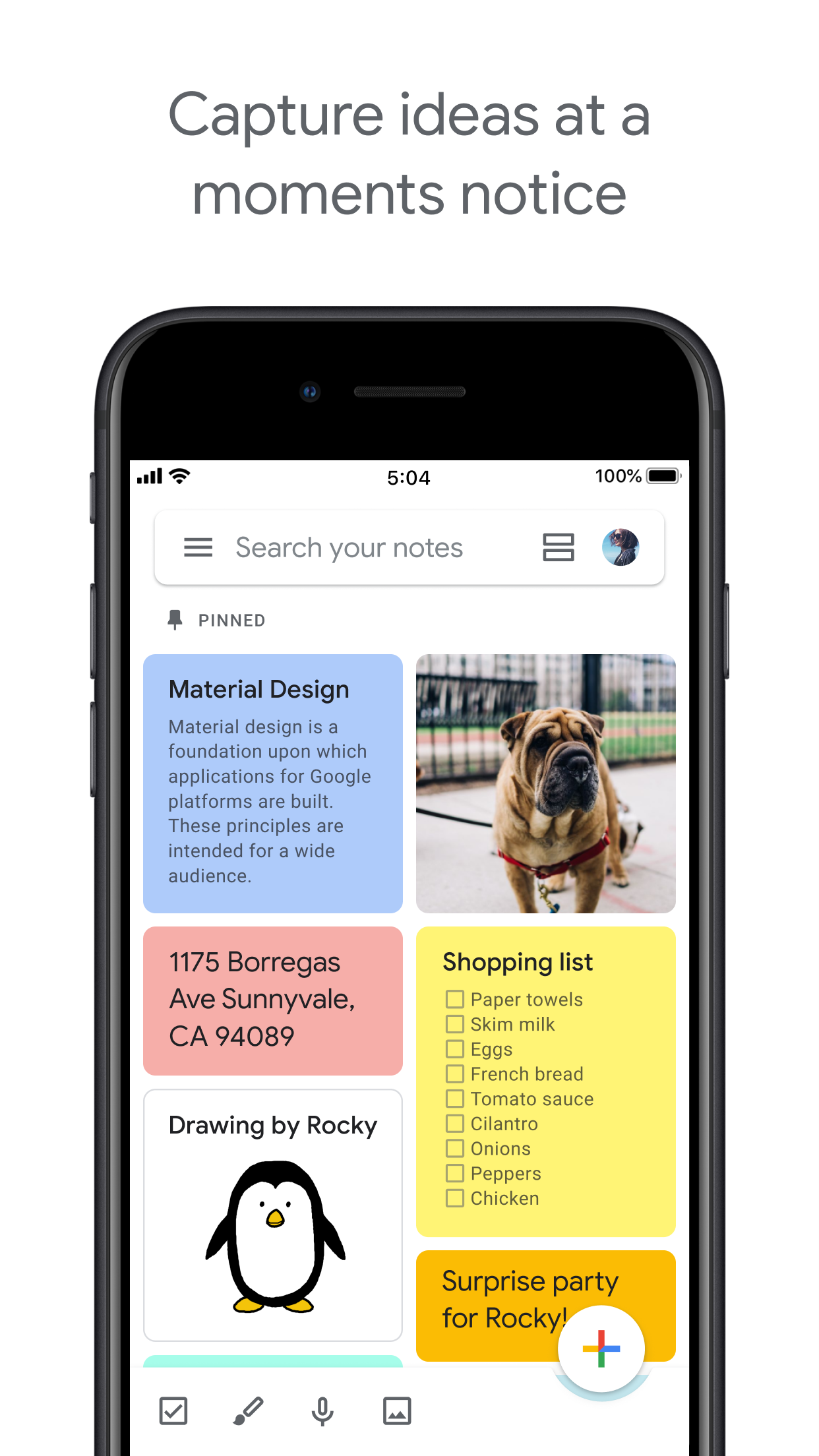
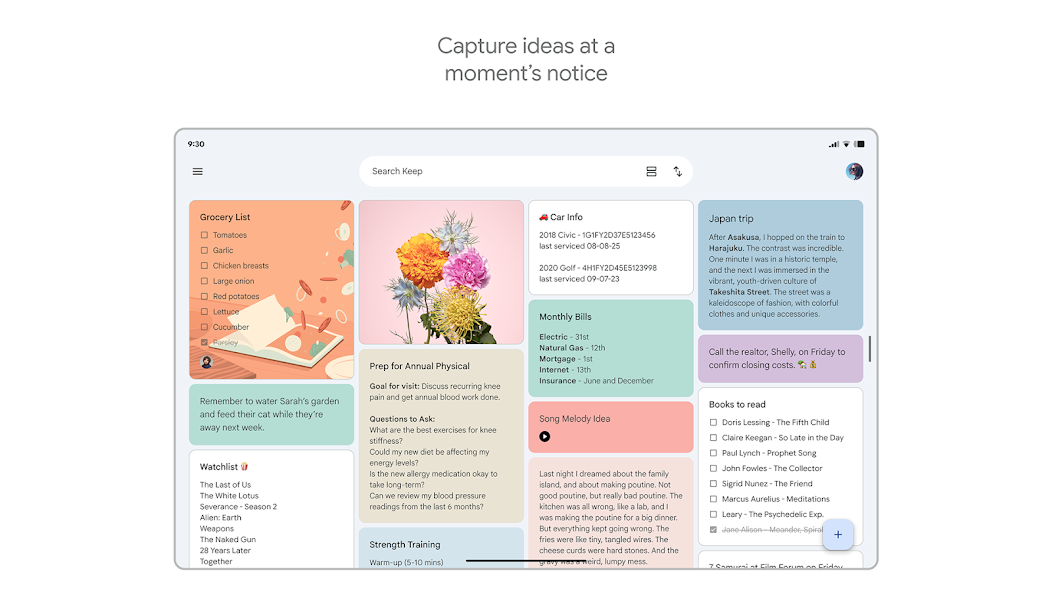
Google Keep

Google Tasks vs Google Keep

Google Tasks vs Google Keep: Wat is het verschil en wat past bij uw workflow?

Beide tools zijn gratis bij uw Google-account, maar ze lossen heel verschillende problemen op. Deze gids legt precies uit wanneer u welke moet gebruiken, en hoe TasksBoard van Google Tasks de duidelijke winnaar maakt voor gestructureerd werk.

Gebruikt door meer dan 2 miljoen mensen. Gratis om te beginnen.


Google Tasks vs Google Keep: Functievergelijking

Feature
Google Tasks
Google Keep
Vervaldatums en herinneringen Due dates and reminders Alleen herinneringen (via Keep-herinneringen)
Subtaken Subtasks
Organiseren per project / lijst Organize by project/list Alleen labels
Google Calendar-integratie Google Calendar integration
Vrije notities Freeform notes
Afbeeldingen vastleggen Image capture
Spraakmemo's Voice memos
Kanban-bordweergave Kanban board view Via TasksBoard
Borden delen met team Team board sharing Via TasksBoard Alleen samenwerkende notities
Gmail-integratie Gmail integration

Feature-by-feature comparison

Google Tasks is for actionable to-dos; Google Keep is for notes and capture. See how each tool handles reminders, lists, and collaboration.

Google Tasks 6 Google Keep 3 It's a tie 1

Due dates and reminders

Winner: Google Tasks

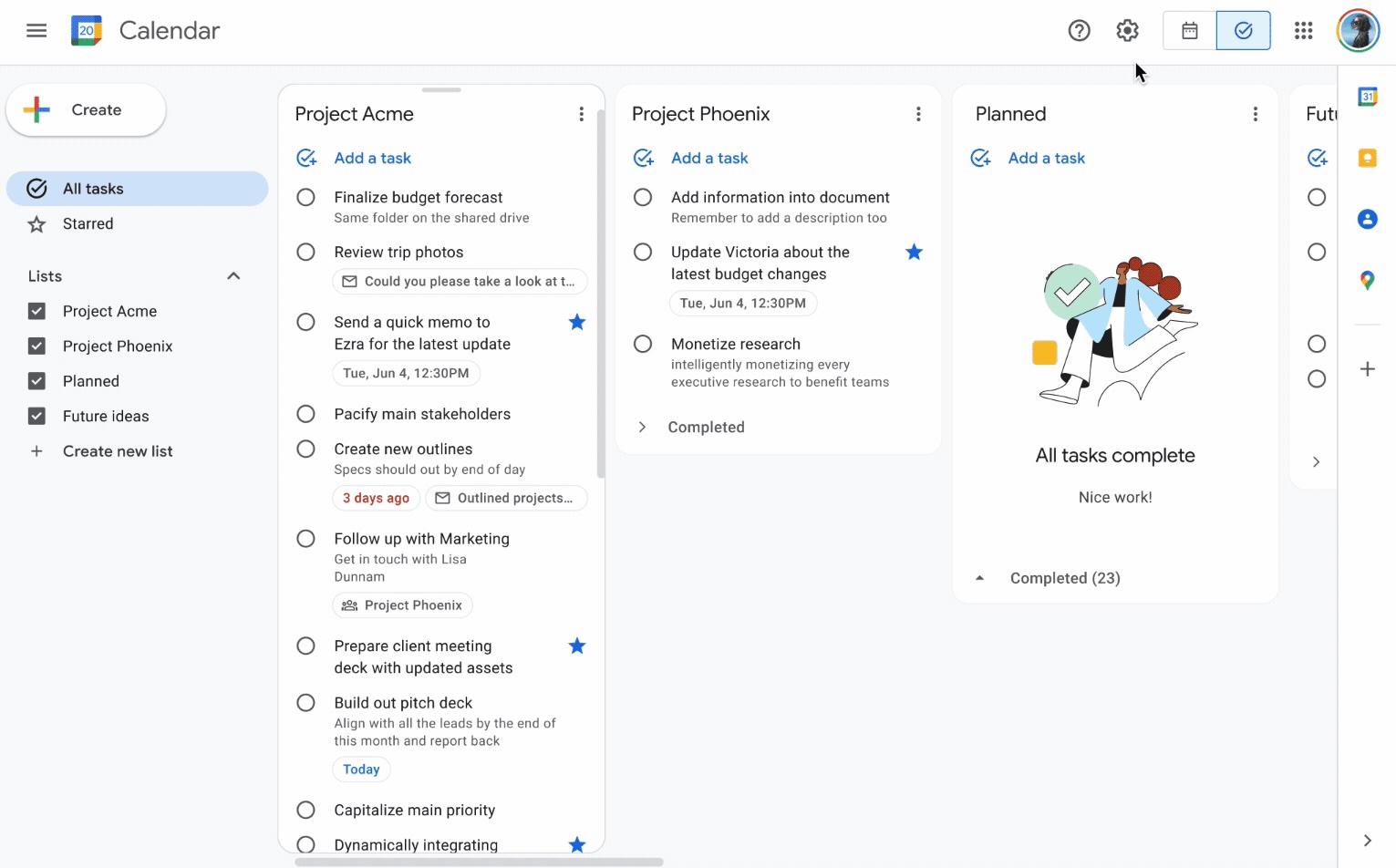
Google Tasks is built around due dates, deadlines, and notifications synced through Google Calendar.

Google Keep supports note reminders; newer flows save reminders in Google Tasks and surface them in Calendar.

Google Tasks Winner
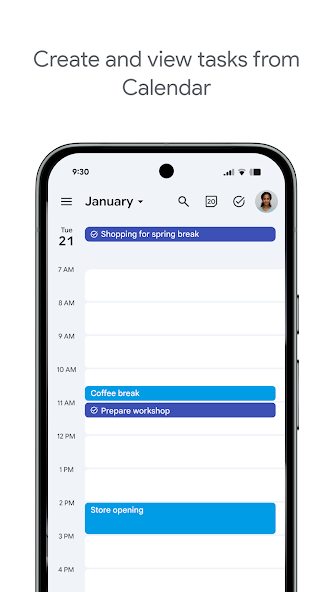
Due dates and reminders — left column screenshot
Task due dates in Calendar.
Google Keep
Due dates and reminders — right column screenshot
Note reminders linked to Tasks.

Winner: Google Tasks

Google Tasks is purpose-built for due dates, deadlines, and Calendar-synced reminders.

Subtasks

Winner: Google Tasks

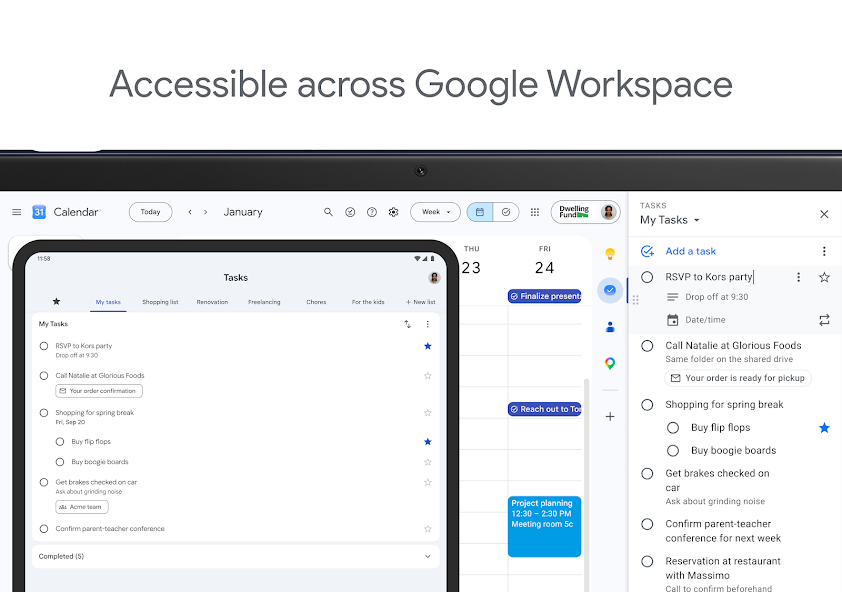
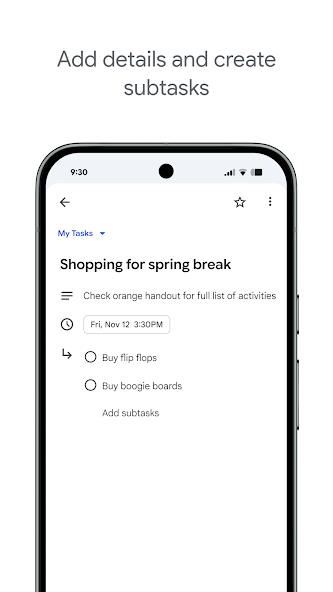
Google Tasks nests true subtasks under a parent task for step-by-step execution.

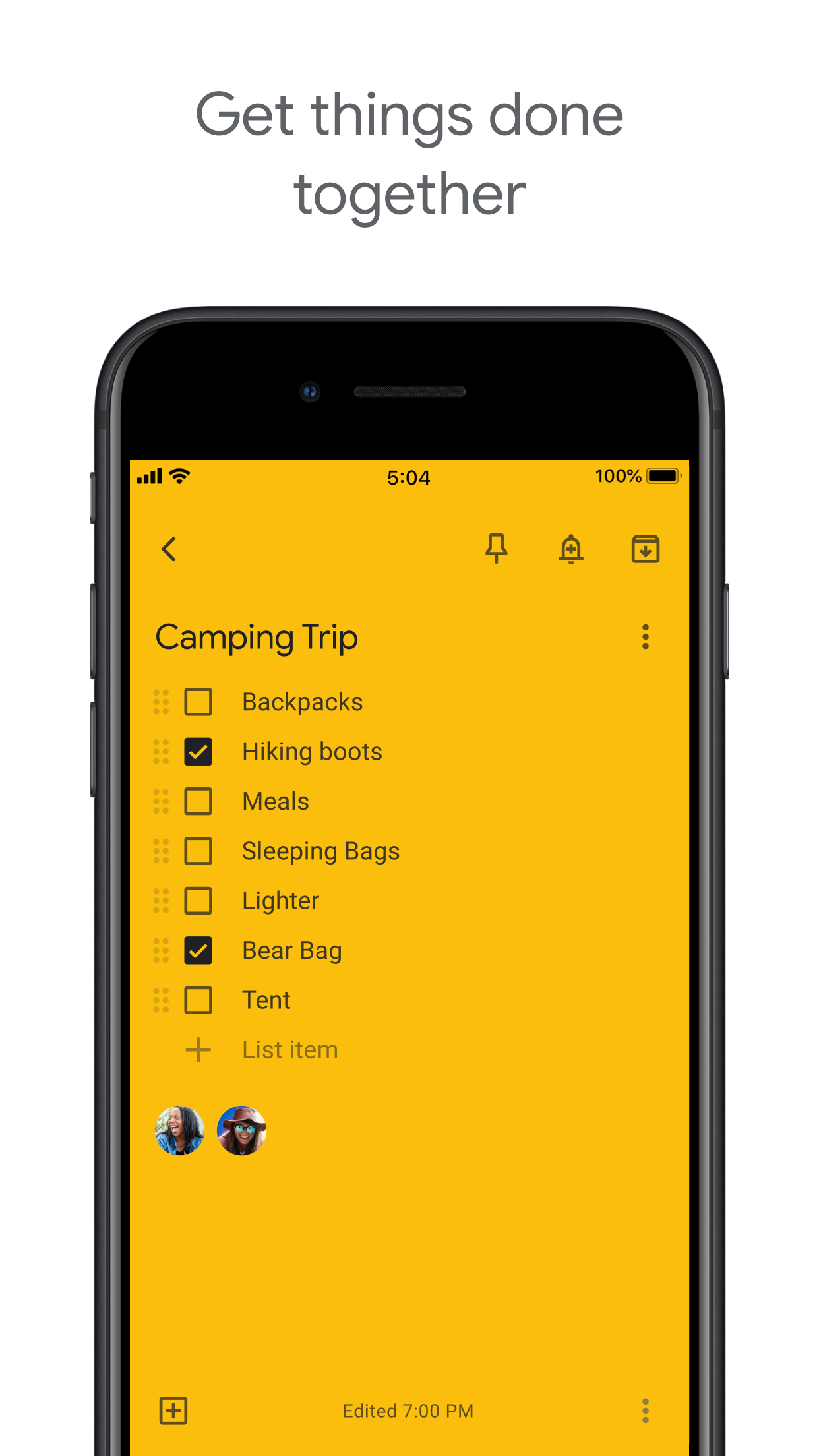
Keep supports checklists inside a note, but not dedicated parent-child task entities.

Google Tasks Winner
Subtasks — left column screenshot
Parent task with subtasks.
Google Keep
Subtasks — right column screenshot
Checklist items in a note.

Winner: Google Tasks

True parent-child subtask entities beat checklist items inside a note for step-by-step execution.


Organize by project or list

Winner: Google Tasks

Google Tasks uses multiple named lists with drag-and-drop reordering and sorting.

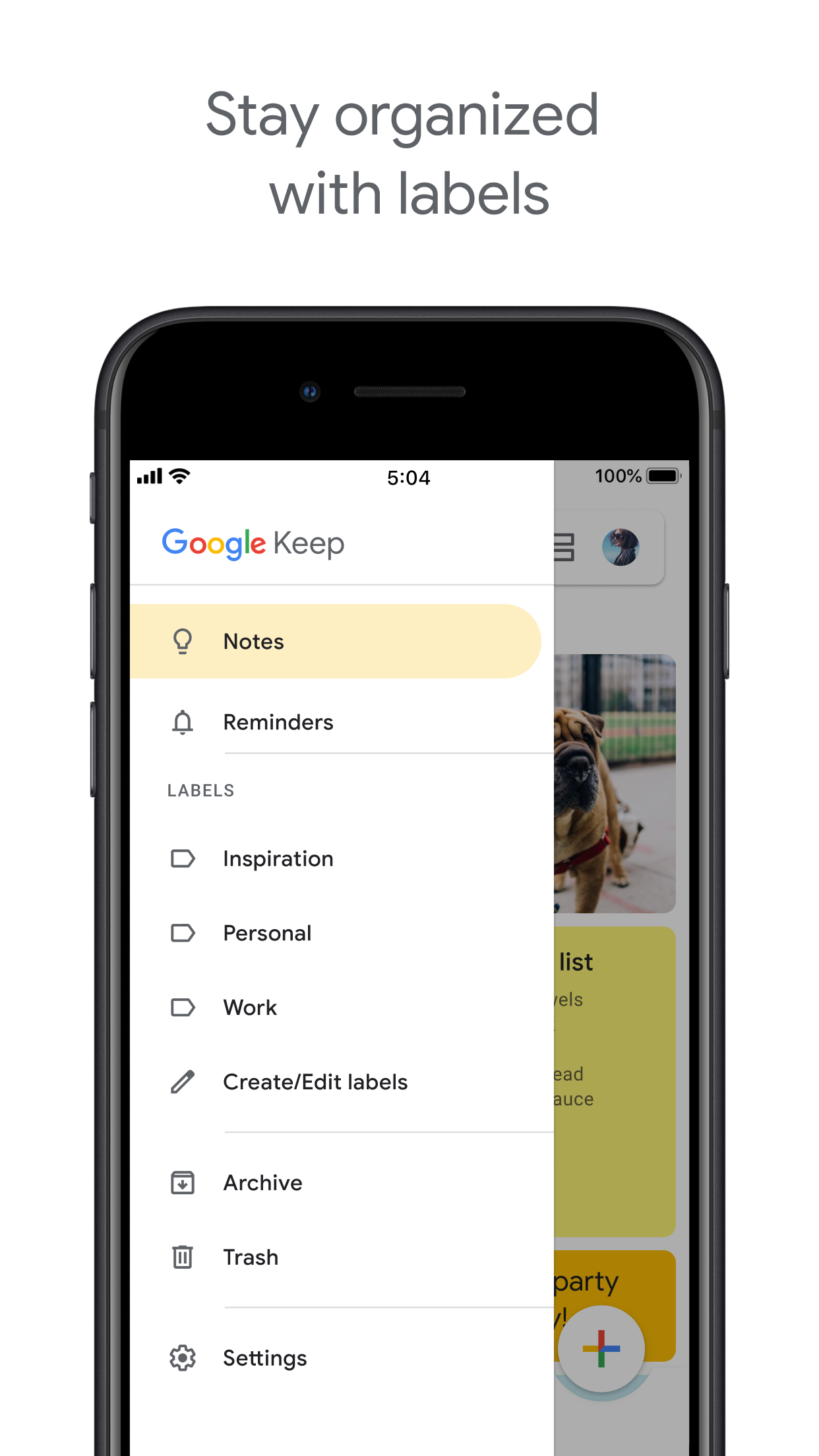
Keep organizes by labels, colors, and pinned notes in a card grid.

Google Tasks Winner
Organize by project or list — left column screenshot
Named task lists.
Google Keep
Organize by project or list — right column screenshot
Labels and pinned notes.

Winner: Google Tasks

Named task lists with drag-and-drop ordering suit project workflows better than a note card grid.


Google Calendar integration

Winner: Google Tasks

Dated tasks appear in Google Calendar natively. Plan events and to-dos together.

Keep reminders can appear in Calendar when saved through the Google Tasks integration.

Google Tasks Winner
Google Calendar integration — left column screenshot
Tasks on your Calendar grid.
Google Keep
Google Calendar integration — right column screenshot
Reminders via Tasks bridge.

Winner: Google Tasks

Dated tasks appear on your Google Calendar grid natively — the core planning integration for to-dos.


Freeform notes

Winner: Google Keep

Google Tasks has lightweight detail fields optimized for completion, not long-form writing.

Keep is purpose-built for freeform notes, brainstorming, and quick capture.

Google Tasks
Freeform notes — left column screenshot
Task detail fields.
Google Keep Winner
Freeform notes — right column screenshot
Freeform note editor.

Winner: Google Keep

Keep is purpose-built for freeform notes, brainstorming, and quick unstructured capture.


Image capture

Winner: Google Keep

Google Tasks does not support image attachments on tasks.

Keep lets you snap photos, attach images from your library, or scan documents directly into a note.

Google Tasks
Image capture — left column screenshot
Text-based tasks only.
Google Keep Winner
Image capture — right column screenshot
Image notes and scans.

Winner: Google Keep

Keep lets you snap photos, attach images, and scan documents — Google Tasks is text-only.


Voice memos

Winner: Google Keep

Google Tasks focuses on typed task entry with optional Assistant on Android.

Keep records audio notes you can play back and transcribe later.

Google Tasks
Voice memos — left column screenshot
Typed task capture.
Google Keep Winner
Voice memos — right column screenshot
Audio note recording.

Winner: Google Keep

Keep records audio notes you can play back; Google Tasks focuses on typed task entry.


Kanban board view

Winner: Google Tasks

Google Tasks is list-based. TasksBoard adds kanban columns for project-stage visibility.

Keep shows notes in a grid or list — no column-based workflow board.

Google Tasks Winner
Kanban board view — left column screenshot
Kanban via TasksBoard.
Google Keep
Kanban board view — right column screenshot
Grid and list note views.

Winner: Google Tasks

TasksBoard adds kanban columns for project-stage visibility; Keep has no workflow board.


Team board sharing

It's a tie

TasksBoard enables shared kanban boards on Google Tasks for cross-platform teams.

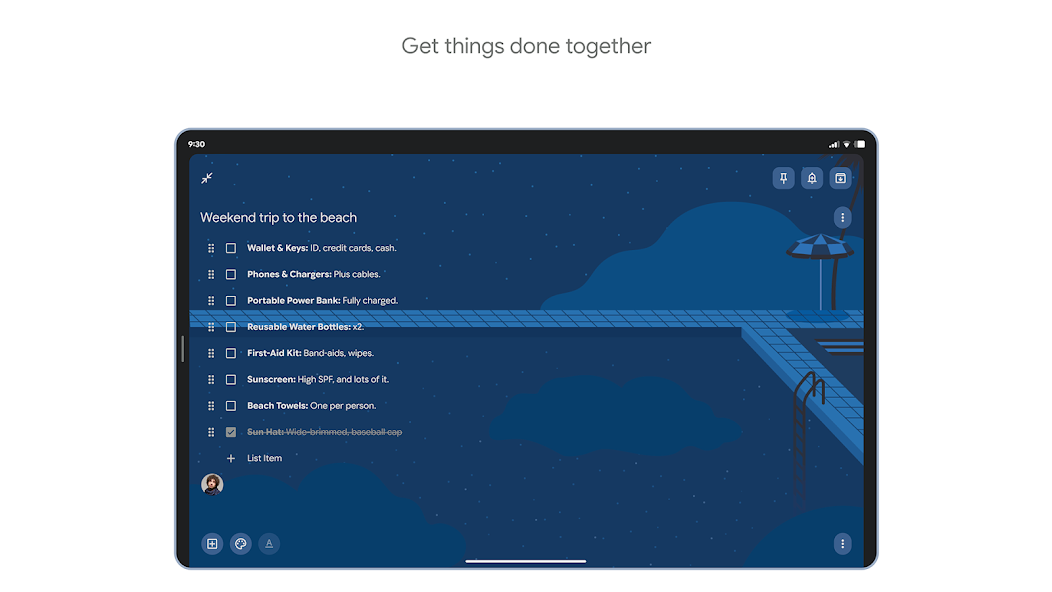
Keep supports real-time collaborative notes and checklists with other Google accounts.

Google Tasks
Team board sharing — left column screenshot
Shared boards via TasksBoard.
Google Keep
Team board sharing — right column screenshot
Collaborative Keep notes.

It's a tie

Both support collaboration — TasksBoard for shared task boards, Keep for real-time collaborative notes. Different jobs.


Gmail integration

Winner: Google Tasks

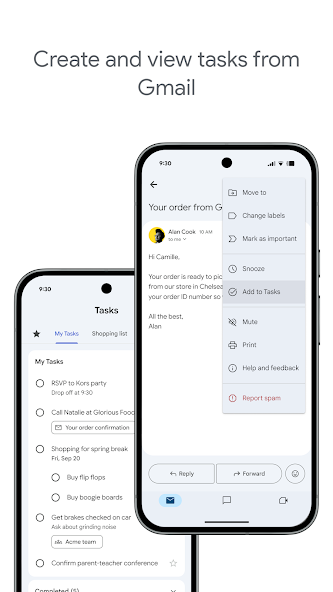
Turn any email into a Google Task with one click. The task links back to the original message.

Keep is available in the Gmail side panel for note-taking, but not for structured task workflows.

Google Tasks Winner
Gmail integration — left column screenshot
Add to Tasks from Gmail.
Google Keep
Gmail integration — right column screenshot
Keep side panel in Gmail.

Winner: Google Tasks

Turn any Gmail message into a linked Google Task in one click — structured task workflows from email.


Geliefd bij duizenden gebruikers

4.8 / 5 uit 1.000+ beoordelingen in de Chrome Web Store

"Always have 101 things to do and this helps me organize and prioritize like no other app can. It syncs to my phone and laptop, and when I add dates to tasks, they automatically integrate into my Google Calendar, which is immensely convenient. I can look at my daily, weekly, and monthly overview in Google Calendar and clearly see how much I was able to accomplish! Great tool indeed. Excited to see how it will evolve over time."

PR Parina Ramjee avatar
Parina Ramjee

"Seriously, makes my tasks easier to share with the team, and the free version is quite nice for our little office. Eventually, we will expand, and this is definitely a great tool to do that! Syncs with my Workspace and Calendar."

CC Chase Cattrall avatar
Chase Cattrall

"I love the simple, intuitive interface and the Add to Tasks feature, especially as I work through my emails! Sharing my tasks is also easy. Overall, outstanding and simple to use, and that means a lot with too many complex tasks out there!"

GC Greg Cantori avatar
Greg Cantori

"Great too for managing daily routine and plan tasks. Would be perfect if it was updated for generating reports for statistics. For google tasks and google calendar"

NV Nick Vlasov avatar
Nick Vlasov

Veelgestelde vragen

Wat is het belangrijkste verschil tussen Google Tasks en Google Keep?

Google Tasks is een gestructureerde to-do lijsttool met vervaldatums, subtaken en Google Calendar-integratie. Google Keep is een app voor vrije notities met ondersteuning voor tekst, afbeeldingen, spraakmemo's en kleurgecodeerde labels. Tasks is voor acties; Keep is voor vastlegging.

Wat is beter voor werktaken, Google Tasks of Google Keep?

Google Tasks is beter voor werktaken. Het ondersteunt deadlines, subtaken, Gmail-integratie en synchroniseert met Google Calendar. Keep is beter voor het snel vastleggen van notities en ideeën, maar biedt niet de structuur die nodig is voor betrouwbaar werkbeheer.

Kan ik een Google Keep-notitie converteren naar een Google Task?

Niet direct in de apps. De aanbevolen workflow is om handmatig een taak aan te maken in Google Tasks op basis van de informatie in uw Keep-notitie. Sommige gebruikers kopiëren de inhoud van de Keep-notitie naar het taakbeschrijvings- of notitieveld.

Ondersteunt Google Tasks herinneringen zoals Google Keep?

Google Tasks ondersteunt vervaldatums, die herinneringen activeren in Google Calendar. Google Keep heeft zijn eigen herinneringssysteem met locatiegebaseerde herinneringen. Voor tijdgebaseerde herinneringen gekoppeld aan een agenda is Google Tasks met vervaldatums de betrouwbaardere optie.

Kun je taken delen in Google Tasks zoals notities in Google Keep?

Standaard Google Tasks ondersteunt geen delen. Google Keep staat toe notities te delen met andere Google-gebruikers. TasksBoard voegt echter real-time teamdeling toe aan Google Tasks, u kunt een volledig bord delen met teamgenoten en taken toewijzen.

Wat voegt TasksBoard toe aan Google Tasks waardoor het beter is dan Keep?

TasksBoard geeft Google Tasks een full-screen Kanban-bord, teamdeling, drag-and-drop taakbeheer en een vandaag-weergave die taken combineert met Google Calendar-afspraken. Dit verandert de gestructureerde aard van Tasks in een compleet productiviteitssysteem waar Keep niet aan kan tippen.

Is er een app die Google Tasks en Google Keep combineert?

Geen enkele app voegt beide standaard samen. De praktische workflow die de meeste power-users volgen is: vastleggen in Keep, verwerken naar Tasks, en vervolgens TasksBoard gebruiken om Tasks te beheren met een full-screen Kanban-interface en teamdeling.


Ga aan de slag

Maak van Google Tasks uw primaire productiviteitstool

Meld u aan met Google en krijg een full-screen Kanban-bord voor uw Google Tasks. Het gratis abonnement bevat onbeperkte taken, bordweergave en Calendar-synchronisatie.

Geen creditcard vereist. Uw Google Tasks-gegevens blijven in Google.