Google Tasks for Project Management: A Complete 2026 Guide

Google Tasks comes free with every Google account. It lives inside Gmail, Google Calendar, and Google Drive. Millions of people already have it. So a natural question follows: can you actually use Google Tasks for project management?
The short answer is yes, with the right setup. Google Tasks gives you the building blocks. A good workflow and the right companion tool fill the gaps. This guide covers both.
What Google Tasks Can Do for Projects
Google Tasks handles the basics well. You get:
- Task lists for organizing work by project or phase
- Due dates that sync with Google Calendar automatically
- Subtasks for breaking big deliverables into steps
- Star/favorites for flagging high-priority items
- Cross-app access from Gmail, Calendar, and any browser
For solo projects or small, low-complexity work, that is often enough. You create a list for each project, add the tasks, set due dates, and use subtasks to track the details.
Create one task list per project. Use subtasks to represent individual work items inside each milestone. Star tasks that are blocking other work. Set due dates to keep them visible in your Google Calendar view. This structure maps directly onto a simple project plan with minimal setup time.
Where Google Tasks Falls Short
Google Tasks was built for personal to-do lists. Project management adds complexity that runs into its limits quickly.
The biggest gaps:
- No shared task lists. You cannot invite a teammate to a Google Tasks list. Each person has their own private task space.
- No task assignments. There is no way to assign a task to another person within Google Tasks.
- No status columns. Tasks are either complete or not. There is no “In Progress”, “In Review”, or any custom status.
- No priority levels. The star feature is binary. You cannot rank tasks by priority (P1, P2, P3).
- No visual boards. There is no kanban or board view. You see one flat list, nothing more.
- No file attachments. You cannot attach a doc, image, or link directly to a task.
For managing projects with a team, those limits matter. A project manager needs to see who owns what, what is in flight, and what is blocked. Google Tasks alone cannot show you that.
How to Set Up Google Tasks for Project Management
Even with its limits, Google Tasks can power a solid personal or small-team project system when you structure it deliberately.
Step 1: Create one list per project
In Google Tasks, go to the sidebar and click the ”+” button next to My Tasks. Name each list after a project. Keep projects separate. Do not mix work from two projects in one list.
Step 2: Use subtasks to break down deliverables
Add top-level tasks for milestones or major deliverables. Under each milestone, add subtasks for the specific work items. For example:
- Website Redesign (milestone)
- Write homepage copy
- Create wireframes
- Review with stakeholder
- Publish to staging
Step 3: Set due dates on every task
Tasks without dates become invisible. Set a due date even if approximate. This keeps tasks in your Google Calendar view and surfaces what is coming up next.
Step 4: Use the star to mark blockers
Star any task that is blocking other work or that you must complete today. Check your starred tasks each morning as a quick daily review.
Step 5: Archive completed lists
When a project finishes, keep its list for reference but stop using it for active planning. Create a new list when the next project starts.
This setup works for a single person managing a handful of projects. The moment a team is involved, you need more.
 Try TasksBoard
TasksBoard turns your Google Tasks into a shared kanban board. Invite teammates, assign tasks, and track project status without leaving the Google ecosystem.
Get Started →Managing Projects with TasksBoard
TasksBoard is built directly on top of Google Tasks. It reads and writes the same data, so your tasks stay in sync with Gmail and Google Calendar. What it adds is the layer that makes project management work with a team.
Kanban boards for visual tracking
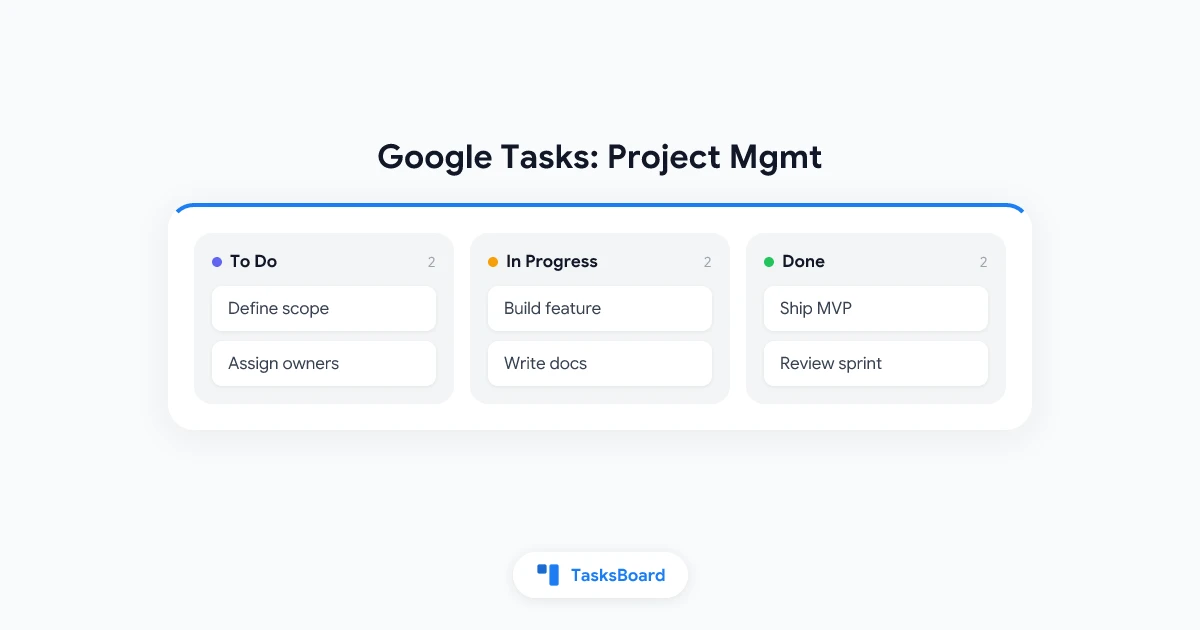
TasksBoard gives every Google Tasks list a kanban view. You see your project as columns: To Do, In Progress, In Review, Done. Drag a card between columns to update its status. This single change transforms how a team tracks work in progress.
For project management, set up your columns to match your workflow stages. A software team might use: Backlog, Sprint, In Progress, Review, Done. A marketing team might prefer: Ideas, Drafting, Approval, Published.
Shared boards and real-time collaboration
With TasksBoard, you can invite teammates to a board. Everyone sees the same tasks, in the same columns, updated in real time. When someone moves a card or adds a subtask, the rest of the team sees it immediately.
This solves the biggest Google Tasks limitation for teams. You no longer need to maintain separate task lists per person and manually reconcile them in a meeting. The board is the single source of truth.
Task assignment
In TasksBoard, you can assign any task to a specific team member. Their name appears on the card. At a glance, you can see who owns what across the entire project board.
This replaces the common workaround of putting names in task titles (like “[Alex] Write copy”) with a proper assignment system.
Color labels for priority and type
TasksBoard adds color labels to tasks. Use them to mark task type (Bug, Feature, Content) or priority (Urgent, Normal, Low). Color-coded cards make the board scannable. You can see at a glance which tasks are urgent without reading every card.
Project Management Workflows with Google Tasks and TasksBoard
Using Google Tasks for project management works best when you pair it with a consistent workflow. Here are two patterns that work well.
The milestone-based workflow
Good for fixed-scope projects with clear phases (website launch, event planning, product release):
- Create a task list named after the project
- Add top-level tasks for each milestone (Research, Design, Build, Review, Launch)
- Add subtasks under each milestone for the individual work items
- Set due dates on milestones and critical subtasks
- In TasksBoard, create columns that match your milestones
- Move cards across columns as work progresses
The sprint workflow
Good for ongoing product or software work:
- Create a task list called “Sprint Backlog”
- Add all upcoming work items as tasks with estimated effort noted in the description
- At the start of each sprint, star the tasks committed to this sprint
- In TasksBoard, track progress across In Progress, Review, and Done columns
- At sprint end, review the board and move remaining cards to the next sprint
For a deeper look at sprint planning, see our sprint planning guide.
Tips for Teams Using Google Tasks for Projects
A few practices make project management smoother when you are working in Google Tasks with TasksBoard:
Agree on a naming convention before you start. If tasks are named inconsistently (“write the blog” vs “Blog post: Draft 1”), the board becomes hard to read. Pick a format and stick with it.
Keep tasks small enough to move in a day or two. If a task sits in “In Progress” for a week, it is probably too large. Break it into subtasks. Smaller tasks make the board look alive and give the team a sense of progress.
Review the board at the start of each week. A 10-minute team check-in on the board state prevents surprises. Who is blocked? What moved to Done? What needs to be started?
Use subtasks for context, not for separate work streams. Subtasks belong under a parent task when they are steps in the same deliverable. If they are genuinely separate pieces of work, make them top-level tasks instead.
Link related Google Docs in task descriptions. Google Tasks supports text in the task notes field. Paste a link to the relevant doc, sheet, or slide so the team can find supporting materials from the board.
For broader project tracking strategies, the product backlog guide covers how to maintain an organized project backlog over time.
Try TasksBoard
Run your projects right from Google Tasks. TasksBoard adds the shared board, assignments, and visual tracking your team needs without switching tools.
Get Started →Google Tasks vs Dedicated Project Management Tools
If you are already in Google Workspace, Google Tasks plus TasksBoard competes well with standalone project management tools.
Where Google Tasks wins:
- Already included in Google Workspace at no extra cost
- Native integration with Gmail, Calendar, and Drive
- Zero onboarding time for teams already using Google
- Simple enough for non-technical users to adopt immediately
Where dedicated tools go further:
- Gantt charts and timeline views for complex project dependencies
- Advanced reporting and time tracking
- Custom fields and complex automation rules
- Portfolio-level management across many projects
For small to medium teams running standard projects, Google Tasks plus TasksBoard covers the most important bases. For enterprise-scale programs with many dependencies and reporting requirements, a tool like Asana or Jira may be justified.
If you are considering Asana, our Asana vs ClickUp comparison breaks down where each tool has an edge.
FAQ
Conclusion
Google Tasks for project management works best when you treat it as the data layer and use TasksBoard as the interface your team actually works in. Google Tasks keeps everything in sync with Gmail and Calendar. TasksBoard adds the shared kanban board, task assignments, status columns, and real-time updates that turn a to-do list into a project tool.
For teams already in Google Workspace, this combination covers most project management needs without extra cost or tool-switching friction. Set up your project lists, add your tasks and subtasks, connect TasksBoard, and invite your team.
Get started with TasksBoard and turn your Google Tasks into a full project management board today.
Ready to share your Google Tasks?
Get started with TasksBoard for free, no credit card required.
Sign in