
Time Blocking: How to Use It with Google Tasks for Better Focus

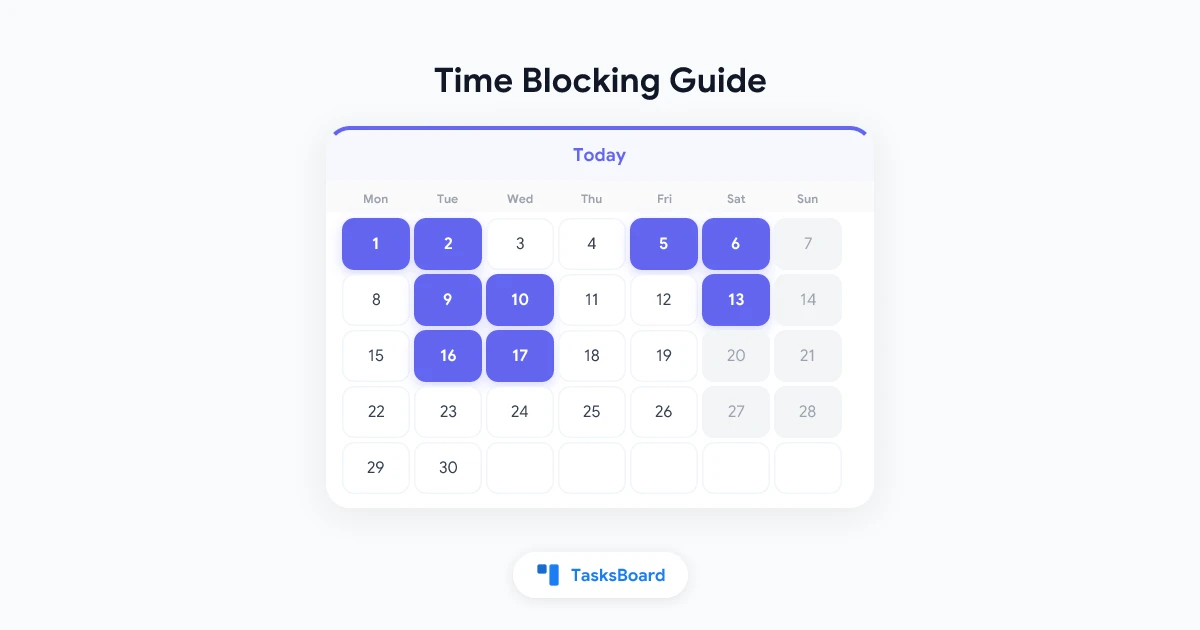
Most productivity problems are not about having the wrong task list. They are about not protecting time to work on the list. Time blocking is the practice of reserving specific calendar slots for specific work, so that your tasks have a guaranteed place in your day instead of competing for whatever time is left over.
Combined with Google Tasks and Google Calendar, time blocking becomes a closed-loop system: you plan tasks in a list, block time to do them, and review what happened at the end of the day.
Key takeaways:
- Time blocking reserves capacity: instead of reacting to whatever arrives, you assign each task to a calendar slot before the day starts.
- Google Calendar is the natural home for blocks: tasks from Google Tasks can appear as event reminders, giving you a single view of tasks and schedule.
- Deep work blocks need protection: meetings, notifications, and context-switching erode focused time unless you treat blocks as firm commitments.
- TasksBoard bridges list and board: viewing your task list as a kanban board alongside your calendar makes it easier to spot overcommitment before it becomes a problem.
What time blocking actually is
Time blocking is not just scheduling. It is a deliberate approach to time design where you assign every unit of productive time to a category of work before the day starts.
There are three common variants:
Task batching: Group similar tasks together in one block. All email replies from 9:00 to 9:30, all code review from 10:00 to 11:00. Reduces context switching.
Day theming: Assign themes to entire days or half-days. Monday is planning, Tuesday and Wednesday are deep work, Thursday is meetings, Friday is review. Useful for knowledge workers with varied responsibilities.
Time boxing: Assign a fixed, non-negotiable duration to each task. The task ends when the box ends, whether or not it is complete. This forces scope decisions that open-ended work avoids.
Most people benefit from a hybrid of all three depending on the day’s demands.
Why Google Tasks alone is not enough
A Google Tasks list tells you what to do. It does not tell you when.
Without time blocks, a 20-item task list creates an invisible pressure: you feel the weight of everything on the list all day, and your brain constantly recalculates priority instead of working. Research on attention and task management consistently shows that having a list without a schedule leads to more anxiety and less actual output than having a scheduled plan, even an imperfect one.
The second problem with list-only management is that external demands fill unprotected time. A colleague books a meeting. A Slack thread pulls you in for 45 minutes. By noon, the focused block you intended for your most important task has been consumed, and it never had a name on the calendar to defend it.
Time blocking gives your tasks a name on the calendar. That name is their reservation.
How to set up time blocking with Google Tasks and Google Calendar
Step 1: Review your task list each morning
Open your Google Tasks list and identify the three to five tasks that must move forward today. Do not try to schedule everything. Identify what matters and what has a due date constraint.
For teams using TasksBoard, this morning review is easier on the board view: you can see what is in “This Week,” what is overdue, and what has been sitting in “In Progress” too long.
Step 2: Estimate time for each priority task
Every task needs a rough time estimate before you can block for it. Be realistic rather than optimistic.
Common estimation errors:
- Forgetting transition time between tasks (5 to 10 minutes per switch)
- Underestimating tasks you are doing for the first time
- Not accounting for interruptions in open-plan environments
A simple rule: if you think a task will take an hour, block 90 minutes.
Step 3: Open Google Calendar and add time blocks as events
In Google Calendar, create a new event for each priority task. Give the event the same name as the task. Set the duration to your estimate. Use the description field to paste the task details from Google Tasks.
Practical tips for event creation:
- Use a distinct color for focus blocks so they visually separate from meetings on the calendar.
- Add “Focus: ” as a prefix to focus block names so they are easy to scan (“Focus: Write quarterly report”).
- Set an alert five minutes before the block starts so you have time to close distractions before the session begins.
If you want tasks from Google Tasks to appear directly in Calendar, enable the Google Tasks calendar in the left sidebar of calendar.google.com. Tasks with due dates show up at the top of their due date.
- Review Google Tasks list and pick 3 to 5 priorities
- Estimate time for each, add 30% buffer
- Create calendar events for each priority with color coding
- Mark focus blocks as "Busy" to block meeting requests
- Add a 15-minute review block at end of day
Step 4: Protect the blocks
A time block on your calendar is only useful if it holds. Mark focus blocks as “Busy” in Google Calendar settings so that colleagues with meeting-scheduling access cannot book over them.
Turn off notifications for communication channels during a focus block. Most task environments that require deep work benefit from at least 45 uninterrupted minutes, which means notifications off for the full block duration.
Step 5: End-of-day review
At the end of each day, spend 10 to 15 minutes reviewing what happened.
- Which blocks held, and which were lost to interruptions?
- Which tasks were completed, and which need to carry forward?
- What is tomorrow’s priority list?
This review closes the loop between task list and schedule. It takes the lessons from today and applies them to tomorrow’s blocks before tomorrow starts.
Using TasksBoard for time blocking visibility
One challenge with time blocking is keeping the task list and the schedule in sync. You might block time to work on “User research interviews” but forget that the task was actually split into four subtasks with different owners.
TasksBoard solves part of this by showing your Google Tasks in a kanban board view. You can see which tasks are ready to schedule, which are blocked, and which have been sitting without progress. That board view gives context that a flat list misses.
A common workflow:
- Use TasksBoard to manage the full task list across projects and team members.
- Move tasks to a “This Week” column as you plan the week.
- Use Google Calendar to block specific times for the tasks in “This Week.”
- At end of week, review the board to see what moved to “Done” vs what is still in progress.
This pattern keeps the planning at the task level (TasksBoard) and the scheduling at the time level (Calendar), without duplicating data across two systems.
For more on managing tasks as a team, see our guide on team task lists and shared Google Tasks.
Common time blocking mistakes and how to fix them
Mistake: Blocking too much in a day. A day with eight hours of scheduled focus blocks is not realistic. Meetings, emails, and unexpected requests consume roughly 30 to 40 percent of a typical workday. Block for three to five hours of focused work at most, and leave the rest as unstructured buffer.
Mistake: Making blocks too short. A 15-minute block for a task that requires sustained thinking is a context switch more than a work session. For deep work, blocks under 45 minutes rarely produce meaningful output. Design your schedule around 90-minute anchor blocks when possible.
Mistake: Not rescheduling disrupted blocks. If a meeting runs over and eats into your focus block, the instinct is to abandon the block for the day. Instead, move it. Find a 60-minute window later and reschedule the block. The task still needs to happen.
Mistake: Treating every task as deep work. Not all tasks need protected focus time. Email, quick replies, and admin tasks can be batched into a 30-minute processing block without the overhead of deep-work setup. Reserve your best focus time for the tasks only you can do and that require full attention.
Time blocking for remote teams
Remote teams face a specific version of the time blocking challenge: without shared office hours, team members may have very different ideas about when focused work happens versus when collaboration is expected.
A few practices that help:
Share your focus blocks. In shared Google Calendars, mark your focus blocks so teammates can see when you are unavailable for synchronous requests. This builds async habits without requiring a policy document.
Create a team “no-meeting” window. Agree on a two-hour window each day where no one books meetings. Everyone uses that time for focused work according to their own blocks.
Use task assignments to reduce interruptions. If tasks are clearly assigned in a shared system like TasksBoard, teammates know who owns what without needing to ask. Fewer “quick questions” means fewer interruptions to blocked focus time.
See our guide on remote team management tools for more patterns that support async collaboration.
FAQ
Conclusion
Time blocking shifts the question from “what should I work on?” to “when exactly will I work on this?” That shift is what turns a task list into a daily plan.
Using Google Tasks for the list and Google Calendar for the schedule creates a complete system. The list captures everything. The calendar makes space for the most important items. The end-of-day review learns from what actually happened.
TasksBoard adds the team layer: a shared kanban board where everyone can see what is ready, in progress, and done, making it easier to synchronize individual time blocks with collective goals.
Start with one week of deliberate time blocking. Pick three priority tasks each morning, estimate their time, and put them on the calendar before the day begins. The results of that one-week experiment will tell you more about whether this system works for you than any productivity framework description can.
For more on building a productive Google-based workflow, see our work planner guide and the Google Calendar widget guide.
Ready to share your Google Tasks?
Get started with TasksBoard for free, no credit card required.
Sign in