Team Task List: How to Share Google Tasks with Your Team

A team task list sounds simple: a shared list of what needs to get done. But in practice, most teams struggle to maintain one that is actually accurate, up to date, and used consistently by everyone.
The gap between “we have a shared task list” and “our team task list drives how we work” is where most productivity efforts fall apart. This guide covers how to close that gap: what a team task list needs to accomplish, how to set one up properly, and which tools (including Google Tasks with TasksBoard) make it easiest to maintain.
What Is a Team Task List?
A team task list is a shared collection of tasks that a group of people are collectively responsible for completing. Unlike an individual to-do list, it needs to handle:
- Multiple owners: tasks assigned to specific people
- Shared visibility: everyone can see what is assigned, in progress, and done
- Status tracking: the current state of each task is clear at a glance
- Real-time updates: changes made by one person are visible to others immediately
Without these properties, a “shared” task list is really just a list that multiple people have access to read, which is not the same as a functioning team coordination tool.
Why Teams Need a Dedicated Task List
Email threads, Slack messages, and verbal agreements all fail as task management systems for the same reason: there is no reliable way to see what is pending, who owns it, and when it is due.
A dedicated team task list solves this by creating a single source of truth for work. When a task exists on the list with an owner and a deadline, it is harder to forget or deprioritize. When it is completed, the team can see it. When it is blocked, that surfaces too.
The result is fewer “did that ever get done?” conversations, less work falling through the cracks, and clearer accountability without micromanagement.
Setting Up an Effective Team Task List
Define the Scope
A team task list works best when it covers a clearly defined area of work. If the list contains every task from every project for every team member, it becomes unwieldy and no one trusts it.
Start with one area: a specific project, a recurring workstream (weekly client reports, content publishing, product releases), or a single team’s core responsibilities. A focused list is more useful than a comprehensive one.
Assign Clear Owners
Every task should have exactly one owner: the person responsible for ensuring it gets done. Not “the team,” not “everyone,” but one person. If a task has multiple people working on it, one person still owns the outcome.
Without clear ownership, tasks tend to drift. Everyone assumes someone else is handling it.
Include Due Dates
Tasks without due dates are wishes, not commitments. Every task on a team task list should have a deadline. If no deadline exists, create one. Even an approximate target date makes the task more actionable than having none.
Use Status Columns
Move beyond binary done/not-done tracking. The most useful status systems have at least three states:
- To Do: task exists and is planned but not started
- In Progress: someone is actively working on it
- Done: completed
Adding a Blocked state is valuable for teams where dependencies are common. A blocked task is one that cannot progress until something else happens, and making that visible prevents it from silently stalling.
Sharing Google Tasks with Your Team
Google Tasks is built for individuals by default and does not have native sharing features. TasksBoard bridges this gap.
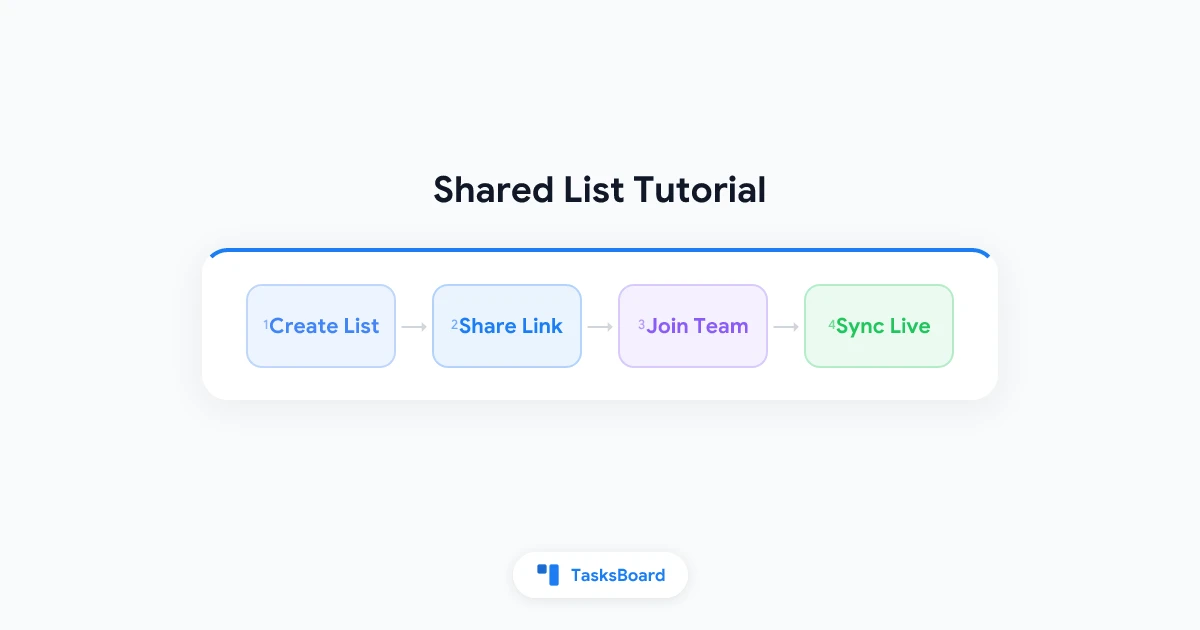
TasksBoard adds team sharing to Google Tasks, letting you share task lists with colleagues who also have Google accounts. Here is the basic setup:
- Create a Google Tasks list for the work area you want to share (e.g., “Q2 Marketing Tasks”).
- Open TasksBoard and connect your Google account.
- Share the list with team members using their Google accounts.
- Everyone sees the same board: tasks appear as cards on a kanban board with columns for each status.
- Assign tasks by adding the assignee’s name to the task description or using labels.
The result is a shared visual board built on top of Google Tasks infrastructure. It is familiar, integrated with Google Calendar, and free at the basic tier.
Team Task List vs. Project Management Software
It is worth distinguishing a team task list from a full project management platform. The question is which one your team actually needs.
| Feature | Team Task List | Project Management Software |
|---|---|---|
| Shared tasks with owners | Yes | Yes |
| Status tracking | Basic | Advanced |
| Dependencies | No | Yes |
| Gantt charts / timelines | No | Yes |
| Reporting & analytics | No | Yes |
| Setup complexity | Low | High |
| Cost | Free or low | Medium to high |
For most small teams managing ongoing work (not complex multi-phase projects), a team task list is sufficient. Full project management software is warranted when you have dependencies between tasks, milestones, and the need for reporting.
Best Tools for Team Task Lists
| Tool | Best For | Sharing | Price |
|---|---|---|---|
| TasksBoard | Google Workspace teams | Google Tasks sharing, kanban view | Free / Premium |
| Todoist | Cross-platform teams | Project sharing, comments | Free / $4/mo |
| Asana | Small to mid teams | Team workspaces, subtasks | Free / $10.99/mo |
| Trello | Visual teams | Board sharing, cards | Free / $5/mo |
| Notion | Teams needing docs + tasks | Database views, collaboration | Free / $8/mo |
| Google Tasks + TasksBoard | Google Workspace users | Native Google sharing | Free |
The best choice depends on your team’s existing tool stack. If you use Google Workspace, starting with TasksBoard has the lowest friction because it builds on tools you already use rather than introducing new systems.
Related reading: Best Remote Collaboration Tools in 2026 and Remote Team Management Guide
Making a Team Task List Stick
The most common failure mode for shared task lists is that they fall out of use within a few weeks. People stop updating them, tasks accumulate, and the list loses its authority as a source of truth.
Create a Weekly Review Ritual
Designate a specific time each week (Monday morning is common) for the team to review the task list together. Remove completed tasks, add new ones, identify blockers, and reassign anything that has been sitting untouched.
This review does not need to take long. Ten to fifteen minutes is usually sufficient to keep the list accurate.
Make It the Default Reference
When someone asks “what are we working on this week?” the answer should always be: “check the task list.” When a new task comes in, the first step should be: “add it to the list.” The more consistently the list is used as the default reference, the more valuable it becomes.
Keep It Minimal
A task list with fifty items is harder to trust than one with fifteen. Be ruthless about removing tasks that are no longer relevant, deprioritized, or already handled informally. A smaller, accurate list beats a comprehensive but stale one.
Tie It to Meetings
Use the team task list as the agenda for your weekly team meeting. Walk through in-progress items, review blockers, confirm upcoming priorities. This reinforces the list as the operational center of how your team works.
Family and Household Task Lists
Everything above applies to family and household task management, not just professional teams. A shared household task list covering chores, errands, home projects, and recurring maintenance solves the same coordination problems in a domestic context.
The tools are the same. TasksBoard or Google Tasks shared between household members works well. The key differences are that household tasks tend to be recurring (cleaning, groceries, maintenance) and ownership may rotate rather than being fixed.
For families with children, shared task lists also work as an educational tool for building responsibility and household contribution habits.
FAQ
Can you share Google Tasks with other people?
Google Tasks does not support native sharing between accounts. TasksBoard adds this capability: it lets you share Google Task lists with team members who have Google accounts, with everyone seeing the same board in real time.
What is the best free team task list app?
For Google Workspace teams, TasksBoard with Google Tasks is the strongest free option. Trello and Todoist both have generous free tiers for small teams.
How many tasks should be on a team task list?
Aim for fifteen to twenty five active tasks per list. More than that and the list becomes hard to scan quickly. Break large projects into separate lists rather than adding all tasks to one.
How do I stop team members from ignoring the task list?
Make the task list the agenda for every team meeting. When updates happen in the list rather than in conversation, attendance at the meeting depends on the list being accurate. This creates strong incentive to maintain it.
Should each person have their own task list or one shared list?
Both. Each person can have a personal task list for their own work, plus shared lists for collaborative projects. TasksBoard supports multiple lists, so you can have both views without duplicating work.
How is a team task list different from a project board?
A team task list is a flat or simple-status list of tasks. A project board (kanban) organizes the same tasks visually into status columns. TasksBoard transforms Google Task lists into project boards, giving you the structure of a task list with the visual clarity of a board.
Start Your Team Task List with TasksBoard
A team task list is one of the highest-leverage changes a team can make. It does not require a new culture or a major process overhaul. All it takes is a shared place where work lives, with clear owners and due dates.
TasksBoard makes this easy for Google Workspace teams. Share your Google Tasks lists with colleagues, use the kanban board to track status, and replace scattered communication with a single source of truth your whole team can see.
Start with one list, one project, and one week. See how it changes the clarity of your team’s work.
Ready to share your Google Tasks?
Get started with TasksBoard for free, no credit card required.
Sign in