Google Calendar Widget: How to Add and Customize It in 2026

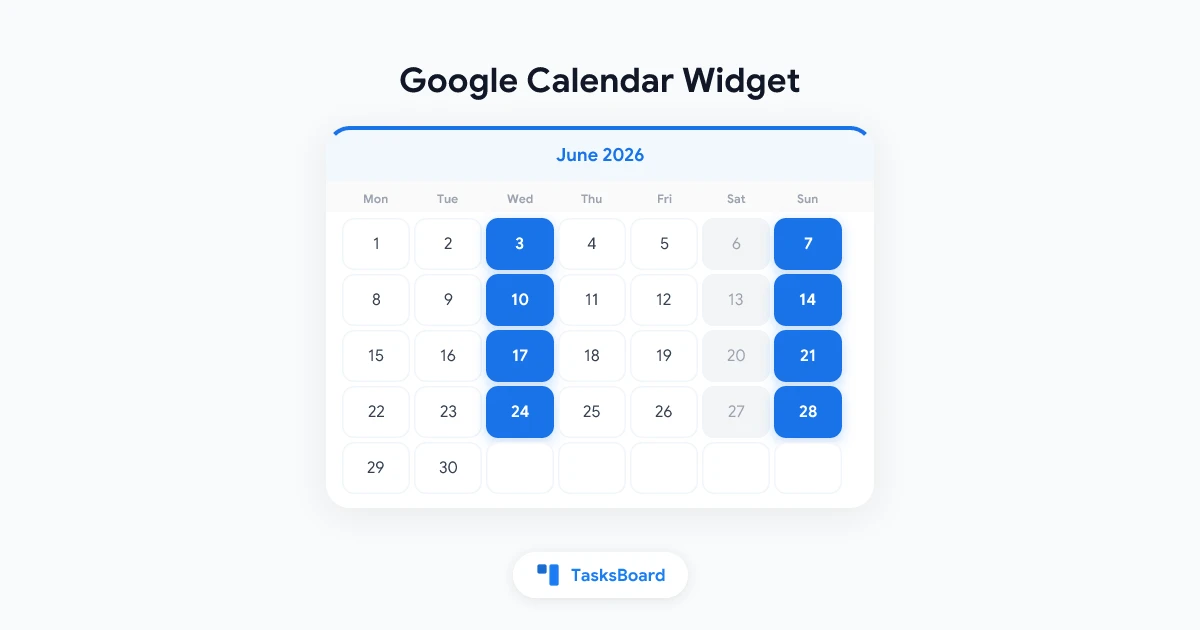
A Google Calendar widget puts your schedule directly on your home screen or desktop, so there is no need to open the app to see what is coming up next. For people who live by their calendar, it is one of the simplest productivity improvements available.
Whether you want to add a Google Calendar widget on Android, see today’s events on your desktop, or embed a calendar on a website, this guide covers every context and walks through the setup step by step.
What Is a Google Calendar Widget?
A Google Calendar widget is a small, persistent view of your calendar events that displays outside the full Google Calendar app. Widgets exist in several forms:
- Mobile home screen widgets (Android and iOS): show upcoming events directly on your phone home screen
- Desktop widgets (Windows, macOS): display your calendar on the desktop background or in a sidebar
- Chrome new tab widgets: replace or supplement the new tab page with calendar events
- Embedded website widgets: a calendar iframe embedded in a webpage
Each type serves the same core purpose: keeping your schedule visible without requiring you to actively open Google Calendar.
Google Calendar Widget on Android
Android has the strongest native support for Google Calendar widgets, since both are Google products.
How to Add Google Calendar Widget on Android
- Long-press on an empty area of your Android home screen.
- Tap “Widgets” at the bottom of the screen.
- Scroll to find “Google Calendar” in the widget list.
- Choose from the available widget sizes:
- 1x1: just today’s date
- 2x3 or 3x3: shows today’s events
- 4x3: monthly view with upcoming events
- 4x2: agenda view showing next few events
- Long-press the widget you want and drag it to your home screen.
- Resize by dragging the corners once placed.
Customizing the Android Widget
Tap the Google Calendar widget settings (tap and hold, then tap the settings icon) to choose:
- Which calendar to show (all calendars or a specific one)
- Whether to show declined events
- Color theme (light or dark)
For a cleaner home screen, the 4x2 agenda widget is often the most useful. It shows your next three to five events without taking up too much space.
Google Calendar Widget on iPhone (iOS)
iOS added widget support in iOS 14, and Google Calendar is one of the apps that provides iOS widgets.
How to Add Google Calendar Widget on iPhone
- Make sure you have the Google Calendar app installed from the App Store and signed in.
- Long-press on an empty area of your iPhone home screen.
- Tap the ”+” in the top-left corner to open the widget gallery.
- Search for “Google Calendar” in the search bar.
- Choose from the available widget sizes (small, medium, large).
- Tap “Add Widget” and drag it to your preferred position.
iOS Widget Size Options
- Small: shows the next event or today’s date
- Medium: shows two to three upcoming events
- Large: shows your schedule for today and tomorrow
You can also add the Google Calendar widget to the Today View (swipe right from the home screen) rather than the home screen itself if you prefer.
Limitations on iOS
Unlike Android, iOS widgets do not update in real time. They refresh periodically. If you add a new calendar event on your Mac, the iPhone widget may take a few minutes to reflect it. This is an iOS platform limitation, not specific to Google Calendar.
Google Calendar Widget on Desktop
Desktop widget options vary by operating system. Neither macOS nor Windows has built-in Google Calendar widget support, but several third-party options work well.
On Windows
Windows Widgets (Windows 11): Windows 11 includes a Widgets panel in the taskbar. Google Calendar is not natively supported, but you can use browser-based approaches (see Chrome section below).
Third-party apps: Several Windows apps display Google Calendar events as desktop widgets:
- Rainmeter with a Google Calendar skin (free, requires configuration)
- Fantastical (available on Windows, paid)
- Any.do desktop app (includes calendar widget, free tier available)
Browser approach: Keep a Google Calendar tab pinned in Chrome and use a tab manager extension to make it always visible. This is the simplest approach for most users.
On macOS
macOS Notification Center: macOS does not support Google Calendar widgets natively.
Third-party apps:
- Fantastical: best macOS calendar app with Google Calendar sync, including menu bar display of upcoming events ($4.99/month)
- Cron (now Notion Calendar): free app that shows Google Calendar events in a persistent window
- Dato: menu bar app that shows today’s events on click ($6.99)
Dato and Notion Calendar are the most popular options for macOS users who want quick access to Google Calendar events without switching apps.
Google Calendar Widget in Chrome (New Tab)
Several Chrome extensions add Google Calendar events to your new tab page, making your schedule visible every time you open a new browser tab.
Recommended Chrome Extensions
Momentum (free / $3.99/month paid) replaces the new tab with a focus view including to-do lists and optionally a calendar sidebar. It integrates with Google Calendar via OAuth.
Toby (free) is a tab management tool that can display a calendar widget on the new tab page.
Google Calendar (official extension) adds a Google Calendar icon to your Chrome toolbar with a popup showing upcoming events. Click the icon to see your next events without opening a full calendar tab.
Setting Up the Google Calendar Chrome Extension
- Go to the Google Calendar Chrome extension in the Chrome Web Store.
- Click “Add to Chrome.”
- Sign in with your Google account when prompted.
- Click the calendar icon in your Chrome toolbar to see upcoming events.
The official extension is the most reliable option. It is maintained by Google and does not require sharing your calendar data with a third party.
Embedding Google Calendar as a Widget on a Website
If you manage a website and want to embed a Google Calendar, Google provides an embed code that works with any website.
How to Get the Google Calendar Embed Code
- Open Google Calendar.
- In the left sidebar, find the calendar you want to embed.
- Click the three-dot menu next to the calendar name.
- Select “Settings and sharing.”
- Scroll down to “Integrate calendar.”
- Find the “Embed code” section.
- Click “Customize” to adjust the size, view (month, week, agenda), and which calendars to include.
- Copy the generated
<iframe>code. - Paste the code into your website’s HTML where you want the calendar to appear.
Customization Options
The embed code generator allows you to set:
- Width and height in pixels
- Default view (month, week, agenda)
- Timezone display
- Which calendars to show (you can embed multiple calendars in one widget)
- Whether to show navigation controls
Important: Only public calendars or calendars with “Make available to public” enabled can be viewed by people outside your Google account. Make sure to adjust sharing settings before embedding.
Google Calendar and Google Tasks Integration
One underused feature of Google Calendar is how it handles Google Tasks. When you add a due date to a Google Task, it appears as an event on your Google Calendar, giving you a unified view of both meetings and task deadlines.
This integration works automatically. If you use TasksBoard as a kanban board for your Google Tasks, your task due dates will still appear on Google Calendar, giving you both the board view (via TasksBoard) and the calendar view (via Google Calendar) of the same tasks.
The calendar widget on your phone or desktop can show these task deadlines alongside your meetings, making your daily view comprehensive without any extra configuration.
Troubleshooting Google Calendar Widget Issues
Widget not updating: On Android, check that background data is enabled for Google Calendar in Settings > Apps > Google Calendar > Mobile data. On iOS, refresh the widget by force-touching it and selecting “Edit Widget.”
Events not showing: Confirm that the calendar containing your events is selected in the widget settings. Some widgets only show the primary calendar by default.
Widget disappeared: This typically happens after a phone restart or OS update. Re-add the widget using the steps above. Your calendar data is not lost.
Wrong timezone showing: Check your Google Calendar settings (Settings > General > Timezone). The widget inherits the timezone from your Google Calendar account settings.
Google Calendar widget not available: Ensure the Google Calendar app is installed and updated to the latest version. On Android, check that you have a compatible version (Google Calendar 6.0 or later supports modern widget formats).
FAQ
How do I add Google Calendar to my Android home screen?
Long-press the home screen, tap “Widgets,” scroll to Google Calendar, and drag your preferred widget size to the home screen. Resize by dragging the corners after placement.
Can I get a Google Calendar widget on iPhone?
Yes. Long-press the home screen, tap the ”+” icon, search for “Google Calendar,” and select a widget size. Requires the Google Calendar app to be installed.
Is there a Google Calendar widget for Windows desktop?
Not natively. Use the Google Calendar Chrome extension for toolbar access, or a third-party app like Rainmeter or Any.do for desktop widget functionality.
How do I embed Google Calendar on a website?
In Google Calendar settings, find “Settings and sharing” for the calendar you want to embed, scroll to “Integrate calendar,” and copy the iframe embed code. Paste it into your website HTML.
Can I show multiple calendars in one widget?
On Android, some Google Calendar widget options allow you to select which calendars to display. In the embed code for websites, you can include multiple calendar IDs. Mobile widgets typically show all your synced calendars by default.
Why are my Google Tasks not showing in the Calendar widget?
Tasks appear on the calendar only when they have a due date set. Open Google Tasks, edit the task, and add a due date. It will then appear on the calendar and in the widget.
Get the Most from Google Calendar
A Google Calendar widget keeps your schedule front and center without requiring you to open the app. Combined with Google Tasks and TasksBoard, it completes a lightweight productivity system: tasks on the board, deadlines on the calendar, and your next event always visible on your home screen or desktop.
Set up the widget that fits your device, check your schedule without friction, and keep your attention on the work rather than the tool.
Ready to share your Google Tasks?
Get started with TasksBoard for free, no credit card required.
Sign in