
Google Tasks
Google Keep

Google Tasks vs. Google Keep

Google Tasks vs Google Keep: Was ist der Unterschied und was passt zu Ihrem Workflow?

Beide Tools sind kostenlos mit Ihrem Google-Konto erhältlich, lösen aber sehr unterschiedliche Probleme. Dieser Leitfaden zeigt genau, wann Sie welches Tool verwenden sollten, und wie TasksBoard Google Tasks zum klaren Gewinner für strukturierte Arbeit macht.

Wird von über 2 Mio. Menschen genutzt. Kostenloser Start.


Google Tasks vs Google Keep: Funktionsvergleich

Feature
Google Tasks
Google Keep
Fälligkeitsdaten und Erinnerungen Due dates and reminders Nur Erinnerungen (via Keep-Erinnerungen)
Unteraufgaben Subtasks
Organisation nach Projekt / Liste Organize by project/list Nur Labels
Google Calendar-Integration Google Calendar integration
Freie Notizen Freeform notes
Bilderfassung Image capture
Sprachmemos Voice memos
Kanban-Board-Ansicht Kanban board view Über TasksBoard
Team-Board-Sharing Team board sharing Über TasksBoard Nur kollaborative Notizen
Gmail-Integration Gmail integration

Feature-by-feature comparison

Google Tasks is for actionable to-dos; Google Keep is for notes and capture. See how each tool handles reminders, lists, and collaboration.

Google Tasks 6 Google Keep 3 It's a tie 1

Due dates and reminders

Winner: Google Tasks

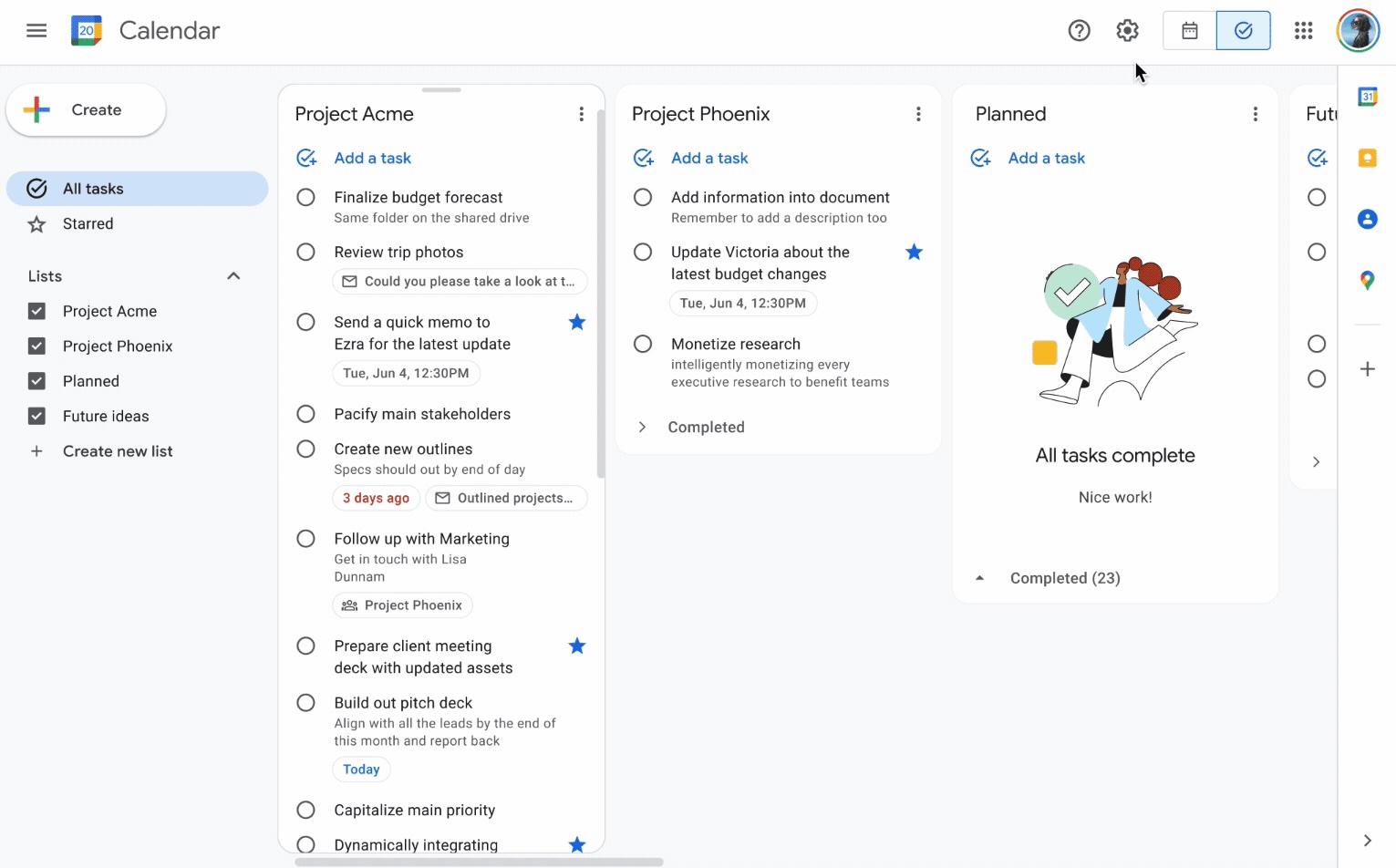
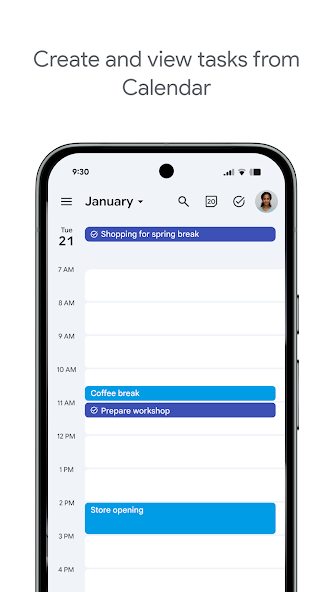
Google Tasks is built around due dates, deadlines, and notifications synced through Google Calendar.

Google Keep supports note reminders; newer flows save reminders in Google Tasks and surface them in Calendar.

Google Tasks Winner
Due dates and reminders — left column screenshot
Task due dates in Calendar.
Google Keep
Due dates and reminders — right column screenshot
Note reminders linked to Tasks.

Winner: Google Tasks

Google Tasks is purpose-built for due dates, deadlines, and Calendar-synced reminders.

Subtasks

Winner: Google Tasks

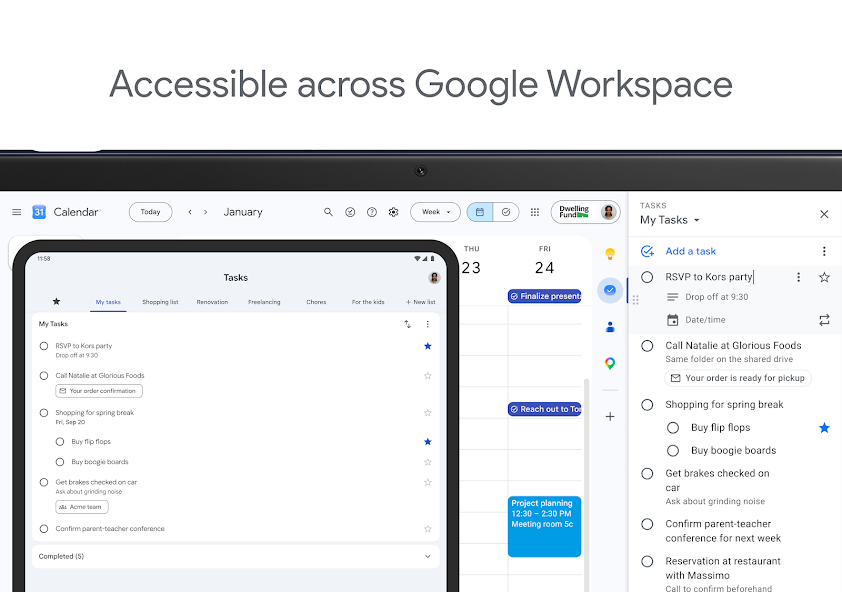
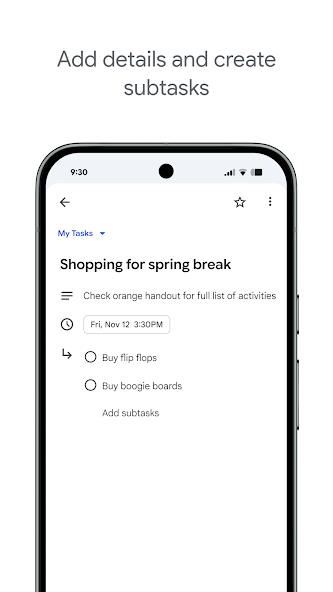
Google Tasks nests true subtasks under a parent task for step-by-step execution.

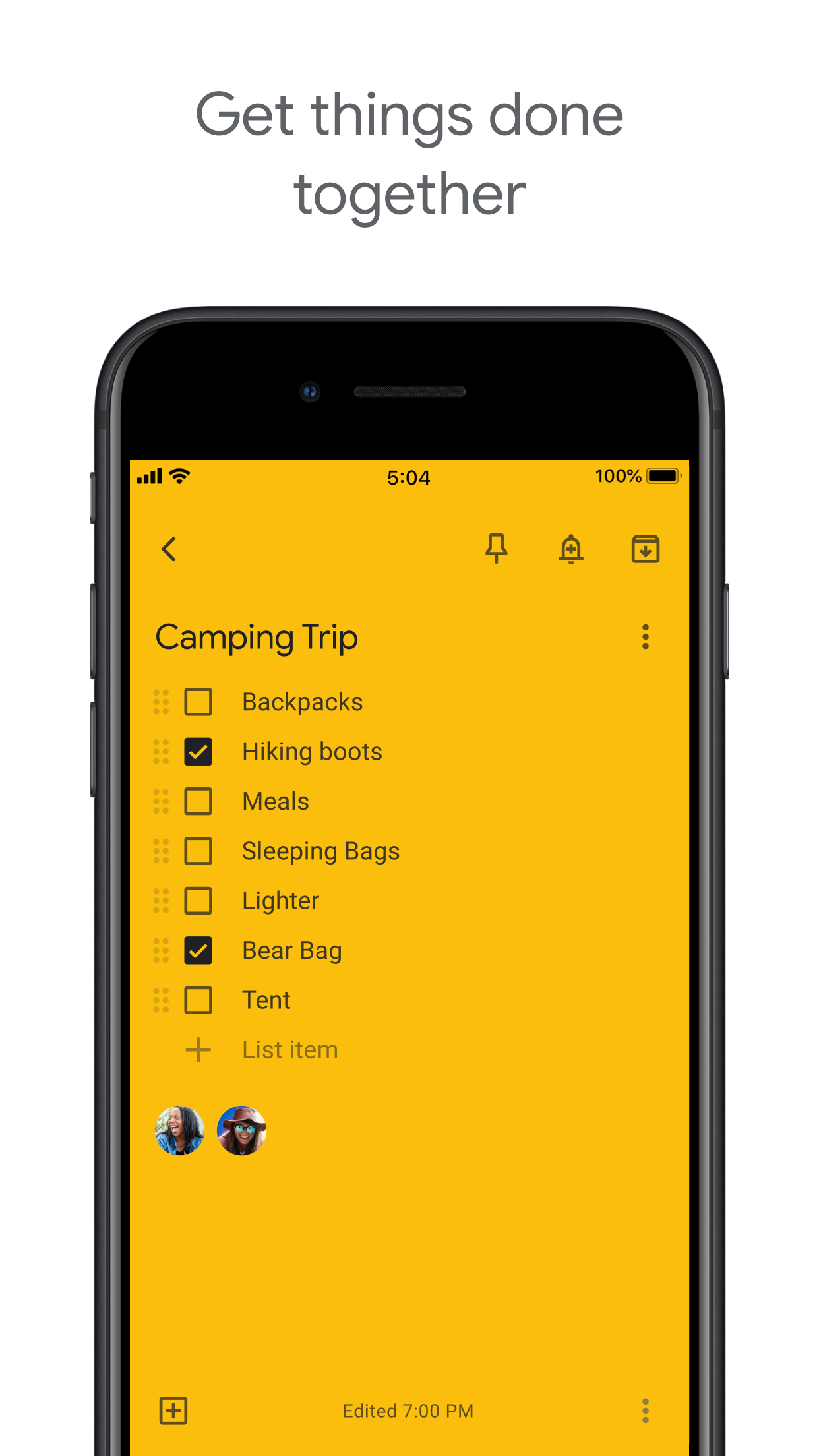
Keep supports checklists inside a note, but not dedicated parent-child task entities.

Google Tasks Winner
Subtasks — left column screenshot
Parent task with subtasks.
Google Keep
Subtasks — right column screenshot
Checklist items in a note.

Winner: Google Tasks

True parent-child subtask entities beat checklist items inside a note for step-by-step execution.


Organize by project or list

Winner: Google Tasks

Google Tasks uses multiple named lists with drag-and-drop reordering and sorting.

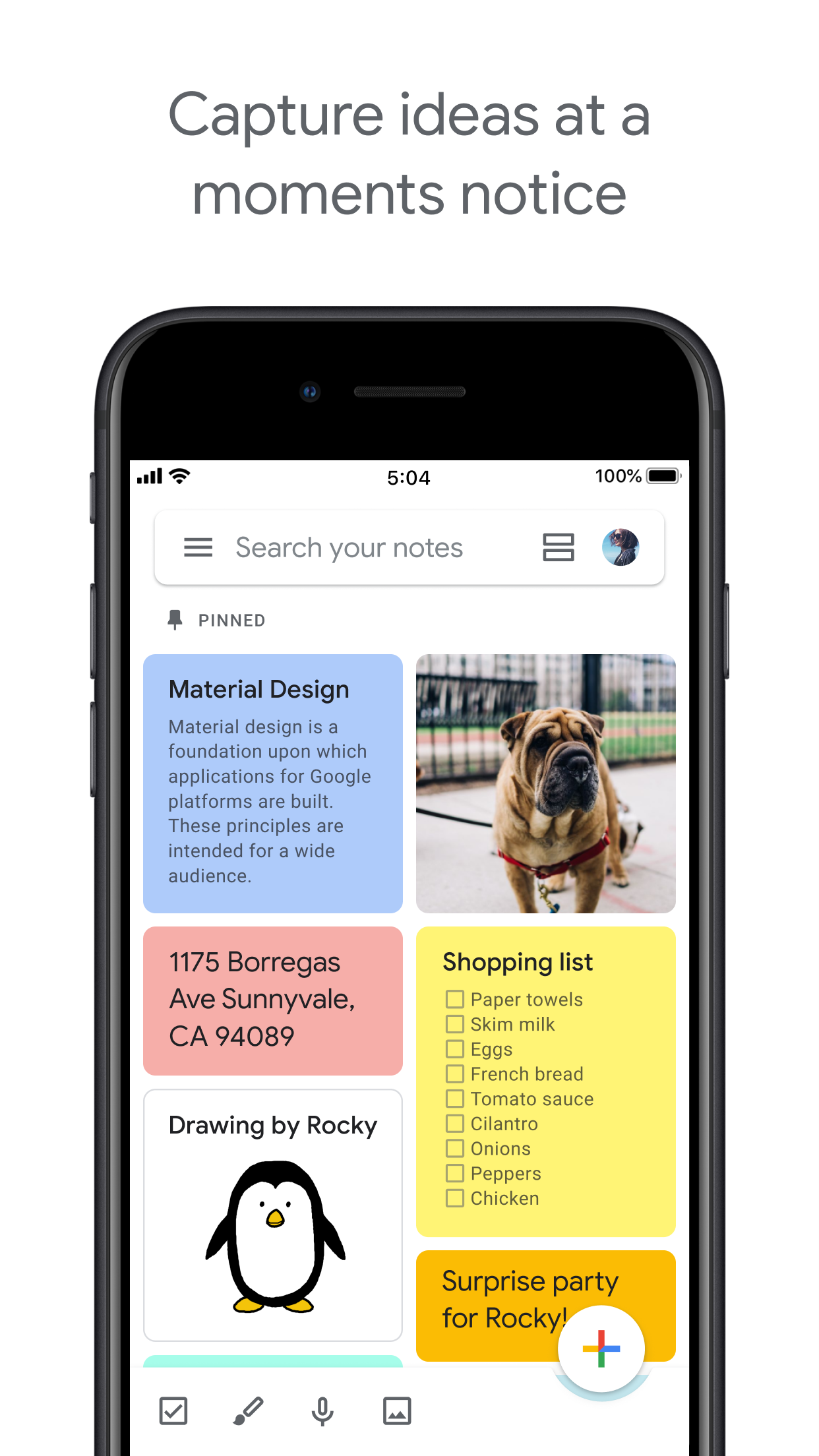
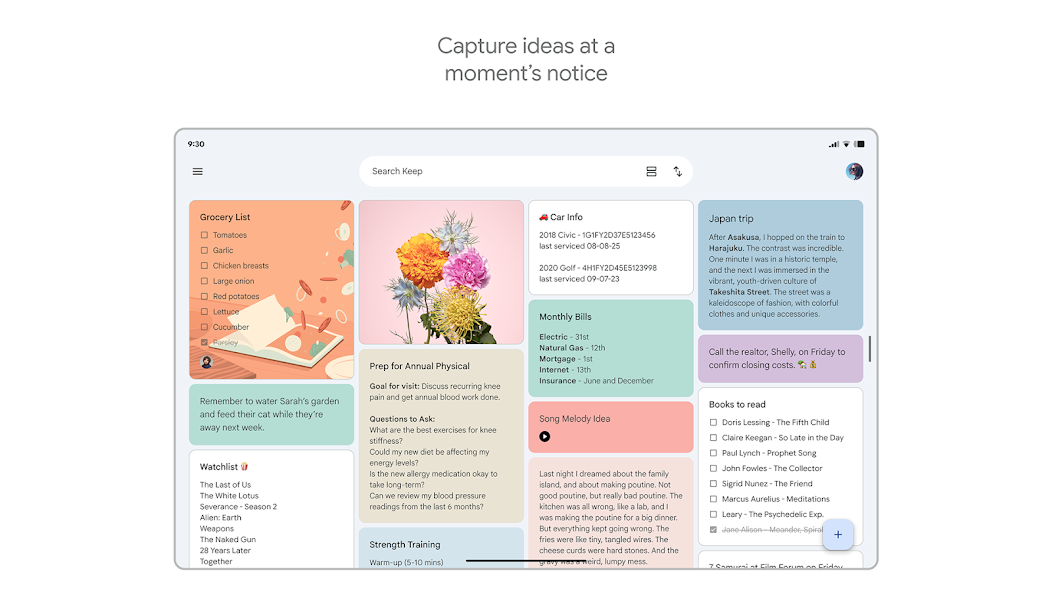
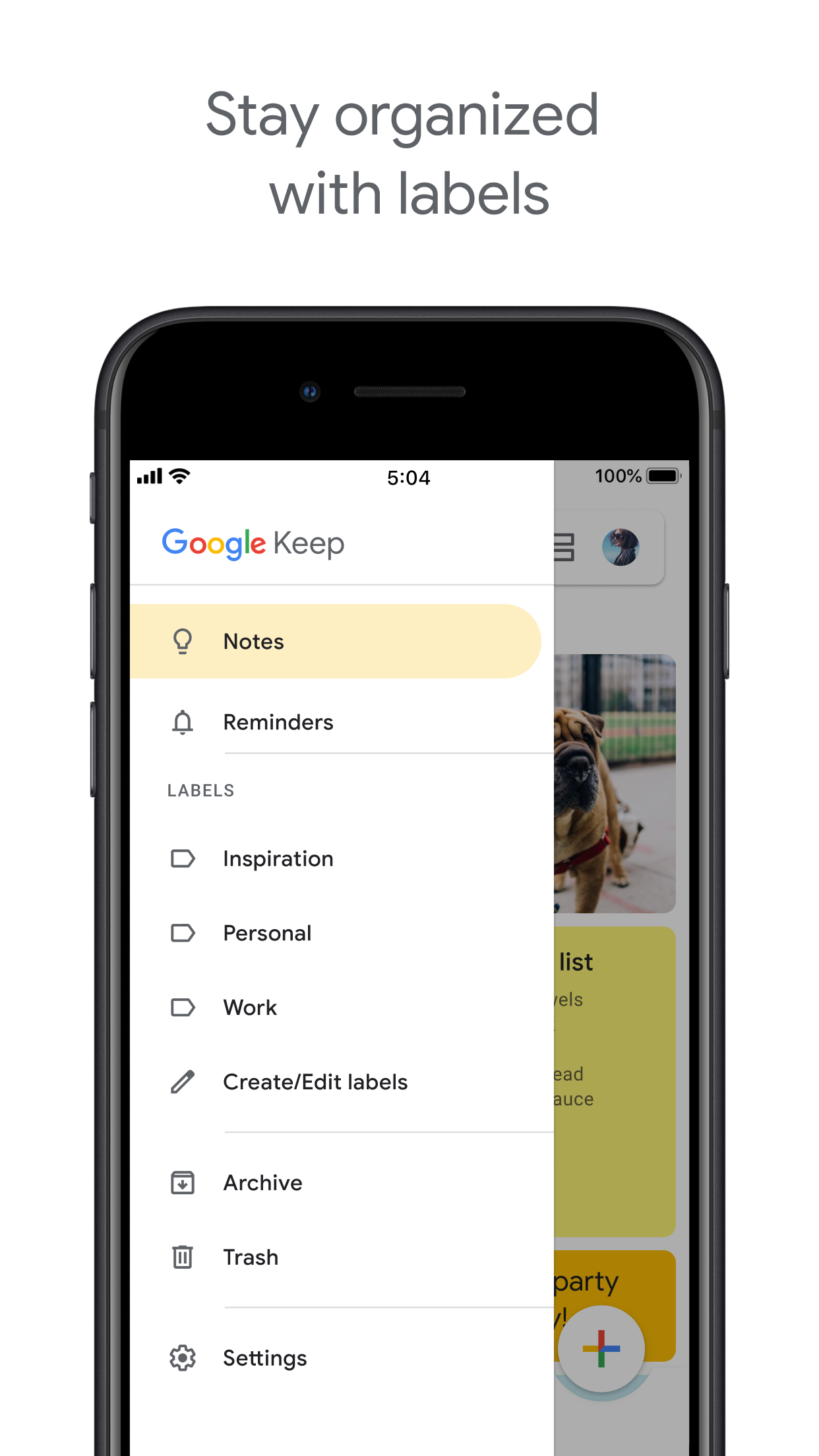
Keep organizes by labels, colors, and pinned notes in a card grid.

Google Tasks Winner
Organize by project or list — left column screenshot
Named task lists.
Google Keep
Organize by project or list — right column screenshot
Labels and pinned notes.

Winner: Google Tasks

Named task lists with drag-and-drop ordering suit project workflows better than a note card grid.


Google Calendar integration

Winner: Google Tasks

Dated tasks appear in Google Calendar natively. Plan events and to-dos together.

Keep reminders can appear in Calendar when saved through the Google Tasks integration.

Google Tasks Winner
Google Calendar integration — left column screenshot
Tasks on your Calendar grid.
Google Keep
Google Calendar integration — right column screenshot
Reminders via Tasks bridge.

Winner: Google Tasks

Dated tasks appear on your Google Calendar grid natively — the core planning integration for to-dos.


Freeform notes

Winner: Google Keep

Google Tasks has lightweight detail fields optimized for completion, not long-form writing.

Keep is purpose-built for freeform notes, brainstorming, and quick capture.

Google Tasks
Freeform notes — left column screenshot
Task detail fields.
Google Keep Winner
Freeform notes — right column screenshot
Freeform note editor.

Winner: Google Keep

Keep is purpose-built for freeform notes, brainstorming, and quick unstructured capture.


Image capture

Winner: Google Keep

Google Tasks does not support image attachments on tasks.

Keep lets you snap photos, attach images from your library, or scan documents directly into a note.

Google Tasks
Image capture — left column screenshot
Text-based tasks only.
Google Keep Winner
Image capture — right column screenshot
Image notes and scans.

Winner: Google Keep

Keep lets you snap photos, attach images, and scan documents — Google Tasks is text-only.


Voice memos

Winner: Google Keep

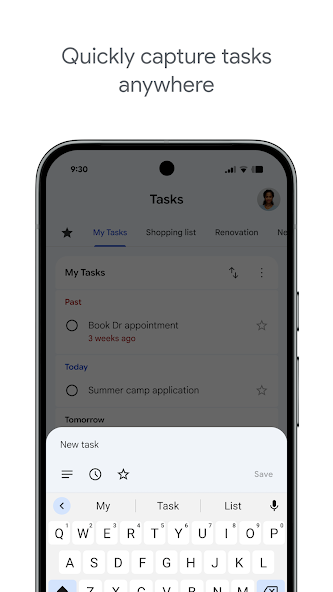
Google Tasks focuses on typed task entry with optional Assistant on Android.

Keep records audio notes you can play back and transcribe later.

Google Tasks
Voice memos — left column screenshot
Typed task capture.
Google Keep Winner
Voice memos — right column screenshot
Audio note recording.

Winner: Google Keep

Keep records audio notes you can play back; Google Tasks focuses on typed task entry.


Kanban board view

Winner: Google Tasks

Google Tasks is list-based. TasksBoard adds kanban columns for project-stage visibility.

Keep shows notes in a grid or list — no column-based workflow board.

Google Tasks Winner
Kanban board view — left column screenshot
Kanban via TasksBoard.
Google Keep
Kanban board view — right column screenshot
Grid and list note views.

Winner: Google Tasks

TasksBoard adds kanban columns for project-stage visibility; Keep has no workflow board.


Team board sharing

It's a tie

TasksBoard enables shared kanban boards on Google Tasks for cross-platform teams.

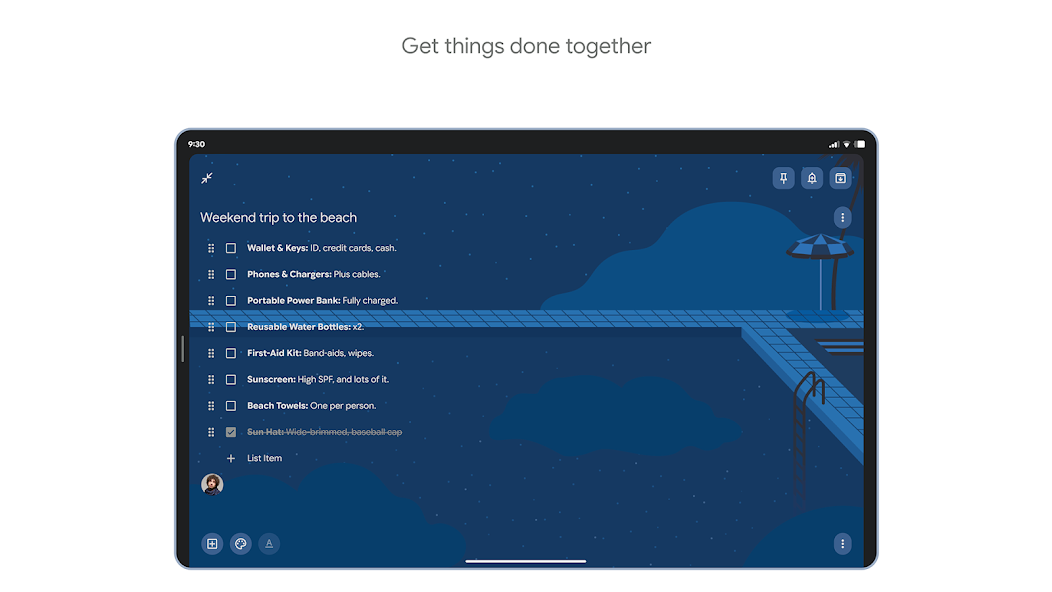
Keep supports real-time collaborative notes and checklists with other Google accounts.

Google Tasks
Team board sharing — left column screenshot
Shared boards via TasksBoard.
Google Keep
Team board sharing — right column screenshot
Collaborative Keep notes.

It's a tie

Both support collaboration — TasksBoard for shared task boards, Keep for real-time collaborative notes. Different jobs.


Gmail integration

Winner: Google Tasks

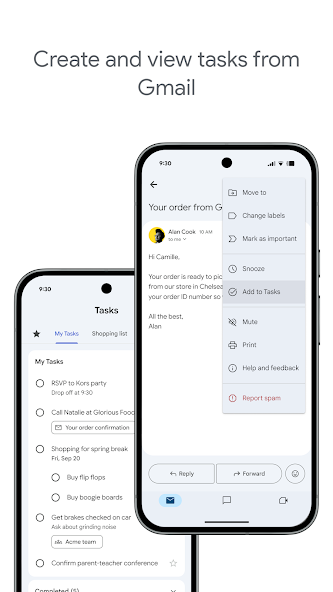
Turn any email into a Google Task with one click. The task links back to the original message.

Keep is available in the Gmail side panel for note-taking, but not for structured task workflows.

Google Tasks Winner
Gmail integration — left column screenshot
Add to Tasks from Gmail.
Google Keep
Gmail integration — right column screenshot
Keep side panel in Gmail.

Winner: Google Tasks

Turn any Gmail message into a linked Google Task in one click — structured task workflows from email.


Von Tausenden Nutzern geliebt

4.8 / 5 aus über 1.000 Bewertungen im Chrome Web Store

"Always have 101 things to do and this helps me organize and prioritize like no other app can. It syncs to my phone and laptop, and when I add dates to tasks, they automatically integrate into my Google Calendar, which is immensely convenient. I can look at my daily, weekly, and monthly overview in Google Calendar and clearly see how much I was able to accomplish! Great tool indeed. Excited to see how it will evolve over time."

PR Parina Ramjee avatar
Parina Ramjee

"Seriously, makes my tasks easier to share with the team, and the free version is quite nice for our little office. Eventually, we will expand, and this is definitely a great tool to do that! Syncs with my Workspace and Calendar."

CC Chase Cattrall avatar
Chase Cattrall

"I love the simple, intuitive interface and the Add to Tasks feature, especially as I work through my emails! Sharing my tasks is also easy. Overall, outstanding and simple to use, and that means a lot with too many complex tasks out there!"

GC Greg Cantori avatar
Greg Cantori

"Great too for managing daily routine and plan tasks. Would be perfect if it was updated for generating reports for statistics. For google tasks and google calendar"

NV Nick Vlasov avatar
Nick Vlasov

Häufig gestellte Fragen

Was ist der Hauptunterschied zwischen Google Tasks und Google Keep?

Google Tasks ist ein strukturiertes To-do-Listen-Tool mit Fälligkeitsdaten, Unteraufgaben und Google Calendar-Integration. Google Keep ist eine App für freie Notizen mit Unterstützung für Text, Bilder, Sprachmemos und farbcodierte Labels. Tasks ist für Aktionen; Keep ist für die Erfassung.

Was ist besser für Arbeitsaufgaben, Google Tasks oder Google Keep?

Google Tasks ist besser für Arbeitsaufgaben. Es unterstützt Fristen, Unteraufgaben, Gmail-Integration und synchronisiert mit Google Calendar. Keep ist besser für das schnelle Erfassen von Notizen und Ideen, bietet aber nicht die Struktur, die für zuverlässiges Arbeiten erforderlich ist.

Kann ich eine Google Keep-Notiz in eine Google Task umwandeln?

Nicht direkt in den Apps. Der empfohlene Workflow ist, manuell eine Aufgabe in Google Tasks basierend auf den Informationen in Ihrer Keep-Notiz zu erstellen. Einige Nutzer kopieren den Inhalt der Keep-Notiz in das Aufgabenbeschreibungs- oder Notizfeld.

Unterstützt Google Tasks Erinnerungen wie Google Keep?

Google Tasks unterstützt Fälligkeitsdaten, die Erinnerungen in Google Calendar auslösen. Google Keep hat ein eigenes Erinnerungssystem mit standortbasierten Erinnerungen. Für zeitbasierte Erinnerungen, die an einen Kalender gebunden sind, ist Google Tasks mit Fälligkeitsdaten die zuverlässigere Option.

Kann man Aufgaben in Google Tasks teilen wie Notizen in Google Keep?

Das native Google Tasks unterstützt kein Teilen. Google Keep erlaubt das Teilen von Notizen mit anderen Google-Nutzern. TasksBoard fügt jedoch Echtzeit-Team-Sharing zu Google Tasks hinzu, Sie können ein ganzes Board mit Teammitgliedern teilen und Aufgaben zuweisen.

Was fügt TasksBoard zu Google Tasks hinzu, das es besser als Keep macht?

TasksBoard verleiht Google Tasks ein Vollbild-Kanban-Board, Team-Sharing, Drag-and-Drop-Aufgabenverwaltung und eine Tagesansicht, die Aufgaben mit Google Calendar-Terminen kombiniert. Dies macht die strukturierte Natur von Tasks zu einem vollständigen Produktivitätssystem, das Keep nicht bieten kann.

Gibt es eine App, die Google Tasks und Google Keep kombiniert?

Keine einzelne App führt beides nativ zusammen. Der praktische Workflow, dem die meisten Power-User folgen, ist: in Keep erfassen, in Tasks verarbeiten, dann TasksBoard verwenden, um Tasks mit einer Vollbild-Kanban-Oberfläche und Team-Sharing zu verwalten.


Erste Schritte

Machen Sie Google Tasks zu Ihrem primären Produktivitätstool

Melden Sie sich mit Google an und erhalten Sie ein Vollbild-Kanban-Board für Ihre Google Tasks. Der kostenlose Plan beinhaltet unbegrenzte Aufgaben, Board-Ansicht und Kalender-Synchronisierung.

Keine Kreditkarte erforderlich. Ihre Google Tasks-Daten bleiben bei Google.