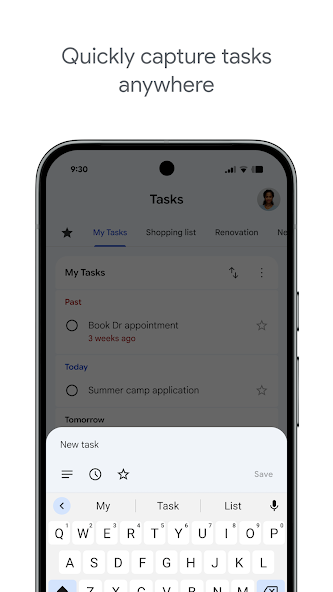

Google Tasks
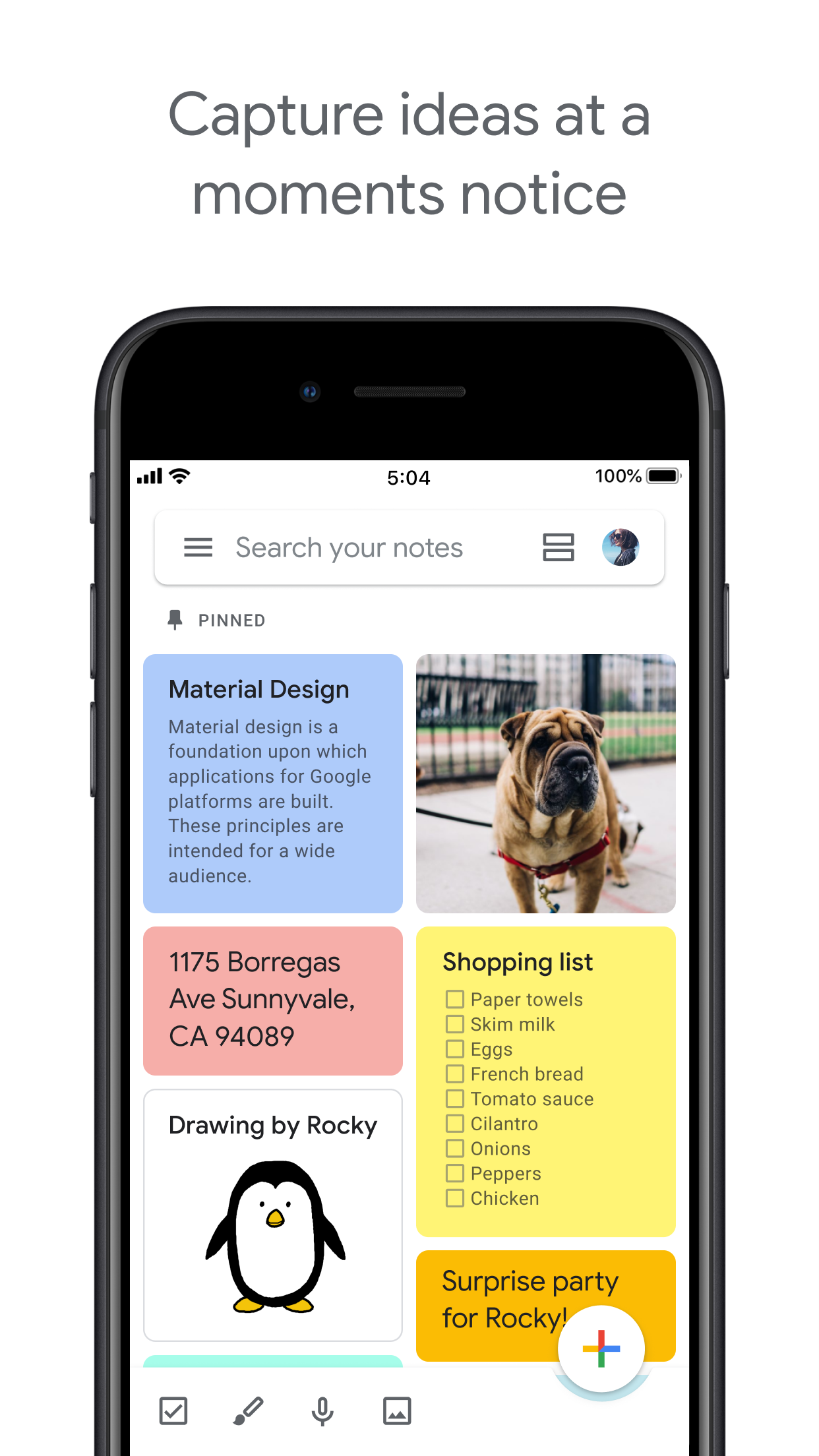
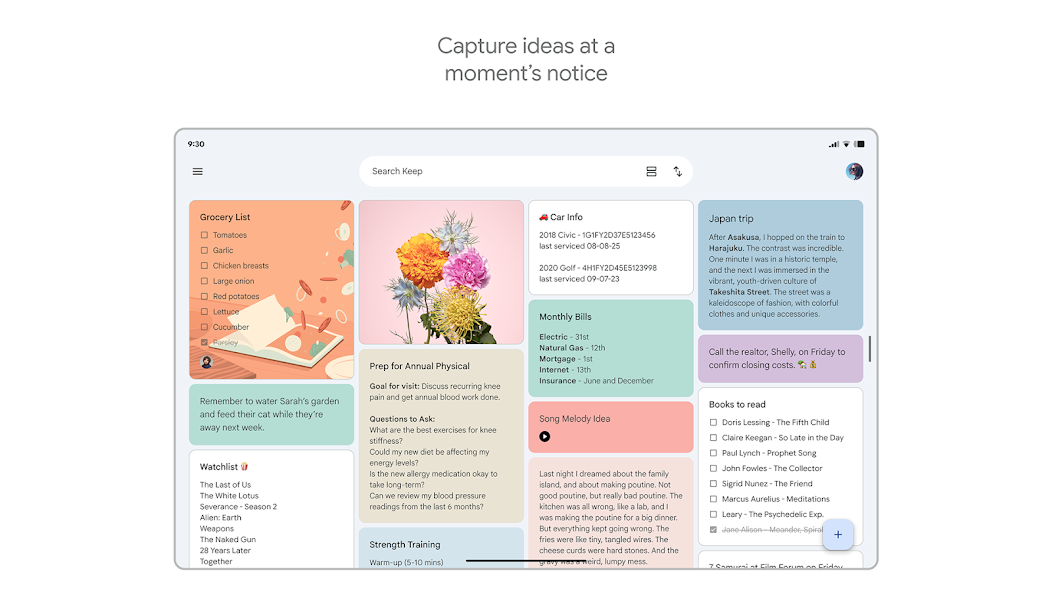
Google Keep

Google Tasks vs Google Keep

Google Tasks vs Google Keep: Vad är skillnaden och vad passar ditt arbetsflöde?

Båda verktygen ingår gratis i ditt Google-konto, men de löser helt olika problem. Denna guide bryter ner exakt när du ska använda vilket, och hur TasksBoard gör Google Tasks till det självklara valet för strukturerat arbete.

Används av över 2 miljoner människor. Gratis att börja.


Google Tasks vs Google Keep: Funktionsjämförelse

Feature
Google Tasks
Google Keep
Förfallodatum och påminnelser Due dates and reminders Endast påminnelser (via Keep-påminnelser)
Underuppgifter Subtasks
Organisera efter projekt / lista Organize by project/list Endast etiketter
Google Kalender-integration Google Calendar integration
Fritextanteckningar Freeform notes
Bildinsamling Image capture
Röstmemon Voice memos
Kanban-tavlevy Kanban board view Via TasksBoard
Delning av tavlor i team Team board sharing Via TasksBoard Endast delade anteckningar
Gmail-integration Gmail integration

Feature-by-feature comparison

Google Tasks is for actionable to-dos; Google Keep is for notes and capture. See how each tool handles reminders, lists, and collaboration.

Google Tasks 6 Google Keep 3 It's a tie 1

Due dates and reminders

Winner: Google Tasks

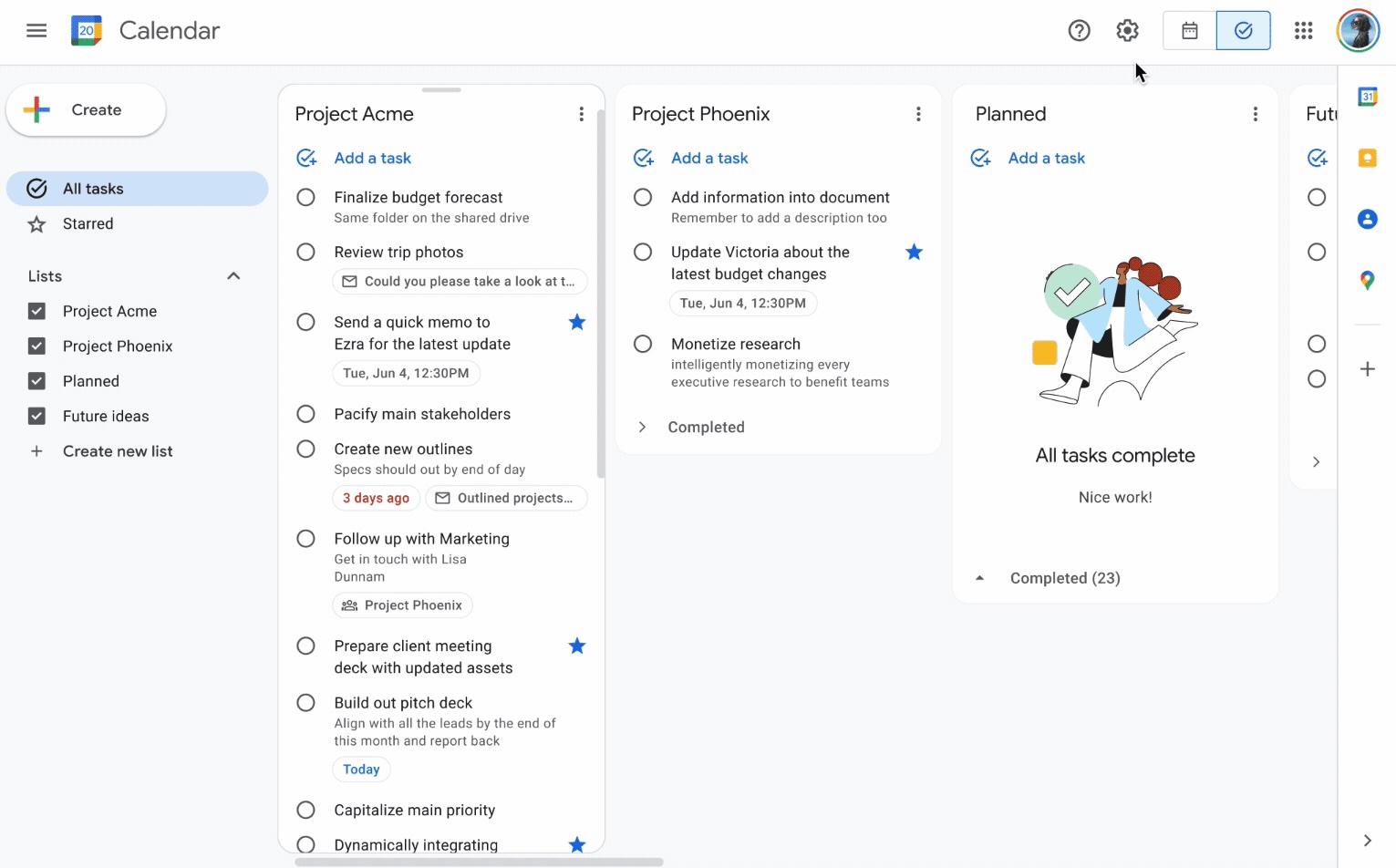
Google Tasks is built around due dates, deadlines, and notifications synced through Google Calendar.

Google Keep supports note reminders; newer flows save reminders in Google Tasks and surface them in Calendar.

Google Tasks Winner
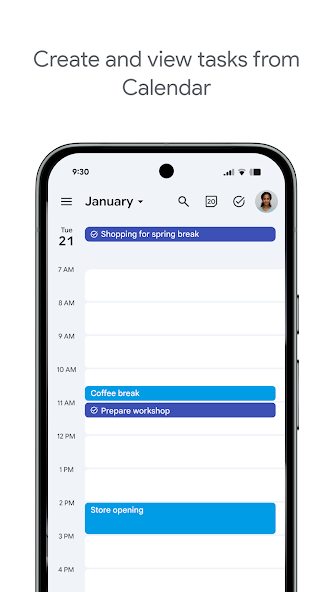
Due dates and reminders — left column screenshot
Task due dates in Calendar.
Google Keep
Due dates and reminders — right column screenshot
Note reminders linked to Tasks.

Winner: Google Tasks

Google Tasks is purpose-built for due dates, deadlines, and Calendar-synced reminders.

Subtasks

Winner: Google Tasks

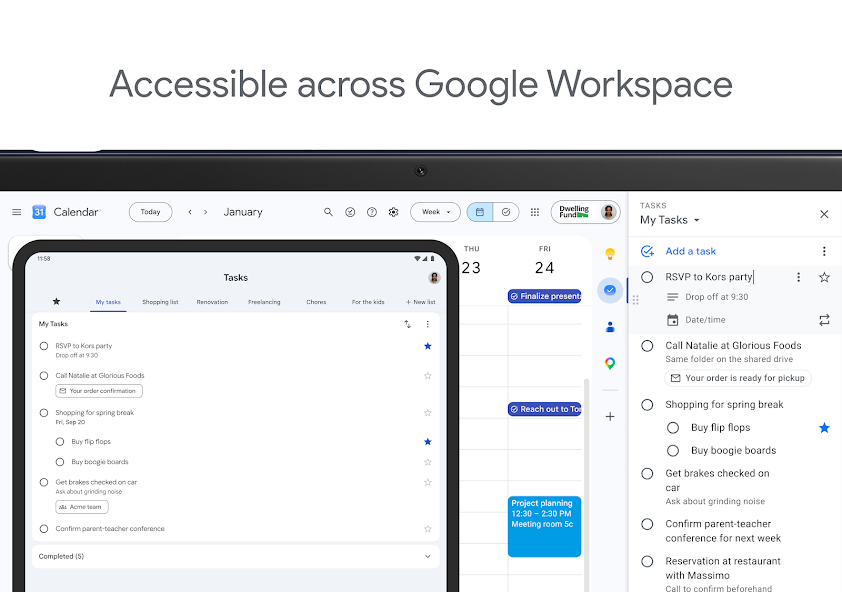
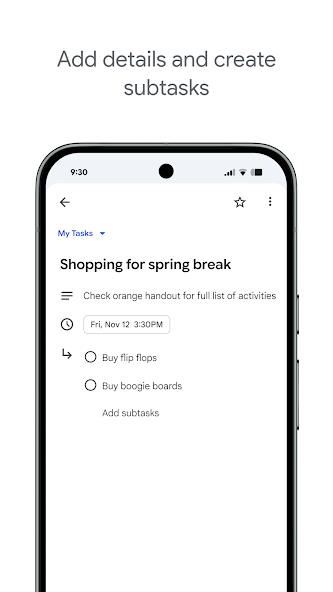
Google Tasks nests true subtasks under a parent task for step-by-step execution.

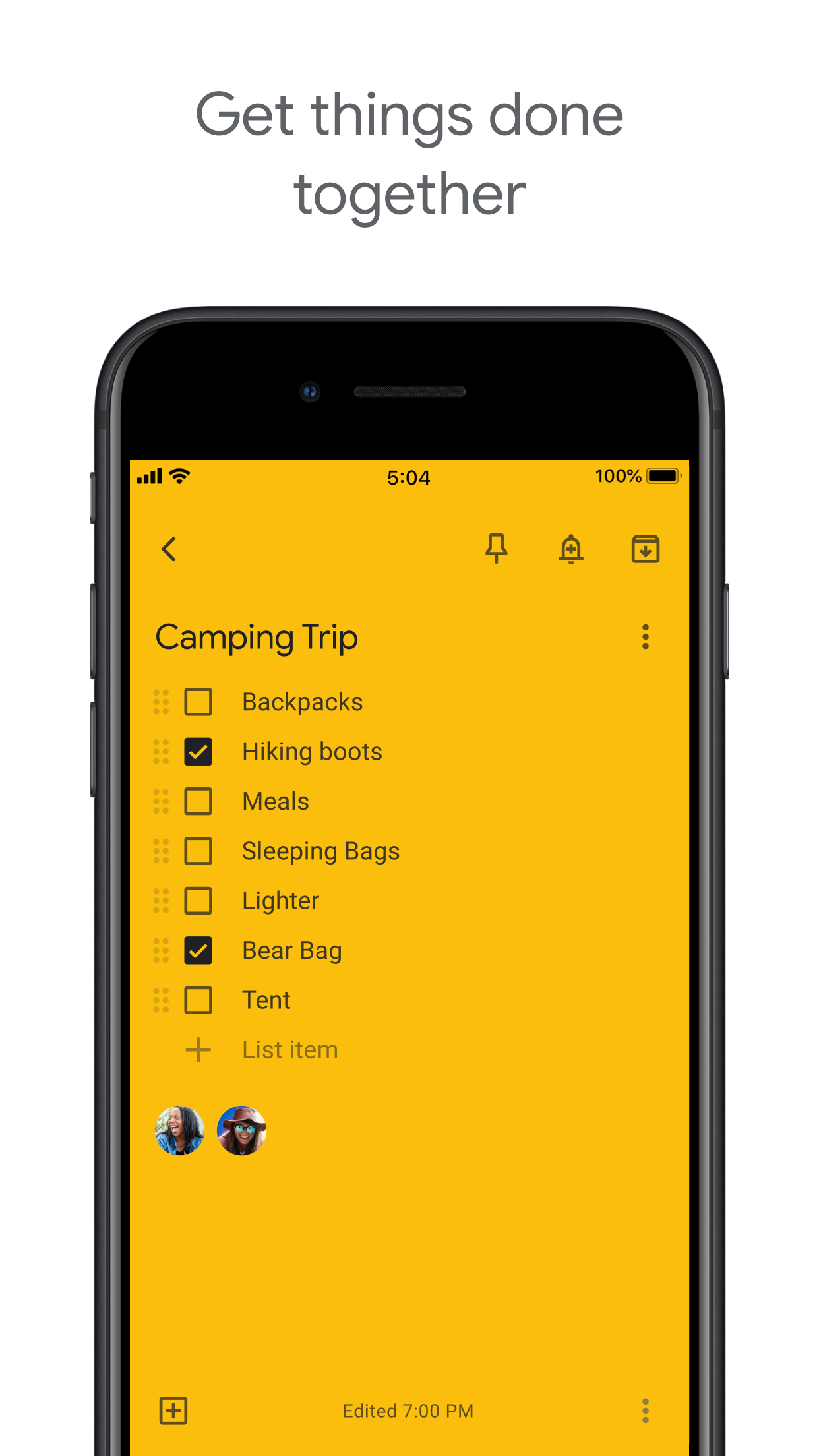
Keep supports checklists inside a note, but not dedicated parent-child task entities.

Google Tasks Winner
Subtasks — left column screenshot
Parent task with subtasks.
Google Keep
Subtasks — right column screenshot
Checklist items in a note.

Winner: Google Tasks

True parent-child subtask entities beat checklist items inside a note for step-by-step execution.


Organize by project or list

Winner: Google Tasks

Google Tasks uses multiple named lists with drag-and-drop reordering and sorting.

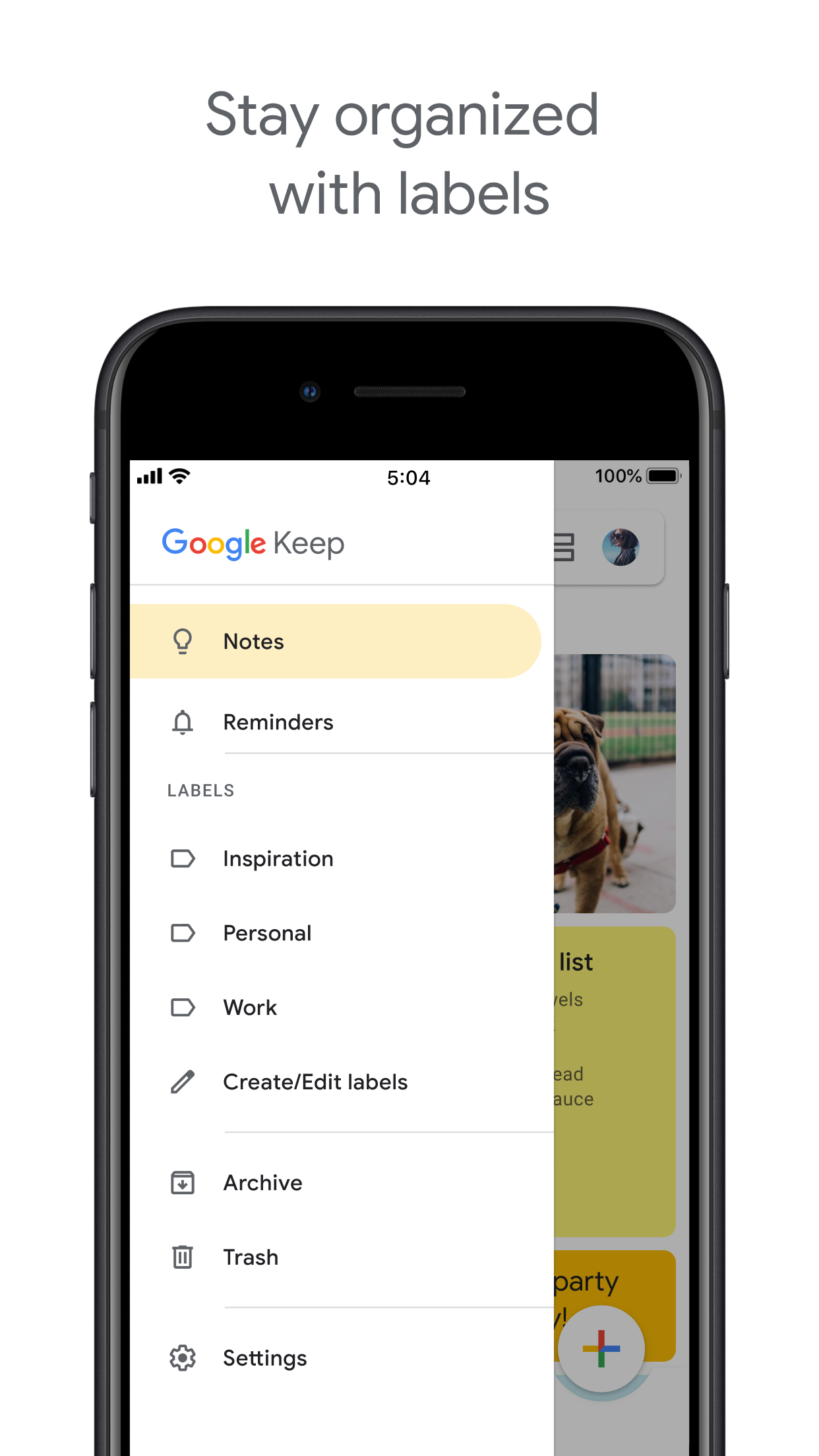
Keep organizes by labels, colors, and pinned notes in a card grid.

Google Tasks Winner
Organize by project or list — left column screenshot
Named task lists.
Google Keep
Organize by project or list — right column screenshot
Labels and pinned notes.

Winner: Google Tasks

Named task lists with drag-and-drop ordering suit project workflows better than a note card grid.


Google Calendar integration

Winner: Google Tasks

Dated tasks appear in Google Calendar natively. Plan events and to-dos together.

Keep reminders can appear in Calendar when saved through the Google Tasks integration.

Google Tasks Winner
Google Calendar integration — left column screenshot
Tasks on your Calendar grid.
Google Keep
Google Calendar integration — right column screenshot
Reminders via Tasks bridge.

Winner: Google Tasks

Dated tasks appear on your Google Calendar grid natively — the core planning integration for to-dos.


Freeform notes

Winner: Google Keep

Google Tasks has lightweight detail fields optimized for completion, not long-form writing.

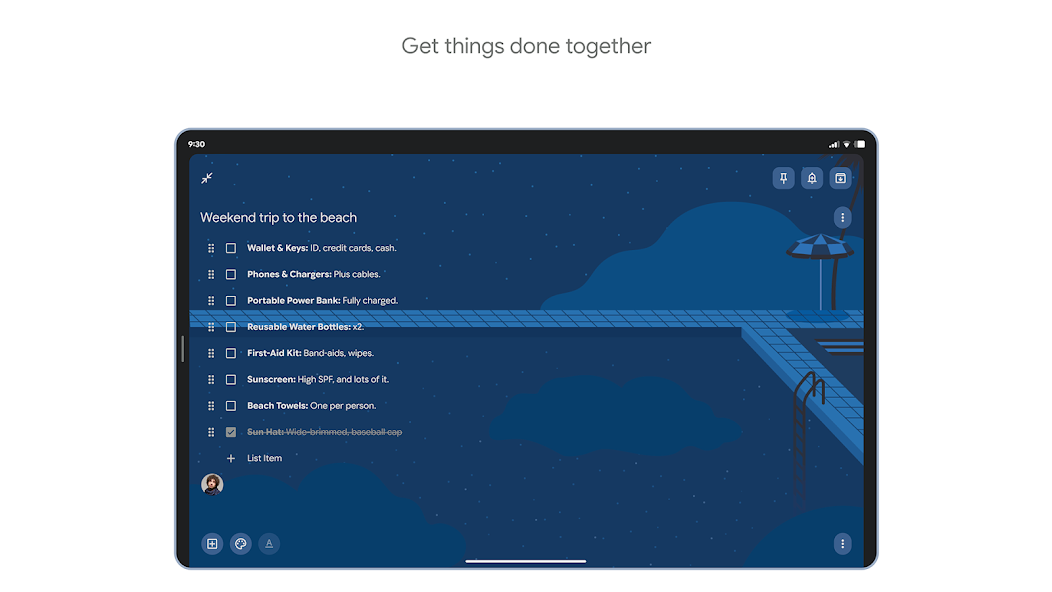
Keep is purpose-built for freeform notes, brainstorming, and quick capture.

Google Tasks
Freeform notes — left column screenshot
Task detail fields.
Google Keep Winner
Freeform notes — right column screenshot
Freeform note editor.

Winner: Google Keep

Keep is purpose-built for freeform notes, brainstorming, and quick unstructured capture.


Image capture

Winner: Google Keep

Google Tasks does not support image attachments on tasks.

Keep lets you snap photos, attach images from your library, or scan documents directly into a note.

Google Tasks
Image capture — left column screenshot
Text-based tasks only.
Google Keep Winner
Image capture — right column screenshot
Image notes and scans.

Winner: Google Keep

Keep lets you snap photos, attach images, and scan documents — Google Tasks is text-only.


Voice memos

Winner: Google Keep

Google Tasks focuses on typed task entry with optional Assistant on Android.

Keep records audio notes you can play back and transcribe later.

Google Tasks
Voice memos — left column screenshot
Typed task capture.
Google Keep Winner
Voice memos — right column screenshot
Audio note recording.

Winner: Google Keep

Keep records audio notes you can play back; Google Tasks focuses on typed task entry.


Kanban board view

Winner: Google Tasks

Google Tasks is list-based. TasksBoard adds kanban columns for project-stage visibility.

Keep shows notes in a grid or list — no column-based workflow board.

Google Tasks Winner
Kanban board view — left column screenshot
Kanban via TasksBoard.
Google Keep
Kanban board view — right column screenshot
Grid and list note views.

Winner: Google Tasks

TasksBoard adds kanban columns for project-stage visibility; Keep has no workflow board.


Team board sharing

It's a tie

TasksBoard enables shared kanban boards on Google Tasks for cross-platform teams.

Keep supports real-time collaborative notes and checklists with other Google accounts.

Google Tasks
Team board sharing — left column screenshot
Shared boards via TasksBoard.
Google Keep
Team board sharing — right column screenshot
Collaborative Keep notes.

It's a tie

Both support collaboration — TasksBoard for shared task boards, Keep for real-time collaborative notes. Different jobs.


Gmail integration

Winner: Google Tasks

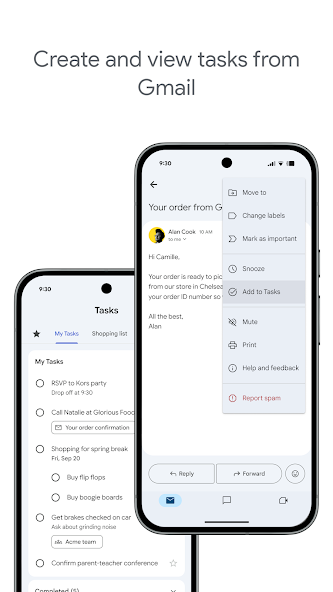
Turn any email into a Google Task with one click. The task links back to the original message.

Keep is available in the Gmail side panel for note-taking, but not for structured task workflows.

Google Tasks Winner
Gmail integration — left column screenshot
Add to Tasks from Gmail.
Google Keep
Gmail integration — right column screenshot
Keep side panel in Gmail.

Winner: Google Tasks

Turn any Gmail message into a linked Google Task in one click — structured task workflows from email.


Älskad av tusentals användare

4.8 / 5 från 1 000+ recensioner på Chrome Web Store

"Always have 101 things to do and this helps me organize and prioritize like no other app can. It syncs to my phone and laptop, and when I add dates to tasks, they automatically integrate into my Google Calendar, which is immensely convenient. I can look at my daily, weekly, and monthly overview in Google Calendar and clearly see how much I was able to accomplish! Great tool indeed. Excited to see how it will evolve over time."

PR Parina Ramjee avatar
Parina Ramjee

"Seriously, makes my tasks easier to share with the team, and the free version is quite nice for our little office. Eventually, we will expand, and this is definitely a great tool to do that! Syncs with my Workspace and Calendar."

CC Chase Cattrall avatar
Chase Cattrall

"I love the simple, intuitive interface and the Add to Tasks feature, especially as I work through my emails! Sharing my tasks is also easy. Overall, outstanding and simple to use, and that means a lot with too many complex tasks out there!"

GC Greg Cantori avatar
Greg Cantori

"Great too for managing daily routine and plan tasks. Would be perfect if it was updated for generating reports for statistics. For google tasks and google calendar"

NV Nick Vlasov avatar
Nick Vlasov

Vanliga frågor

Vad är den största skillnaden mellan Google Tasks och Google Keep?

Google Tasks är ett strukturerat att-göra-verktyg med förfallodatum, underuppgifter och Google Kalender-integration. Google Keep är en fritext-app för anteckningar med stöd för text, bilder, röstmemon och färgkodade etiketter. Tasks är för handlingar; Keep är för insamling.

Vilket är bättre för arbetsuppgifter, Google Tasks eller Google Keep?

Google Tasks är bättre för arbetsuppgifter. Det har stöd för deadlines, underuppgifter, Gmail-integration och synkroniseras med Google Kalender. Keep är bättre för att snabbt fånga anteckningar och idéer, men det ger inte den struktur som krävs för att hantera arbete på ett tillförlitligt sätt.

Kan jag konvertera en Google Keep-anteckning till en Google Task?

Inte direkt i apparna. Det rekommenderade arbetsflödet är att manuellt skapa en uppgift i Google Tasks baserat på informationen i din Keep-anteckning. Vissa användare kopierar innehållet i Keep-anteckningen till uppgiftsbeskrivningen eller anteckningsfältet.

Har Google Tasks stöd för påminnelser som Google Keep?

Google Tasks har stöd för förfallodatum, vilket utlöser påminnelser i Google Kalender. Google Keep har ett eget påminnelsesystem med platsbaserade påminnelser. För tidsbaserade påminnelser kopplade till en kalender är Google Tasks med förfallodatum det mer tillförlitliga alternativet.

Kan man dela uppgifter i Google Tasks som anteckningar i Google Keep?

Inbyggda Google Tasks har inte stöd för delning. Google Keep tillåter delning av anteckningar med andra Google-användare. TasksBoard lägger dock till teamdelning i realtid till Google Tasks, du kan dela en hel tavla med teammedlemmar och tilldela uppgifter.

Vad tillför TasksBoard till Google Tasks som gör det bättre än Keep?

TasksBoard ger Google Tasks en Kanban-tavla i helskärm, teamdelning, dra-och-släpp-hantering av uppgifter och en dagsvy som kombinerar uppgifter med Google Kalender-händelser. Detta förvandlar den strukturerade karaktären hos Tasks till ett komplett produktivitetssystem som Keep inte kan matcha.

Finns det en app som kombinerar Google Tasks och Google Keep?

Ingen enskild app slår ihop båda inbyggt. Det praktiska arbetsflöde som de flesta avancerade användare följer är: fånga i Keep, bearbeta till Tasks, använd sedan TasksBoard för att hantera Tasks med ett Kanban-gränssnitt i helskärm och teamdelning.


Kom igång

Gör Google Tasks till ditt primära produktivitetsverktyg

Logga in med Google och få en Kanban-tavla i helskärm för dina Google Tasks. Gratisplanen inkluderar obegränsat antal uppgifter, tavlevy och synkronisering med Kalender.

Inget kreditkort krävs. Din Google Tasks-data stannar hos Google.