
Google Tasks vs Google Keep

Google TasksとGoogle Keep

Google TasksとGoogle Keep: 違いとワークフローへの適合性

どちらのツールもGoogleアカウントで無料で利用できますが、解決する課題は全く異なります。このガイドでは、それぞれの使い分けと、TasksBoardによってGoogle Tasksが構造化された作業に最適なツールとなる理由を解説します。

200万人以上が利用中。まずは無料で。


Google TasksとGoogle Keep: 機能比較

Feature Google Tasks Google Keep
期限とリマインダー
Due dates and reminders
リマインダーのみ(Keepリマインダー経由)
サブタスク
Subtasks
プロジェクト/リストによる整理
Organize by project/list
ラベルのみ
Google Calendar連携
Google Calendar integration
自由形式のメモ
Freeform notes
画像キャプチャ
Image capture
音声メモ
Voice memos
カンバンボードビュー
Kanban board view
TasksBoard経由
チームボード共有
Team board sharing
TasksBoard経由 共同編集メモのみ
Gmail連携
Gmail integration

Feature-by-feature comparison

Google Tasks is for actionable to-dos; Google Keep is for notes and capture. See how each tool handles reminders, lists, and collaboration.

Feature 1

Due dates and reminders

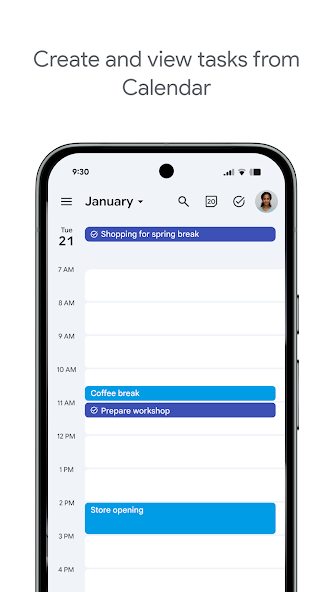
Google Tasks is built around due dates, deadlines, and notifications synced through Google Calendar.

Google Keep supports note reminders; newer flows save reminders in Google Tasks and surface them in Calendar.

Google Tasks
Due dates and reminders — left column screenshot
Task due dates in Calendar.
Google Keep
Due dates and reminders — right column screenshot
Note reminders linked to Tasks.

Winner: Google Tasks

Google Tasks is purpose-built for due dates, deadlines, and Calendar-synced reminders.

Feature 2

Subtasks

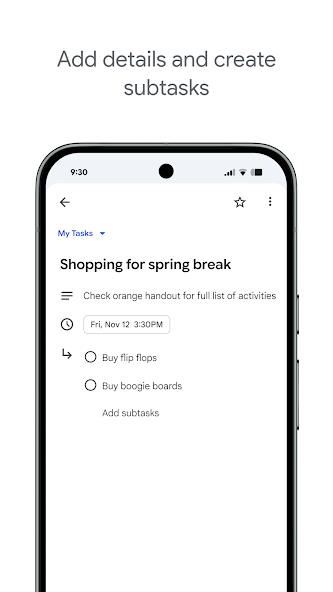
Google Tasks nests true subtasks under a parent task for step-by-step execution.

Keep supports checklists inside a note, but not dedicated parent-child task entities.

Google Tasks
Subtasks — left column screenshot
Parent task with subtasks.
Google Keep
Subtasks — right column screenshot
Checklist items in a note.

Winner: Google Tasks

True parent-child subtask entities beat checklist items inside a note for step-by-step execution.


Feature 3

Organize by project or list

Google Tasks uses multiple named lists with drag-and-drop reordering and sorting.

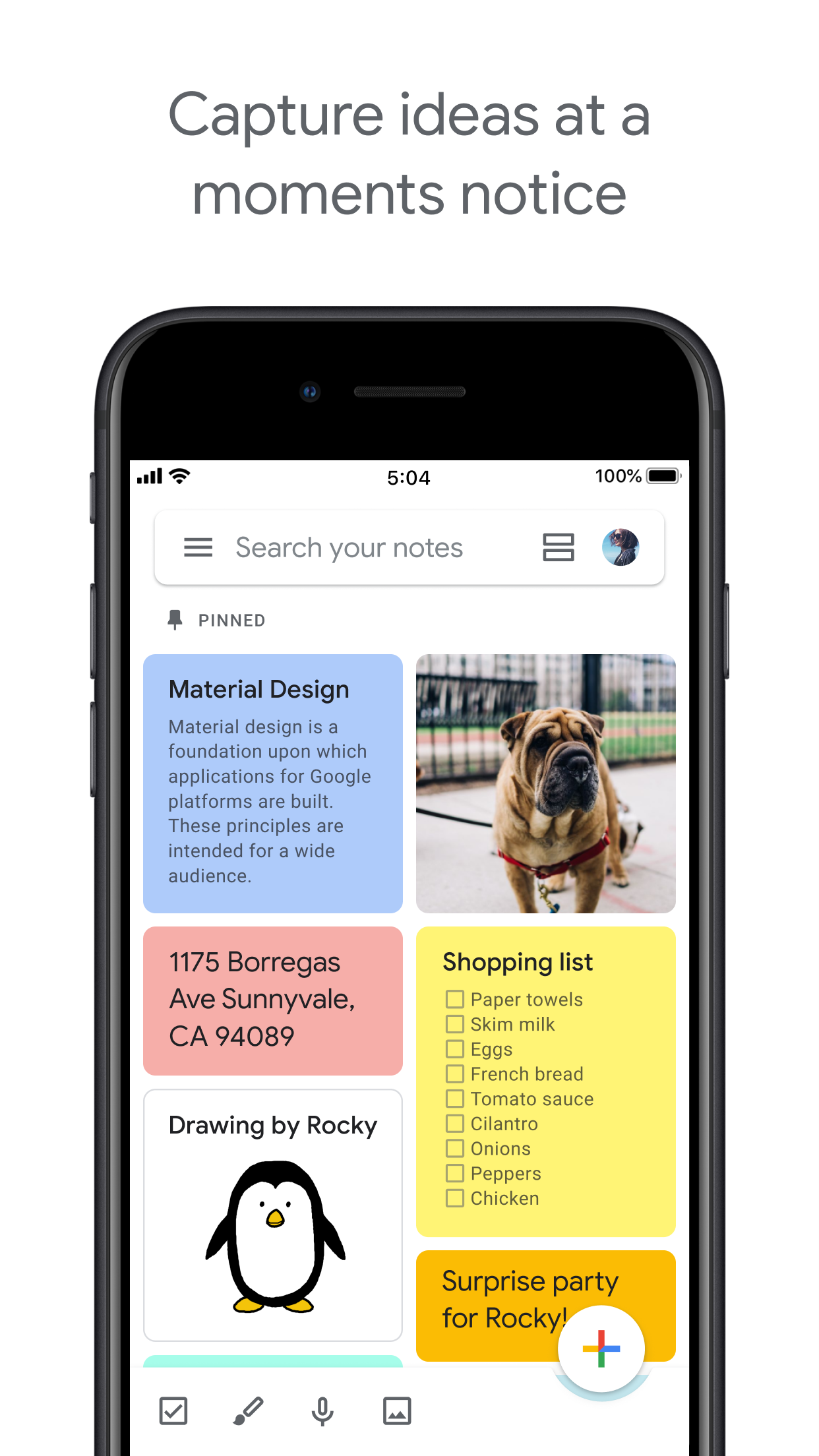
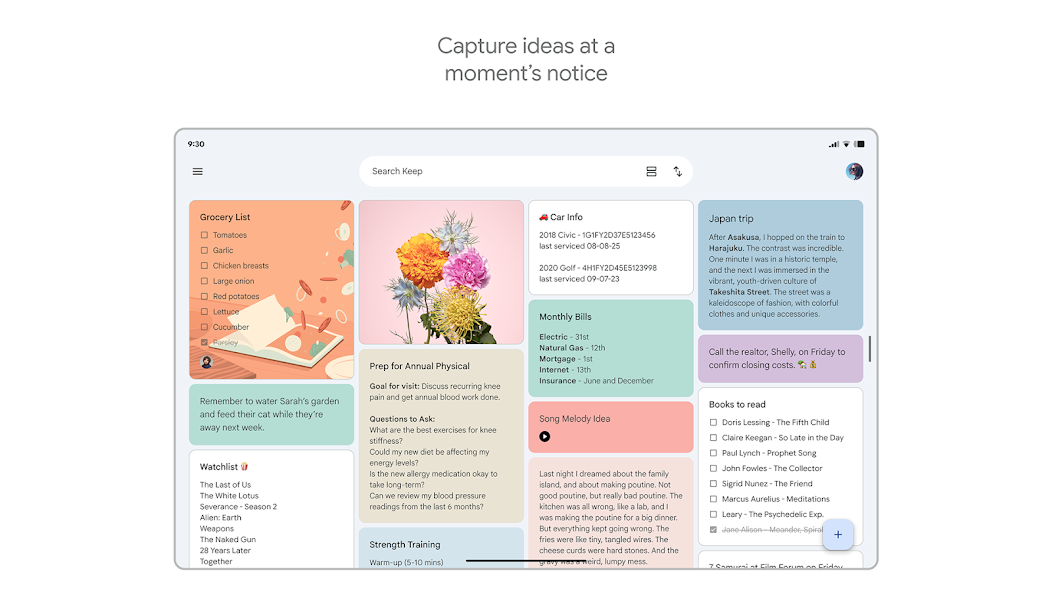
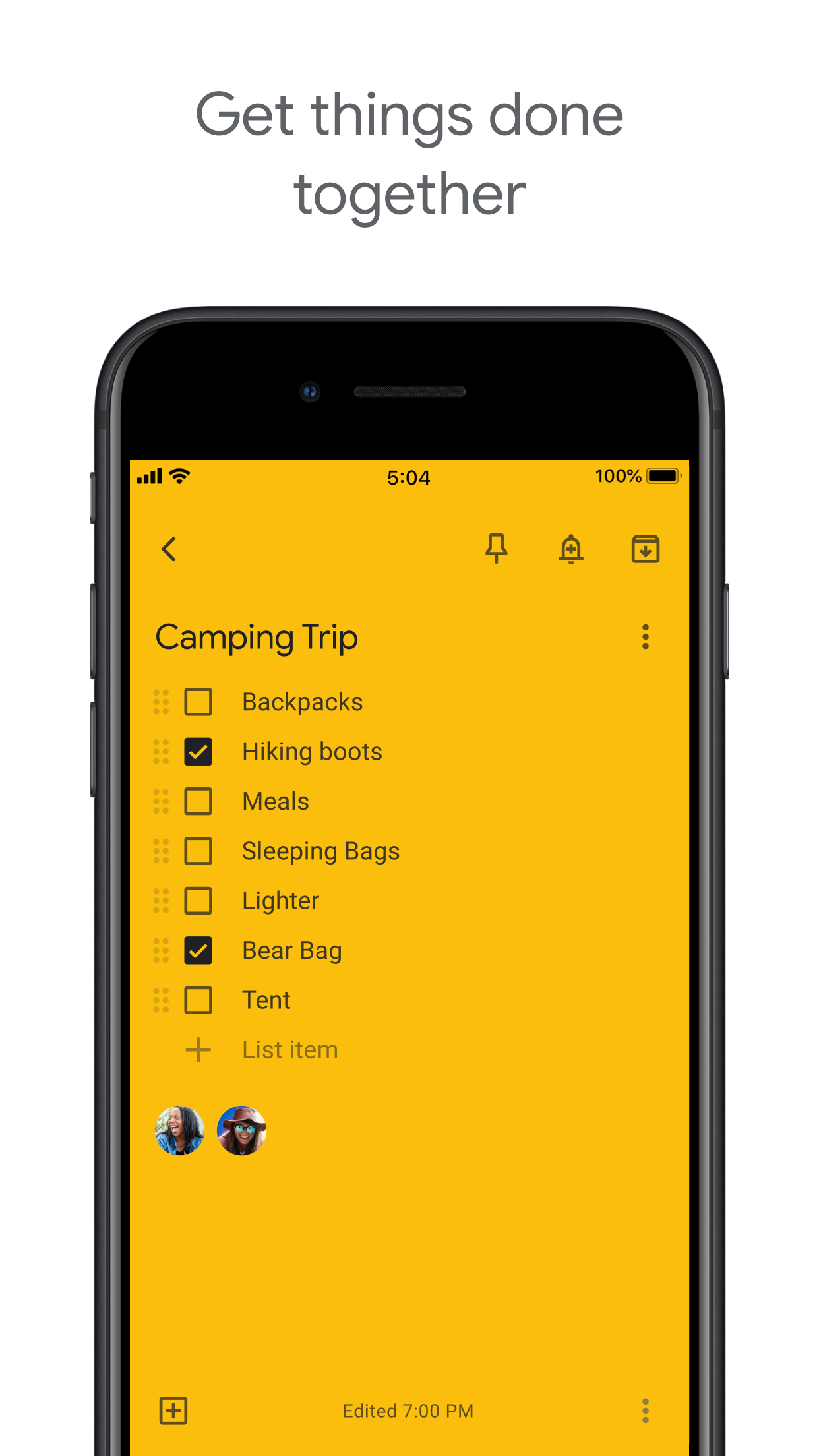
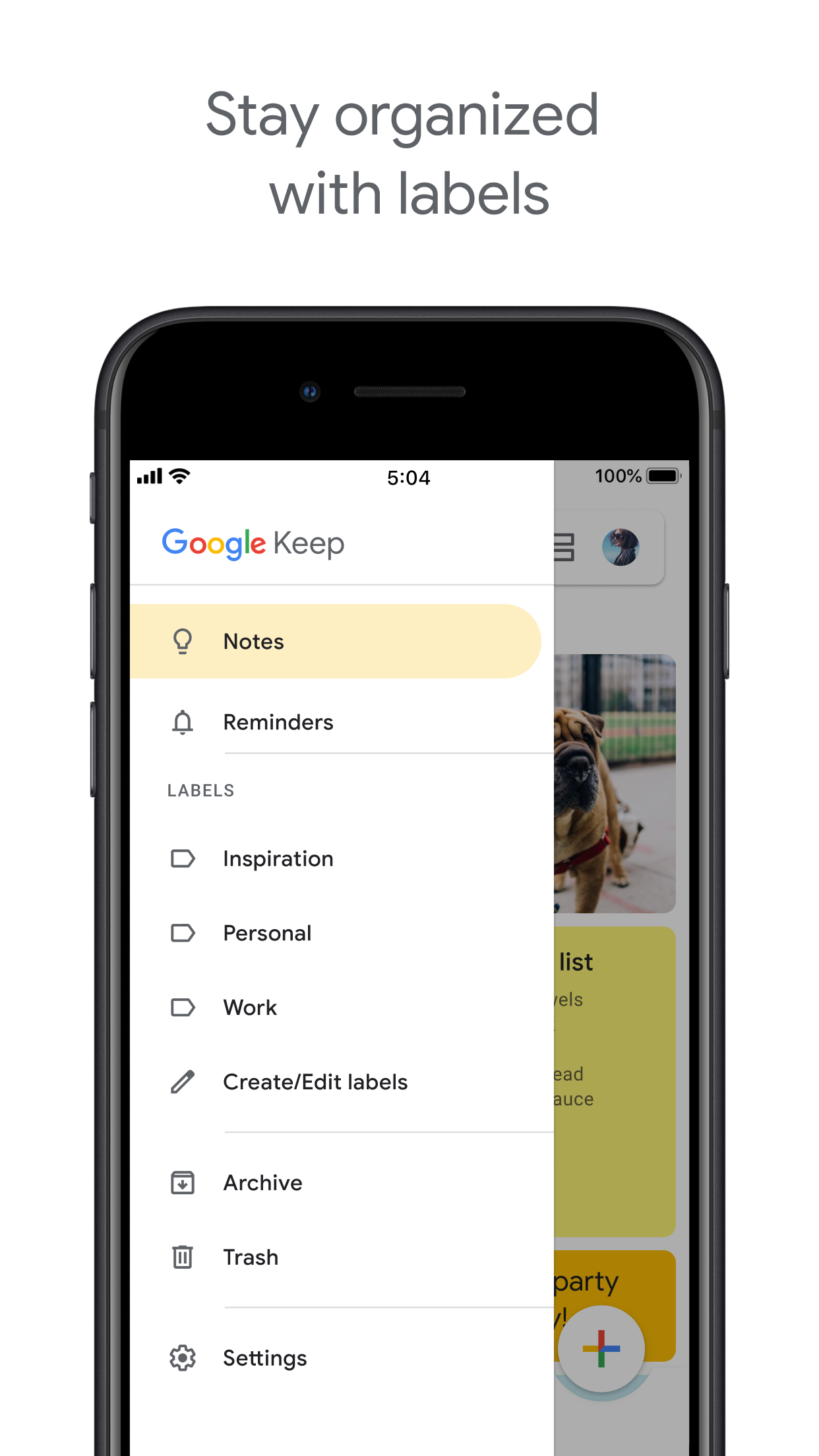
Keep organizes by labels, colors, and pinned notes in a card grid.

Google Tasks
Organize by project or list — left column screenshot
Named task lists.
Google Keep
Organize by project or list — right column screenshot
Labels and pinned notes.

Winner: Google Tasks

Named task lists with drag-and-drop ordering suit project workflows better than a note card grid.


Feature 4

Google Calendar integration

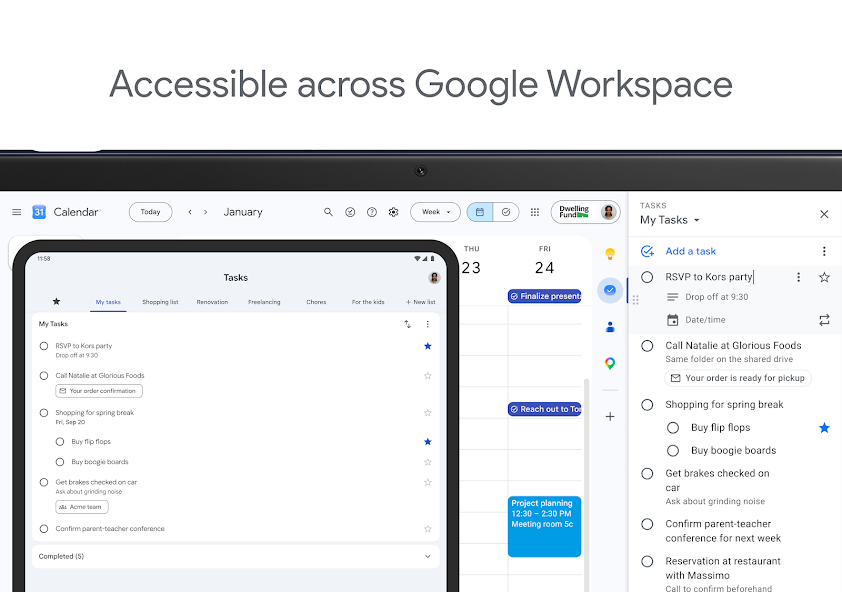
Dated tasks appear in Google Calendar natively. Plan events and to-dos together.

Keep reminders can appear in Calendar when saved through the Google Tasks integration.

Google Tasks
Google Calendar integration — left column screenshot
Tasks on your Calendar grid.
Google Keep
Google Calendar integration — right column screenshot
Reminders via Tasks bridge.

Winner: Google Tasks

Dated tasks appear on your Google Calendar grid natively — the core planning integration for to-dos.


Feature 5

Freeform notes

Google Tasks has lightweight detail fields optimized for completion, not long-form writing.

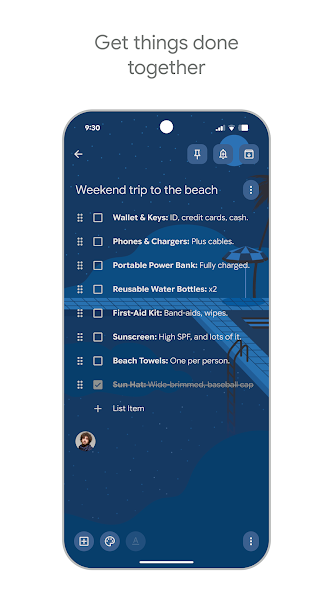
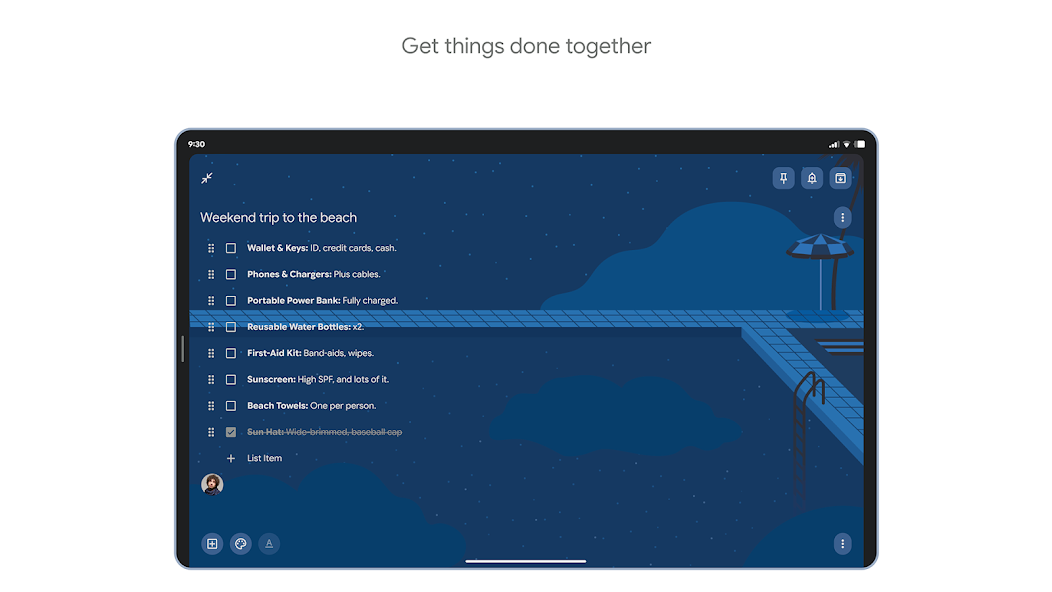
Keep is purpose-built for freeform notes, brainstorming, and quick capture.

Google Tasks
Freeform notes — left column screenshot
Task detail fields.
Google Keep
Freeform notes — right column screenshot
Freeform note editor.

Winner: Google Keep

Keep is purpose-built for freeform notes, brainstorming, and quick unstructured capture.


Feature 6

Image capture

Google Tasks does not support image attachments on tasks.

Keep lets you snap photos, attach images from your library, or scan documents directly into a note.

Google Tasks
Image capture — left column screenshot
Text-based tasks only.
Google Keep
Image capture — right column screenshot
Image notes and scans.

Winner: Google Keep

Keep lets you snap photos, attach images, and scan documents — Google Tasks is text-only.


Feature 7

Voice memos

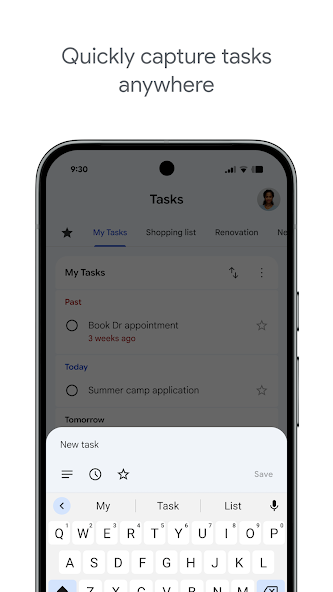
Google Tasks focuses on typed task entry with optional Assistant on Android.

Keep records audio notes you can play back and transcribe later.

Google Tasks
Voice memos — left column screenshot
Typed task capture.
Google Keep
Voice memos — right column screenshot
Audio note recording.

Winner: Google Keep

Keep records audio notes you can play back; Google Tasks focuses on typed task entry.


Feature 8

Kanban board view

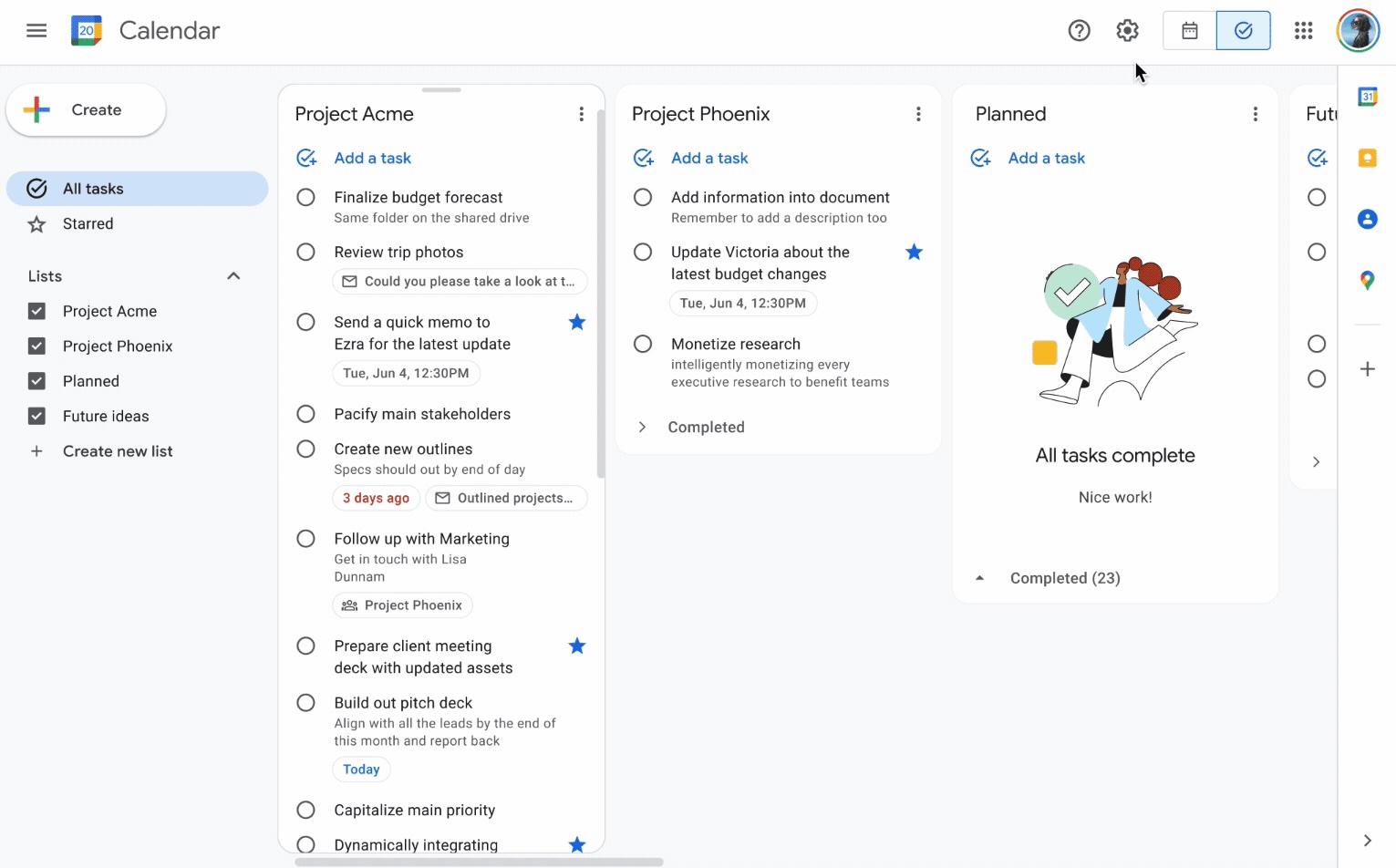
Google Tasks is list-based. TasksBoard adds kanban columns for project-stage visibility.

Keep shows notes in a grid or list — no column-based workflow board.

Google Tasks
Kanban board view — left column screenshot
Kanban via TasksBoard.
Google Keep
Kanban board view — right column screenshot
Grid and list note views.

Winner: Google Tasks

TasksBoard adds kanban columns for project-stage visibility; Keep has no workflow board.


Feature 9

Team board sharing

TasksBoard enables shared kanban boards on Google Tasks for cross-platform teams.

Keep supports real-time collaborative notes and checklists with other Google accounts.

Google Tasks
Team board sharing — left column screenshot
Shared boards via TasksBoard.
Google Keep
Team board sharing — right column screenshot
Collaborative Keep notes.

It's a tie

Both support collaboration — TasksBoard for shared task boards, Keep for real-time collaborative notes. Different jobs.


Feature 10

Gmail integration

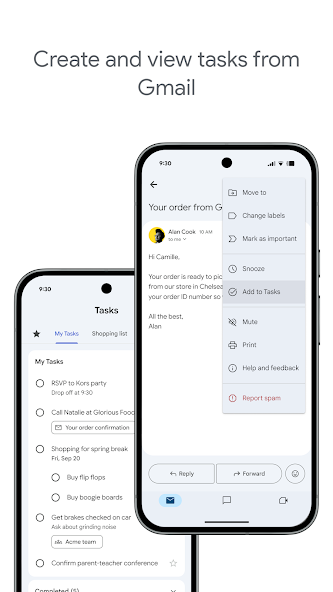
Turn any email into a Google Task with one click. The task links back to the original message.

Keep is available in the Gmail side panel for note-taking, but not for structured task workflows.

Google Tasks
Gmail integration — left column screenshot
Add to Tasks from Gmail.
Google Keep
Gmail integration — right column screenshot
Keep side panel in Gmail.

Winner: Google Tasks

Turn any Gmail message into a linked Google Task in one click — structured task workflows from email.


何千人ものユーザーに愛されています

Chromeウェブストアの1,000件以上のレビューで 4.8 / 5

"Always have 101 things to do and this helps me organize and prioritize like no other app can. It syncs to my phone and laptop, and when I add dates to tasks, they automatically integrate into my Google Calendar, which is immensely convenient. I can look at my daily, weekly, and monthly overview in Google Calendar and clearly see how much I was able to accomplish! Great tool indeed. Excited to see how it will evolve over time."

PR Parina Ramjee avatar
Parina Ramjee

"Seriously, makes my tasks easier to share with the team, and the free version is quite nice for our little office. Eventually, we will expand, and this is definitely a great tool to do that! Syncs with my Workspace and Calendar."

CC Chase Cattrall avatar
Chase Cattrall

"I love the simple, intuitive interface and the Add to Tasks feature, especially as I work through my emails! Sharing my tasks is also easy. Overall, outstanding and simple to use, and that means a lot with too many complex tasks out there!"

GC Greg Cantori avatar
Greg Cantori

"Great too for managing daily routine and plan tasks. Would be perfect if it was updated for generating reports for statistics. For google tasks and google calendar"

NV Nick Vlasov avatar
Nick Vlasov

よくある質問

Google TasksとGoogle Keepの主な違いは何ですか?

Google Tasksは、期限、サブタスク、Google Calendar連携を備えた構造化ToDoリストツールです。Google Keepは、テキスト、画像、音声メモ、色分けラベルをサポートする自由形式のメモアプリです。Tasksは「行動」のため、Keepは「記録」のためのものです。

仕事のタスクにはGoogle TasksとGoogle Keepのどちらが良いですか?

仕事のタスクにはGoogle Tasksの方が適しています。期限、サブタスク、Gmail連携をサポートし、Google Calendarと同期します。Keepはメモやアイデアを素早く記録するのには適していますが、仕事を確実に管理するために必要な構造を提供しません。

Google KeepのメモをGoogle Taskに変換できますか?

アプリ内で直接変換することはできません。推奨されるワークフローは、Keepメモの情報に基づいてGoogle Tasksで手動でタスクを作成することです。Keepメモの内容をタスクの説明やメモ欄にコピーするユーザーもいます。

Google TasksはGoogle Keepのようなリマインダーをサポートしていますか?

Google Tasksは期限をサポートしており、Google Calendarでリマインダーがトリガーされます。Google Keepには、場所ベースのリマインダーなど独自のリマインダーシステムがあります。カレンダーと連動した時間ベースのリマインダーには、期限付きのGoogle Tasksの方が信頼性の高い選択肢です。

Google KeepのメモのようにGoogle Tasksでタスクを共有できますか?

標準のGoogle Tasksは共有をサポートしていません。Google Keepは他のGoogleユーザーとメモを共有できます。しかし、TasksBoardはGoogle Tasksにリアルタイムのチーム共有機能を追加します。ボード全体をチームメイトと共有し、タスクを割り当てることができます。

TasksBoardがKeepより優れている点は何ですか?

TasksBoardは、Google Tasksにフルスクリーンカンバンボード、チーム共有、ドラッグ&ドロップによるタスク管理、タスクとGoogle Calendarイベントを組み合わせた「今日の予定」ビューを提供します。これにより、Tasksの構造化された性質が、Keepにはない完全な生産性システムへと進化します。

Google TasksとGoogle Keepを組み合わせたアプリはありますか?

両方をネイティブに統合する単一のアプリはありません。多くのパワーユーザーが実践している実用的なワークフローは、Keepで記録し、Tasksに整理し、TasksBoardを使ってフルスクリーンカンバンインターフェースとチーム共有で管理することです。


さあ、始めましょう

Google Tasksをメインの生産性ツールにする

Googleでサインインして、Google Tasks用のフルスクリーンカンバンボードを手に入れましょう。無料プランには無制限のタスク、ボードビュー、カレンダー同期が含まれています。

クレジットカード不要。Google TasksデータはGoogle内に保持されます。