
Google Tasks vs Google Keep

Google Tasks vs Google Keep

Google Tasks vs Google Keep: ¿Cuál es la diferencia y cuál se adapta a tu flujo de trabajo?

Ambas herramientas vienen gratis con tu cuenta de Google, pero resuelven problemas muy diferentes. Esta guía desglosa exactamente cuándo usar cada una, y cómo TasksBoard hace que Google Tasks sea el claro ganador para el trabajo estructurado.

Utilizado por más de 2 millones de personas. Empieza gratis.


Google Tasks vs Google Keep: Comparación de funciones

Feature Google Tasks Google Keep
Fechas de vencimiento y recordatorios
Due dates and reminders
Solo recordatorios (vía Recordatorios de Keep)
Subtareas
Subtasks
Organizar por proyecto / lista
Organize by project/list
Solo etiquetas
Integración con Google Calendar
Google Calendar integration
Notas de forma libre
Freeform notes
Captura de imágenes
Image capture
Notas de voz
Voice memos
Vista de tablero Kanban
Kanban board view
Vía TasksBoard
Uso compartido de tableros en equipo
Team board sharing
Vía TasksBoard Solo notas colaborativas
Integración con Gmail
Gmail integration

Feature-by-feature comparison

Google Tasks is for actionable to-dos; Google Keep is for notes and capture. See how each tool handles reminders, lists, and collaboration.

Feature 1

Due dates and reminders

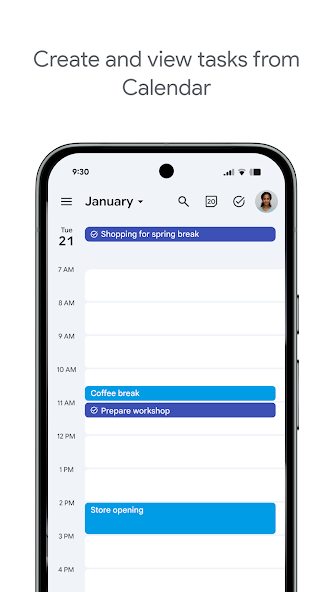
Google Tasks is built around due dates, deadlines, and notifications synced through Google Calendar.

Google Keep supports note reminders; newer flows save reminders in Google Tasks and surface them in Calendar.

Google Tasks
Due dates and reminders — left column screenshot
Task due dates in Calendar.
Google Keep
Due dates and reminders — right column screenshot
Note reminders linked to Tasks.

Winner: Google Tasks

Google Tasks is purpose-built for due dates, deadlines, and Calendar-synced reminders.

Feature 2

Subtasks

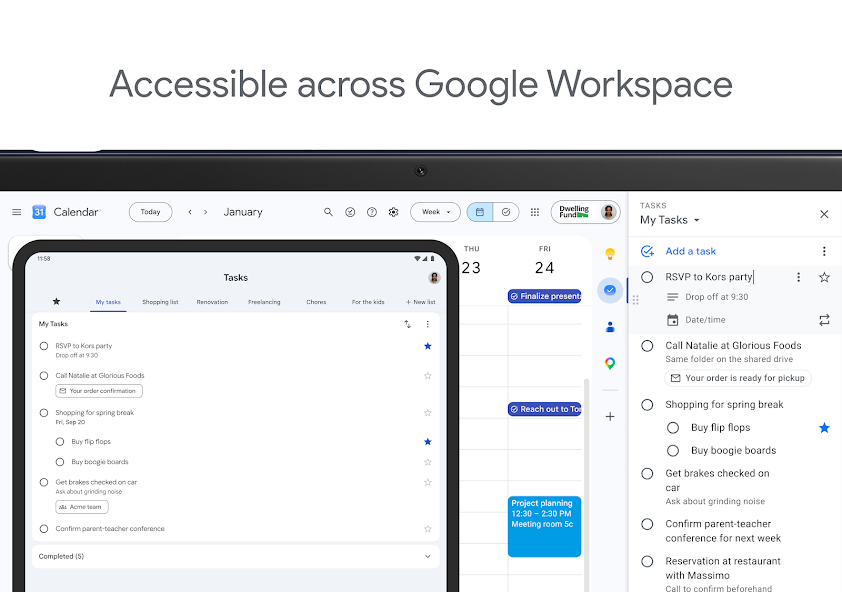
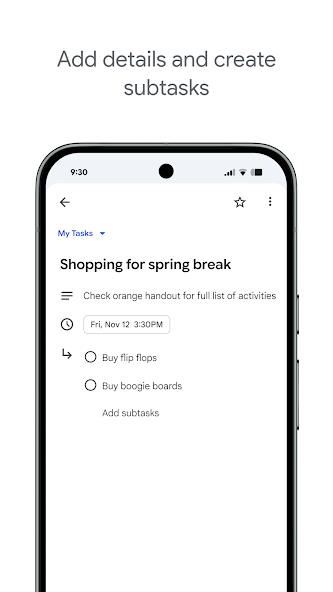
Google Tasks nests true subtasks under a parent task for step-by-step execution.

Keep supports checklists inside a note, but not dedicated parent-child task entities.

Google Tasks
Subtasks — left column screenshot
Parent task with subtasks.
Google Keep
Subtasks — right column screenshot
Checklist items in a note.

Winner: Google Tasks

True parent-child subtask entities beat checklist items inside a note for step-by-step execution.


Feature 3

Organize by project or list

Google Tasks uses multiple named lists with drag-and-drop reordering and sorting.

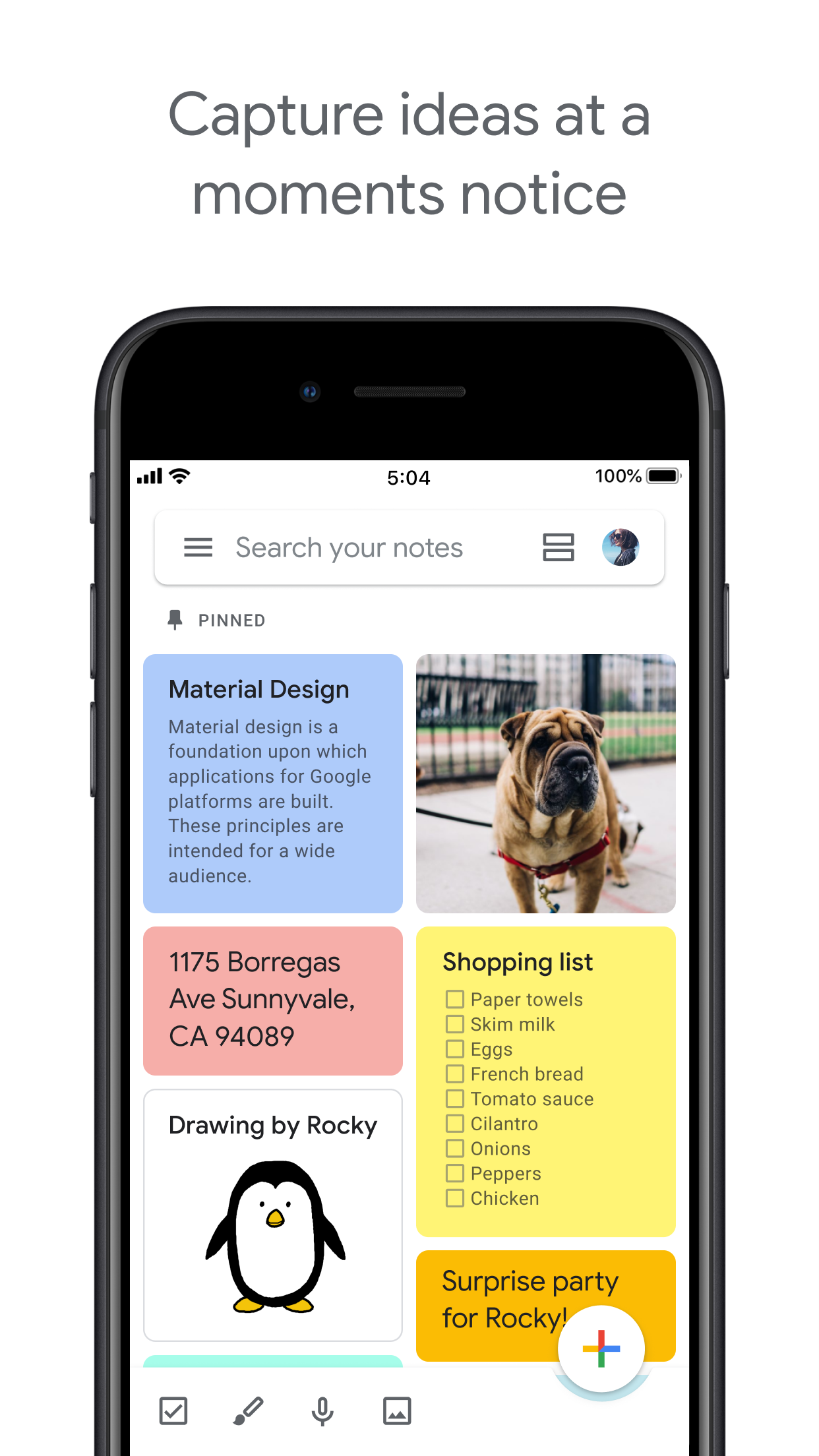
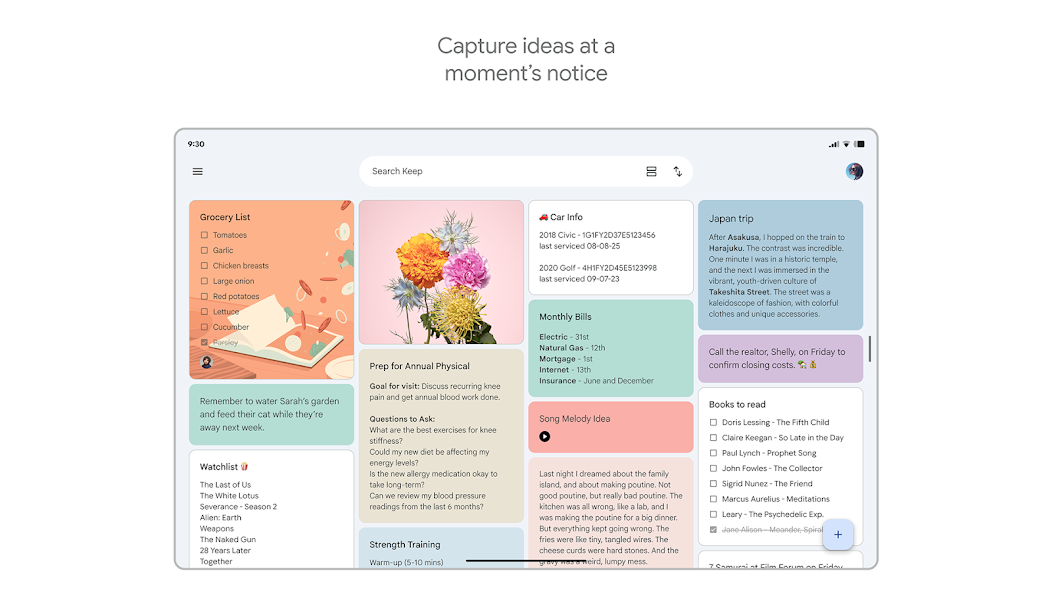
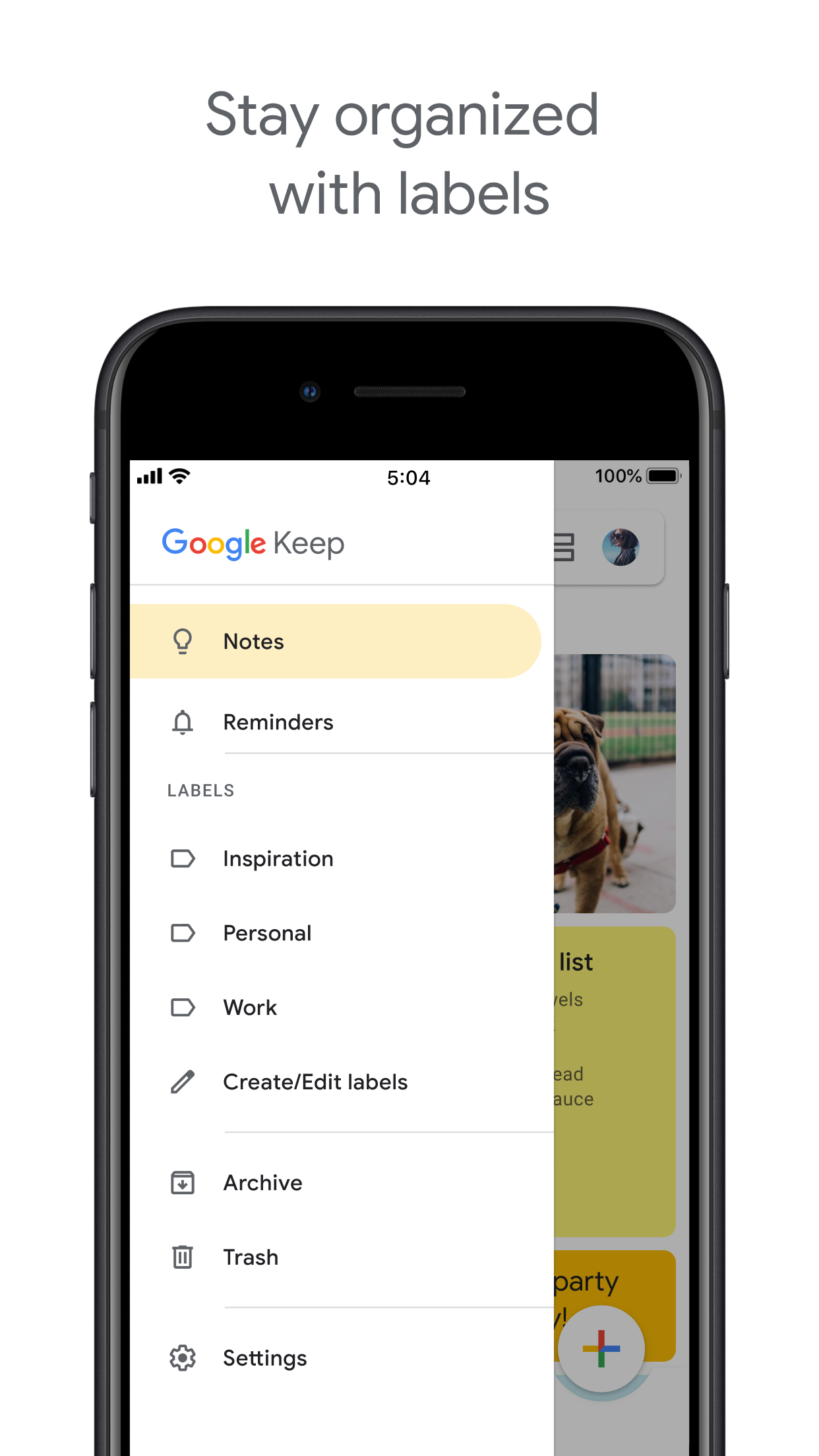
Keep organizes by labels, colors, and pinned notes in a card grid.

Google Tasks
Organize by project or list — left column screenshot
Named task lists.
Google Keep
Organize by project or list — right column screenshot
Labels and pinned notes.

Winner: Google Tasks

Named task lists with drag-and-drop ordering suit project workflows better than a note card grid.


Feature 4

Google Calendar integration

Dated tasks appear in Google Calendar natively. Plan events and to-dos together.

Keep reminders can appear in Calendar when saved through the Google Tasks integration.

Google Tasks
Google Calendar integration — left column screenshot
Tasks on your Calendar grid.
Google Keep
Google Calendar integration — right column screenshot
Reminders via Tasks bridge.

Winner: Google Tasks

Dated tasks appear on your Google Calendar grid natively — the core planning integration for to-dos.


Feature 5

Freeform notes

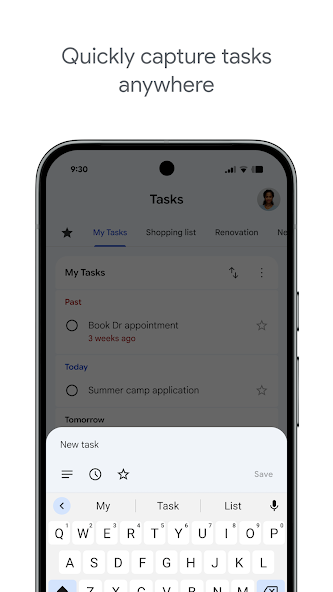
Google Tasks has lightweight detail fields optimized for completion, not long-form writing.

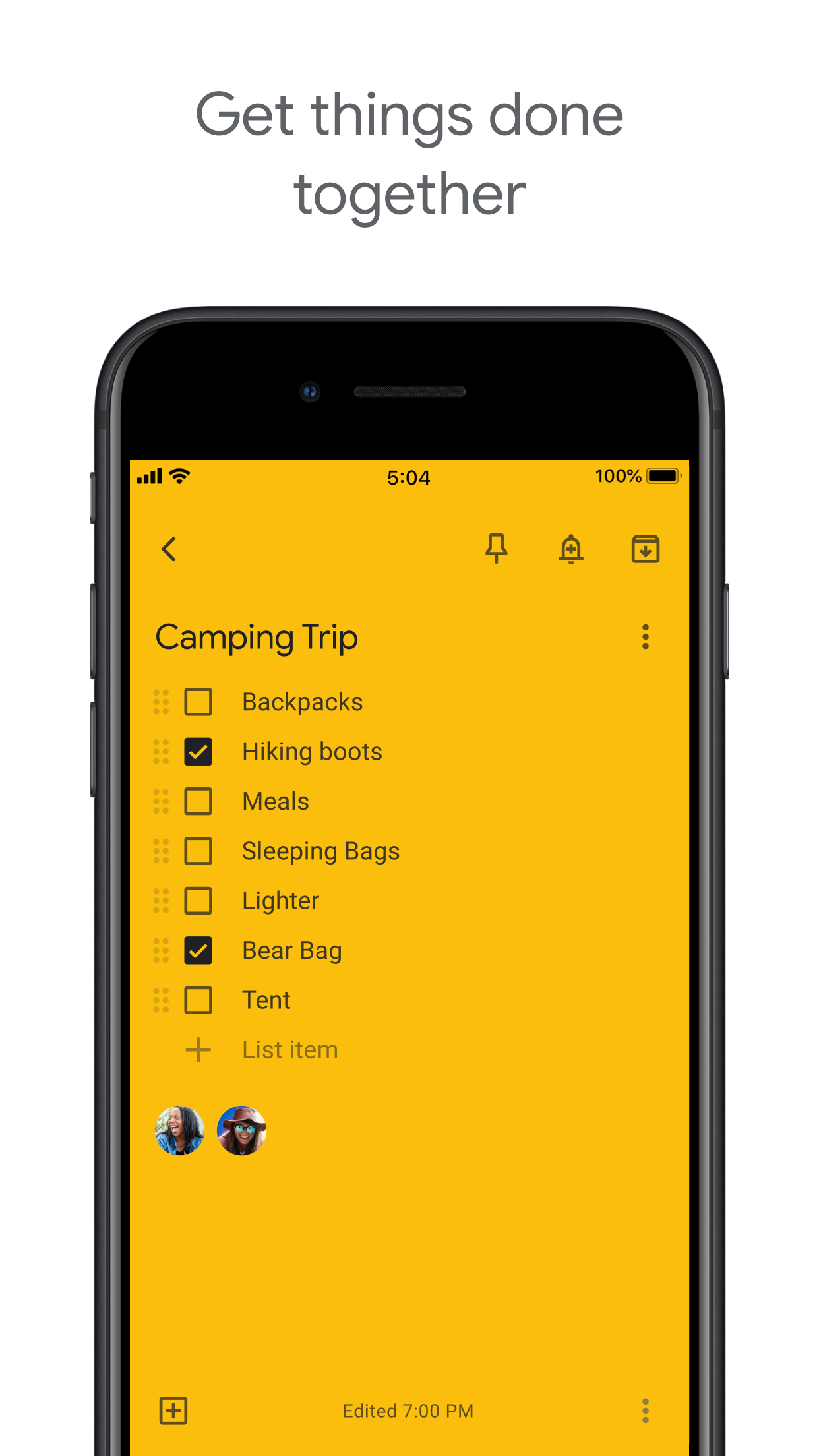
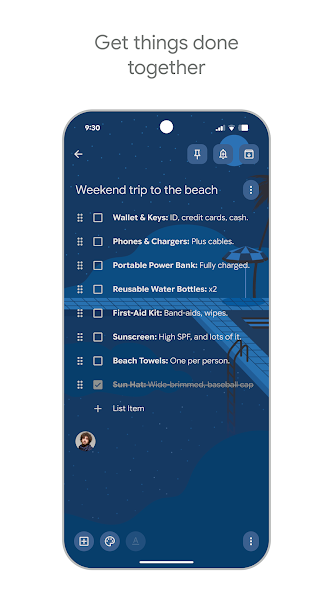
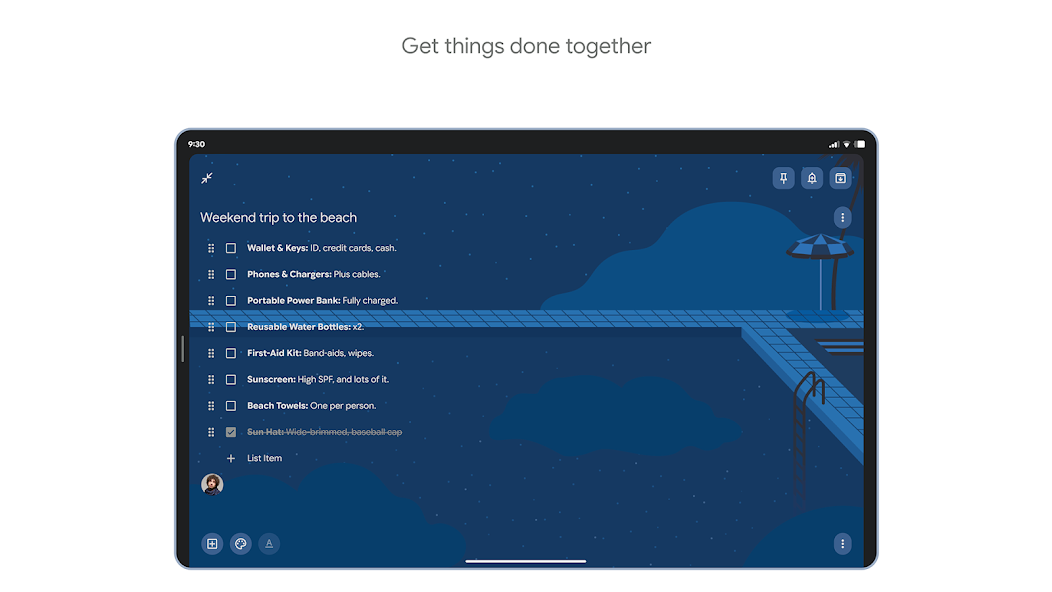
Keep is purpose-built for freeform notes, brainstorming, and quick capture.

Google Tasks
Freeform notes — left column screenshot
Task detail fields.
Google Keep
Freeform notes — right column screenshot
Freeform note editor.

Winner: Google Keep

Keep is purpose-built for freeform notes, brainstorming, and quick unstructured capture.


Feature 6

Image capture

Google Tasks does not support image attachments on tasks.

Keep lets you snap photos, attach images from your library, or scan documents directly into a note.

Google Tasks
Image capture — left column screenshot
Text-based tasks only.
Google Keep
Image capture — right column screenshot
Image notes and scans.

Winner: Google Keep

Keep lets you snap photos, attach images, and scan documents — Google Tasks is text-only.


Feature 7

Voice memos

Google Tasks focuses on typed task entry with optional Assistant on Android.

Keep records audio notes you can play back and transcribe later.

Google Tasks
Voice memos — left column screenshot
Typed task capture.
Google Keep
Voice memos — right column screenshot
Audio note recording.

Winner: Google Keep

Keep records audio notes you can play back; Google Tasks focuses on typed task entry.


Feature 8

Kanban board view

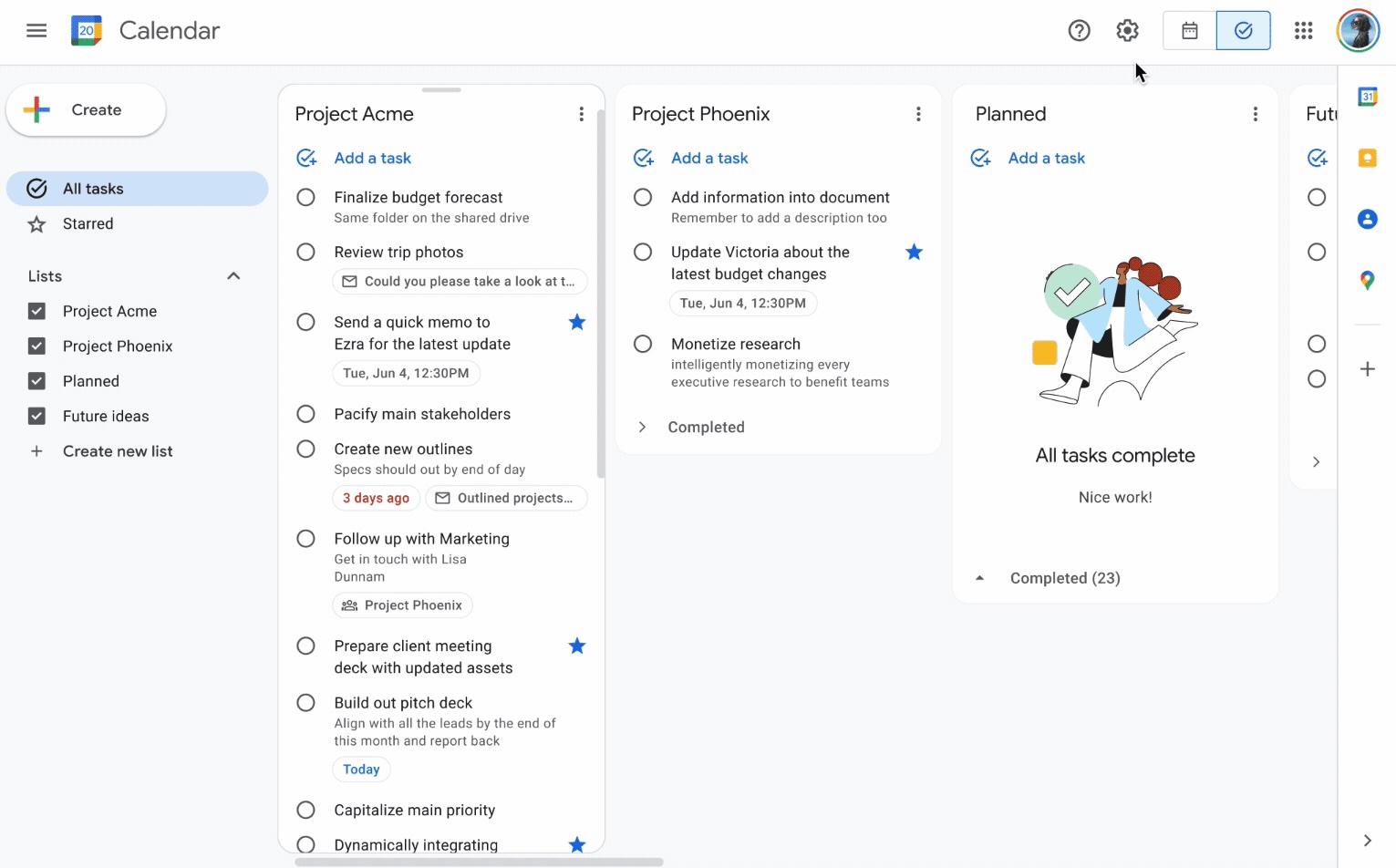
Google Tasks is list-based. TasksBoard adds kanban columns for project-stage visibility.

Keep shows notes in a grid or list — no column-based workflow board.

Google Tasks
Kanban board view — left column screenshot
Kanban via TasksBoard.
Google Keep
Kanban board view — right column screenshot
Grid and list note views.

Winner: Google Tasks

TasksBoard adds kanban columns for project-stage visibility; Keep has no workflow board.


Feature 9

Team board sharing

TasksBoard enables shared kanban boards on Google Tasks for cross-platform teams.

Keep supports real-time collaborative notes and checklists with other Google accounts.

Google Tasks
Team board sharing — left column screenshot
Shared boards via TasksBoard.
Google Keep
Team board sharing — right column screenshot
Collaborative Keep notes.

It's a tie

Both support collaboration — TasksBoard for shared task boards, Keep for real-time collaborative notes. Different jobs.


Feature 10

Gmail integration

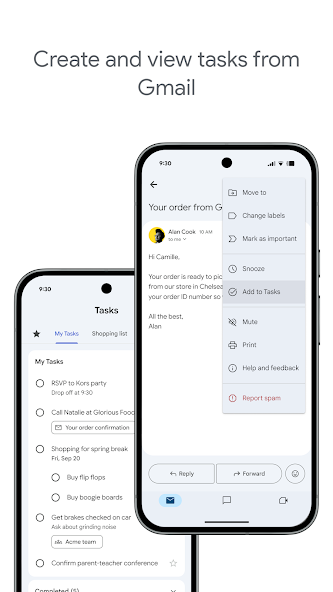
Turn any email into a Google Task with one click. The task links back to the original message.

Keep is available in the Gmail side panel for note-taking, but not for structured task workflows.

Google Tasks
Gmail integration — left column screenshot
Add to Tasks from Gmail.
Google Keep
Gmail integration — right column screenshot
Keep side panel in Gmail.

Winner: Google Tasks

Turn any Gmail message into a linked Google Task in one click — structured task workflows from email.


Amado por miles de usuarios

4.8 / 5 de más de 1,000 reseñas en Chrome Web Store

"Always have 101 things to do and this helps me organize and prioritize like no other app can. It syncs to my phone and laptop, and when I add dates to tasks, they automatically integrate into my Google Calendar, which is immensely convenient. I can look at my daily, weekly, and monthly overview in Google Calendar and clearly see how much I was able to accomplish! Great tool indeed. Excited to see how it will evolve over time."

PR Parina Ramjee avatar
Parina Ramjee

"Seriously, makes my tasks easier to share with the team, and the free version is quite nice for our little office. Eventually, we will expand, and this is definitely a great tool to do that! Syncs with my Workspace and Calendar."

CC Chase Cattrall avatar
Chase Cattrall

"I love the simple, intuitive interface and the Add to Tasks feature, especially as I work through my emails! Sharing my tasks is also easy. Overall, outstanding and simple to use, and that means a lot with too many complex tasks out there!"

GC Greg Cantori avatar
Greg Cantori

"Great too for managing daily routine and plan tasks. Would be perfect if it was updated for generating reports for statistics. For google tasks and google calendar"

NV Nick Vlasov avatar
Nick Vlasov

Preguntas frecuentes

¿Cuál es la diferencia principal entre Google Tasks y Google Keep?

Google Tasks es una herramienta de lista de tareas estructurada con fechas de vencimiento, subtareas e integración con Google Calendar. Google Keep es una aplicación de toma de notas de forma libre con soporte para texto, imágenes, notas de voz y etiquetas codificadas por colores. Tasks es para acciones; Keep es para capturas.

¿Cuál es mejor para tareas de trabajo: Google Tasks o Google Keep?

Google Tasks es mejor para tareas de trabajo. Admite fechas límite, subtareas, integración con Gmail y se sincroniza con Google Calendar. Keep es mejor para capturar notas e ideas rápidamente, pero no proporciona la estructura necesaria para gestionar el trabajo de manera fiable.

¿Puedo convertir una nota de Google Keep en una Google Task?

No directamente en las aplicaciones. El flujo de trabajo recomendado es crear manualmente una tarea en Google Tasks basada en la información de tu nota de Keep. Algunos usuarios copian el contenido de la nota de Keep en la descripción o el campo de notas de la tarea.

¿Admite Google Tasks recordatorios como Google Keep?

Google Tasks admite fechas de vencimiento, que activan recordatorios en Google Calendar. Google Keep tiene su propio sistema de recordatorios con recordatorios basados en la ubicación. Para recordatorios basados en el tiempo vinculados a un calendario, Google Tasks con fechas de vencimiento es la opción más fiable.

¿Puedes compartir tareas en Google Tasks como notas en Google Keep?

Google Tasks nativo no admite el uso compartido. Google Keep permite compartir notas con otros usuarios de Google. Sin embargo, TasksBoard añade uso compartido en equipo en tiempo real a Google Tasks: puedes compartir un tablero completo con compañeros de equipo y asignar tareas.

¿Qué añade TasksBoard a Google Tasks que lo hace mejor que Keep?

TasksBoard le da a Google Tasks un tablero Kanban a pantalla completa, uso compartido en equipo, gestión de tareas mediante arrastrar y soltar y una vista de hoy que combina tareas con eventos de Google Calendar. Esto convierte la naturaleza estructurada de Tasks en un sistema de productividad completo que Keep no puede igualar.

¿Existe una aplicación que combine Google Tasks y Google Keep?

Ninguna aplicación única fusiona ambas de forma nativa. El flujo de trabajo práctico que siguen la mayoría de los usuarios avanzados es: capturar en Keep, procesar en Tasks, luego usar TasksBoard para gestionar Tasks con una interfaz Kanban a pantalla completa y uso compartido en equipo.


Comienza ahora

Haz de Google Tasks tu herramienta de productividad principal

Inicia sesión con Google y obtén un tablero Kanban a pantalla completa para tus Google Tasks. El plan gratuito incluye tareas ilimitadas, vista de tablero y sincronización con Calendar.

No se requiere tarjeta de crédito. Tus datos de Google Tasks permanecen en Google.