
Google Tasks for desktop
Google Tasks Desktop App for Windows & Mac
Google doesn't ship a desktop app for Google Tasks. TasksBoard does: install it from your browser in one click and get your Google Tasks in its own window, with a full-screen board view, on Windows, Mac, Linux, and ChromeOS.
Used by 2M+ people. Free to start, nothing to download.
Why use TasksBoard as your Google Tasks desktop app
Works on Windows
Install TasksBoard from Chrome or Edge and it gets its own window, a Start menu entry, and a taskbar icon, just like any other Windows app.
Works on Mac
Install from Chrome, Edge, or Safari (Add to Dock) and launch Google Tasks from your Dock or Launchpad in its own window, separate from your browser tabs.
Your Google Tasks, always in sync
TasksBoard reads and writes your existing Google Tasks. Anything you add or complete shows up in Gmail, Google Calendar, and the Google Tasks mobile app.
More than a list: a full-screen board
See all your Google Tasks lists side by side as columns, drag tasks between them, and share lists with teammates.
One-click install
Install Google Tasks on your computer in under a minute
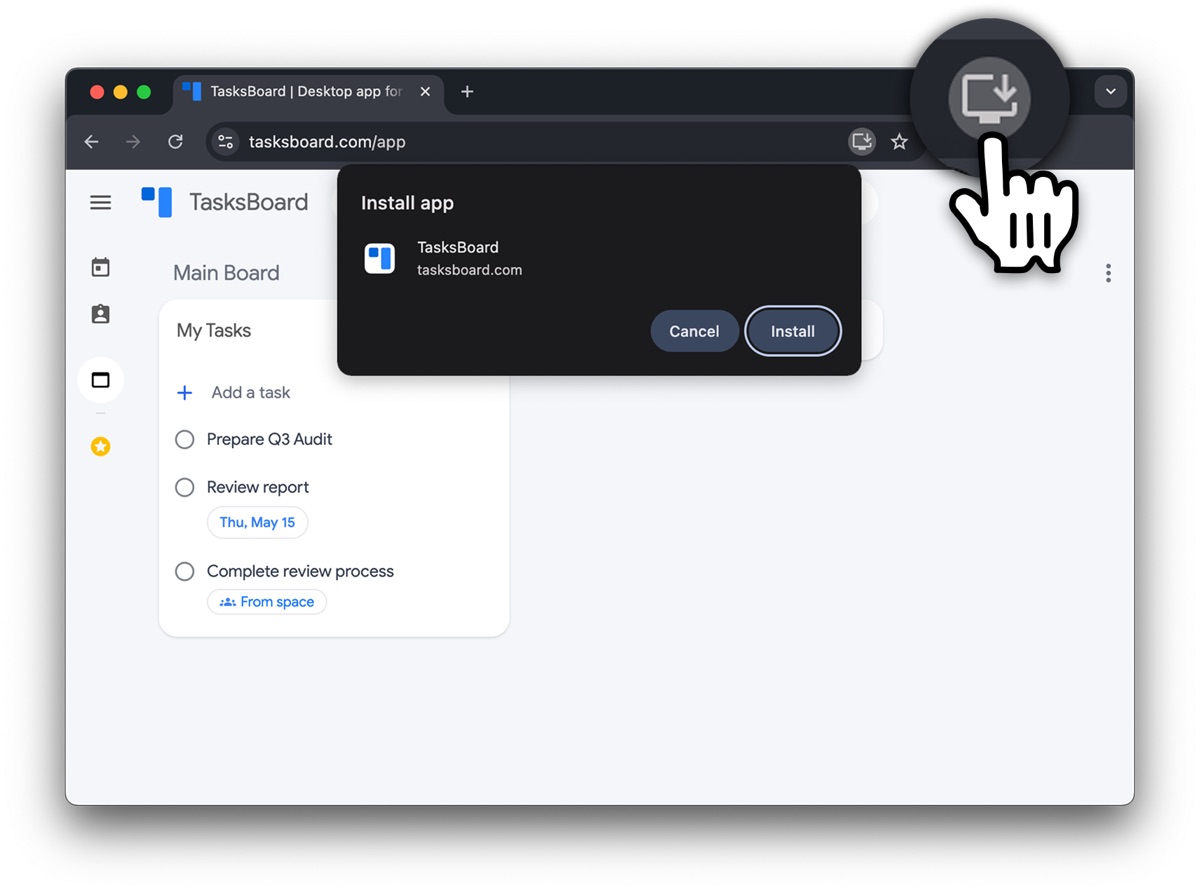
One-click install
Install Google Tasks on your computer in under a minute
TasksBoard is a Progressive Web App (PWA). Your browser installs it like a native app: no installer to download, no admin rights needed, and it updates itself automatically.
- Own window, Dock/taskbar icon, and Alt+Tab / Cmd+Tab switching
- Works in Chrome, Edge, Brave, and Safari on macOS
- Uninstall anytime from the app menu, your tasks stay in Google
Full-screen Google Tasks
Finally, Google Tasks on a big screen
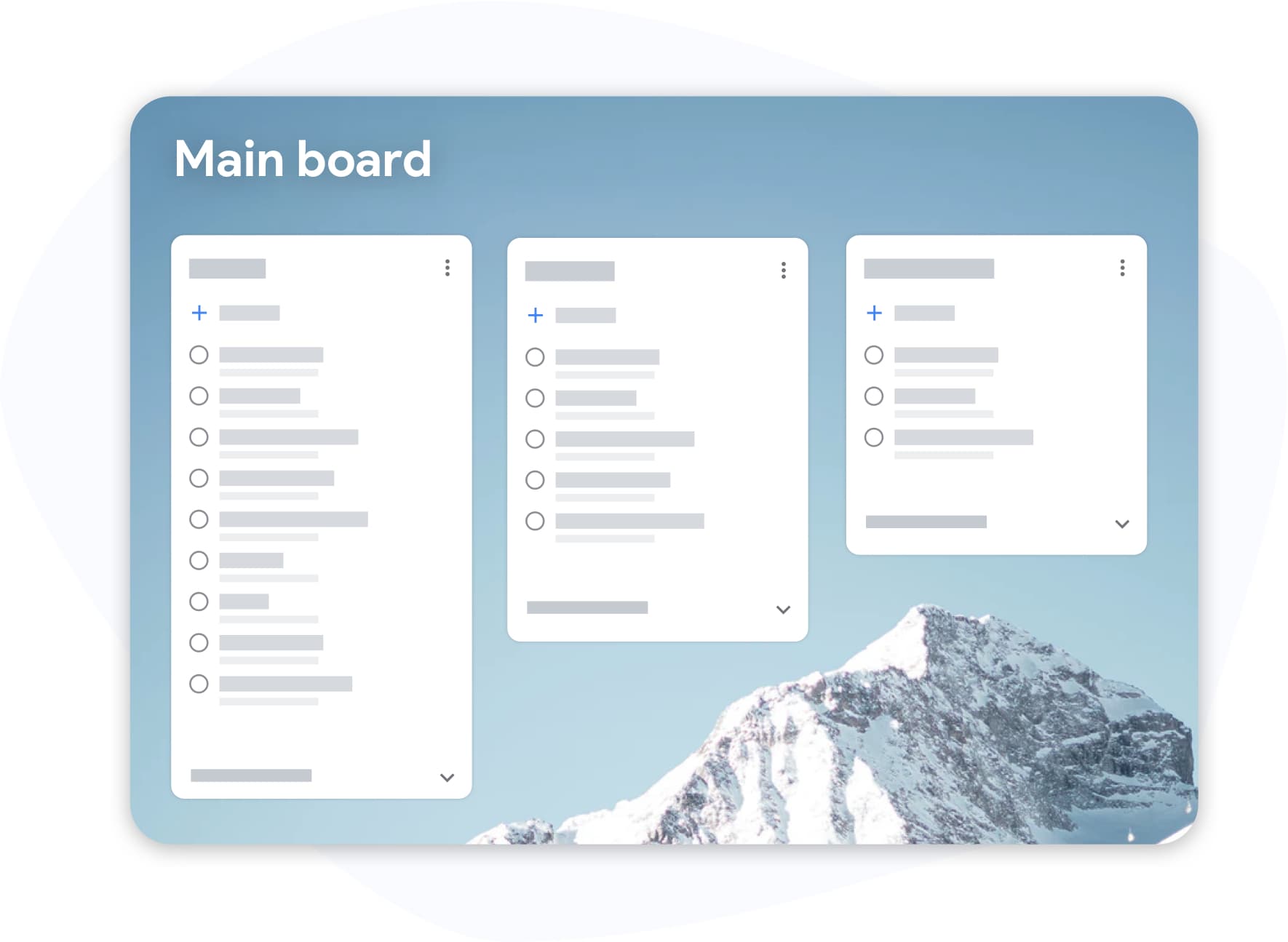
Full-screen Google Tasks
Finally, Google Tasks on a big screen
The official Google Tasks lives in a narrow Gmail and Calendar side panel. TasksBoard uses your whole desktop so you can plan the week at a glance.
- All your lists visible at once as board columns
- Drag and drop tasks between lists and reorder by priority
- Due dates, subtasks, and notes edited right on the board
How to install the Google Tasks desktop app
-
Open TasksBoard
Go to tasksboard.com/app in Chrome, Edge, or Brave (or Safari on Mac) and sign in with the Google account that has your tasks.
-
Click Install
Click the install icon in the address bar, or open the browser menu and choose "Install TasksBoard". In Safari, choose File → Add to Dock.
-
Launch it like any app
TasksBoard opens in its own window and appears in your Start menu, taskbar, Dock, or Launchpad. Your Google Tasks are already there.
Loved by thousands of users
4.8 / 5 from 1,000+ reviews on the Chrome Web Store
"Always have 101 things to do and this helps me organize and prioritize like no other app can. It syncs to my phone and laptop, and when I add dates to tasks, they automatically integrate into my Google Calendar, which is immensely convenient. I can look at my daily, weekly, and monthly overview in Google Calendar and clearly see how much I was able to accomplish! Great tool indeed. Excited to see how it will evolve over time."

"Seriously, makes my tasks easier to share with the team, and the free version is quite nice for our little office. Eventually, we will expand, and this is definitely a great tool to do that! Syncs with my Workspace and Calendar."

"I love the simple, intuitive interface and the Add to Tasks feature, especially as I work through my emails! Sharing my tasks is also easy. Overall, outstanding and simple to use, and that means a lot with too many complex tasks out there!"

"Great too for managing daily routine and plan tasks. Would be perfect if it was updated for generating reports for statistics. For google tasks and google calendar"





Frequently asked questions
Is there an official Google Tasks desktop app?
No. Google offers Google Tasks on the web (tasks.google.com), in the Gmail and Calendar side panel, and as mobile apps for Android and iOS, but there is no official desktop app for Windows or Mac. TasksBoard fills that gap by letting you install Google Tasks as a desktop app.
How do I get Google Tasks on Windows 10 or Windows 11?
Open tasksboard.com/app in Chrome or Edge, sign in with Google, and click the install icon in the address bar. TasksBoard is added to your Start menu and can be pinned to the taskbar.
How do I get Google Tasks on a Mac?
Open tasksboard.com/app in Chrome or Edge and click Install, or in Safari choose File → Add to Dock. TasksBoard then lives in your Dock and Launchpad like any other Mac app.
Is the TasksBoard desktop app free?
Yes. Installing TasksBoard and using it with your Google Tasks is free. Optional Premium features like multiple boards and shared lists are available on paid plans.
Do I have to move my tasks to TasksBoard?
No. TasksBoard works directly with your Google Tasks account. There is nothing to import or export, and every change syncs back to Google Tasks, Gmail, and Google Calendar.
Is there anything to download?
No installer is needed. Your browser installs TasksBoard as a Progressive Web App, which keeps it lightweight and always up to date. If you prefer a browser extension, TasksBoard is also available in the Chrome Web Store.
Does it work on Linux and Chromebooks?
Yes. Any computer that runs Chrome, Edge, or Brave can install TasksBoard, including Linux desktops and ChromeOS.
Get started
Put Google Tasks on your desktop today
Open TasksBoard, sign in with Google, and click Install. Your tasks get their own window on Windows, Mac, Linux, or ChromeOS in under a minute.
No credit card required. Your tasks stay in Google.