Google Tasks Desktop App: The Best Ways to Use Google Tasks on PC and Mac in 2026

Google Tasks is one of the most popular task managers built into the Google ecosystem. It syncs with Gmail, Google Calendar, and Google Workspace, making it easy to stay organized without switching between apps. But one thing keeps coming up in searches: a dedicated Google Tasks desktop app.
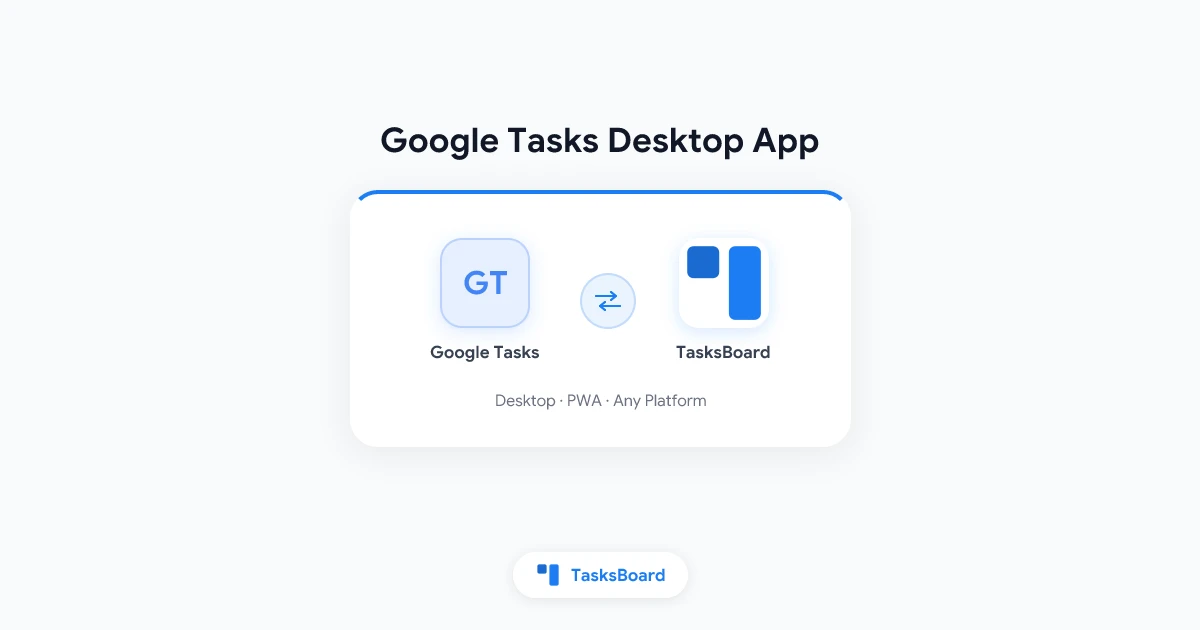
If you have been hunting for a native Google Tasks app for your Windows PC or Mac, you are in good company. Thousands of people ask the same question every month. The honest answer is that Google does not offer a standalone desktop app for Google Tasks. The great news is there are several solid methods to bring Google Tasks to your desktop, and one of them is a full-featured upgrade that makes your tasks more powerful than the web version alone.
This guide covers every option, step by step, so you can pick the setup that fits your workflow.
Why Google Tasks Does Not Have a Native Desktop App
Google Tasks started as a simple task panel inside Gmail. Over time it became a mobile app (iOS and Android) and a web panel inside Google Workspace tools. Google has never released a standalone desktop client for Windows or Mac.
This is a deliberate choice. Google keeps Google Tasks tightly integrated with its web products. The assumption is that you are already using Chrome or another browser throughout your workday. A separate desktop installer would duplicate something Google expects you to do in the browser.
That said, the demand for a dedicated desktop experience is real. Having tasks pinned to your taskbar or dock, opening without a browser tab, and running independently from other apps is genuinely useful. The methods below give you exactly that experience.
Method 1: Access Google Tasks in Your Browser
The simplest way to use Google Tasks on desktop is through the web. You have two entry points:
Option A: tasks.google.com
Open any browser and navigate to tasks.google.com. This loads the full-screen version of Google Tasks. You can create lists, add tasks, set due dates, and add notes. Bookmark this page and pin the tab for quick access.
Option B: The sidebar inside Gmail or Google Calendar
If you spend most of your day in Gmail, click the Tasks icon in the right-side panel. Your tasks appear without leaving your inbox. Google Calendar shows the same panel, so you can drag due dates onto your calendar directly.
Both options work on Windows, Mac, and Linux. They require no installation and sync instantly across all your devices.
Limitation to keep in mind: Browser-based access means your tasks live inside a tab or sidebar. If you close the browser window, your tasks disappear from view. There is no persistent icon in your taskbar or notifications from the system tray.
Method 2: Install Google Tasks as a Progressive Web App (PWA)
A Progressive Web App (PWA) gives you a near-native desktop experience without a traditional installer. Google Tasks supports this on Chrome and Microsoft Edge.
How to install on Chrome (Windows or Mac):
- Open Chrome and go to tasks.google.com
- Click the install icon in the address bar (looks like a monitor with a down arrow)
- Click Install in the confirmation dialog
- Google Tasks opens in its own window and adds an icon to your taskbar (Windows) or dock (Mac)
How to install on Microsoft Edge (Windows):
- Open Edge and navigate to tasks.google.com
- Click the three-dot menu in the top right
- Go to Apps and select Install this site as an app
- Name the app and click Install
Once installed, Google Tasks launches like any other desktop app. It appears in your Start menu (Windows) or Applications folder (Mac), and you can pin it for one-click access.
The PWA approach works well for personal use. The main limitation is that it still uses the default Google Tasks interface, which is clean but minimal. You get a list view with no kanban board, no shared boards, and limited visual organization for bigger task loads.
Method 3: Use TasksBoard as Your Google Tasks Desktop Solution
If you want more than a simple list view on your desktop, TasksBoard is the best option. TasksBoard is a full-featured web app that connects to your Google Tasks account and displays your tasks as a kanban board.
It works on any desktop browser and can be installed as a PWA too. Unlike plain Google Tasks, TasksBoard adds:
- Kanban board view with drag-and-drop columns
- Shared boards so your team can see and update the same tasks
- Subtasks for breaking big tasks into smaller steps
- Real-time collaboration with teammates
- Full sync with Google Tasks so any changes in TasksBoard appear in Gmail and Google Calendar instantly
 Try TasksBoard
Turn your Google Tasks into a visual kanban board. TasksBoard syncs with your Google account, works on any desktop, and adds shared boards and subtasks your team can use together.
Get Started →To use TasksBoard as your desktop app, follow the same PWA steps described above with tasksboard.com as your starting URL. The result is a kanban board for Google Tasks that lives on your desktop as a standalone window.
Comparing Your Desktop Options for Google Tasks
Here is a quick comparison to help you choose the right setup:
| Feature | Browser Tab | Google Tasks PWA | TasksBoard |
|---|---|---|---|
| Works on Windows | Yes | Yes | Yes |
| Works on Mac | Yes | Yes | Yes |
| Standalone window | No | Yes | Yes (as PWA) |
| Kanban board view | No | No | Yes |
| Shared boards | No | No | Yes |
| Subtasks | Basic | Basic | Full support |
| Team collaboration | No | No | Yes |
| Syncs with Google Tasks | Yes | Yes | Yes |
| Free to use | Yes | Yes | Free plan available |
If your needs are simple (personal task lists, basic reminders), the PWA approach works well. If you manage projects, work in a team, or want more visual control over your tasks, TasksBoard is the clear upgrade.
When you install Google Tasks (or TasksBoard) as a PWA, you get a dedicated window that opens from your taskbar or dock. It loads fast, feels like a native app, and stays separate from your browser tabs. TasksBoard adds a kanban board layout on top, giving you the visual overview that plain Google Tasks lacks.
Tips for Getting the Most Out of Google Tasks on Desktop
Once you have your preferred setup running, these habits will help you stay organized:
1. Use keyboard shortcuts. In Google Tasks on the web, press c to create a new task and Enter to save it. Staying on the keyboard speeds up task entry significantly.
2. Pin frequently used lists. If you have multiple task lists, put your most active one at the top. In TasksBoard, you can reorder columns to match your current priorities.
3. Set due dates and use Google Calendar integration. Tasks with due dates appear in your Google Calendar view. This turns your task list into a schedule without extra effort.
4. Use subtasks for complex projects. Break large tasks into smaller steps. This is especially useful if you are managing a project inside Google Tasks. TasksBoard supports nested subtasks so you can see the full picture at a glance.
5. Review your tasks each morning. Open your desktop app at the start of your workday. A two-minute review of what is due today and what is in progress sets your focus for the whole day.
For more ways to get value from Google Tasks, read our guide on how to use Google Tasks effectively. If you are looking to expand your setup with your team, check out our article on how to share Google Tasks using TasksBoard.
Frequently Asked Questions
Conclusion
Google Tasks does not have a native desktop app, but you have real options that work just as well. Installing Google Tasks as a PWA in Chrome or Edge gives you a standalone window in minutes. For teams or anyone who wants a kanban board view, TasksBoard is the upgrade that makes your Google Tasks data come alive on desktop.
The best setup takes less than five minutes to install. Head to TasksBoard to try the kanban experience for free, or follow the PWA steps above if you want to stick with the default Google Tasks interface.
Either way, your tasks are now one click away on your desktop, without waiting for Google to ship an official app.
Ready to share your Google Tasks?
Get started with TasksBoard for free, no credit card required.
Sign in