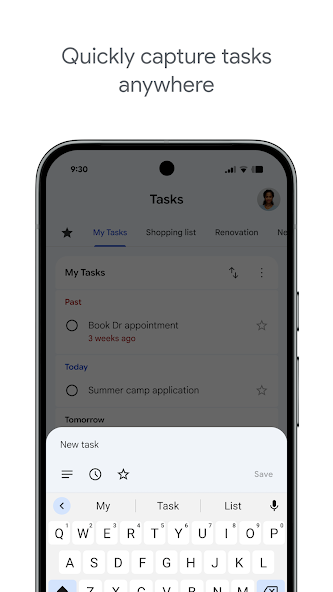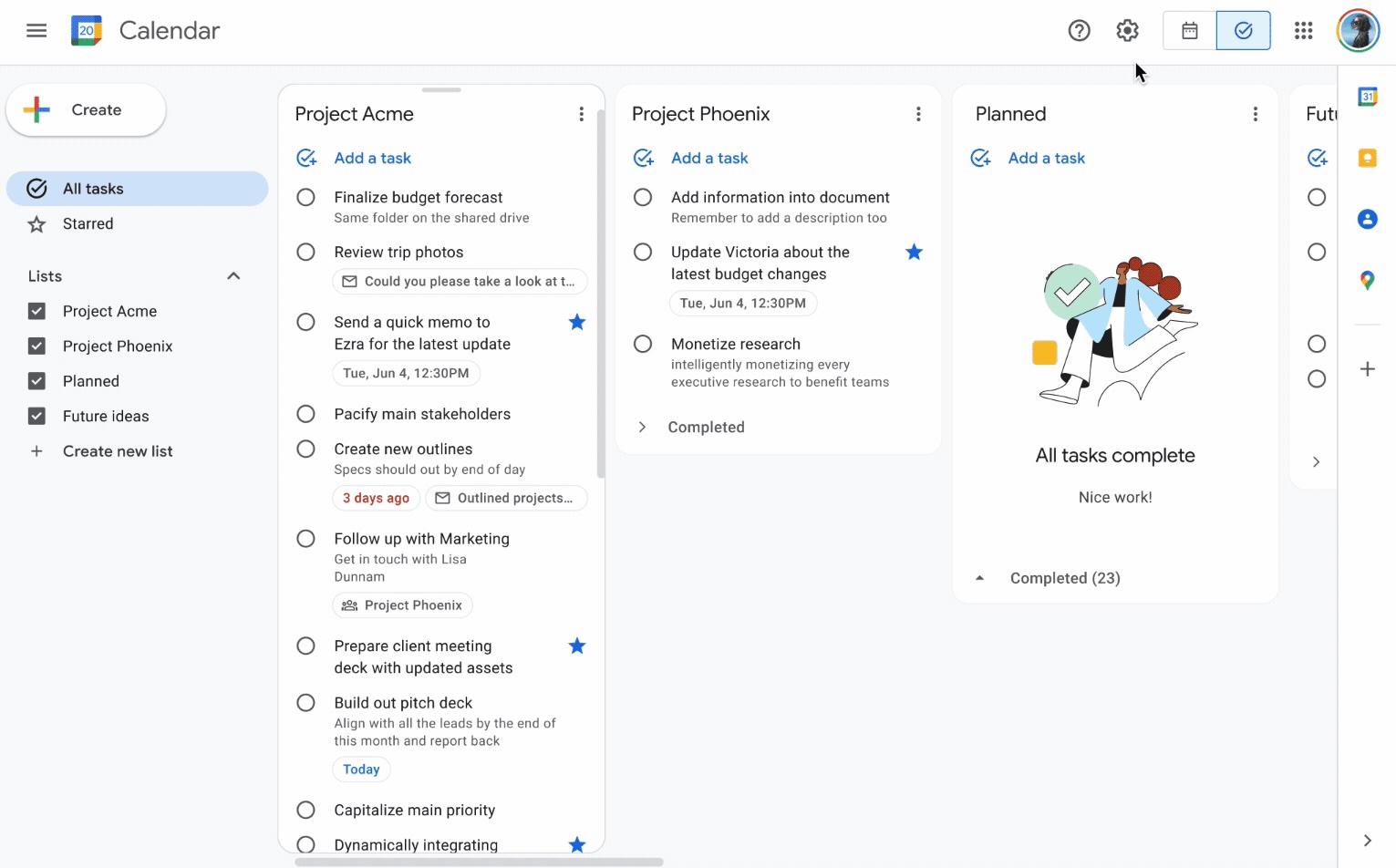

Google Tasks
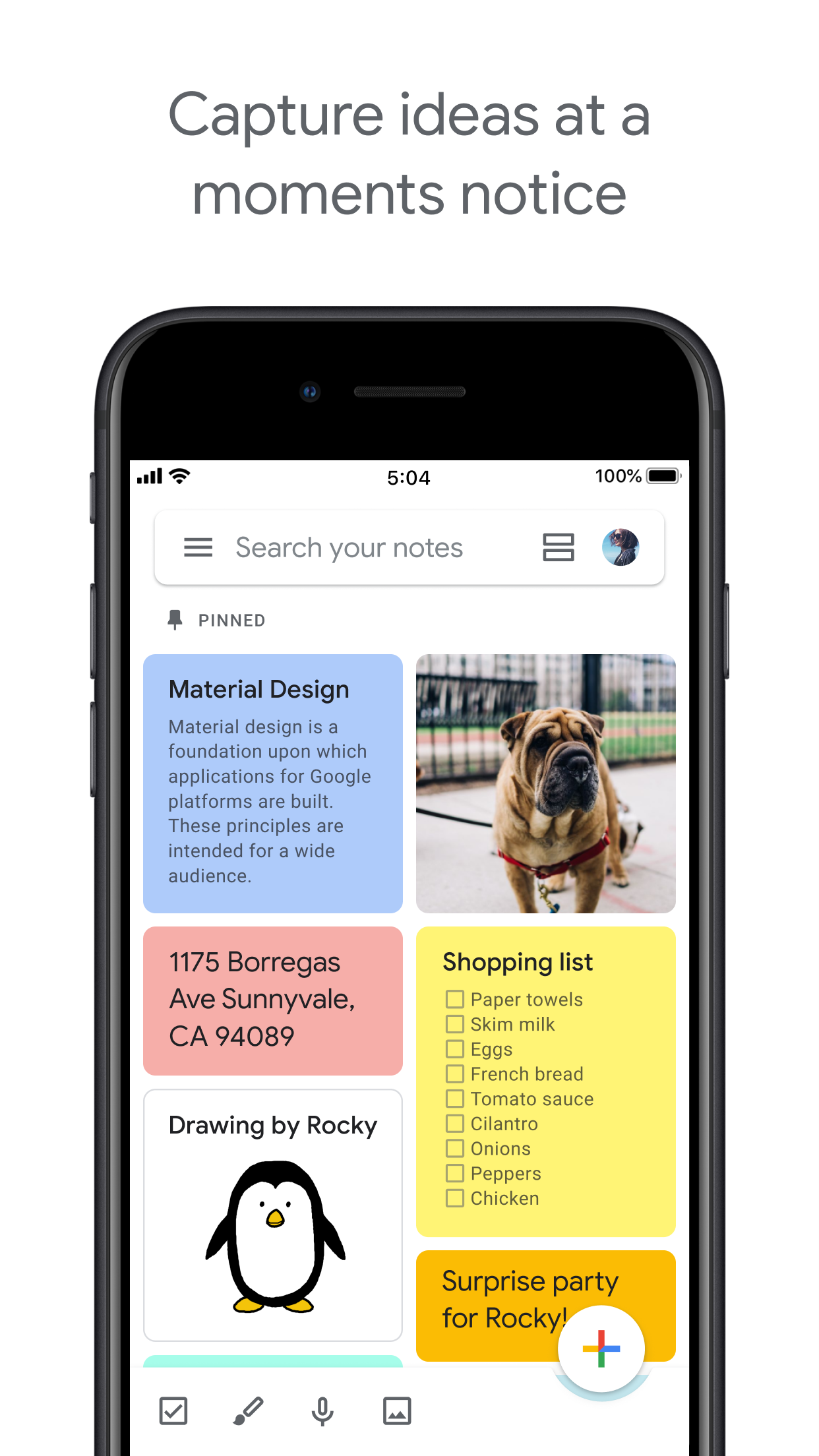
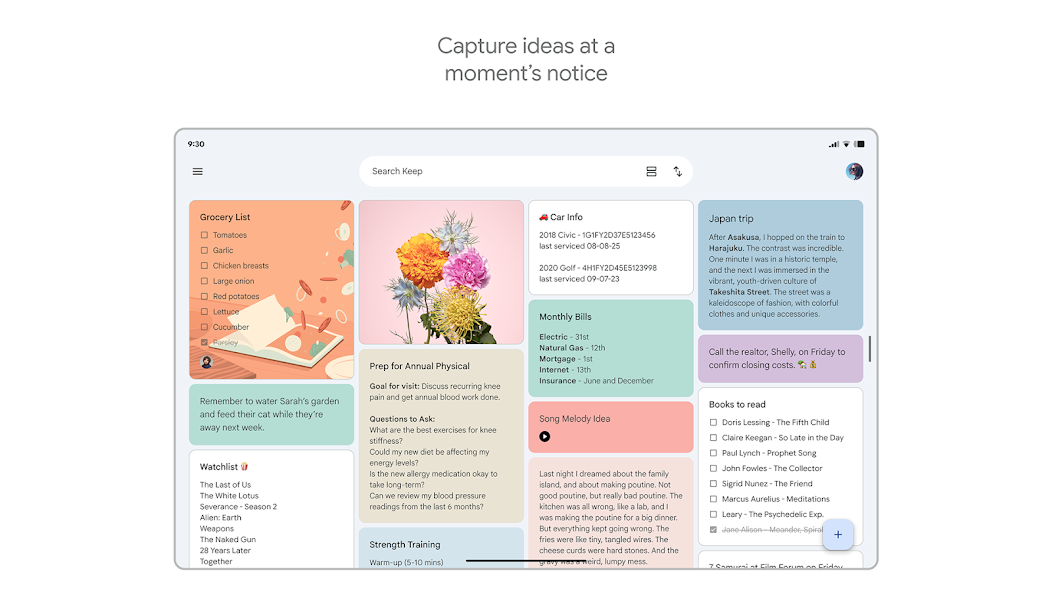
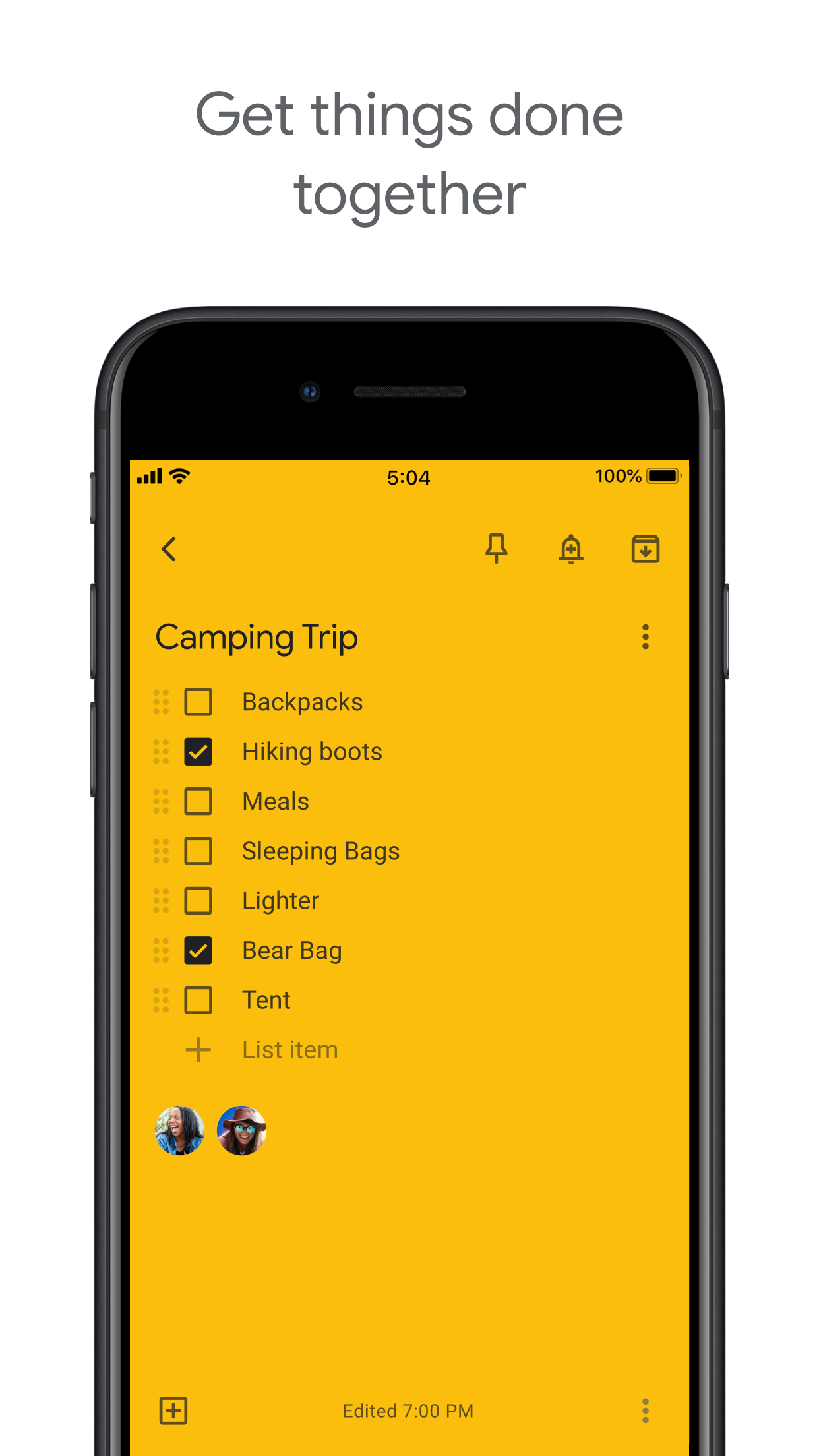
Google Keep

Google Tasks vs Google Keep

Google Tasks vs Google Keep: Qual è la differenza e quale si adatta al tuo flusso di lavoro?

Entrambi gli strumenti sono gratuiti con il tuo account Google, ma risolvono problemi molto diversi. Questa guida spiega esattamente quando usare ciascuno e come TasksBoard rende Google Tasks il chiaro vincitore per il lavoro strutturato.

Utilizzato da oltre 2 milioni di persone. Inizia gratis.


Google Tasks vs Google Keep: Confronto funzionalità

Feature
Google Tasks
Google Keep
Date di scadenza e promemoria Due dates and reminders Solo promemoria (tramite Promemoria Keep)
Sotto-attività Subtasks
Organizza per progetto / elenco Organize by project/list Solo etichette
Integrazione con Google Calendar Google Calendar integration
Note a mano libera Freeform notes
Acquisizione immagini Image capture
Memo vocali Voice memos
Vista bacheca Kanban Kanban board view Tramite TasksBoard
Condivisione bacheca team Team board sharing Tramite TasksBoard Solo note collaborative
Integrazione con Gmail Gmail integration

Feature-by-feature comparison

Google Tasks is for actionable to-dos; Google Keep is for notes and capture. See how each tool handles reminders, lists, and collaboration.

Google Tasks 6 Google Keep 3 It's a tie 1

Due dates and reminders

Winner: Google Tasks

Google Tasks is built around due dates, deadlines, and notifications synced through Google Calendar.

Google Keep supports note reminders; newer flows save reminders in Google Tasks and surface them in Calendar.

Google Tasks Winner
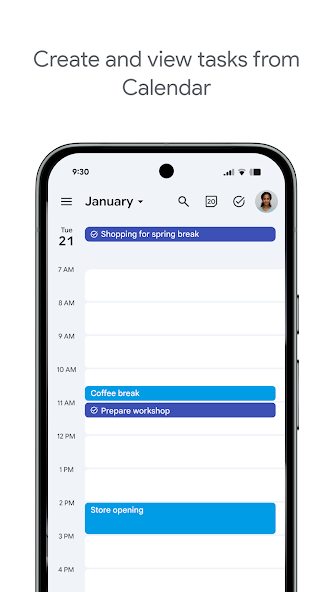
Due dates and reminders — left column screenshot
Task due dates in Calendar.
Google Keep
Due dates and reminders — right column screenshot
Note reminders linked to Tasks.

Winner: Google Tasks

Google Tasks is purpose-built for due dates, deadlines, and Calendar-synced reminders.

Subtasks

Winner: Google Tasks

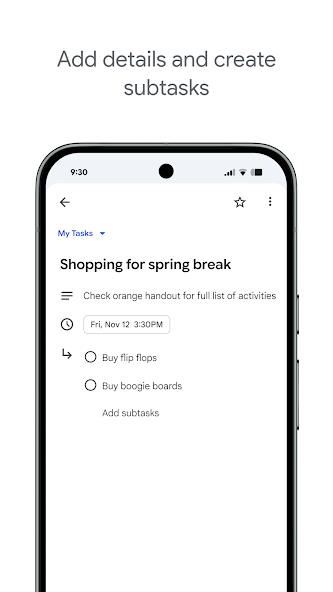
Google Tasks nests true subtasks under a parent task for step-by-step execution.

Keep supports checklists inside a note, but not dedicated parent-child task entities.

Google Tasks Winner
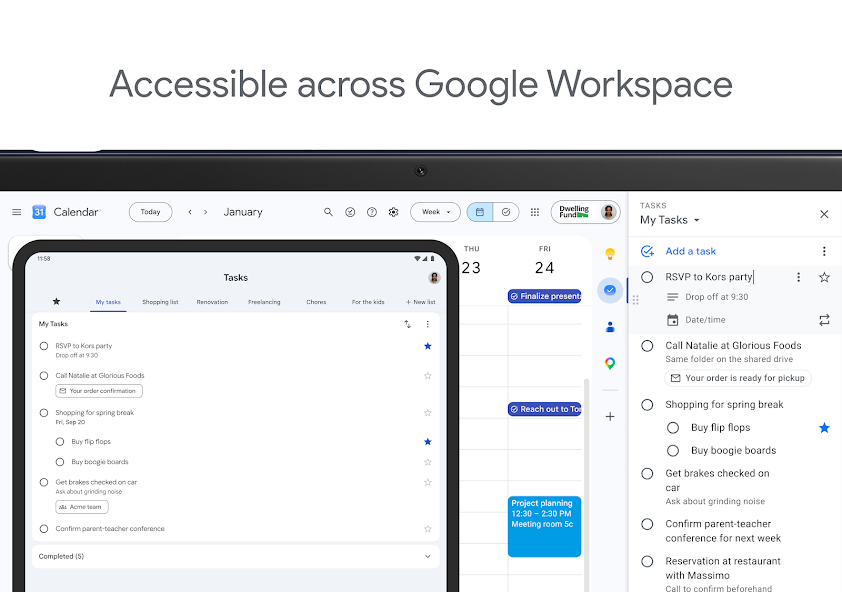
Subtasks — left column screenshot
Parent task with subtasks.
Google Keep
Subtasks — right column screenshot
Checklist items in a note.

Winner: Google Tasks

True parent-child subtask entities beat checklist items inside a note for step-by-step execution.


Organize by project or list

Winner: Google Tasks

Google Tasks uses multiple named lists with drag-and-drop reordering and sorting.

Keep organizes by labels, colors, and pinned notes in a card grid.

Google Tasks Winner
Organize by project or list — left column screenshot
Named task lists.
Google Keep
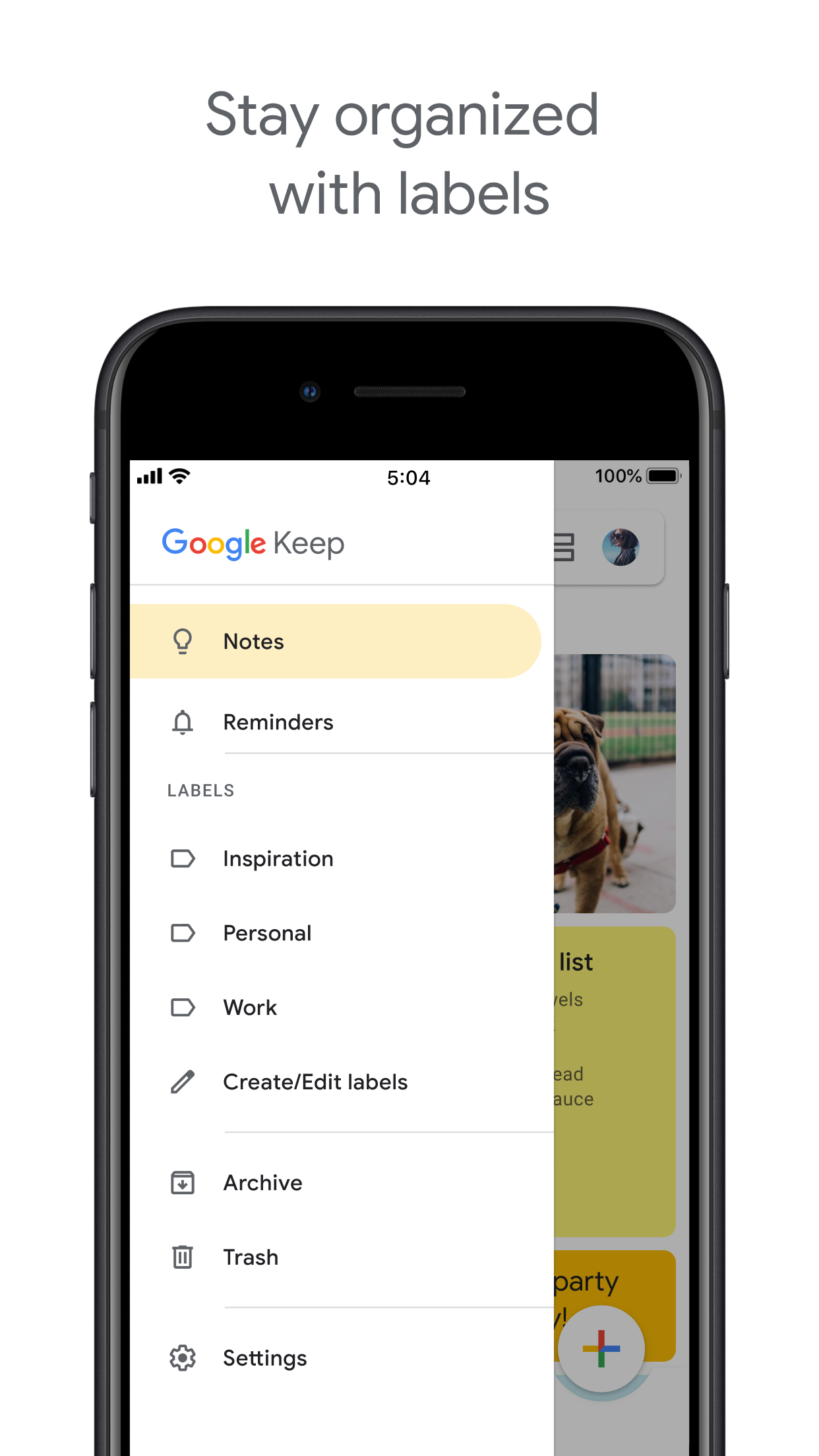
Organize by project or list — right column screenshot
Labels and pinned notes.

Winner: Google Tasks

Named task lists with drag-and-drop ordering suit project workflows better than a note card grid.


Google Calendar integration

Winner: Google Tasks

Dated tasks appear in Google Calendar natively. Plan events and to-dos together.

Keep reminders can appear in Calendar when saved through the Google Tasks integration.

Google Tasks Winner
Google Calendar integration — left column screenshot
Tasks on your Calendar grid.
Google Keep
Google Calendar integration — right column screenshot
Reminders via Tasks bridge.

Winner: Google Tasks

Dated tasks appear on your Google Calendar grid natively — the core planning integration for to-dos.


Freeform notes

Winner: Google Keep

Google Tasks has lightweight detail fields optimized for completion, not long-form writing.

Keep is purpose-built for freeform notes, brainstorming, and quick capture.

Google Tasks
Freeform notes — left column screenshot
Task detail fields.
Google Keep Winner
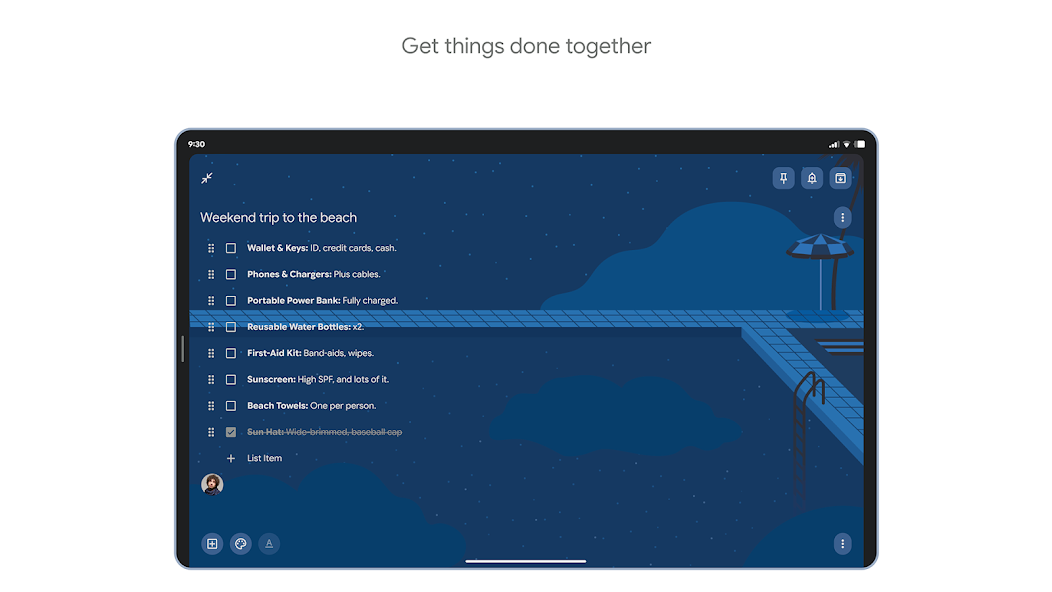
Freeform notes — right column screenshot
Freeform note editor.

Winner: Google Keep

Keep is purpose-built for freeform notes, brainstorming, and quick unstructured capture.


Image capture

Winner: Google Keep

Google Tasks does not support image attachments on tasks.

Keep lets you snap photos, attach images from your library, or scan documents directly into a note.

Google Tasks
Image capture — left column screenshot
Text-based tasks only.
Google Keep Winner
Image capture — right column screenshot
Image notes and scans.

Winner: Google Keep

Keep lets you snap photos, attach images, and scan documents — Google Tasks is text-only.


Voice memos

Winner: Google Keep

Google Tasks focuses on typed task entry with optional Assistant on Android.

Keep records audio notes you can play back and transcribe later.

Google Tasks
Voice memos — left column screenshot
Typed task capture.
Google Keep Winner
Voice memos — right column screenshot
Audio note recording.

Winner: Google Keep

Keep records audio notes you can play back; Google Tasks focuses on typed task entry.


Kanban board view

Winner: Google Tasks

Google Tasks is list-based. TasksBoard adds kanban columns for project-stage visibility.

Keep shows notes in a grid or list — no column-based workflow board.

Google Tasks Winner
Kanban board view — left column screenshot
Kanban via TasksBoard.
Google Keep
Kanban board view — right column screenshot
Grid and list note views.

Winner: Google Tasks

TasksBoard adds kanban columns for project-stage visibility; Keep has no workflow board.


Team board sharing

It's a tie

TasksBoard enables shared kanban boards on Google Tasks for cross-platform teams.

Keep supports real-time collaborative notes and checklists with other Google accounts.

Google Tasks
Team board sharing — left column screenshot
Shared boards via TasksBoard.
Google Keep
Team board sharing — right column screenshot
Collaborative Keep notes.

It's a tie

Both support collaboration — TasksBoard for shared task boards, Keep for real-time collaborative notes. Different jobs.


Gmail integration

Winner: Google Tasks

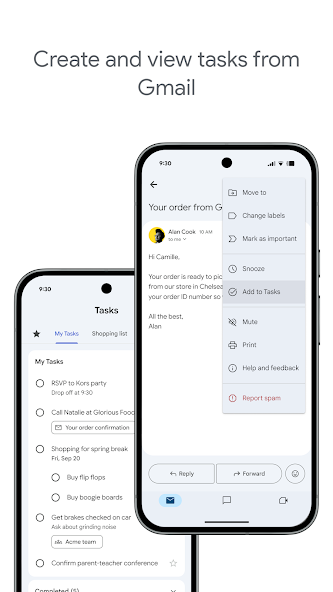
Turn any email into a Google Task with one click. The task links back to the original message.

Keep is available in the Gmail side panel for note-taking, but not for structured task workflows.

Google Tasks Winner
Gmail integration — left column screenshot
Add to Tasks from Gmail.
Google Keep
Gmail integration — right column screenshot
Keep side panel in Gmail.

Winner: Google Tasks

Turn any Gmail message into a linked Google Task in one click — structured task workflows from email.


Amato da migliaia di utenti

4.8 / 5 da 1.000+ recensioni sul Chrome Web Store

"Always have 101 things to do and this helps me organize and prioritize like no other app can. It syncs to my phone and laptop, and when I add dates to tasks, they automatically integrate into my Google Calendar, which is immensely convenient. I can look at my daily, weekly, and monthly overview in Google Calendar and clearly see how much I was able to accomplish! Great tool indeed. Excited to see how it will evolve over time."

PR Parina Ramjee avatar
Parina Ramjee

"Seriously, makes my tasks easier to share with the team, and the free version is quite nice for our little office. Eventually, we will expand, and this is definitely a great tool to do that! Syncs with my Workspace and Calendar."

CC Chase Cattrall avatar
Chase Cattrall

"I love the simple, intuitive interface and the Add to Tasks feature, especially as I work through my emails! Sharing my tasks is also easy. Overall, outstanding and simple to use, and that means a lot with too many complex tasks out there!"

GC Greg Cantori avatar
Greg Cantori

"Great too for managing daily routine and plan tasks. Would be perfect if it was updated for generating reports for statistics. For google tasks and google calendar"

NV Nick Vlasov avatar
Nick Vlasov

Domande frequenti

Qual è la differenza principale tra Google Tasks e Google Keep?

Google Tasks è uno strumento di elenco cose da fare strutturato con date di scadenza, sotto-attività e integrazione con Google Calendar. Google Keep è un'app per prendere appunti a mano libera con supporto per testo, immagini, memo vocali ed etichette codificate a colori. Tasks serve per le azioni; Keep serve per l'acquisizione.

Qual è meglio per le attività lavorative: Google Tasks o Google Keep?

Google Tasks è migliore per le attività lavorative. Supporta scadenze, sotto-attività, integrazione con Gmail e si sincronizza con Google Calendar. Keep è migliore per catturare note e idee rapidamente, ma non fornisce la struttura necessaria per gestire il lavoro in modo affidabile.

Posso convertire una nota di Google Keep in una Google Task?

Non direttamente nelle app. Il flusso di lavoro consigliato è creare manualmente un'attività in Google Tasks basata sulle informazioni nella tua nota di Keep. Alcuni utenti copiano il contenuto della nota di Keep nella descrizione dell'attività o nel campo delle note.

Google Tasks supporta i promemoria come Google Keep?

Google Tasks supporta le date di scadenza, che attivano promemoria in Google Calendar. Google Keep ha il proprio sistema di promemoria con promemoria basati sulla posizione. Per i promemoria basati sul tempo legati a un calendario, Google Tasks con date di scadenza è l'opzione più affidabile.

Puoi condividere le attività in Google Tasks come le note in Google Keep?

Google Tasks nativo non supporta la condivisione. Google Keep consente di condividere note con altri utenti Google. Tuttavia, TasksBoard aggiunge la condivisione in team in tempo reale a Google Tasks: puoi condividere un'intera bacheca con i compagni di team e assegnare attività.

Cosa aggiunge TasksBoard a Google Tasks che lo rende migliore di Keep?

TasksBoard offre a Google Tasks una bacheca Kanban a schermo intero, condivisione in team, gestione delle attività tramite trascinamento e una vista giornaliera che combina le attività con gli eventi di Google Calendar. Questo trasforma la natura strutturata di Tasks in un sistema di produttività completo che Keep non può eguagliare.

Esiste un'app che combina Google Tasks e Google Keep?

Nessuna singola app li unisce entrambi nativamente. Il flusso di lavoro pratico che seguono la maggior parte degli utenti esperti è: catturare in Keep, elaborare in Tasks, quindi usare TasksBoard per gestire le Tasks con un'interfaccia Kanban a schermo intero e condivisione in team.


Inizia ora

Rendi Google Tasks il tuo strumento di produttività principale

Accedi con Google e ottieni una bacheca Kanban a schermo intero per le tue Google Tasks. Il piano gratuito include attività illimitate, vista bacheca e sincronizzazione con Calendar.

Nessuna carta di credito richiesta. I tuoi dati di Google Tasks rimangono in Google.