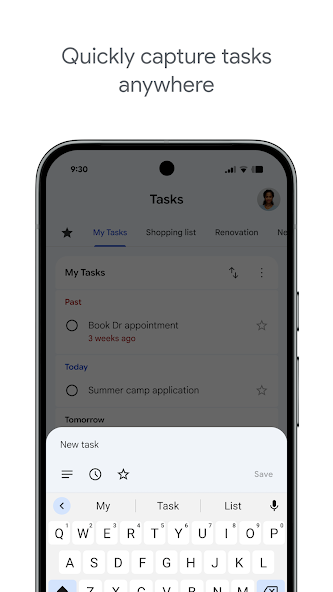

Google Tasks
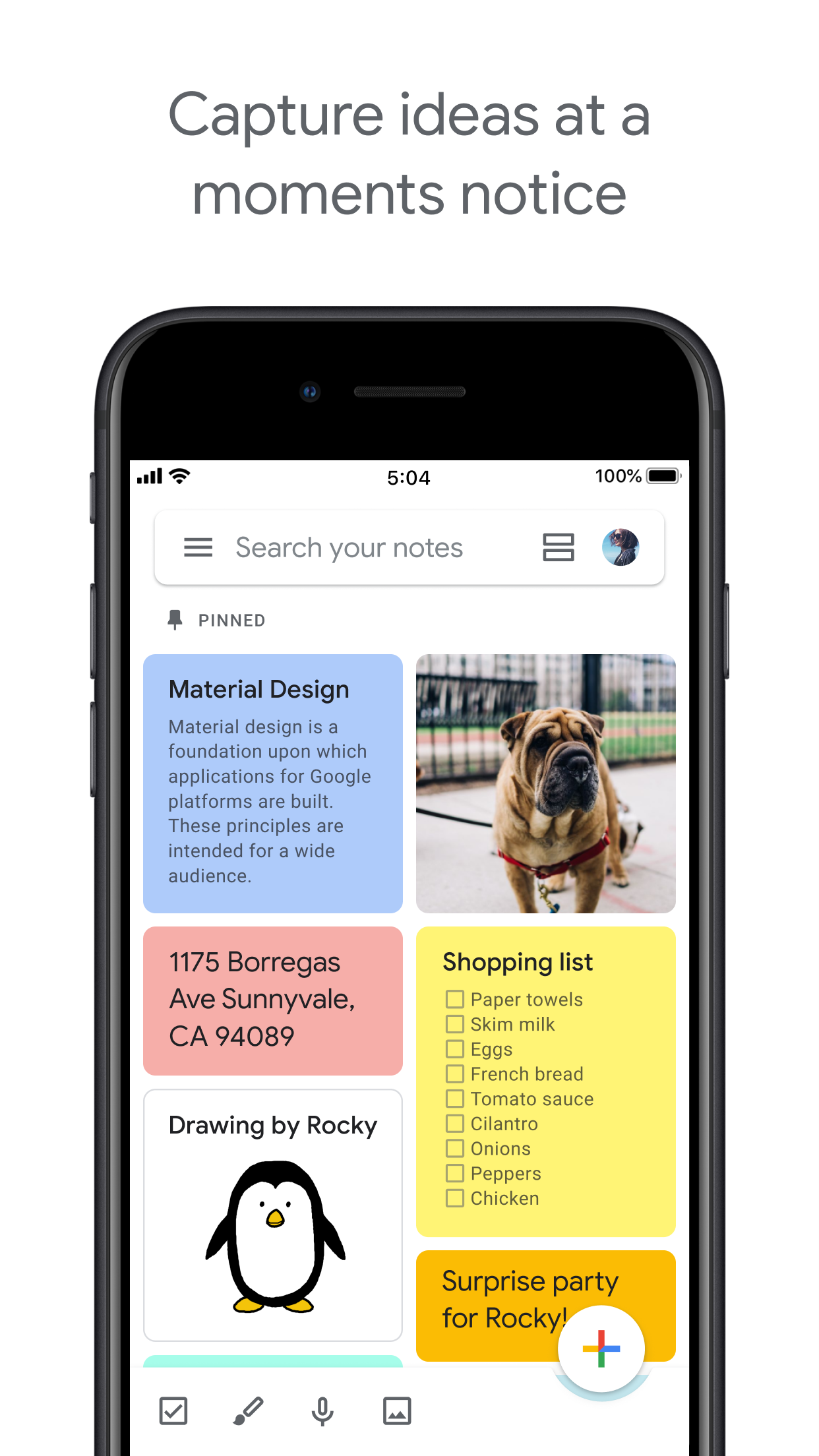
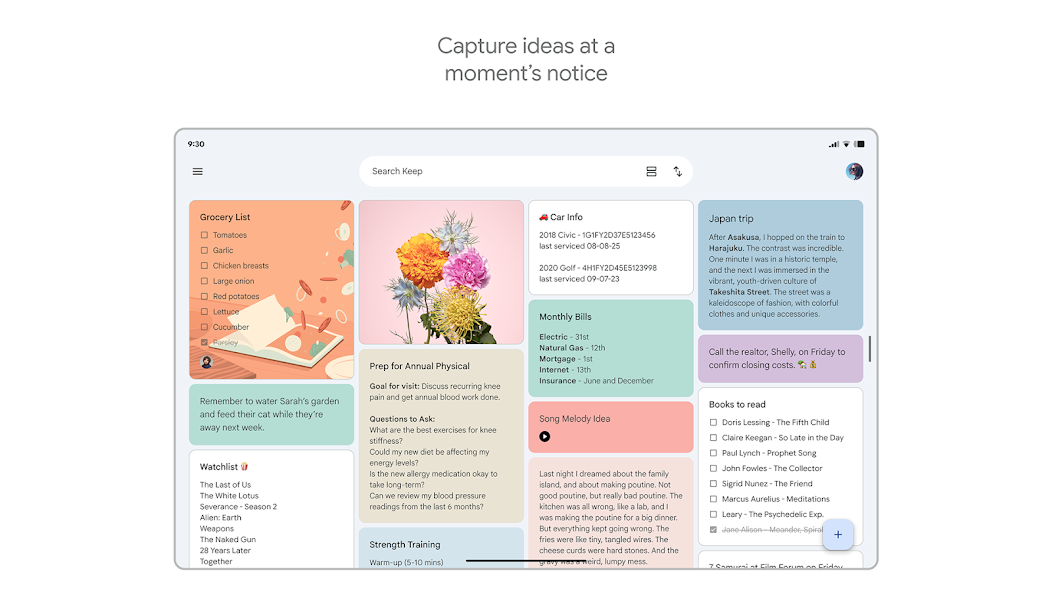
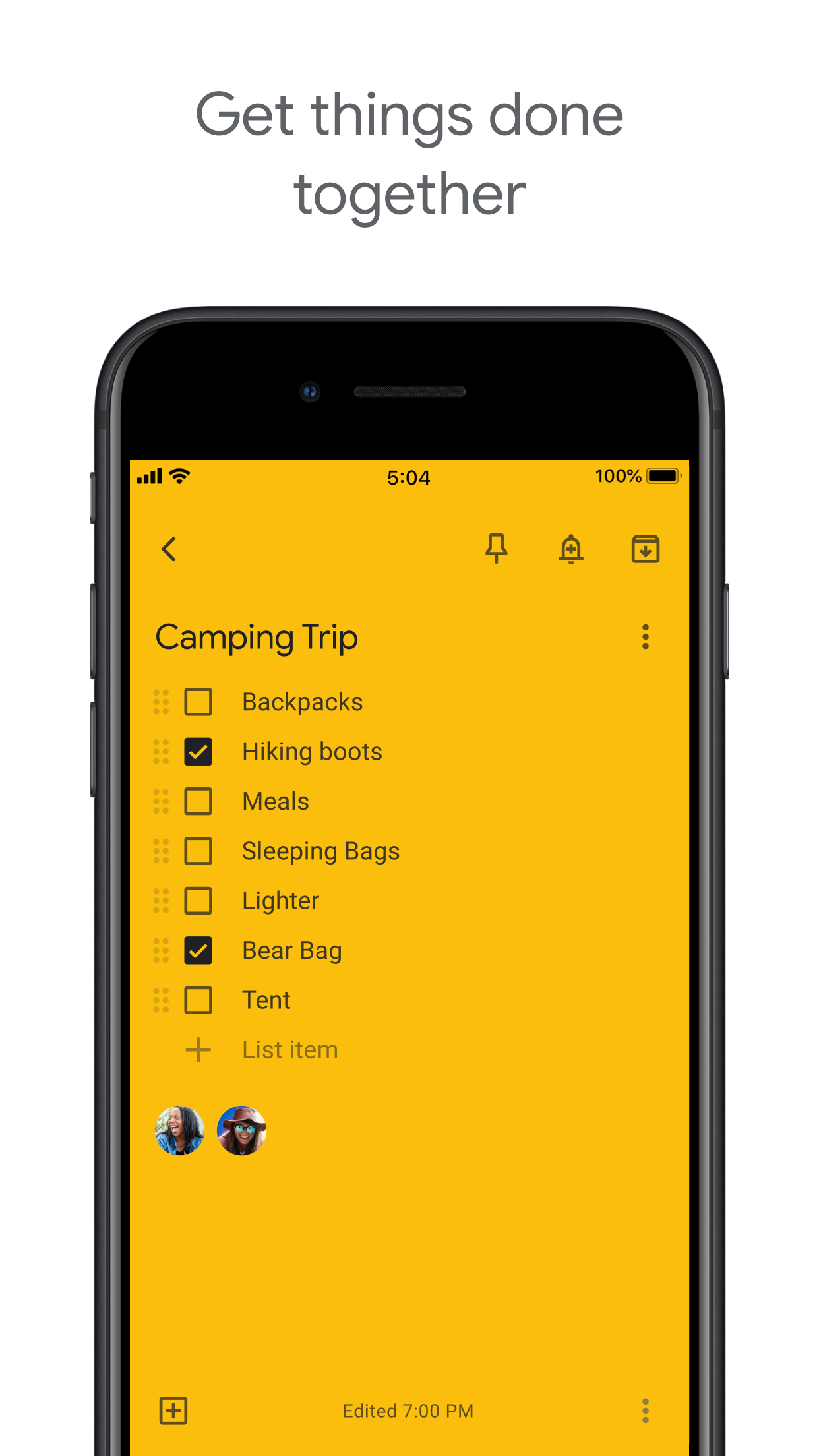
Google Keep

Google Tasks เทียบกับ Google Keep

Google Tasks vs Google Keep: ต่างกันอย่างไรและตัวไหนเหมาะกับเวิร์กโฟลว์ของคุณ?

เครื่องมือทั้งสองมาพร้อมกับบัญชี Google ของคุณฟรี แต่แก้ปัญหาที่แตกต่างกันมาก คู่มือนี้จะแจกแจงอย่างชัดเจนว่าควรใช้เมื่อใด และ TasksBoard ทำให้ Google Tasks เป็นผู้ชนะที่ชัดเจนสำหรับการทำงานที่มีโครงสร้างอย่างไร

มีผู้ใช้งานกว่า 2 ล้านคน เริ่มต้นใช้งานฟรี


Google Tasks vs Google Keep: การเปรียบเทียบฟีเจอร์

Feature
Google Tasks
Google Keep
วันครบกำหนดและการแจ้งเตือน Due dates and reminders การแจ้งเตือนเท่านั้น (ผ่าน Keep Reminders)
งานย่อย Subtasks
จัดระเบียบตามโครงการ / รายการ Organize by project/list ป้ายกำกับเท่านั้น
การผสานรวมกับ Google Calendar Google Calendar integration
โน้ตแบบอิสระ Freeform notes
การบันทึกภาพ Image capture
บันทึกเสียง Voice memos
มุมมองบอร์ด Kanban Kanban board view ผ่าน TasksBoard
การแชร์บอร์ดกับทีม Team board sharing ผ่าน TasksBoard โน้ตที่ทำงานร่วมกันได้เท่านั้น
การผสานรวมกับ Gmail Gmail integration

Feature-by-feature comparison

Google Tasks is for actionable to-dos; Google Keep is for notes and capture. See how each tool handles reminders, lists, and collaboration.

Google Tasks 6 Google Keep 3 It's a tie 1

Due dates and reminders

Winner: Google Tasks

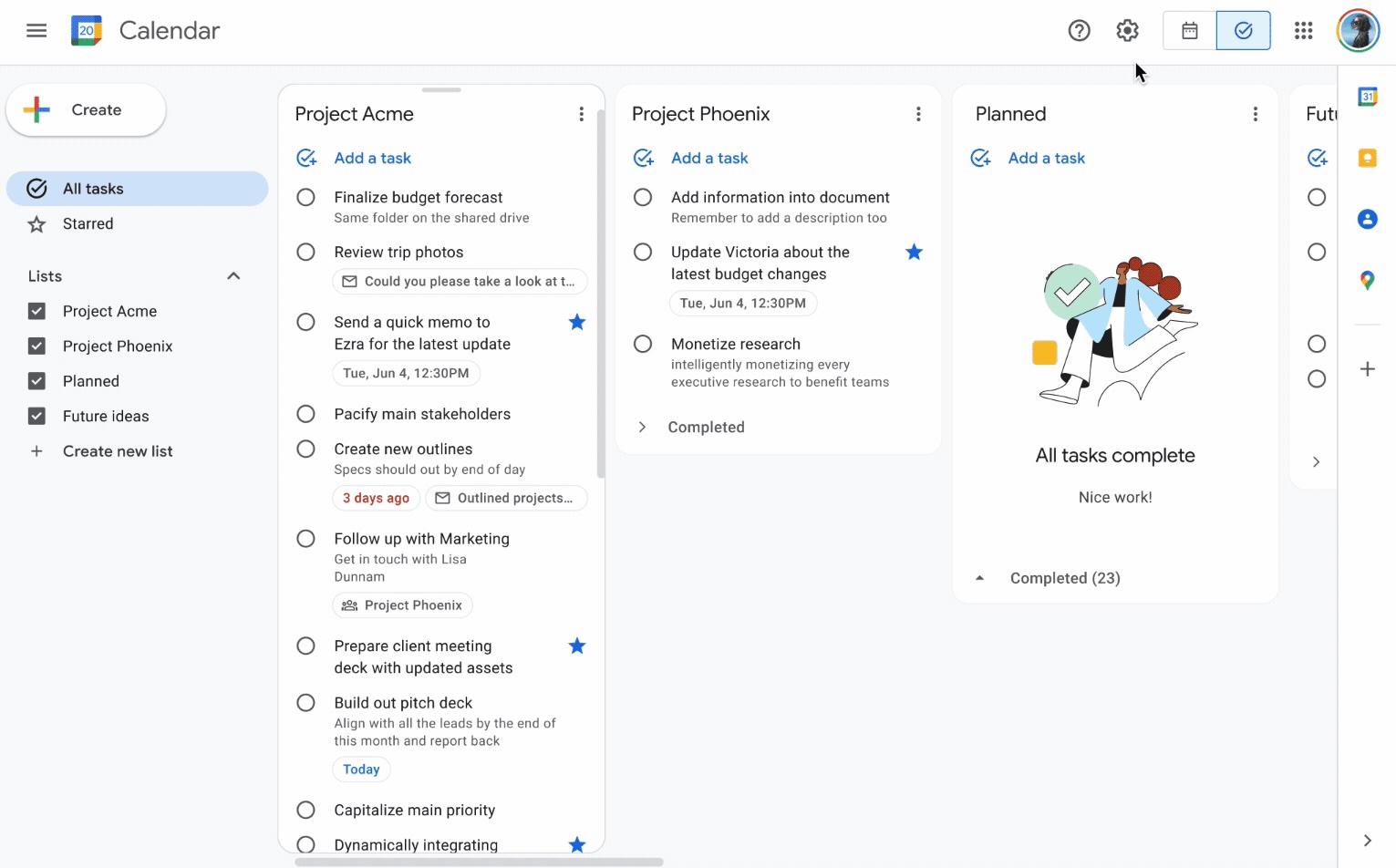
Google Tasks is built around due dates, deadlines, and notifications synced through Google Calendar.

Google Keep supports note reminders; newer flows save reminders in Google Tasks and surface them in Calendar.

Google Tasks Winner
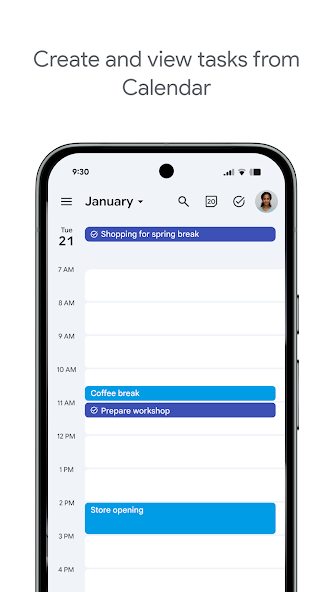
Due dates and reminders — left column screenshot
Task due dates in Calendar.
Google Keep
Due dates and reminders — right column screenshot
Note reminders linked to Tasks.

Winner: Google Tasks

Google Tasks is purpose-built for due dates, deadlines, and Calendar-synced reminders.

Subtasks

Winner: Google Tasks

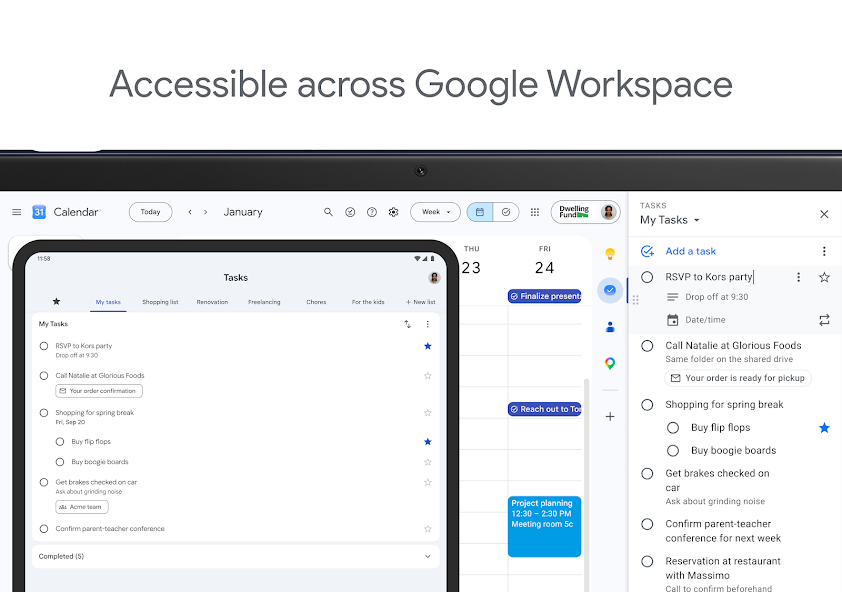
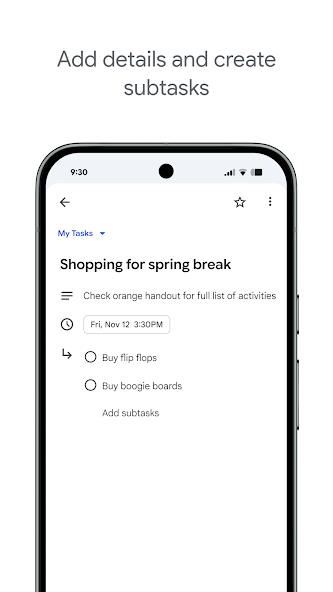
Google Tasks nests true subtasks under a parent task for step-by-step execution.

Keep supports checklists inside a note, but not dedicated parent-child task entities.

Google Tasks Winner
Subtasks — left column screenshot
Parent task with subtasks.
Google Keep
Subtasks — right column screenshot
Checklist items in a note.

Winner: Google Tasks

True parent-child subtask entities beat checklist items inside a note for step-by-step execution.


Organize by project or list

Winner: Google Tasks

Google Tasks uses multiple named lists with drag-and-drop reordering and sorting.

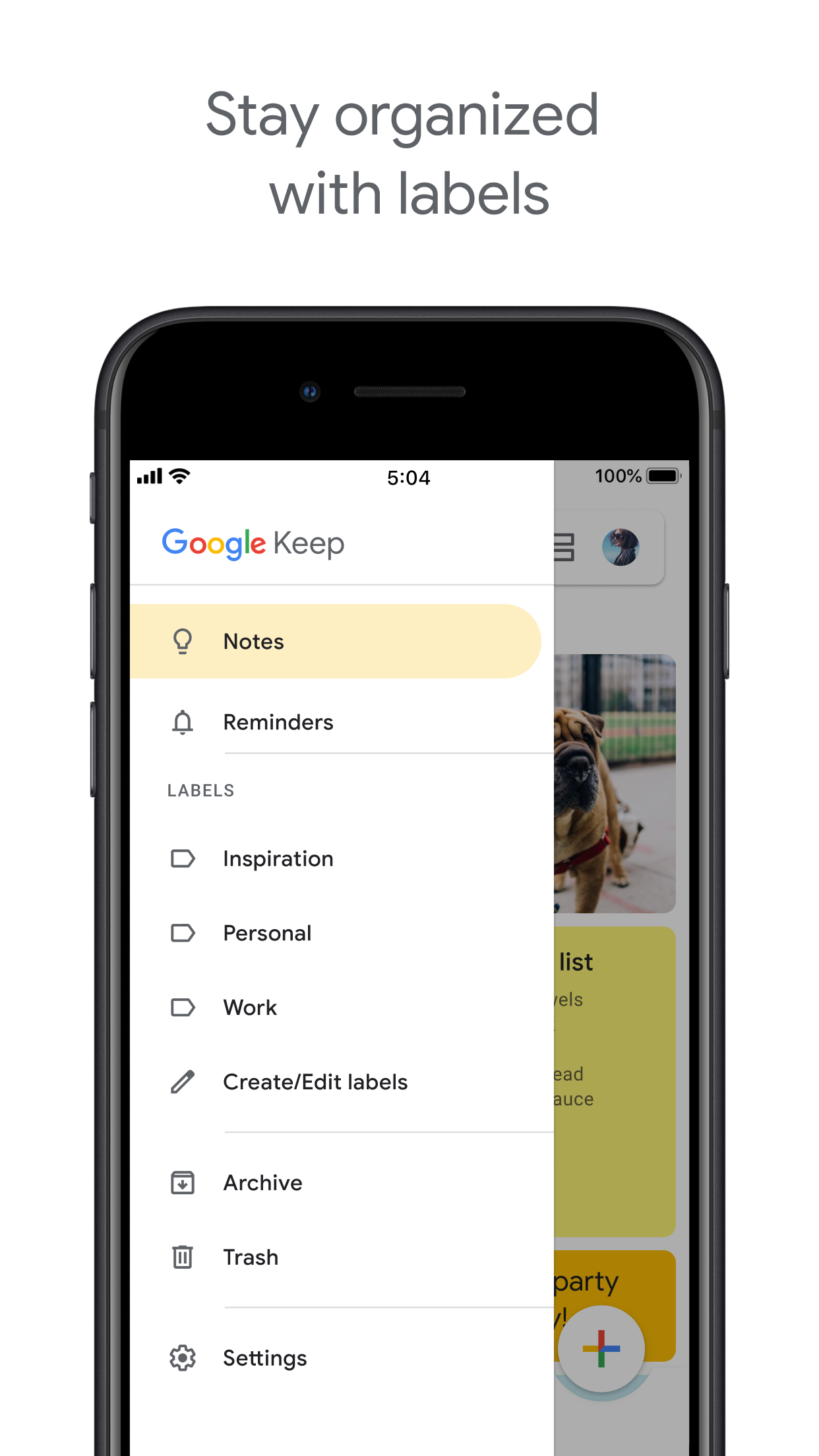
Keep organizes by labels, colors, and pinned notes in a card grid.

Google Tasks Winner
Organize by project or list — left column screenshot
Named task lists.
Google Keep
Organize by project or list — right column screenshot
Labels and pinned notes.

Winner: Google Tasks

Named task lists with drag-and-drop ordering suit project workflows better than a note card grid.


Google Calendar integration

Winner: Google Tasks

Dated tasks appear in Google Calendar natively. Plan events and to-dos together.

Keep reminders can appear in Calendar when saved through the Google Tasks integration.

Google Tasks Winner
Google Calendar integration — left column screenshot
Tasks on your Calendar grid.
Google Keep
Google Calendar integration — right column screenshot
Reminders via Tasks bridge.

Winner: Google Tasks

Dated tasks appear on your Google Calendar grid natively — the core planning integration for to-dos.


Freeform notes

Winner: Google Keep

Google Tasks has lightweight detail fields optimized for completion, not long-form writing.

Keep is purpose-built for freeform notes, brainstorming, and quick capture.

Google Tasks
Freeform notes — left column screenshot
Task detail fields.
Google Keep Winner
Freeform notes — right column screenshot
Freeform note editor.

Winner: Google Keep

Keep is purpose-built for freeform notes, brainstorming, and quick unstructured capture.


Image capture

Winner: Google Keep

Google Tasks does not support image attachments on tasks.

Keep lets you snap photos, attach images from your library, or scan documents directly into a note.

Google Tasks
Image capture — left column screenshot
Text-based tasks only.
Google Keep Winner
Image capture — right column screenshot
Image notes and scans.

Winner: Google Keep

Keep lets you snap photos, attach images, and scan documents — Google Tasks is text-only.


Voice memos

Winner: Google Keep

Google Tasks focuses on typed task entry with optional Assistant on Android.

Keep records audio notes you can play back and transcribe later.

Google Tasks
Voice memos — left column screenshot
Typed task capture.
Google Keep Winner
Voice memos — right column screenshot
Audio note recording.

Winner: Google Keep

Keep records audio notes you can play back; Google Tasks focuses on typed task entry.


Kanban board view

Winner: Google Tasks

Google Tasks is list-based. TasksBoard adds kanban columns for project-stage visibility.

Keep shows notes in a grid or list — no column-based workflow board.

Google Tasks Winner
Kanban board view — left column screenshot
Kanban via TasksBoard.
Google Keep
Kanban board view — right column screenshot
Grid and list note views.

Winner: Google Tasks

TasksBoard adds kanban columns for project-stage visibility; Keep has no workflow board.


Team board sharing

It's a tie

TasksBoard enables shared kanban boards on Google Tasks for cross-platform teams.

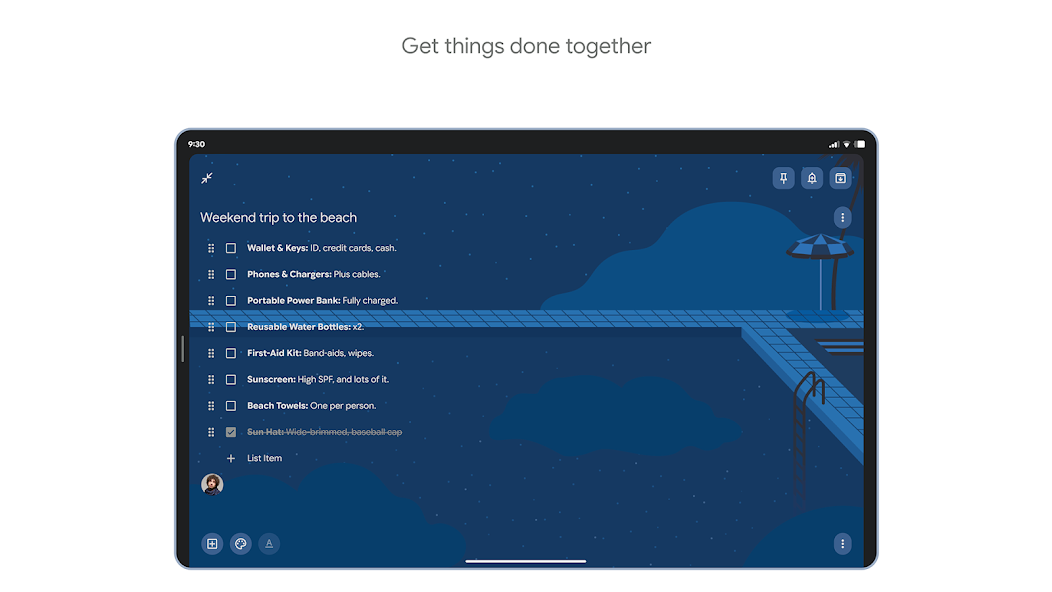
Keep supports real-time collaborative notes and checklists with other Google accounts.

Google Tasks
Team board sharing — left column screenshot
Shared boards via TasksBoard.
Google Keep
Team board sharing — right column screenshot
Collaborative Keep notes.

It's a tie

Both support collaboration — TasksBoard for shared task boards, Keep for real-time collaborative notes. Different jobs.


Gmail integration

Winner: Google Tasks

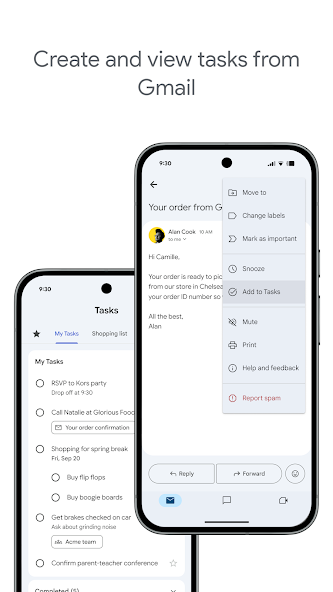
Turn any email into a Google Task with one click. The task links back to the original message.

Keep is available in the Gmail side panel for note-taking, but not for structured task workflows.

Google Tasks Winner
Gmail integration — left column screenshot
Add to Tasks from Gmail.
Google Keep
Gmail integration — right column screenshot
Keep side panel in Gmail.

Winner: Google Tasks

Turn any Gmail message into a linked Google Task in one click — structured task workflows from email.


เป็นที่ชื่นชอบของผู้ใช้หลายพันคน

4.8 / 5 จากรีวิวกว่า 1,000 รายการบน Chrome Web Store

"Always have 101 things to do and this helps me organize and prioritize like no other app can. It syncs to my phone and laptop, and when I add dates to tasks, they automatically integrate into my Google Calendar, which is immensely convenient. I can look at my daily, weekly, and monthly overview in Google Calendar and clearly see how much I was able to accomplish! Great tool indeed. Excited to see how it will evolve over time."

PR Parina Ramjee avatar
Parina Ramjee

"Seriously, makes my tasks easier to share with the team, and the free version is quite nice for our little office. Eventually, we will expand, and this is definitely a great tool to do that! Syncs with my Workspace and Calendar."

CC Chase Cattrall avatar
Chase Cattrall

"I love the simple, intuitive interface and the Add to Tasks feature, especially as I work through my emails! Sharing my tasks is also easy. Overall, outstanding and simple to use, and that means a lot with too many complex tasks out there!"

GC Greg Cantori avatar
Greg Cantori

"Great too for managing daily routine and plan tasks. Would be perfect if it was updated for generating reports for statistics. For google tasks and google calendar"

NV Nick Vlasov avatar
Nick Vlasov

คำถามที่พบบ่อย

ความแตกต่างหลักระหว่าง Google Tasks และ Google Keep คืออะไร?

Google Tasks เป็นเครื่องมือรายการสิ่งที่ต้องทำที่มีโครงสร้างพร้อมวันครบกำหนด งานย่อย และการผสานรวมกับ Google Calendar ส่วน Google Keep เป็นแอปจดบันทึกแบบอิสระที่รองรับข้อความ รูปภาพ บันทึกเสียง และป้ายกำกับสี Tasks มีไว้สำหรับการกระทำ Keep มีไว้สำหรับการบันทึก

ตัวไหนดีกว่าสำหรับงาน, Google Tasks หรือ Google Keep?

Google Tasks ดีกว่าสำหรับงาน เพราะรองรับกำหนดเวลา งานย่อย การผสานรวม Gmail และซิงค์กับ Google Calendar ส่วน Keep ดีกว่าสำหรับการบันทึกโน้ตและไอเดียอย่างรวดเร็ว แต่ไม่มีโครงสร้างที่จำเป็นสำหรับการจัดการงานอย่างน่าเชื่อถือ

ฉันสามารถแปลงโน้ต Google Keep เป็น Google Task ได้หรือไม่?

ไม่ได้โดยตรงในแอป เวิร์กโฟลว์ที่แนะนำคือการสร้างงานใน Google Tasks ด้วยตนเองตามข้อมูลในโน้ต Keep ของคุณ ผู้ใช้บางคนคัดลอกเนื้อหาโน้ต Keep ลงในคำอธิบายงานหรือช่องบันทึก

Google Tasks รองรับการแจ้งเตือนเหมือน Google Keep หรือไม่?

Google Tasks รองรับวันครบกำหนด ซึ่งจะกระตุ้นการแจ้งเตือนใน Google Calendar ส่วน Google Keep มีระบบแจ้งเตือนของตัวเองพร้อมการแจ้งเตือนตามสถานที่ สำหรับการแจ้งเตือนตามเวลาที่ผูกกับปฏิทิน Google Tasks ที่มีวันครบกำหนดเป็นตัวเลือกที่เชื่อถือได้มากกว่า

คุณสามารถแชร์งานใน Google Tasks เหมือนโน้ตใน Google Keep ได้หรือไม่?

Google Tasks แบบเนทีฟไม่รองรับการแชร์ ส่วน Google Keep อนุญาตให้แชร์โน้ตกับผู้ใช้ Google คนอื่นได้ อย่างไรก็ตาม TasksBoard เพิ่มการแชร์กับทีมแบบเรียลไทม์ให้กับ Google Tasks คุณสามารถแชร์ทั้งบอร์ดกับเพื่อนร่วมทีมและมอบหมายงานได้

TasksBoard เพิ่มอะไรให้กับ Google Tasks ที่ทำให้มันดีกว่า Keep?

TasksBoard มอบบอร์ด Kanban แบบเต็มหน้าจอ การแชร์กับทีม การจัดการงานแบบลากและวาง และมุมมองวันนี้ที่รวมงานเข้ากับกิจกรรมใน Google Calendar สิ่งนี้เปลี่ยนธรรมชาติที่มีโครงสร้างของ Tasks ให้เป็นระบบเพิ่มประสิทธิภาพการทำงานที่สมบูรณ์ซึ่ง Keep เทียบไม่ได้

มีแอปที่รวม Google Tasks และ Google Keep เข้าด้วยกันหรือไม่?

ไม่มีแอปเดียวที่รวมทั้งสองอย่างเข้าด้วยกันโดยกำเนิด เวิร์กโฟลว์ที่ใช้งานได้จริงที่ผู้ใช้ส่วนใหญ่ทำคือ: บันทึกใน Keep, ประมวลผลเป็น Tasks, จากนั้นใช้ TasksBoard เพื่อจัดการ Tasks ด้วยอินเทอร์เฟซ Kanban แบบเต็มหน้าจอและการแชร์กับทีม


เริ่มต้นใช้งาน

ทำให้ Google Tasks เป็นเครื่องมือเพิ่มประสิทธิภาพหลักของคุณ

ลงชื่อเข้าใช้ด้วย Google และรับบอร์ด Kanban แบบเต็มหน้าจอสำหรับ Google Tasks ของคุณ แผนฟรีรวมงานไม่จำกัด มุมมองบอร์ด และการซิงค์ปฏิทิน

ไม่ต้องใช้บัตรเครดิต ข้อมูล Google Tasks ของคุณจะอยู่ใน Google