Assign Google Tasks: How to Delegate Work to Your Team in 2026

You cannot assign Google Tasks to another person inside the native app. Google Tasks was built for personal lists, not team ownership. If you need to assign Google Tasks to a colleague, a client, or a family member, you need a shared layer on top of your existing lists.
The good news is you do not have to leave Google Tasks or migrate to a new tool. TasksBoard adds real task assignment, shared boards, and kanban columns while your data stays in Google Tasks. This guide explains why native assignment is missing, what workarounds people use, and how to set up a delegation workflow that actually sticks.
TL;DR:
- Google Tasks has no built-in way to assign tasks to someone else
- Common workarounds (names in titles, separate lists, email handoffs) break down fast on teams
- TasksBoard lets you assign tasks on a shared kanban board with real-time sync to Google Tasks
- Pair assignments with due dates, subtasks, and a weekly review so nothing slips
Why you cannot assign Google Tasks natively
Google Tasks stores tasks inside your Google account. Every list you create is private to you. There is no share button, no collaborator field, and no assignee dropdown in Gmail, Calendar, or tasks.google.com.
That design made sense when Google Tasks launched as a sidebar inside Gmail. It was a personal capture tool, not a team project manager. Google has added subtasks, due dates, and mobile apps over the years, but assignment and shared ownership never arrived.
For solo work, the limitation rarely matters. For teams, it creates friction quickly:
- No ownership field: You cannot see who is responsible without reading task titles
- No shared visibility: Teammates cannot see the same list in real time
- No status beyond done: There is no “In Progress” or “Waiting on client” column
- No comments or handoff notes: Context lives in Slack threads or email instead of on the task
If your search started with “how to assign Google Tasks to someone,” you are hitting this ceiling. The native app will not solve it. You need a companion that respects your Google Tasks data and adds the collaboration layer on top.
A real assign workflow needs three things: a person field on each task, a shared view where everyone sees the same board, and updates that sync without copy-paste. Google Tasks covers none of these on its own. TasksBoard adds all three while keeping your lists in Google Tasks.
Common workarounds (and where they fail)
Before you add a tool, it helps to know what most teams try first. These hacks work for a day or two. They rarely survive a busy week.
Put names in task titles
Example: “[Alex] Draft Q3 report” or “Sarah: review landing page.” Everyone learns to scan brackets for ownership. The problems pile up fast:
- No filtering: You cannot filter a list to show only Alex’s tasks
- Typos break tracking: “Alex” vs “alex” vs “A.” creates duplicate owners
- Reassignment is manual: Changing ownership means editing the title on every task
Create one list per person
Some managers duplicate the project into separate Google Tasks lists, one per teammate. Each person checks their own list. This avoids sharing but creates a coordination nightmare:
- No single source of truth: Status lives in five separate lists
- Duplicate tasks: The same deliverable may appear in multiple lists
- Manager overhead: You update five lists instead of one board
Delegate through Gmail or Chat
“I assigned you the report task” becomes a message thread. The task might exist in Google Tasks, but the assignment context lives in email. When the thread gets buried, ownership gets fuzzy.
Use Google Sheets as a task tracker
Sheets handles assignee columns well. Many teams build a manual tracker with names, due dates, and status. It works until someone forgets to update the sheet, or the sheet diverges from what is actually in Google Tasks.
These workarounds explain why “assign google tasks” is such a common search. People want the simplicity of Google Tasks with the ownership model of a real team tool. That is exactly what TasksBoard is built for.
How to assign Google Tasks with TasksBoard
TasksBoard connects to your Google account and turns your existing task lists into shared kanban boards. Assignment is a first-class feature, not a title hack.
Here is the setup flow most teams follow:
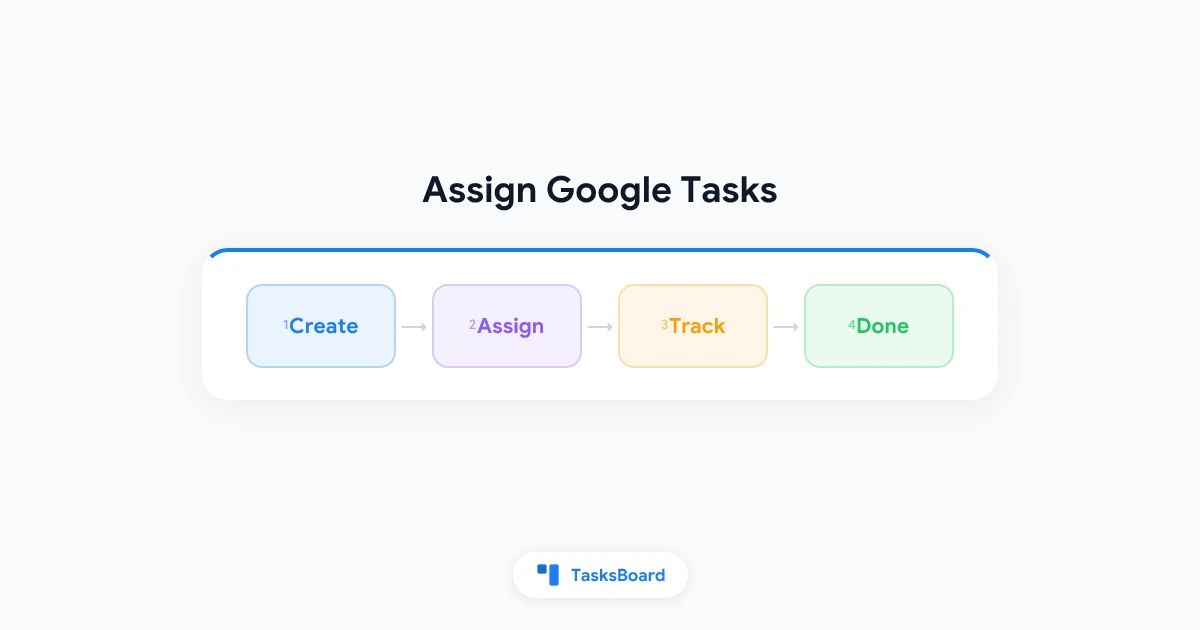
- Connect Google Tasks to TasksBoard with your Google account
- Create or open a board tied to a project list (for example, “Q3 Launch”)
- Invite teammates with a share link (see our guide to sharing Google Tasks)
- Assign each card to the person who owns the work
- Move cards across columns as work progresses (To Do, In Progress, Done)
When you assign a task, the assignee’s name appears on the card. Everyone on the board sees the same view. Changes sync back to Google Tasks, so due dates and subtasks stay aligned with Gmail and Calendar.
 Try TasksBoard
Assign tasks on a shared kanban board that syncs with Google Tasks. Your team sees who owns what without leaving the Google ecosystem.
Get Started →Step-by-step: assign your first task
Step 1: Open the board for your project
Pick the Google Tasks list that maps to your project. TasksBoard displays it as a kanban board with columns you can customize.
Step 2: Click the task card you want to delegate
Open the task detail panel. You will see fields for due date, subtasks, notes, and assignee.
Step 3: Select a team member from the assignee field
Choose the person responsible. Their initials or name appear on the card face, visible to everyone on the board.
Step 4: Set a due date and add subtasks if needed
Due dates sync to Google Calendar. Subtasks break the work into checkable steps. Both help the assignee know exactly what “done” means.
Step 5: Move the card to “In Progress” when work starts
Status columns replace the binary complete-or-not view in native Google Tasks. Your team sees movement without asking for updates in Chat.
Assignment patterns that work for small teams
Once you can assign Google Tasks properly, the next challenge is building habits so assignments stay accurate. These patterns work well for teams of 2 to 15 people.
One board per project or client
Create a dedicated board for each active project. Assign tasks within that board. Archive the board when the project ships. This keeps assignments scoped and prevents a single mega-board from becoming unreadable.
If you run multiple projects at once, the same structure applies to Google Tasks for project management. One list per project, one board per list, assignments inside each board.
Use columns to show handoff stages
A useful default setup:
- Backlog: Captured but not yet assigned
- To Do: Assigned and ready to start
- In Progress: Actively being worked on
- Review: Done by assignee, waiting for approval
- Done: Accepted and complete
The Review column is especially valuable for managers who delegate but still approve output. The assignee moves the card to Review. The manager moves it to Done after checking the work.
Pair assignments with due dates
An assignment without a deadline is a suggestion. Always set a due date when you assign a task. Google Calendar will surface it on the assignee’s schedule. For a deeper setup on dates and alerts, see our Google Tasks reminders guide.
Run a weekly assignment review
Spend 15 minutes each Monday on the shared board:
- Reassign tasks if priorities shifted
- Clear cards stuck in In Progress too long
- Add new tasks from the backlog with owners and dates
This short ritual keeps the team task list accurate without daily micromanagement.
Assign Google Tasks vs switching to another app
Some teams wonder if assignment alone justifies moving to Todoist, Asana, or Trello. The answer depends on how deeply you live in Google Workspace.
| Factor | Stay on Google Tasks + TasksBoard | Switch to a standalone PM tool |
|---|---|---|
| Gmail and Calendar sync | Native, automatic | Requires integration or manual sync |
| Learning curve | Low (same tasks, new board view) | Medium to high (new tool, new data model) |
| Assignment and shared boards | Yes, via TasksBoard | Yes, built into most PM tools |
| Cost | Google Tasks is free, TasksBoard has a free tier | Often per-seat pricing |
| Data portability | Tasks stay in Google Tasks | Export and migration required |
If your team already plans work in Gmail and tracks deadlines in Google Calendar, adding TasksBoard is usually faster than migrating everyone to a new platform. You get assignment and kanban without retraining people on a different task model.
For a visual board setup that pairs well with assignments, see our Google Tasks kanban board guide.
Tips for managers delegating through Google Tasks
Assignment is only half the job. Good delegation also means clear expectations and fewer follow-up messages.
- Write actionable task titles: “Draft Q3 email sequence” beats “Email stuff”
- Add context in the task notes: Link to the brief, doc, or previous thread
- Use subtasks for multi-step work: The assignee can check off steps without pinging you
- Limit work in progress: Two or three In Progress cards per person is a healthy default
- Assign one owner per task: Shared ownership usually means no ownership
When you need a broader productivity system around your lists, our guide to using Google Tasks effectively covers capture habits, list structure, and when to add a kanban layer.
Assign tasks in minutes
Open a shared board, pick an owner, set a due date. Your Google Tasks lists become a team coordination tool without a migration project.
Get Started →FAQ
Conclusion
Native Google Tasks is strong for personal capture and Calendar-linked deadlines. It was never built to answer “who owns this task?” for a team. If you need to assign Google Tasks to someone else, stop fighting title hacks and separate lists.
Connect your lists to TasksBoard, share a board with your team, and assign cards with real ownership fields. Pair that with due dates, subtasks, and a short weekly review. You keep the Google Tasks workflow you already know and gain the delegation layer your team has been missing.
Next step: Open TasksBoard, pick one active project list, invite a teammate, and assign the next three tasks with owners and due dates. You will know within a week whether the shared board replaces your old workarounds.
Ready to share your Google Tasks?
Get started with TasksBoard for free, no credit card required.
Sign in