Google Tasks for Teams: How to Share, Assign, and Track Work Together

Your team already lives in Gmail, Google Calendar, and Google Chat. Google Tasks sits right inside those apps, so it feels like the obvious place to track shared work. The problem is that google tasks for teams does not work the way most managers expect out of the box.
Personal Google Tasks lists are private. You cannot invite a colleague to your main task list or assign work from the Tasks sidebar in Gmail. Google added shared tasks in Chat spaces and Google Docs, but those tasks behave differently from the lists you use every day.
This guide explains what Google Tasks can do for teams today, where the native limits show up, and how to build a shared workflow with TasksBoard without leaving the Google ecosystem.
What Google Tasks offers teams natively
Google Tasks was built as a personal capture tool. Over time, Google Workspace added a narrow collaboration path through shared surfaces.
According to Google’s shared tasks documentation, you can create and assign tasks in:
- Google Chat spaces (group conversations in Chat or the Chat tab in Gmail)
- Google Docs (checklist items on eligible Google Workspace plans)
When someone assigns you a shared task, it appears in your personal Google Tasks list and in Google Calendar if it has a due date. Changes sync back to the Chat space or document where the task was created.
That setup works for lightweight coordination inside a specific conversation or doc. It does not turn your existing Google Tasks lists into a team board.
Where native Google Tasks falls short for teams
Teams that try to run projects entirely inside Google Tasks hit the same walls quickly:
- No shared personal lists: You cannot share the task lists you create in Gmail or tasks.google.com with other users (Zapier’s guide to sharing Google Tasks covers this limitation in detail).
- Tasks tied to a space or doc: Chat space tasks live inside that space. They are not the same as a persistent project list your whole team opens every morning.
- No kanban or status columns: Google Tasks shows a flat list. There is no In Progress column or board view for team visibility.
- No assignee field in personal lists: You cannot pick an owner from a dropdown inside your main task lists.
- Shared task limits: Google notes that shared tasks in Chat and Docs do not support subtasks or recurring tasks.
For solo work, none of this matters much. For a team running ongoing projects, the gaps add friction fast. Someone ends up maintaining a spreadsheet, pinging people in Chat, or copying lists by hand.
A team task system needs shared visibility, clear ownership, and status tracking in one place. Google Tasks covers personal capture well. For shared lists, assignment, and board views, you need either Chat space tasks (limited scope) or a companion like TasksBoard that syncs with your existing Google Tasks data.
Google Tasks for business: Chat spaces and Docs workflows
If your company runs on Google Workspace, google tasks for business usually means shared tasks inside Chat or Docs rather than a central team task hub.
Assign tasks in a Google Chat space
Google’s Chat tasks guide walks through the flow:
- Open Google Chat or the Chat tab in Gmail.
- Select a space (or create one for your project).
- Click the Tasks tab at the top.
- Click Add space task, enter details, pick an assignee, and click Add.
Everyone in the space sees the task. The assignee gets it in their personal Google Tasks list. Edits and completions update for all members.
This works well for quick handoffs tied to a conversation. It is less ideal when you need a durable project board that outlives a single Chat thread.
Assign tasks in Google Docs
On eligible Workspace plans, you can turn a checklist item into an assigned task. The assignee sees it in Google Tasks and can complete it from there or inside the doc.
Docs-based tasks fit document-centric workflows (specs, meeting notes, content briefs). They do not replace a shared task list for a multi-week product launch.
Google Tasks for beginners on a team
If you are new to google tasks for beginners on a team, start with structure before tools.
Create one list per project. In Google Tasks, click the list menu and add a new list for each active project. Mixing unrelated work in one list makes team handoffs confusing.
Use due dates on every task. Tasks without dates drift. Due dates also surface work in Google Calendar, which many teams already check daily.
Add subtasks for multi-step work. Break deliverables into checkable steps. Your team can see progress even before you add a shared layer.
Keep Chat space tasks separate from personal lists. Space tasks and personal list tasks behave differently. Decide which projects live in Chat and which live in shared boards so nothing gets lost.
For a deeper walkthrough of personal setup, see our guide on how to use Google Tasks effectively.
Google Tasks for Chrome and daily team capture
Most teams capture work while reading email. Google tasks for Chrome access happens through the Gmail sidebar, Google Calendar side panel, or tasks.google.com in any Chromium browser.
The Gmail sidebar is the fastest path from message to task:
- Open an email with an action item.
- Click the Google Tasks icon in the right sidebar (or use the Add to Tasks option).
- Edit the task title, add a due date, and move it to the correct list.
Chrome itself does not add team sharing. It gives your team a zero-friction way to capture tasks that you later organize on a shared board in TasksBoard.
Google Tasks for Canvas and school teams
Searches for google tasks for canvas often come from educators using Canvas LMS alongside Google Workspace. Google Tasks does not integrate directly with Canvas.
A practical approach for school teams:
- Create a Google Tasks list per course or committee.
- Capture deadlines from Canvas manually or via calendar export.
- Share the list with TAs or co-teachers through TasksBoard so everyone sees the same board.
Students and staff who prefer the mobile Google Tasks app can still use it. TasksBoard syncs changes back to Google Tasks in real time.
How to share google tasks with your team using TasksBoard
When you need to share google tasks with team members on an ongoing project, TasksBoard adds the collaboration layer Google Tasks lacks. Your data stays in Google Tasks. TasksBoard provides shared boards, assignees, and kanban columns on top.
Here is a setup flow most teams follow:
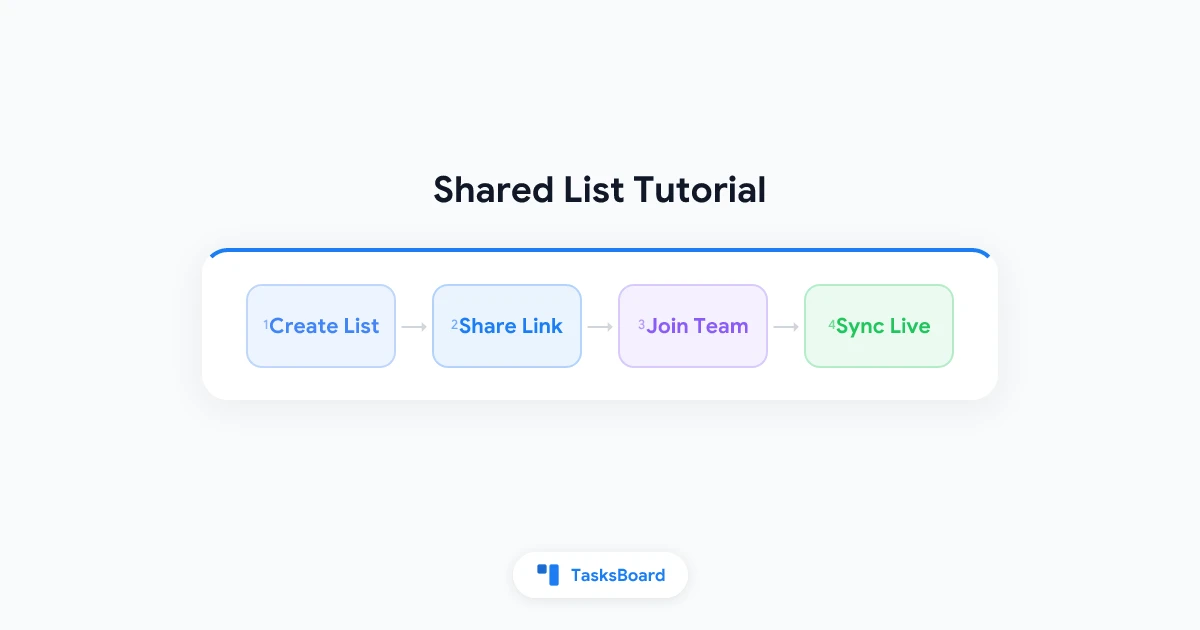
- Connect Google Tasks to TasksBoard with your Google account.
- Create or open a board linked to a project list (for example, “Q2 Launch”).
- Invite teammates with a share link. See our guide to sharing Google Tasks for the full steps.
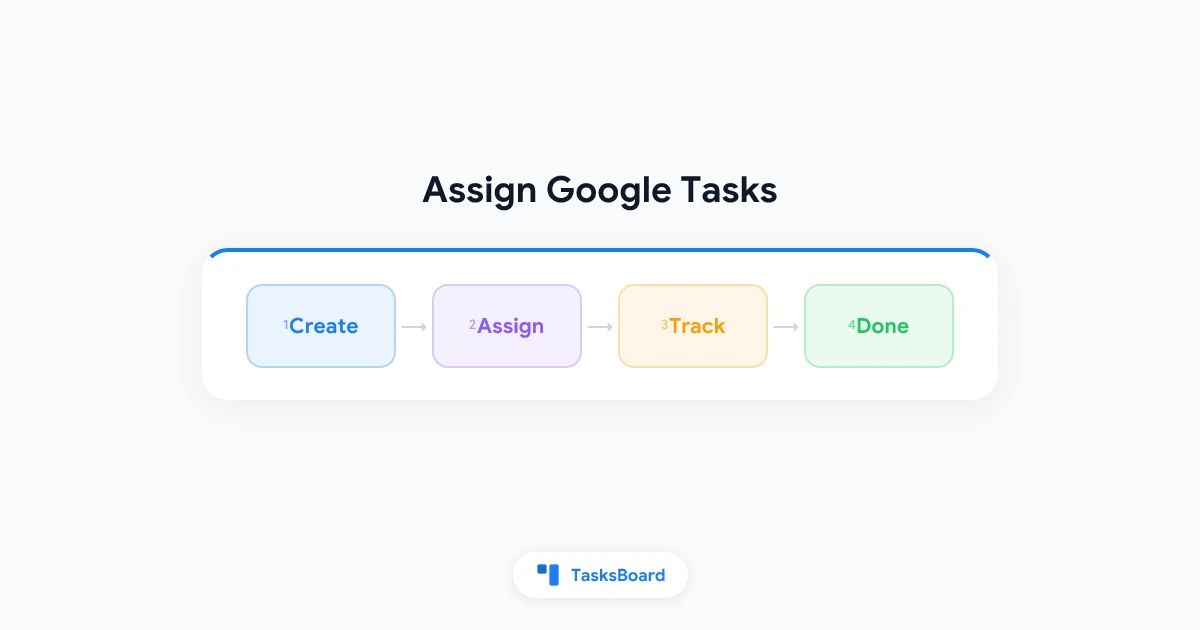
- Assign tasks to owners on the board. Read more in how to assign Google Tasks.
- Move cards across columns (To Do, In Progress, Done) so status is visible without status meetings.
TasksBoard also adds a Google Tasks kanban board view, which helps teams see bottlenecks at a glance.
 Try TasksBoard for your team
Share Google Tasks lists, assign work, and track progress on a kanban board. Your tasks stay in Google Tasks. Your team gets the visibility Google Tasks never shipped natively.
Explore team features →Step-by-step: using google tasks for a team project
This workflow combines native capture with TasksBoard for shared execution.
Step 1: Create a project list in Google Tasks
Name it after the project (“Website Redesign” or “Client Onboarding”). Add tasks with due dates and subtasks for each deliverable.
Step 2: Open the list in TasksBoard
Sign in at tasksboard.com with the same Google account. Your lists appear as board columns automatically.
Step 3: Invite your team
Share the board link with teammates. They sign in with Google and see the same tasks in real time.
Step 4: Assign owners and set columns
Assign each card to one person. Use columns like To Do, In Progress, Review, and Done. One owner per task keeps accountability clear.
Step 5: Run a weekly review
Once a week, scan the board for blocked cards, overdue dates, and uneven workload. Our team workload management guide covers how to rebalance tasks before deadlines slip.
When to use Chat tasks vs a shared TasksBoard
Use Google Chat space tasks when:
- The work is tied to an active conversation
- You need a quick assignee handoff
- The task list is small and short-lived
Use TasksBoard shared lists when:
- The project runs for weeks or months
- You need a kanban view the whole team opens daily
- You want assignees, subtasks, and due dates on the same shared board
- Team members still want mobile access through the Google Tasks app
Many teams use both. Chat handles quick asks. TasksBoard holds the project backbone.
FAQ
Conclusion
Google Tasks for teams is a realistic option when you understand the split. Google gives you shared tasks in Chat and Docs for quick coordination. It does not give you shared personal lists, kanban boards, or assignees on your main task lists.
For teams that want to keep Google Tasks as the source of truth, TasksBoard fills those gaps. You capture work in Gmail, organize it on a shared board, and assign owners without migrating to a new task manager.
Ready to set up a shared board for your team? Visit TasksBoard for teams or start free at tasksboard.com.
Ready to share your Google Tasks?
Get started with TasksBoard for free, no credit card required.
Sign in