Google Tasks Shared List Tutorial: Share Lists Step by Step

You cannot share a Google Tasks list the way you share a Google Doc. There is no share button in tasks.google.com, Gmail, or the mobile app. If you searched for a google tasks shared list tutorial, you probably want one list that several people can edit together. Google only supports partial workarounds inside Chat and Docs. For a full shared list that syncs to everyone’s Google account, you need a tool like TasksBoard.
This tutorial walks through every option in order: what Google officially supports, where those methods fall short, and how to set up a true shared list on top of your existing Google Tasks data. By the end, you will know which path fits your team, your family, or a solo project that might grow later.
TL;DR:
- Google Tasks has no native list sharing. Google’s help docs limit collaboration to assigned tasks in Chat spaces and Google Docs.
- Chat and Docs work for one-off assignments but not for managing an existing personal list together.
- TasksBoard adds full list sharing with real-time sync back to Google Tasks, Gmail, and Calendar.
- Pick Chat for quick Workspace assignments, TasksBoard when everyone needs the same live list.
Why Google Tasks has no share button
Google Tasks was built as a personal capture tool inside Gmail. Every list belongs to one Google account. You can create multiple lists, set due dates, and add subtasks on your own tasks, but you cannot invite another person into a list from the Tasks app itself.
According to Google’s shared tasks documentation, the only supported collaboration model assigns individual tasks from a shared surface: a Google Chat space or a Google Doc. That is different from sharing an entire list you already use for groceries, sprint planning, or home projects.
Many users remember an older workflow where list sharing felt possible through Google Calendar. That path still exists as a workaround, but it is awkward and easy to misconfigure. Google also removed direct list sharing from the Tasks sidebar after a redesign around 2022, which is why so many recent tutorials point to Chat instead.
If your goal is “one list, multiple editors, same view,” native Google Tasks will not get you there alone. The sections below show what Google does offer and where each method stops.
| Method | Best for | Limitation |
|---|---|---|
| Google Chat space tasks | Quick team assignments | Tasks live in the space, not your main list |
| Google Docs @task | Action items in a doc | No subtasks or recurring shared tasks |
| TasksBoard shared list | Full shared lists + kanban | Requires TasksBoard sign-in |
Method 1: Share tasks through a Google Chat space
Google’s official path for task assignment runs through Google Chat spaces. This works best when your team already lives in Chat and you need to delegate work without leaving Google’s ecosystem.
Step-by-step in Chat
- Open Google Chat and create a space (not a direct message thread).
- Add the people who need access to the space.
- Open the Tasks tab inside the space.
- Click Add space task, enter the title and optional due date.
- Click Assign and pick a member of the space.
- Click Add. The assignee gets a notification and the task appears in their personal Google Tasks list.
Assigned tasks also show on Google Calendar when they have a date. Changes sync between the space and the assignee’s personal list.
Where Chat sharing falls short
Space tasks behave differently from tasks you create in your own lists:
- Separate context: Tasks belong to the Chat space, not an existing list like “Q3 Launch.”
- No subtasks on shared assignments: Google notes you cannot create subtasks or repeating shared tasks.
- Space deletion is destructive: If someone deletes the Chat space, tasks in that space are removed from assignees’ personal lists too.
- Requires a space: You cannot assign a task to a colleague from the main Tasks sidebar.
Chat works well for lightweight delegation inside Google Workspace. It is a poor fit when you want to co-manage a long-running project list that already lives in Google Tasks.
Method 2: Assign tasks from Google Docs
The second official option lives inside Google Docs on eligible Google Workspace plans. If your team drafts specs, meeting notes, or checklists in Docs, you can turn checklist items into assigned tasks.
Step-by-step in Docs
- Open a shared Google Doc with edit access for your teammates.
- Create a checklist (Format → Bullets & numbering → Checklist, or type
- [ ]). - Hover over a checklist item and click the Google Tasks icon, or type
@taskand press Enter. - Fill in the task details and pick an assignee from the document collaborators.
- Click Assign. The task lands in the assignee’s personal Google Tasks list.
The assignee can complete the task from Google Tasks or by checking the box in the Doc. Zapier’s guide to sharing Google Tasks covers this flow in more detail with screenshots.
Docs limitations to know
- Workspace plans only: Consumer Gmail accounts may not see full assignment features.
- Doc-centric workflow: Every task ties back to a document, not a standalone shared board.
- Edit acceptance: In Docs, collaborators with edit access may need to accept certain task changes before they apply.
- Same subtask and repeat limits as Chat shared tasks.
Docs assignment shines when action items belong next to written context. It does not replace a shared task list your whole team checks daily.
Method 3: Share a full list with TasksBoard
When you need a real shared list (one source of truth, multiple editors, optional kanban columns), TasksBoard adds that layer on top of the Google Tasks API. Your data stays in Google Tasks. Collaborators see the same list in TasksBoard and in their native Tasks apps.
This is the path most teams choose after Chat and Docs feel too narrow. TasksBoard also supports assigning tasks to teammates and viewing shared work on a kanban board.
Step-by-step: create and share a list
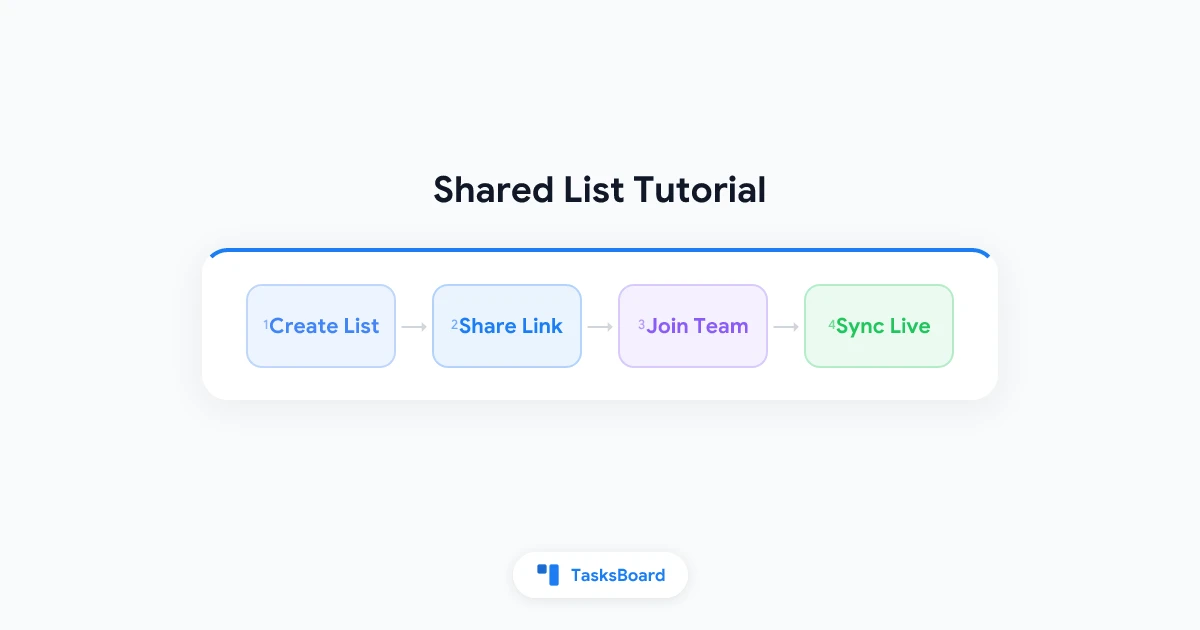
- Go to tasksboard.com and sign in with your Google account. Your existing lists import automatically.
- Open the list you want to share, or create a new one for the project.
- Click the share icon in the list header.
- Copy the share link and send it to collaborators by email, Slack, or any chat app.
- Each collaborator opens the link, signs in with their Google account, and clicks Join shared list.
- Start adding tasks, setting due dates, and dragging cards on the board. Edits sync to everyone’s Google Tasks within seconds.
For a deeper walkthrough with screenshots, see our guide to sharing Google Tasks with TasksBoard.
 Try TasksBoard
Share any Google Tasks list with a link. Everyone edits the same list while tasks sync to Gmail, Calendar, and mobile.
Get Started →Who needs a TasksBoard account?
Yes. Collaborators sign in to TasksBoard with their Google account so the list can sync to their Google Tasks. Free and paid users can both join shared lists. The list owner controls access and can stop sharing at any time.
Calendar workaround: share tasks through a shared calendar
Some guides suggest sharing your Tasks calendar in Google Calendar so others can see and edit dated tasks. The rough flow:
- Create tasks with due dates in Google Tasks.
- Open Google Calendar and locate the Tasks calendar in the sidebar.
- Open calendar settings → Share with specific people.
- Add collaborators and set permission to Make changes to events.
This can work for simple household lists where every item has a date. It breaks down quickly:
- Undated tasks never appear on the shared calendar.
- Permissions are calendar-wide, not list-specific.
- Mobile Tasks and Calendar views can show different subsets of the same data.
Treat this as a fallback, not a primary shared list strategy. For most teams, Chat assignment or TasksBoard is more reliable.
Choose the right sharing method
| Scenario | Recommended approach |
|---|---|
| Assign one task from a Chat discussion | Google Chat space task |
| Track doc action items with assignees | Google Docs @task |
| Co-manage a project list long term | TasksBoard shared list |
| Grocery or chores list with family | TasksBoard shared list |
| Quick dated tasks on a shared calendar | Calendar workaround (limited) |
If you already organize work across multiple Google Tasks lists, pick one list as the team source of truth before sharing. Duplicate lists across Chat, Docs, and personal Tasks create sync confusion fast.
Troubleshooting shared task issues
Collaborator cannot see the list. In Chat, confirm they are in the space and the task was assigned to them. In TasksBoard, verify they opened the share link and clicked Join while signed into the correct Google account.
Changes not appearing on mobile. Google Tasks sync can lag on poor connections. Ask teammates to force-refresh or check our Google Tasks not syncing guide for device-specific fixes.
Tasks disappeared after leaving a Chat space. Space tasks are tied to the space lifecycle. Export important items before archiving a space.
Need assignment plus a board view. Native Google paths assign tasks but offer no kanban. Use TasksBoard to combine sharing, assignment, and columns in one view.
FAQ
Can I share a Google Tasks list without a third-party app?
Do shared Chat tasks support subtasks?
Will shared TasksBoard lists sync to Gmail and Calendar?
Can personal Gmail users share tasks, or only Workspace?
What happens if I stop sharing a list in TasksBoard?
Conclusion
A google tasks shared list tutorial starts with an honest fact: Google Tasks was never designed for shared lists. Google’s official tools assign tasks from Chat spaces and Google Docs, which helps for quick delegation but not for co-managing an existing list.
For teams, families, and anyone who wants one live list on top of Google Tasks, TasksBoard is the straightforward fix. Share a link, invite collaborators, and keep working in the Google apps you already use.
Next steps:
- Try Chat or Docs if you only need occasional assignments inside Workspace
- Open TasksBoard, share your first list, and invite one teammate today
- Browse Google Tasks integrations to see how TasksBoard connects with Gmail, Calendar, and Drive
Your tasks stay in Google. Your team finally gets a list they can share.
Ready to share your Google Tasks?
Get started with TasksBoard for free, no credit card required.
Sign in