Google Tasks Kanban Board: How to Add a Visual Board to Your Tasks

Google Tasks is fast and free, but it shows every task in a flat list. You scroll, you scan, you lose context. A kanban board fixes this by letting you see all your tasks as cards organized by status, so you know at a glance what is waiting, what is in progress, and what is done.
The problem is that Google Tasks does not have a built-in kanban board. The native apps only offer a vertical list. But there is a simple fix: connect Google Tasks to a tool that adds the visual layer you need, without making you migrate all your data.
This guide explains how to set up a Google Tasks kanban board using TasksBoard, why a visual board is worth adding, and how to get the most from your new setup.
What Is a Kanban Board and Why Pair It with Google Tasks?
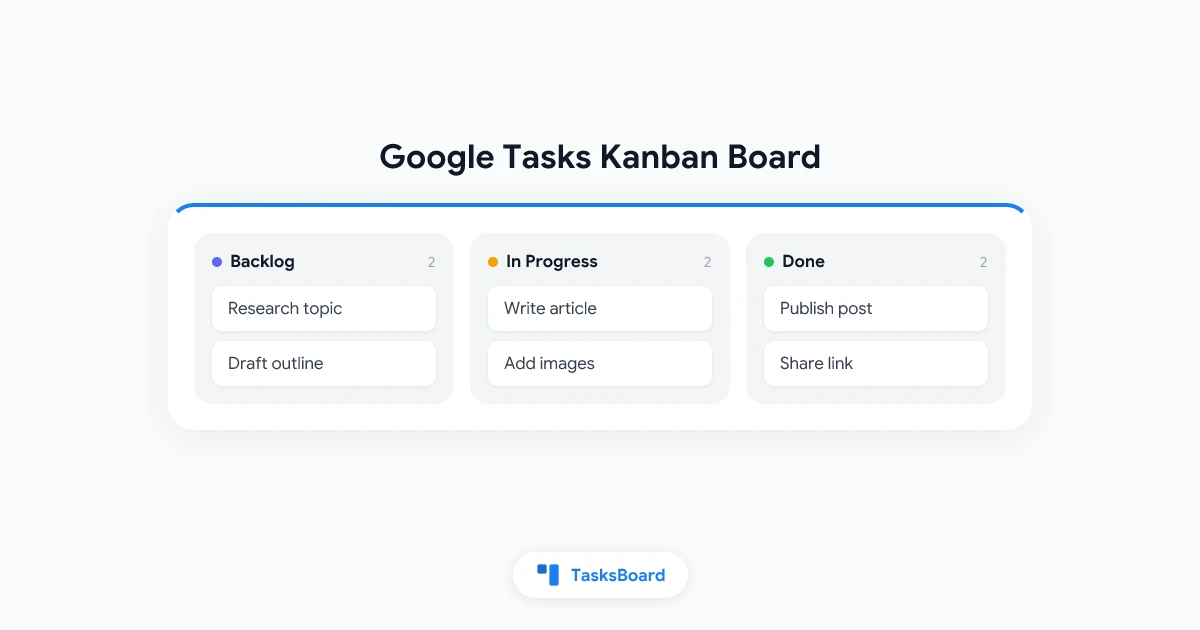
A kanban board organizes work into columns. The classic setup uses three columns: To Do, In Progress, and Done. Each task is a card you move from left to right as it progresses. You can customize column names to match your workflow.
The visual format makes three things immediately clear:
- Bottlenecks. If one column has too many cards, work is piling up there.
- Progress. You can see movement across the board without reading every line.
- Priority. Cards near the top of a column are the next thing to tackle.
Google Tasks stores your tasks reliably and syncs across every Google app. Pairing it with a kanban view gives you the best of both worlds: a trusted, always-available task list with a visual board on top.
Studies on visual task management consistently show that people process spatial information faster than text lists. A card on a board carries status, priority, and category at a glance. A line in a list requires reading and memory.
Does Google Tasks Have a Kanban Board?
No. Google Tasks offers a single-list view in Gmail, Google Calendar, and the dedicated Tasks app. There is no built-in kanban or board mode.
Google does offer kanban-like views in some of its other tools. Google Sheets can be formatted as a makeshift kanban, but it requires manual maintenance. Google Spaces (inside Chat) has some task features but no proper kanban drag-and-drop experience.
The cleanest path to a Google Tasks kanban board is using TasksBoard, a dedicated app built on top of the Google Tasks API. Your tasks stay in Google Tasks. You just get a proper board view on top of them.
How to Turn Your Google Tasks into a Kanban Board
Setting up a Google Tasks kanban board with TasksBoard takes about two minutes.
Here is the full setup process:
- Go to TasksBoard and click Get Started.
- Sign in with the Google account that holds your Google Tasks data.
- Grant TasksBoard read/write access to your Google Tasks.
- Your existing task lists appear automatically as kanban board columns.
- Drag and drop tasks between columns to update their status.
- Click any task card to open it and edit details, add subtasks, or set a due date.
Your tasks are still synced with Google Tasks. Any change you make in TasksBoard shows up in Gmail and Google Calendar, and vice versa.
Customizing Your Columns
The default board maps each Google Tasks list to one column. You can rename and reorder columns inside TasksBoard to match your workflow. A simple personal setup might use:
- Backlog (tasks you have captured but not started)
- This Week (tasks you plan to work on soon)
- In Progress (active tasks)
- Done (completed tasks)
For team boards, you might add columns like Waiting for Review or Blocked to track handoff states.
Managing Your Google Tasks Kanban Board Effectively
A kanban board is only as useful as the habits around it. Here are the practices that make the difference.
Keep Columns Short
Each column should have a work-in-progress (WIP) limit: a maximum number of cards allowed at once. A good rule for individuals is 3 tasks in “In Progress” at a time. For teams, agree on a number per person or per column.
When a column fills up, the rule is simple: finish something before pulling in something new. This prevents the most common kanban mistake, which is turning the board into a second list.
Review the Board Daily
Spend two minutes each morning scanning your board. Move cards that have progressed. Archive completed tasks. Identify any card that has not moved in several days and decide whether to act on it or move it back to the backlog.
A daily board check replaces a longer task-list review and keeps the visual picture accurate.
Use Due Dates for Time-Sensitive Tasks
Google Tasks due dates appear as labels on TasksBoard cards. Set due dates for any task that has a real deadline. This gives you both a spatial view (where in the workflow the task sits) and a time view (when it needs to finish).
For more on setting effective reminders, see the guide on Google Tasks reminders.
 Try TasksBoard
Get a kanban board on top of your Google Tasks in minutes. Free to start, no migration needed.
Get Started →Using a Kanban Board in Google Workspace Teams
A kanban board is especially powerful when a team shares tasks. TasksBoard lets you create shared boards where multiple people can see, move, and update the same tasks in real time.
This solves a long-standing limitation of Google Tasks. The native app is personal only. There is no built-in way to assign a task to a colleague or share a list with your team. TasksBoard adds that layer on top of the Google Tasks foundation your team already uses.
Typical team use cases include:
- Content calendars. Articles move from “Draft” to “Review” to “Published.”
- Client project boards. Tasks are sorted by project phase or deliverable.
- Support queues. Incoming requests move from “Open” to “In Progress” to “Resolved.”
For more on building shared task workflows, read the guide on how to share your Google Tasks.
Assigning Tasks to Team Members
Inside TasksBoard, you can assign any task to a specific team member. Their avatar appears on the card so the board shows, at a glance, who owns what. This replaces the need for separate spreadsheets or status-update meetings.
Kanban Board vs Google Workspace: What to Expect
If your team already uses Google Workspace (Gmail, Drive, Calendar, Meet), TasksBoard fits into that ecosystem without friction. There is no new login system, no separate data silo, and no migration project.
What TasksBoard adds:
- Kanban board view for any Google Tasks list
- Shared boards for teams
- Subtask tracking with progress indicators
- Drag-and-drop task prioritization
- Real-time collaboration with live card updates
What stays in Google Tasks:
- Your task data (always synced both ways)
- Reminders and due dates (set once, visible everywhere)
- Gmail and Calendar integration (unchanged)
If you are comparing task management tools more broadly, the guide on free task management software covers the wider landscape.
FAQ
Conclusion
Google Tasks does not come with a kanban board, but adding one is straightforward. TasksBoard connects directly to your Google Tasks data and gives you a visual board you can customize, share with your team, and use alongside Gmail and Google Calendar.
The kanban format is especially useful if you manage more than a handful of tasks at once, work with a team, or simply want to see the big picture without scrolling through a list.
Get started with TasksBoard and turn your Google Tasks into a kanban board today.
Ready to share your Google Tasks?
Get started with TasksBoard for free, no credit card required.
Sign in