Google Tasks Multiple Lists: How to Organize Work and Personal Tasks

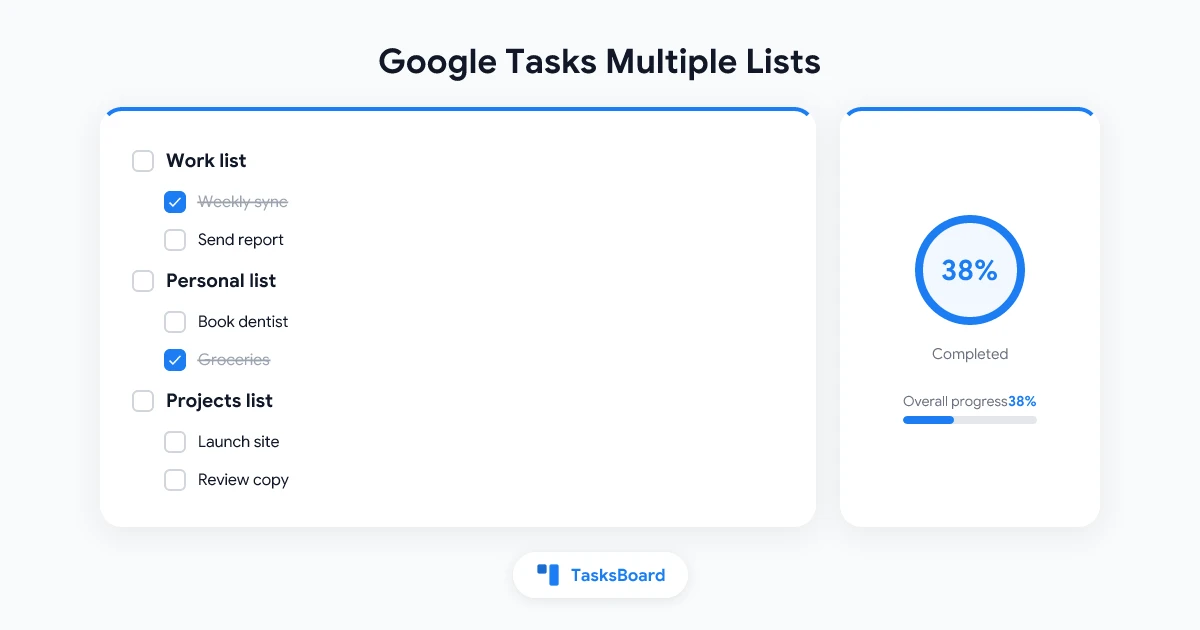
Google Tasks multiple lists let you split work, personal errands, and project backlogs into separate containers instead of one crowded inbox. If every task lives in a single “My Tasks” view, priorities blur fast. Multiple lists give you clean boundaries without leaving the Google ecosystem.
TL;DR:
- Create separate lists in Google Tasks for work, personal life, and active projects
- Use “My Tasks” as a combined view, but process tasks into the right list during weekly review
- Name lists by context or project, not vague labels like “List 2”
- Move tasks between lists when priorities shift
- Add TasksBoard when you need all lists on one kanban board or shared team access
What Google Tasks multiple lists actually do
Google Tasks stores tasks inside lists. Each list is independent, but all lists sync to the same Google account across Gmail, Calendar, the mobile app, and tasks.google.com.
You can:
- Create unlimited lists (practically, most people stay under 15)
- Switch lists from the left sidebar on web or the list picker on mobile
- View all tasks at once through the “My Tasks” aggregate view
- Move tasks from one list to another
- Star tasks across any list for a daily focus filter
What Google Tasks does not offer natively:
- Nested folders inside lists
- Shared lists with real-time collaboration
- A board view that shows multiple lists side by side
- List-level permissions or assignees
That is where structure and optional tools like TasksBoard fill the gap. For a full workflow beyond lists, see our guide on how to use Google Tasks effectively.
How to create and manage multiple lists

Open Google Tasks on web or in the Gmail sidebar. Click the menu next to your current list name, choose "Create new list," and type a clear name like "Work" or "Q3 Launch." The list appears instantly on every device tied to your Google account.
On the web (tasks.google.com or Gmail sidebar)
- Open Google Tasks from tasks.google.com or the right panel in Gmail
- Click the list name at the top of the sidebar
- Select Create new list
- Type a name and press Enter
On mobile (Android or iOS)
- Open the Google Tasks app
- Tap the list name at the top
- Tap Create new list
- Name the list and confirm
Rename, reorder, or delete a list
- Rename: click the three-dot menu next to the list name, then choose Rename
- Delete: same menu, then Delete list (tasks inside are removed permanently)
- Reorder: drag list names in the sidebar on web. Mobile reordering is limited
Tip: Before deleting a list, move any tasks you want to keep into another list. Deletion is not undoable.
List structures that work in real life
The best Google Tasks multiple lists setup depends on how you work. These three patterns cover most people.
Pattern 1: Work and personal split
| List | Purpose | Example tasks |
|---|---|---|
| Work | Job-related actions | ”Submit expense report” |
| Personal | Home and life admin | ”Schedule car service” |
| Errands | Location-based tasks | ”Pick up dry cleaning” |
Best for: individual contributors who want a hard boundary between job tasks and home life.
Pattern 2: GTD-style contexts
| List | Purpose | Example tasks |
|---|---|---|
| @Inbox | Unprocessed captures | ”Reply to client email” |
| @Computer | Desk work | ”Update spreadsheet” |
| @Calls | Phone tasks | ”Call insurance company” |
| @Waiting | Blocked on others | ”Waiting for design approval” |
Best for: freelancers and knowledge workers who batch work by tool or energy level. This pairs well with the list ideas in our Google Tasks priority guide.
Pattern 3: One list per active project
| List | Purpose | Example tasks |
|---|---|---|
| Website relaunch | All tasks for one initiative | ”Write homepage copy” |
| Client: Acme | Scoped client work | ”Send invoice” |
| Team onboarding | HR project | ”Order laptop” |
Best for: small teams and consultants juggling 3 to 8 projects at once. When a project finishes, archive the list by moving remaining tasks elsewhere and deleting the empty list.
Moving tasks between lists
Tasks do not auto-sort themselves. You move them manually when context changes.
On web:
- Open the task
- Click the list name below the task title
- Select the destination list
On mobile:
- Tap the task
- Tap the list field
- Choose a new list
Bulk moves: Google Tasks does not support multi-select moves natively. If you need to reorganize dozens of tasks at once, export your tasks or use a board tool that syncs with Google Tasks.
How multiple lists sync across Google apps
Every list you create in Google Tasks appears in the same places:
- Gmail sidebar: switch lists from the dropdown at the top of the Tasks panel
- Google Calendar: tasks with due dates show on your calendar regardless of which list they sit in
- Mobile app: full list access with the same names and task order
- Google Workspace account: lists stay private to your account unless you share through a third-party tool
Due dates, notes, and subtasks travel with the task when you move it between lists. Stars persist too.
If Calendar sync is part of your workflow, read our Google Tasks Calendar integration guide for due date and reminder details.
Limits of native multiple lists
Google Tasks multiple lists solve basic separation, but teams hit walls quickly:
- No shared lists: coworkers cannot edit the same list in real time through Google Tasks alone
- No visual board: you see one list at a time, not a pipeline across stages
- No list-level assignees: delegation requires manual task naming or external tools
- Flat hierarchy: subtasks go one level deep, with no folders inside lists
- Weak filtering: no tags, labels, or custom sort beyond due date and manual drag order
When your setup outgrows a sidebar, that is the signal to add a layer on top of Google Tasks rather than switching apps entirely.
 Try TasksBoard
See all your Google Tasks lists on one kanban board. Share lists with your team and keep every change synced to Google Tasks.
Get Started →When to add TasksBoard for multiple lists
TasksBoard connects to your Google account and maps each Google Tasks list to a column on a shared board. You keep your lists in Google Tasks. You gain a visual layout and collaboration on top.
Use TasksBoard when you need:
- All lists visible at once in a kanban or list layout
- Shared access so teammates see and update the same task lists
- Subtask depth with a clearer nested view than the native sidebar
- A full-screen desktop experience instead of the narrow Gmail panel
This is the same approach described in our Google Tasks kanban board guide. Your lists stay in Google Tasks. The board is a view layer, not a separate database.
For team-specific workflows, pair this with how to share Google Tasks for link-based collaboration.
Weekly review habit for multiple lists
Lists only help if you maintain them. A 15-minute weekly review keeps each list honest:
- Empty @Inbox (or your capture list): move every task to the correct list
- Check due dates on Work and project lists: reschedule anything unrealistic
- Archive done projects: delete empty lists from finished initiatives
- Star 3 to 5 tasks for the coming week across all lists
- Scan “My Tasks” for stragglers that landed in the wrong place
Do this every Friday or Monday morning. The habit matters more than the exact day.
FAQ
Conclusion
Google Tasks multiple lists give you a simple way to separate work, personal life, and active projects without paying for another task app. Create lists with clear names, move tasks during weekly review, and use “My Tasks” as your daily overview.
When you need every list on one board or shared access for your team, TasksBoard adds kanban and collaboration on top of the Google Tasks lists you already have.
Next step: Open Google Tasks, create three lists (Work, Personal, and one active project), and move your current tasks into the right place. That single cleanup takes less than 10 minutes and makes every list easier to trust.
Ready to share your Google Tasks?
Get started with TasksBoard for free, no credit card required.
Sign in