Google Tasks Priority: How to Rank and Sort Your Tasks in 2026

Google Tasks is fast and free. But if you have ever tried to flag a task as “urgent” or sort your list by importance, you already know the problem: there is no priority field.
Most task managers let you mark items as P1, P2, or P3. Google Tasks does not. No urgency flag, no importance dropdown, no automatic sorting by priority. What you get instead is a small set of native tools that, when combined with a clear system, work better than you might expect.
This guide covers exactly what Google Tasks offers for priority management, the most effective workarounds, and how to unlock a full visual priority layer with TasksBoard.
Does Google Tasks Have Priority Levels?
The short answer is no, not in the traditional sense.
Google Tasks has no P1/P2/P3 system, no “important” flag, and no built-in sort-by-priority option. If you compare it to Todoist or Asana, it feels bare. The three native tools Google Tasks gives you for priority are:
- Stars – a binary toggle you can set on any task to mark it as important
- Manual ordering – drag tasks up and down within a list to arrange them by importance
- Due dates – tasks with due dates surface in Google Calendar, giving them automatic visual weight
That is the complete native toolkit. It is minimal, but it is enough to build a reliable system around.
Stars: Flag any task as important with one click. Stars are visible in the task list and show as a yellow icon next to the title.
Manual ordering: Drag tasks up or down within a list to control the sequence. What sits at the top is what you see first.
Due dates: Tasks with due dates appear on your Google Calendar and can be sorted chronologically, making time pressure a built-in priority signal.
How to Star Important Tasks in Google Tasks
Stars are the fastest way to flag high-priority work. Think of them as your daily highlight reel.
On the web (tasks.google.com or Gmail sidebar):
- Open your task list
- Hover over any task to reveal the star icon on the right side
- Click the star to toggle it on. It turns yellow when active
- Starred tasks do not separate into their own list, but they stand out visually at a glance
On Android and iOS:
- Open the Google Tasks app and tap any task to open its detail view
- Tap the star icon in the top-right corner to toggle it on or off
The golden rule for stars: Use them sparingly. If you star everything, the signal disappears. Aim to have no more than five starred tasks at any time. Stars work best as a “focus for today” marker, not a general importance label.
 Try TasksBoard
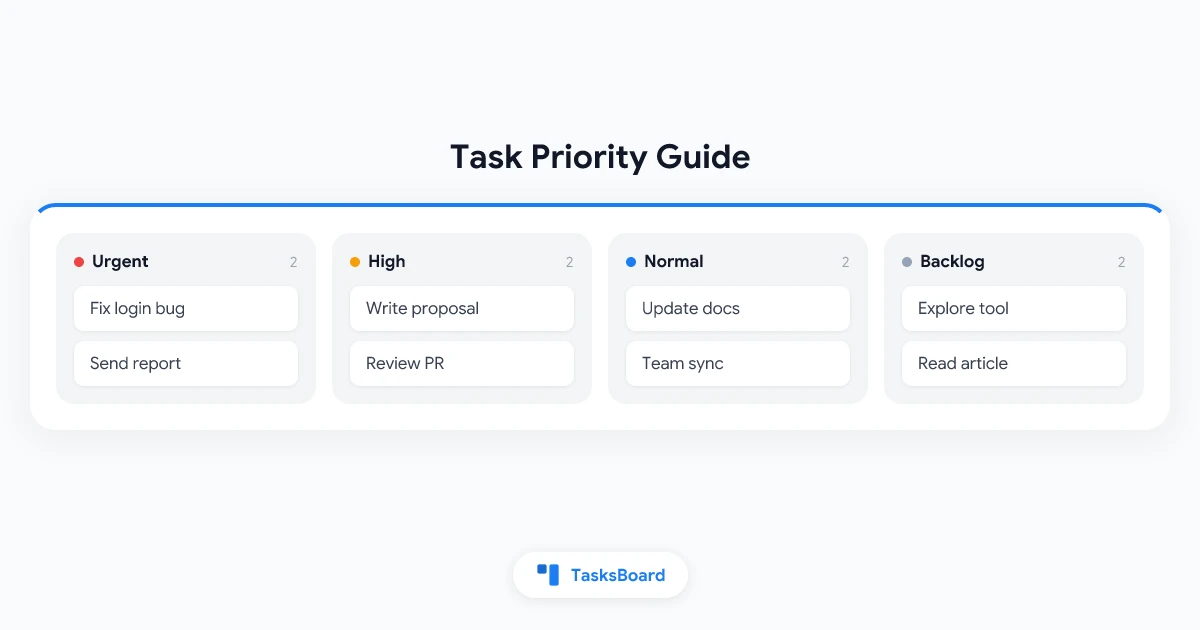
TasksBoard adds a full kanban board view on top of your existing Google Tasks. Set up columns for Urgent, High, Normal, and Backlog. Drag cards to reprioritize in seconds, without leaving your Google account.
Get Started →Organize by Priority Using Multiple Lists
The most reliable workaround for Google Tasks’ lack of priority levels is to use separate lists as priority buckets.
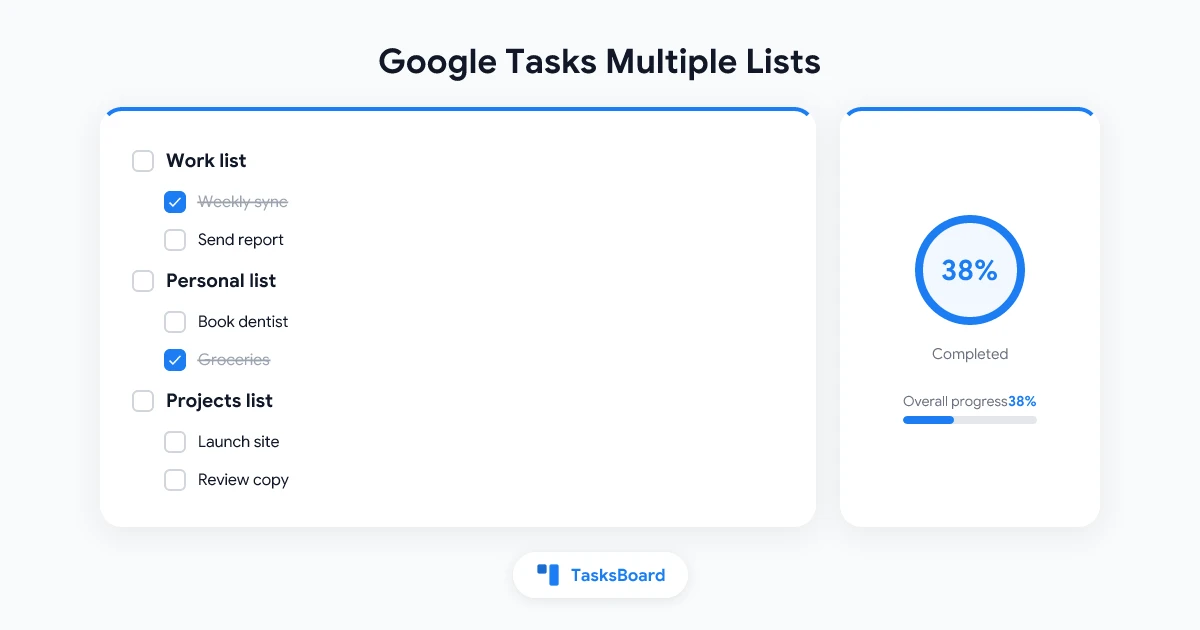
Instead of dumping everything into one flat list, create three dedicated lists:
- 1 – Urgent Today for anything that must happen today
- 2 – This Week for priorities in the current week
- 3 – Backlog for everything else waiting its turn
When you open Google Tasks, the lists appear in the left sidebar. You see “1 – Urgent Today” first because it sits at the top. This creates a natural visual hierarchy without any extra configuration.
How to set this up:
- In Google Tasks, click the ”+” button at the bottom of the list panel to create a new list
- Name it “1 – Urgent Today” (the number forces alphabetical sorting to work in your favor)
- Repeat for “2 – This Week” and “3 – Backlog”
- Drag lists in the sidebar to arrange them from highest to lowest priority
Each morning, spend two minutes moving tasks between lists based on what has shifted. Tasks graduate from Backlog to This Week, and from This Week to Urgent Today, as the deadline approaches.
This system pairs well with stars. Use stars within the “Urgent Today” list to highlight your single most important task for the morning.
Use Due Dates as a Priority Signal
Due dates in Google Tasks do more than schedule work. They create a visual priority map across your week when tasks show up in Google Calendar.
Tasks without due dates stay invisible in Calendar. This invisibility is itself a priority signal: if something does not have a date, it is low urgency by definition.
Best practices for using due dates as priority:
- Set today’s date on anything that must happen today, even if there is no external deadline
- Set a date within the next seven days for high-priority items
- Leave no date at all for backlog items and someday tasks
You can also sort any Google Tasks list by due date. Click “Sort” in the list header on the web app and choose “Date.” This floats the most time-sensitive tasks to the top automatically.
For a full walkthrough of reminders and date-based workflows, see the Google Tasks reminders guide.
Add Visual Priority with TasksBoard Kanban
Native Google Tasks gives you workarounds. TasksBoard gives you a real priority system, without abandoning Google Tasks.
TasksBoard reads your Google Tasks lists and displays them as a kanban board. You can set up a priority board like this:
- Urgent column mapped to your “1 – Urgent Today” list
- High Priority column mapped to “2 – This Week”
- Normal column for scheduled work
- Backlog column for future items
Drag and drop cards between columns to reprioritize instantly. The board view makes the entire queue visible at once. You can see at a glance where work is piling up and which column needs attention today.
Because TasksBoard syncs in real time with Google Tasks, switching between the kanban view and the Gmail sidebar or Calendar is seamless. Reprioritize in TasksBoard and the change appears in Google Tasks within seconds.
For a deeper look at the kanban workflow, see the Google Tasks kanban board guide.
Three Priority Systems That Work in Google Tasks
Different workflows need different systems. Here are three complete setups you can start using today.
System 1: The Daily Star Focus
Keep everything in one list. Each morning, star three to five tasks that represent your top priorities for the day. Work through starred tasks first. Un-star items as you complete them. Review the star assignments at the end of each day and adjust for tomorrow.
Best for: individuals with a manageable task volume and a preference for simplicity.
System 2: The ABC List Method
Create three lists: “A – Must Do”, “B – Should Do”, and “C – Nice to Do.” When a task arrives, immediately assign it to the right list. Review the A list each morning and work through it before touching the B or C lists. Move items up when their urgency increases.
Best for: people who prefer structured categories and want a clear escalation path.
System 3: The Kanban Priority Board
Set up TasksBoard with four columns: Urgent, High, Normal, and Backlog. Every morning, spend five minutes dragging cards to reflect current priorities. Add due dates to anything in the Urgent and High columns. At the end of the week, review the Backlog column and promote items that have become relevant.
Best for: teams and individuals managing a large number of concurrent tasks who need a visual overview at all times.
For more tips on building an effective Google Tasks workflow, see how to use Google Tasks effectively.
Try TasksBoard
TasksBoard turns your Google Tasks lists into a visual kanban board. Set up a priority workflow in minutes. No migration needed, your tasks stay exactly where they are in Google Tasks.
Get Started →Frequently Asked Questions
Conclusion
Google Tasks does not have built-in priority levels, but that does not mean you are stuck with a flat, unordered list. Stars give you a quick daily focus marker. Multiple lists create a clear priority hierarchy. Due dates add time-based urgency that flows directly into Google Calendar.
For anyone who needs more, TasksBoard turns your existing Google Tasks lists into a visual kanban board with drag-and-drop priority columns. You keep your data in Google Tasks, your team works from the same board, and priority becomes something you can see rather than something you have to remember.
Pick the system that fits your workflow and start with the simplest one. A starred task today beats a perfectly organized backlog that never gets reviewed.
Ready to share your Google Tasks?
Get started with TasksBoard for free, no credit card required.
Sign in