Team Workload Management: How to Balance Tasks Across Your Team in 2026
When some team members are buried in work while others have open capacity, things go wrong fast. Deadlines get missed, people burn out, and the team loses trust in its own ability to deliver.
Team workload management is the practice of tracking who has what, redistributing work before it piles up, and keeping everyone moving at a sustainable pace. It sounds simple on paper. In practice, most teams do it poorly or not at all.
This guide shows you how to build a reliable workload management system using Google Tasks and TasksBoard, with no complex software or steep learning curve required.
What Is Team Workload Management?
Team workload management is the process of distributing tasks across team members in a balanced, transparent way. The goal is to make sure no one person has too much or too little on their plate at any given time.
It involves three core activities:
- Visibility: seeing what everyone is working on right now
- Distribution: assigning tasks to the right person at the right time
- Adjustment: catching imbalances early and redistributing before they become problems
Without all three, workload management becomes reactive. Teams only notice the problem after someone misses a deadline or announces they are overwhelmed.
Why Native Google Tasks Falls Short for Workload Visibility
Google Tasks is a capable personal task manager. It syncs across devices, integrates with Gmail and Google Calendar, and handles due dates and subtasks well.
But it was built for individuals, not teams. The limitations become clear quickly when you try to use it for team workload management:
- No shared boards: each person sees only their own tasks by default
- No assignment view: you cannot see all tasks across team members in one place
- No visual status tracking: there is no kanban or board view to show what is in progress versus waiting
- No workload overview: there is no way to see at a glance whether one person has ten tasks while another has two
These gaps are not flaws in Google Tasks. They are intentional design choices for a personal tool. The solution is to add a layer on top that provides the team-level visibility Google Tasks was never designed to give.
How to Manage Team Workload with Google Tasks and TasksBoard
TasksBoard is a kanban board built on top of Google Tasks. It adds shared boards, team views, and task assignment to the existing Google Tasks infrastructure. Your tasks stay in Google Tasks. TasksBoard makes them visible and manageable at the team level.
Here is how to set up a workload management system with it:
Step 1: Structure Tasks Around Workstreams
Create one Google Task list per active project or workstream. Keep them narrow in scope so the board stays scannable. A list called “Q3 Product Launch” is more useful than one called “Everything We Need to Do.”
Step 2: Make Ownership Visible
Every task needs an owner. In TasksBoard, you can use labels or include the person’s name in the task title. For example: “Write landing page copy [Sophie].” When ownership is visible on the board, managers can see at a glance who has too much.
Step 3: Use Kanban Columns as Workload Signals
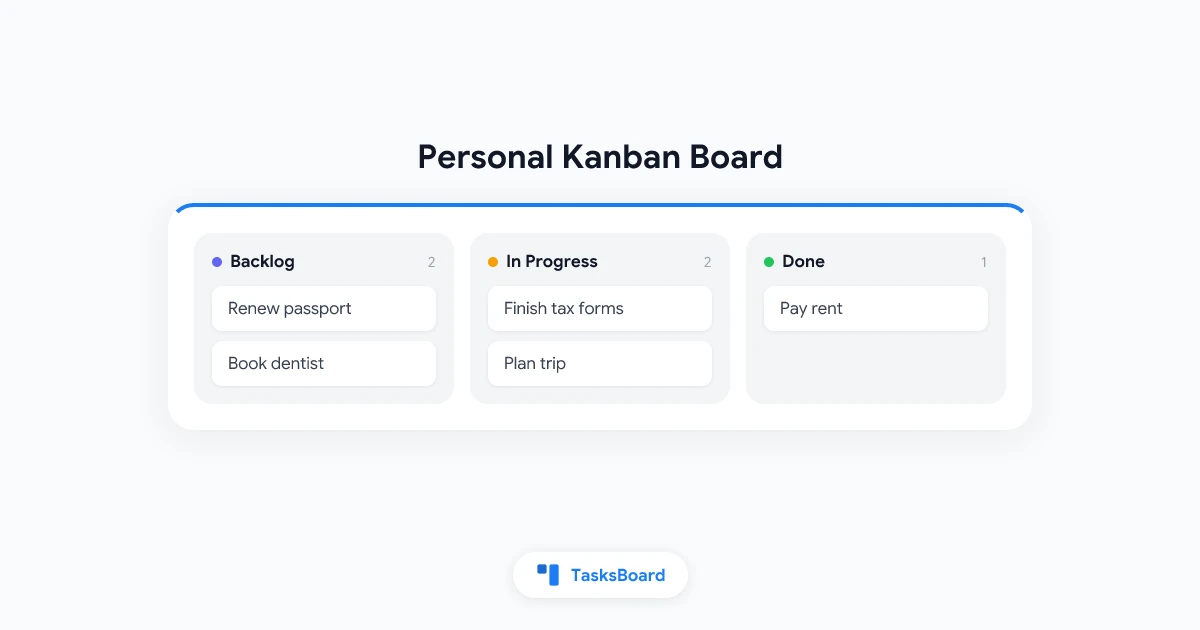
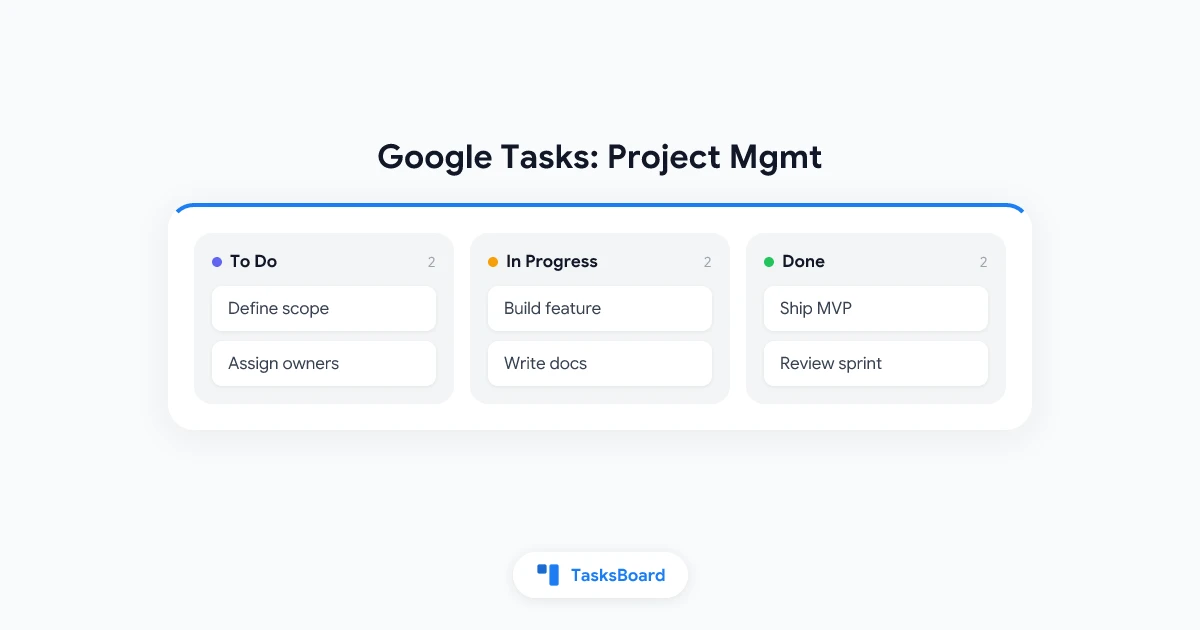
The kanban columns in TasksBoard correspond to task status. When one person has six or seven tasks in the “In Progress” column while another has two, that workload imbalance shows up visually. The board makes it impossible to miss.
Step 4: Set a Weekly Capacity Rule
Define a simple capacity rule for your team. For example: no one should have more than five tasks in “In Progress” at the same time. When the weekly board review happens, if someone is above that limit, tasks get moved back or reassigned before the week begins.
Get a shared kanban board for your Google Tasks. Visualize who is working on what, spot overloaded team members instantly, and keep everyone moving at a sustainable pace.
Get Started →Practical Workload Management Tips for Remote and Hybrid Teams
Remote teams face an extra challenge with workload management: the visual cues that exist in a physical office disappear entirely. Seeing someone buried under work or noticing someone looks idle is simply not possible when the team is distributed.
These tips help close that gap:
Create a visible parking lot for overflow tasks. When someone has more work than they can handle this week, extra tasks move to a “Parking Lot” column in TasksBoard. This makes overflow visible without requiring anyone to admit they are overwhelmed.
Do a workload check at the start of each week. Before the week begins, spend ten minutes on the board. Is the “In Progress” column balanced across the team? Are any tasks overdue from last week? Move or reassign before work starts, not after deadlines pass.
Use due dates consistently. A task without a due date is invisible to workload planning. Every task on the shared board should have a deadline, even an approximate one. This lets you see upcoming peaks before they hit.
Review completed tasks weekly. Looking at what got done is as important as planning what comes next. Consistent completion rates tell you whether the team’s capacity estimates are realistic or wishful.
Communicate capacity, not just availability. “I’m free” and “I have capacity for two more tasks” are different statements. Training the team to communicate in terms of task slots rather than free time makes workload conversations far more concrete.
For more on building effective collaboration habits, see the remote team management guide and the guide to assigning Google Tasks to team members.
Team Workload Management Tools Compared
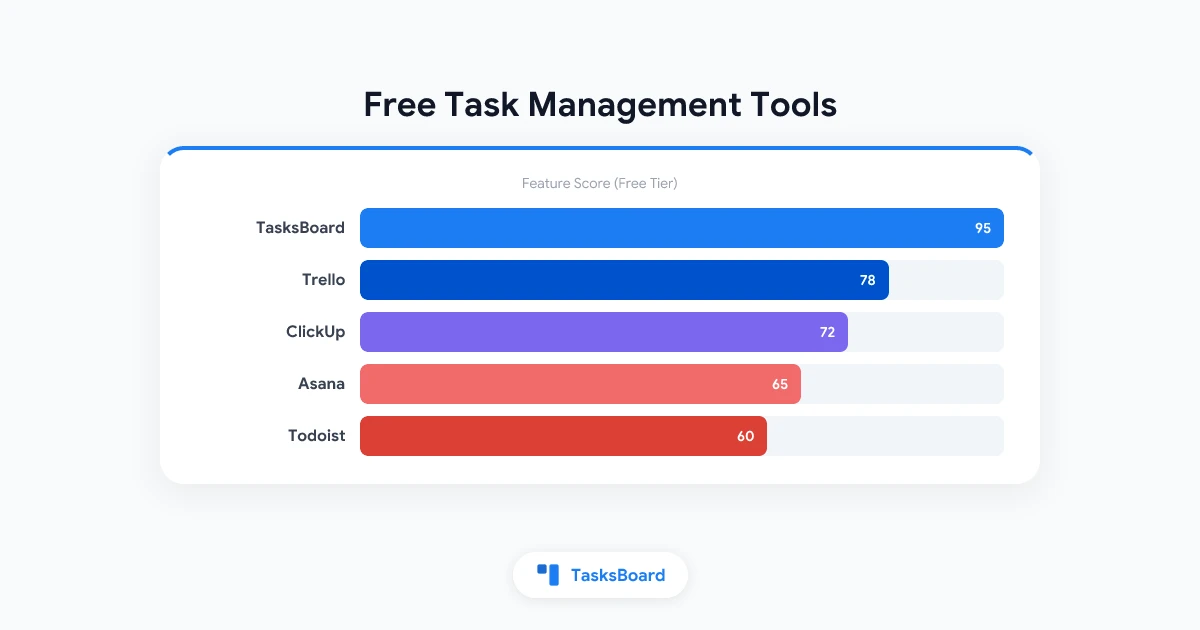
For Google Workspace teams, TasksBoard is the only option that layers team workload visibility directly on top of your existing Google Tasks data. Other tools require migrating your work to a new system entirely.
| Tool | Workload View | Google Tasks Sync | Price |
|---|---|---|---|
| TasksBoard | Kanban board with shared columns | Native (built on Google Tasks) | Free / Premium |
| Asana | Workload chart (Business plan only) | Import only | $10.99/mo per user |
| Monday.com | Workload widget | Import only | $9/mo per user |
| Trello | Card count per list | No native sync | Free / $5/mo |
| ClickUp | Workload view | Import only | Free / $7/mo |
TasksBoard stands out for teams already using Google Workspace. There is no data migration and no duplicate system to maintain. Your team continues using Google Tasks as the task backend, with TasksBoard providing the shared visual layer on top.
How to Handle Workload Spikes
Every team has seasons of peak demand. A product launch, a client deadline, or a quarterly reporting cycle can compress twice the normal work into a single week.
The best response to a workload spike is preparation, not reaction. Here is a practical approach:
- Identify the spike window at least two weeks in advance. Tag the dates in your team calendar so everyone sees it coming.
- Defer non-urgent tasks currently in the “To Do” column. Move them to a “Next Month” list in TasksBoard.
- Bring in temporary capacity if available: contractors, adjacent team members, or by pushing some deliverables to a later date.
- Define a clear done-by scope for the spike period. What absolutely must be delivered? What can slip? Naming this clearly prevents last-minute scope debates.
After the spike, do a workload review. Did the capacity hold? Were specific people disproportionately affected? Use that data to plan the next spike better.
See also: how to build an effective team task list for the structural foundation that makes spike planning easier.
Building a Workload Review Habit
A weekly workload review is the single highest-leverage habit for team workload management. Everything else depends on it.
Here is a format that works for most teams:
When: Monday morning, before the workday starts (or the last 15 minutes of Friday)
Duration: 10 to 15 minutes
Agenda:
- Scan the board for anyone with more than five active tasks
- Move overdue items from last week to the current week or defer them
- Confirm that every task in “To Do” has an owner and a due date
- Identify any tasks that are blocked and need action
The review does not need to be a full team meeting. A quick async check on the shared TasksBoard board, with comments added to blocked tasks, is enough for most teams.
TasksBoard gives your whole team a shared kanban view of Google Tasks. Set up a board today and run your first 10-minute workload review on Monday.
Get Started →FAQ
Build a Workload System Your Team Will Actually Use
The best workload management system is the one your team actually checks. That means it has to be simple, visual, and easy to update.
TasksBoard keeps the barrier low. It builds on Google Tasks your team likely already uses, requires no new accounts or data migration, and shows workload as a visual kanban board that anyone can read at a glance.
Start with one project board, invite your team, and run a 10-minute workload review at the start of next week. That single habit, repeated consistently, is what keeps work balanced and teams healthy.
Ready to share your Google Tasks?
Get started with TasksBoard for free, no credit card required.
Sign in