Google Tasks Not Syncing: How to Fix It on Any Device

Google Tasks Not Syncing: How to Fix It on Any Device
Adding a task on your phone and then opening your laptop to find it missing is one of the most common Google Tasks complaints. The app is designed to sync instantly across every device where you are signed in. When that breaks down, a small set of causes is almost always responsible.
This guide covers every fix, from the thirty-second quick checks to the less obvious platform-specific settings.
Why Google Tasks Stops Syncing
Sync in Google Tasks depends on two things: an active internet connection on each device and a properly authenticated Google account. When either breaks down, tasks stop updating across your devices.
The most common reasons sync stops working:
- No internet connection on one of your devices at the moment the task was created
- A stale session in the browser tab or mobile app that has not refreshed
- The Google account is signed out or needs re-authentication
- Background app refresh is disabled on iPhone or Android
- A cached local copy of task data is out of date
- Multiple Google accounts signed into the same browser causing the wrong account to show
The good news: most of these clear up in under a minute.
Quick Checks to Try First
Run through these before going into platform-specific steps. They resolve the majority of sync problems.
Check your internet connection. Open any website or app on the device where tasks are not appearing. If nothing loads, the problem is your network, not Google Tasks.
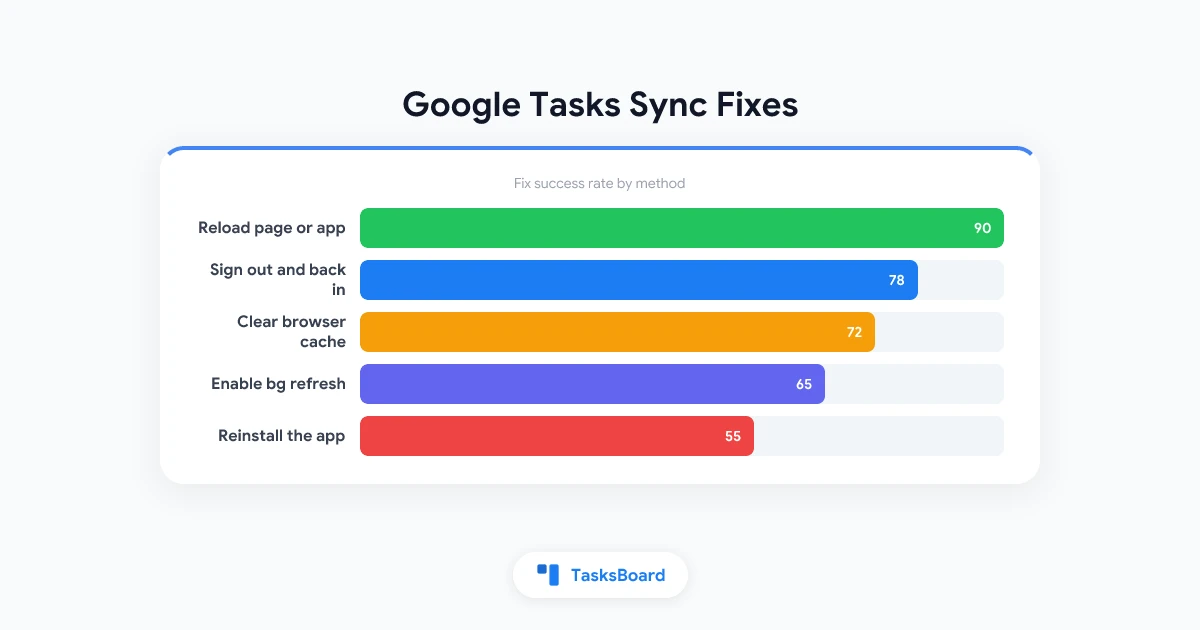
Force-refresh the page or app. On a browser, press Ctrl+R (Windows) or Cmd+R (Mac). In the Google Tasks mobile app, pull down from the top of the list to trigger a manual refresh.
Confirm you are signed in to the right Google account. Click your profile icon at the top right of tasks.google.com or the Gmail sidebar. Make sure the account displayed matches the one you used on the other device.
How to Fix Google Tasks Not Syncing on Desktop (Chrome and Web)
If tasks you added or edited on your phone are not appearing in the browser, go through these steps in order.
Step 1: Hard-refresh the browser tab. Press Ctrl+Shift+R on Windows or Cmd+Shift+R on Mac. This reloads the page while bypassing the local cache.
Step 2: Open tasks.google.com directly. Many people access Google Tasks through the Gmail sidebar. If the sidebar is not updating, try opening tasks.google.com in a fresh browser tab. The full Tasks view sometimes picks up new data faster.
Step 3: Clear the browser cache. In Chrome, go to Settings > Privacy and security > Clear browsing data. Select “Cached images and files” and click Clear data. Reload Google Tasks afterwards.
Step 4: Test in an incognito window. Ad blockers and privacy extensions can interfere with Google’s API calls. Open an incognito window (Ctrl+Shift+N on Windows, Cmd+Shift+N on Mac), sign in to Google Tasks, and check if your tasks appear. If they do, one of your extensions is the cause.
Step 5: Check which Google account is active. If you have multiple Google accounts in the same browser, click your avatar to confirm you are viewing the correct account. Google Tasks only shows tasks from the currently selected account.
How to Fix Google Tasks Not Syncing on Android
Android adds one more layer: background data and sync permissions. Both can prevent Google Tasks from fetching updates when the app is not open.
Step 1: Confirm network access. Pull down the notification shade and verify mobile data or Wi-Fi is active.
Step 2: Force-stop and reopen Google Tasks. Go to Settings > Apps > Google Tasks and tap Force Stop. Reopen the app and pull down to refresh.
Step 3: Enable background data. Go to Settings > Apps > Google Tasks > Mobile data and Wi-Fi. Turn on both “Background data” and “Unrestricted data usage.” Without this, the app only fetches new tasks when you are actively inside it.
Step 4: Verify Google account sync is on. Go to Settings > Accounts > your Google account. Look for a “Sync account” or “Auto-sync” toggle and confirm it is enabled. Some Android skins turn this off to save battery.
Step 5: Clear the app cache. Go to Settings > Apps > Google Tasks > Storage and tap Clear Cache. This removes temporary local data without deleting your actual tasks. Your tasks are stored in Google’s cloud and will reload when you reopen the app.
How to Fix Google Tasks Not Syncing on iPhone and iPad
iOS limits how often apps can refresh in the background. If Google Tasks only updates when you open it, the fix is usually one of these settings.
Step 1: Turn on Background App Refresh for Google Tasks. Go to Settings > General > Background App Refresh. Find Google Tasks in the list and enable it. This lets the app fetch new task data even when it is running in the background.
Step 2: Check network and account status. Open Settings > your name at the top and confirm iCloud Drive is connected (this checks your network). Then go to Settings > Mail > Accounts and make sure your Google account shows as active.
Step 3: Switch accounts to trigger a re-sync. Open Google Tasks, tap your profile icon, and switch to a different Google account if you have one, then switch back. This forces the app to re-authenticate and often triggers a fresh sync.
Step 4: Delete and reinstall the app. If nothing else works, uninstall Google Tasks, reinstall it from the App Store, and sign back in. Your tasks are not stored locally so nothing is lost.
 Try TasksBoard
TasksBoard runs as a web app that reads directly from the Google Tasks API. Because it loads fresh data every time you open it, you always see the current state of your tasks across every device.
Get Started →Google Tasks Not Syncing with Google Calendar
Google Tasks integrates with Google Calendar so that tasks with due dates appear as small chips on the matching day in Calendar. If tasks are not showing up in Calendar, check three things:
The task has no due date. Google Calendar only displays tasks that have a due date. Tasks without a due date are invisible in Calendar. Open the task in Google Tasks, tap the due date field, and assign a date.
“Show tasks” is turned off in Calendar. Open Google Calendar, click the Settings gear, go to View options, and confirm the “Show tasks” toggle is on. This setting can get turned off accidentally.
The accounts do not match. Calendar only pulls tasks from the same Google account it is logged into. If your tasks live in a different Google account than your Calendar, they will not appear.
For more detail on connecting the two apps, see the Google Tasks calendar integration guide.
When Tasks Sync Is Slow but Not Broken
Sometimes Google Tasks does not fail entirely. It just takes a few minutes instead of seconds. This usually means a temporary server-side delay on Google’s end.
If your tasks appeared eventually but took several minutes, check the Google Workspace Status Dashboard to see if Google is reporting any active issues with Google Tasks. When there is an ongoing incident, the only option is to wait.
During a slow sync period, avoid creating the same task on two devices. Adding a task on both your phone and laptop before sync catches up is the most common cause of duplicates that need manual cleanup later.
Google Tasks Not Syncing After Switching Accounts
If you regularly switch between multiple Google accounts in the same browser, Google Tasks sometimes caches a stale view from the previous account.
The quickest fix is to sign out of all Google accounts in your browser, then sign back in with the account you want. This clears the cached session and forces a clean sync from the server.
For a longer-term fix, use separate Chrome profiles for different Google accounts. Each profile keeps its sessions completely isolated, so there is no confusion between accounts. You can switch profiles from the avatar icon at the top right of Chrome.
Preventing Sync Problems Before They Start
A few habits prevent most Google Tasks sync issues:
- Close the app when you finish a session. A stale app left open for days is more likely to show outdated data than a freshly opened one.
- Add a due date to time-sensitive tasks. Tasks with due dates also appear in Google Calendar, giving you a second place to verify they saved correctly. See the how to use Google Tasks effectively guide for more on building a reliable task habit.
- Avoid editing the same task on two devices at the same time. Google Tasks resolves conflicts in its own way when two versions of a task arrive simultaneously, and the result is not always what you intended.
- Keep the Google Tasks app updated. Outdated app versions occasionally have sync bugs that are fixed in newer releases.
FAQ
Conclusion
Google Tasks sync issues almost always come down to three things: a stale session, a background data restriction on mobile, or the wrong Google account being active. Running through the quick checks at the top of this guide resolves the vast majority of problems in under a minute.
For teams who need a shared view that stays current for everyone, TasksBoard puts all your Google Tasks onto a collaborative kanban board. Updates from any team member appear in real time with no extra setup. Start free and see how it works for your team.
Ready to share your Google Tasks?
Get started with TasksBoard for free, no credit card required.
Sign in