Google Tasks Calendar Integration: How to Sync Tasks and Due Dates

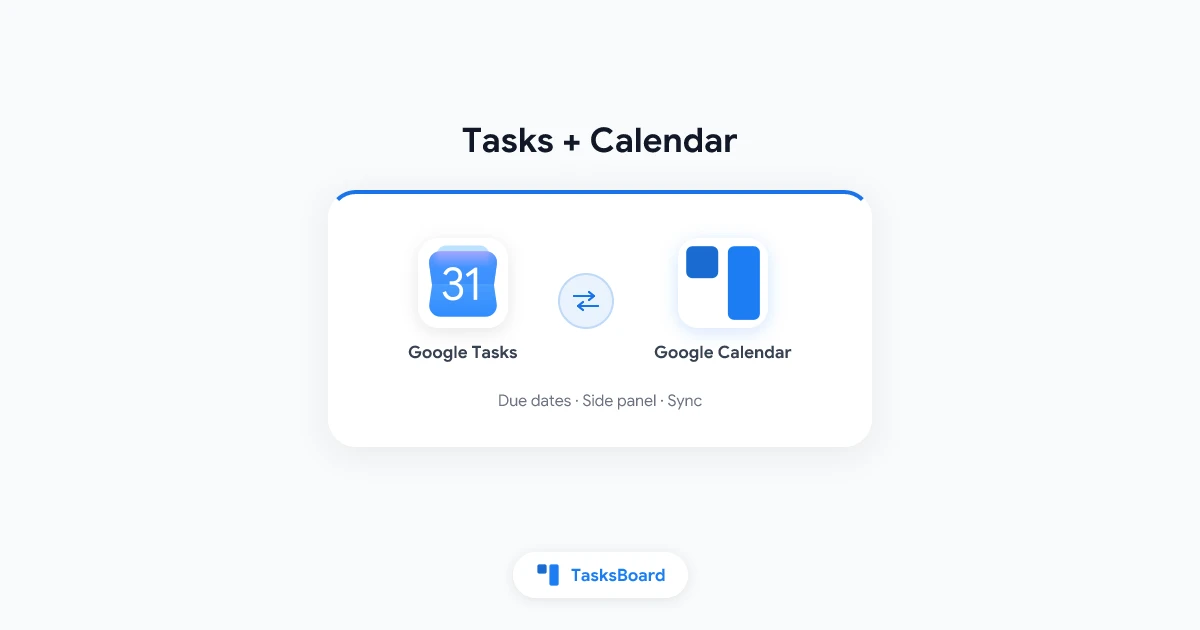
Google Tasks calendar integration connects your to-do list to the schedule you already check every morning. When you add a due date to a task, it appears on Google Calendar as an all-day item. Edit the task in Gmail, Calendar, or the Tasks app and the change syncs across devices within seconds.
Many people set due dates and still wonder why tasks never show up on their calendar view. Others confuse calendar tasks with timed meetings and miss deadlines. This guide explains how the sync works, how to turn on the Tasks panel in Google Calendar, fix common problems, and when a full-screen tool like TasksBoard helps once your list outgrows the built-in panels.
TL;DR:
- Due dates drive the sync: tasks with due dates appear on Google Calendar as all-day events
- One account, one list: tasks created in Gmail, Calendar, or tasks.google.com all share the same data
- Notifications come from Calendar: enable all-day event alerts to get reminded on task due dates
- No kanban in Calendar: use TasksBoard kanban boards when you need columns and shared boards
How Google Tasks calendar integration works
Google Tasks and Google Calendar are not separate systems that occasionally talk to each other. They read from the same task database tied to your Google account.
When you assign a due date to a task, Google Calendar creates an all-day entry for that date. The entry title matches the task name. Complete the task in any Google Tasks surface and it disappears from that calendar day. Change the due date and the calendar entry moves.
| Action | Where it syncs |
|---|---|
| Add a task with a due date | Google Calendar, Gmail Tasks panel, Tasks mobile app |
| Complete a task | Removed from Calendar on that due date |
| Edit task title or notes | Updated everywhere within seconds |
| Create a timed meeting | Stays in Calendar only (not a Google Task) |
Tasks without due dates stay in your task lists but do not appear on the calendar grid. That is the most common reason people think integration is broken.

Google Tasks calendar integration is date-based, not time-based. A task due Friday shows as an all-day block on Friday. Add a specific time only if you convert the item into a calendar event manually.
How to show Google Tasks on Google Calendar
You can manage tasks from inside Google Calendar without opening a separate tab. The Tasks side panel mirrors the same lists you see in Gmail.
Enable the Tasks panel in Google Calendar (web)
- Open Google Calendar in a desktop browser.
- Look at the right edge for the app strip (Keep, Tasks, and other icons).
- Click the Tasks icon (blue circle with a checkmark).
- Your task lists load in the side panel. Create, edit, and complete tasks from there.
If the Tasks icon is missing, click the + at the bottom of the strip and pin Tasks. Workspace admins can restrict Tasks in some organizations, so ask your IT team if the icon never appears.
See tasks on the calendar grid
Tasks with due dates show as all-day items at the top of each day in Month, Week, and Day views.
- Month view: small task titles appear above the date number on days with due items
- Week view: tasks stack in the all-day row at the top of each column
- Day view: same all-day row, easier to scan when you have several items due
To make a task appear on a specific day, open it in the Tasks panel and tap Add date/time (or the calendar icon). Pick a date and save.
Google Tasks calendar integration on mobile
On Android and iOS, the Google Calendar app includes a Tasks tab or Tasks entry in the bottom navigation on newer versions.
- Open the Google Calendar app.
- Tap Tasks (or the checkmark tab).
- Add tasks and due dates from your phone. They sync to the web calendar automatically.
The standalone Google Tasks app also syncs due dates to Calendar. Use whichever surface fits your workflow. The data is identical.
Google Calendar tasks vs events: what is the difference?
Calendar events are timed blocks with start and end times, guests, meeting links, and rooms. Calendar tasks are to-do items with optional due dates. They look similar on the grid but behave differently.
| Calendar task (from Google Tasks) | Calendar event | |
|---|---|---|
| Default duration | All day | Specific start/end time |
| Guests and Meet links | No | Yes |
| Appears in Tasks app | Yes | No |
| Best for | Action items, follow-ups | Meetings, appointments |
A practical rule: if you need to be somewhere at 2:00 p.m., create an event. If you need to finish something by Friday, create a task with a due date.
Some users drag a task onto a time slot in Week view. That converts it into a timed calendar block for planning purposes. The underlying Google Task still exists, but the visual treatment changes. For time blocking workflows, many people keep tasks as all-day items and put focused work into separate timed events.
 Try TasksBoard
Calendar shows what is due. TasksBoard shows how work flows. Kanban columns, subtasks, and shared boards sit on top of the same Google Tasks data your calendar already uses.
Get Started →Set up Google Tasks reminders through Calendar
Google Tasks does not send its own pop-up alerts. Google Tasks calendar integration relies on Calendar notifications for due-date reminders.
Turn on notifications for task due dates
- Open Google Calendar on the web.
- Click the gear icon and choose Settings.
- Select Notification settings (or Settings for my calendars > your primary calendar).
- Under All-day events, enable a notification (for example, 1 day before at 9:00 a.m. or On the day of the event at 8:00 a.m.).
- Save changes.
Tasks with due dates inherit these all-day alerts. For a deeper walkthrough of due dates and repeat schedules, see our Google Tasks reminders guide.
Repeat tasks on the calendar
Google Tasks supports repeating due dates: daily, weekly, monthly, or yearly. Each occurrence shows on Calendar on the matching day. Completing one instance moves the repeat forward to the next scheduled date.
This works well for standups, weekly reviews, and recurring admin work. It does not replace a full project board when a task has many sub-steps. That is where subtasks in Google Tasks and a kanban layout help.
Fix Google Calendar tasks not showing
When tasks disappear from Calendar, the cause is usually a setting or a missing due date, not a broken sync.
Checklist when tasks are missing
- Confirm the task has a due date: undated tasks never appear on the grid
- Verify the correct Google account: personal and work calendars do not mix task lists
- Enable the Tasks calendar: in Calendar settings, under Settings for my calendars, find Tasks and make sure it is checked and set to display
- Refresh the page: sign out and back in if the Tasks panel loads empty
- Check mobile sync: open the Tasks app, pull to refresh, then reopen Calendar
Tasks not showing on phone
On mobile, calendar task visibility depends on the Tasks calendar being enabled in the Google Calendar app settings.
- Open Google Calendar on your phone.
- Tap the menu icon and confirm Tasks is checked in your calendar list.
- If you use multiple accounts, switch to the account where you created the task.
Workspace admin restrictions
Some Google Workspace organizations disable Tasks in Gmail or Calendar for certain groups. If colleagues see tasks but you do not, contact your administrator. Personal @gmail.com accounts rarely hit this limit.
Workflows that combine Calendar and Google Tasks
Once basic sync works, a few habits make the integration much more useful.
Capture from Gmail, schedule in Calendar
The fastest capture path is still Gmail. Turn an email into a task from the More menu or by dragging it to the Tasks panel, then open Calendar and assign a due date. Our Google Tasks Gmail integration guide covers sidebar setup and email-to-task shortcuts.
Use separate lists for contexts
Google Tasks supports multiple lists (Work, Personal, Shopping). Each list syncs to the same Calendar account. Color-coded calendar views help if you name lists clearly.
- Work: client follow-ups, sprint items, approvals
- Personal: errands, appointments to book
- Someday: ideas without firm dates (leave undated so they stay off the grid)
When Calendar view is not enough
Google Calendar is excellent for when something is due. It is weaker for stage tracking (backlog, in progress, blocked, done). Native Google Tasks has no kanban board and limited sharing.
TasksBoard reads and writes the same Google Tasks data. You keep due dates and Calendar sync, and gain shared kanban boards, subtasks, and a full-screen layout. Calendar tells you Friday is the deadline. TasksBoard shows the card moving through your team’s columns before that date arrives.
Google Tasks calendar integration limits to know
Honest limits help you pick the right tool stack.
- No time-of-day reminders in Tasks: only Calendar all-day notifications apply unless you add a separate timed event
- One level of subtasks: nested checklists exist, but there is no Gantt or dependency view in Calendar
- Sharing is list-based: you can share task lists with others, but there is no shared kanban in the native apps
- No two-way sync with non-Google calendars: Outlook or Apple Calendar do not automatically import Google Tasks
If you live inside Google Workspace, these limits are often acceptable for personal task tracking. Teams managing projects usually outgrow the Calendar grid and add a board view on top.
FAQ
Conclusion
Google Tasks calendar integration keeps deadlines visible on the schedule you already trust. Add due dates, enable the Tasks panel in Google Calendar, and turn on all-day notifications so due items surface at the right time.
When your list grows past what a calendar grid can express, keep the same Google account and layer a kanban view on top. TasksBoard syncs with Google Tasks, respects your due dates, and adds shared boards your team can work from together.
Next step: open Google Calendar, pin the Tasks icon, and add a due date to one task you keep postponing. If it appears on the grid, your sync is working.
Ready to share your Google Tasks?
Get started with TasksBoard for free, no credit card required.
Sign in