Google Tasks for Students: Build a Study Planner That Actually Sticks

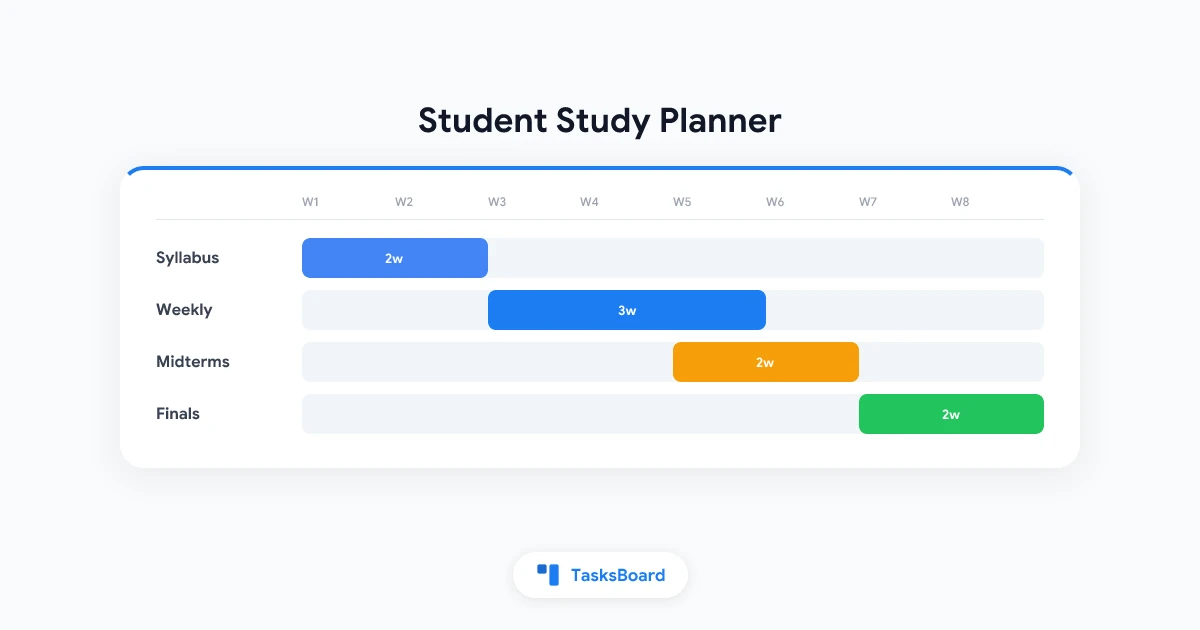
You already have Gmail, Google Calendar, and probably a syllabus PDF you opened once. What you might not have is a google tasks for students study planner that turns those scattered due dates into a weekly plan you can follow without opening five different apps.
Google Tasks is free, syncs across your phone and laptop, and lives inside the Google apps you use for school. It is not a full academic planner with timetables and grade tracking. It is a lightweight action list that pairs well with Calendar when you need reminders, checkboxes, and a clear view of what is still open.
This guide shows how to set up Google Tasks for a full semester: one list per course, study blocks on Calendar, subtasks for big projects, and a simple weekly review that takes less time than one episode of a show.
Why Google Tasks works as a student study planner
Most students do not need another app account. They need a system that captures assignments fast and surfaces deadlines before panic sets in.
Google Tasks fits that role because it is already in your Google account. According to Google Workspace, tasks sync across Gmail, Calendar, Chat, and Docs. Add a due date and the task appears on your calendar. Star the urgent ones. Break a paper into subtasks without leaving the sidebar.
| What students need | How Google Tasks handles it |
|---|---|
| Track assignments by course | Separate task lists per class |
| See deadlines on a calendar | Due dates sync to Google Calendar |
| Break big projects into steps | One level of subtasks under each task |
| Capture work from email | Drag Gmail messages into Tasks |
| Reminders on your phone | Google Calendar notifications for dated tasks |
The tradeoff is intentional. Google Tasks has no built-in grade book, no native Google Classroom sync, and no kanban board in the default view. For many students, especially those on free Gmail or university Google Workspace, that simplicity is the point. You get structure without learning a new productivity philosophy.
If you want a broader look at planner options beyond Google Tasks, see our study planner guide. This article goes deep on the Google Tasks setup only.
Set up your semester structure in Google Tasks
Start once at the beginning of the term. The goal is to mirror how your brain already sorts schoolwork: by course, then by deadline, then by next action.
Create one list per course
Open Google Tasks from Gmail, Calendar, or tasks.google.com. Click the list dropdown next to My Tasks, then Create new list. Name each list after a course code or title, for example BIOL 201 or History Thesis.
Why separate lists matter: a single inbox with every assignment from every class becomes overwhelming fast. EmpowerED notes that long combined lists can create an unintended obstacle for students who already feel behind. One list per class keeps each view short and scannable.
Optional fourth list:
- Admin for registration, financial aid, or club deadlines that are not tied to one course
Add every deadline from your syllabus
For each course, add one task per major deliverable:
- Problem sets and lab reports
- Quizzes and exams
- Essays and presentations
- Group project milestones
Set the due date to the actual submission deadline, not the day you hope to finish. Google Calendar will show these as all-day items once dates are set. For how due dates sync between apps, see our Google Tasks Calendar integration guide.
Star what matters this week
Google Tasks lets you star important tasks so they stand out in any list. Use stars sparingly. If everything is urgent, nothing is.

- Lists: One per course plus optional Admin list
- Tasks: Every syllabus deadline with a real due date
- Subtasks: Break anything due in more than one week
- Stars: Mark this week's top 3 priorities per course
Pair Google Tasks with Google Calendar for weekly planning
A study planner only works if it connects to when you actually work. Google Calendar handles fixed time. Google Tasks handles flexible work.
Tailor Joy’s student agenda guide recommends blocking time on Calendar first, then tracking assignments in Tasks. That two-step split keeps your calendar from turning into a messy to-do list while still giving you checkboxes for homework.
Events vs tasks: a simple rule
| Use a Calendar event for | Use a Google task for |
|---|---|
| Classes, labs, and office hours | Readings you can move between days |
| Sports, work shifts, and commute | Problem sets and essays |
| Exam dates you need to see at a glance | Study sessions with flexible length |
| Group meetings with a fixed start time | Email follow-ups from professors |
If study time has a fixed slot, create a Calendar event for the block and add related tasks with due dates inside that week. You protect the time on the grid and track completion in Tasks.
Time block your study sessions
Each Sunday, open Calendar and add recurring or one-off study blocks:
- Deep work blocks (90 minutes) for writing and problem sets
- Review blocks (30 minutes) for flashcards and lecture notes
- Admin blocks (20 minutes) for email and LMS checks
For a full walkthrough of this method, read our time blocking guide.
Turn on task notifications
According to Google Calendar Help, tasks with a specific date and time trigger notifications at that moment. Tasks with a date but no time usually notify at 9:00 a.m. on that day. Tasks with a deadline field notify at 9:00 a.m. on the deadline day in your local time zone.
Practical tip for students: add a date and time to anything due before noon. A 9:00 a.m. default reminder is easy to sleep through.
Break assignments into subtasks students can finish
Large assignments fail when they stay single line items until the night before. Google Tasks supports one level of subtasks under each parent task. That is enough for most coursework if you size steps correctly.
Example parent task: Research paper due March 15
Subtasks:
- Find 5 peer-reviewed sources
- Write outline
- Draft body sections
- Write introduction and conclusion
- Revise and proofread
- Submit on LMS
Coach yourself to plan steps that take about 15 to 20 minutes each. Shorter chunks reduce procrastination and match how most students actually study between classes.
Subtask limits worth knowing
Google documents these rules in Tasks Help:
- One nesting level: subtasks cannot have their own subtasks
- No repeat on parents with subtasks: recurring weekly homework needs a flat task or a separate workflow
- No individual due dates on subtasks: only the parent task gets the calendar date
- High capacity: up to 100,000 tasks across all lists and 20,000 uncompleted tasks per list
For more detail on working within these limits, see our Google Tasks subtasks guide.
Capture assignments from Gmail and Classroom emails
Professors and LMS platforms often notify you by email. Google Tasks makes capture fast if you build the habit.
From Gmail
- Open the assignment email in Gmail
- Open the Tasks panel on the right
- Drag the email into your course list, or use Add to Tasks from the toolbar
- Edit the title, set the due date, and add subtasks if needed
This works well for Google Classroom notification emails and manual forwards from Canvas or Blackboard. There is no automatic import from Classroom into Tasks. You add each assignment yourself or use a third-party automation tool if your school allows it.
Recurring weekly tasks
Weekly notebook checks, discussion posts, or lab prep can use Repeat on a flat task without subtasks. Open the date picker, choose Repeat, and set daily or weekly cadence. Remember that parent tasks with subtasks cannot repeat, so keep recurring items as single-line tasks.
When to add TasksBoard to your study planner
Google Tasks handles capture and due dates well. It struggles when you want a visual picture of progress across four or five courses at once.
TasksBoard sits on top of your existing Google Tasks data. It does not replace your lists. It adds a kanban board, full-screen layout, and shared boards for group projects while syncing back to Google Tasks.
Try TasksBoard
See every course on one board. Move assignments from To Do to Done without losing your Google Tasks sync.
Get Started →Use TasksBoard when:
- You juggle multiple courses and want columns like To Do, In Progress, and Done
- A group project needs a shared view of who owns which piece
- The Gmail sidebar feels too cramped during exam season
For setup details, read our Google Tasks kanban board guide.
Step-by-step: your first week with Google Tasks as a study planner
Follow this sequence once. After that, maintenance drops to a few minutes per day.
- Create course lists in Google Tasks (5 minutes)
- Enter syllabus deadlines with due dates for every graded item (20 to 30 minutes)
- Add subtasks to anything due more than one week out (10 minutes per large assignment)
- Block study time on Google Calendar for the coming week (10 minutes)
- Capture new assignments from email as they arrive (30 seconds each)
- Sunday review: move incomplete tasks, update stars, adjust study blocks (15 minutes)
- Daily morning check: open Tasks or Calendar, confirm today’s top 3 actions (2 minutes)
Students who already use Google Workspace daily often stick with this longer than a dedicated planner app because the friction is low. You are not maintaining a second system. You are adding structure to the one you already open for email and scheduling.
For general productivity habits beyond school, our how to use Google Tasks effectively guide covers inbox processing and list organization in more depth.
FAQ
Is Google Tasks free for students?
Does Google Classroom sync automatically with Google Tasks?
Can I use Google Tasks on my phone between classes?
How is this different from a dedicated study planner app?
What if I need a visual board for all my courses?
Build your study planner this week
A google tasks for students study planner does not require perfect organization on day one. It requires a repeatable setup: course lists, syllabus deadlines, Calendar blocks, and a short weekly review.
Start with one course if the full semester feels heavy. Add the rest once the habit sticks. When the sidebar feels too small or you want a board view for exam season, open TasksBoard on top of the lists you already built.
Your grades improve when deadlines stop surprising you. Google Tasks gives you the checklist. Calendar gives you the time. Together they form a study planner you can actually maintain all semester.
Browse more Google Tasks guides on the TasksBoard blog.
Ready to share your Google Tasks?
Get started with TasksBoard for free, no credit card required.
Sign in