Google Tasks Dark Mode: How to Turn It On for Every Device

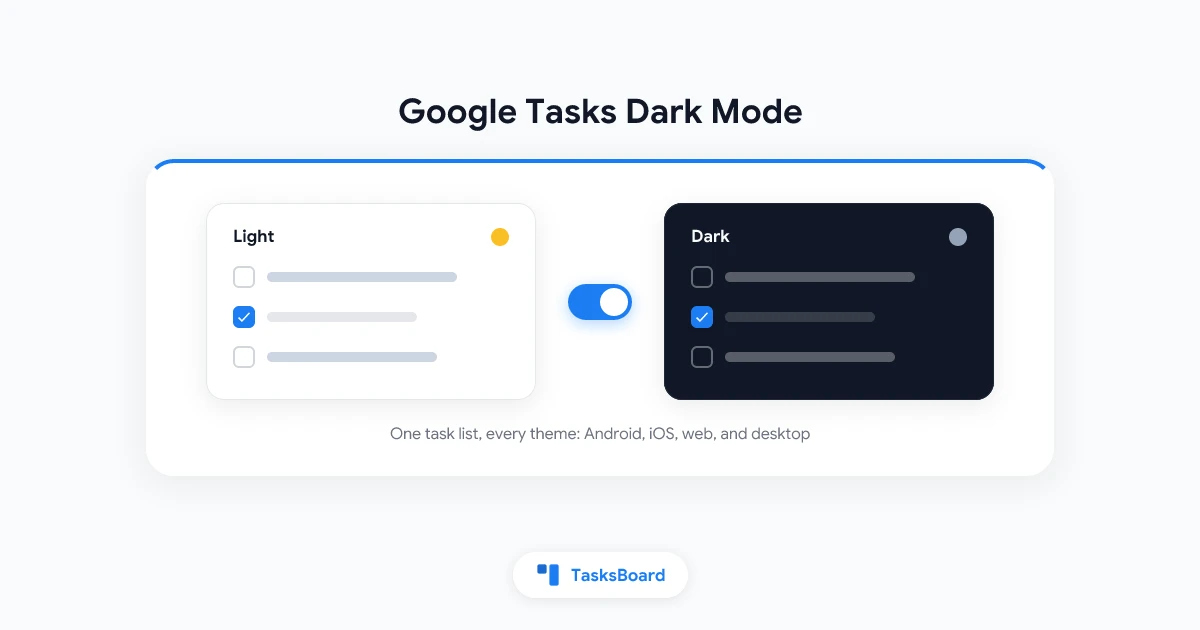
Google has spent the last two years switching Workspace to the dark side. Drive picked up a native dark theme on the web in April 2024, and Google Calendar followed with a full visual refresh and dark mode in October 2024, with the editors catching up since then.
Google Tasks is the odd one out. There is no single google tasks dark mode switch, because Tasks lives inside Gmail, Calendar, a standalone web app, and two mobile apps, and each surface controls its own theme.
This guide walks through every toggle: Android, iPhone and iPad, tasks.google.com, the Gmail side panel, and Calendar. It also covers the one gap Google still has not filled, a full-screen dark board on your desktop.
Does Google Tasks have a dark mode?
Yes, but it is fragmented. Some surfaces have their own theme setting, some inherit it from the app around them, and none of them talk to each other.
Here is the full picture before we go switch by switch:
| Where you use Tasks | Dark mode | Where the switch lives |
|---|---|---|
| Android app | Yes | In-app theme setting |
| iPhone and iPad app | Yes | Follows iOS system Dark Mode |
| tasks.google.com | Yes | Theme option in the web app |
| Tasks inside Google Calendar | Yes | Calendar’s Appearance setting |
| Gmail side panel | Partial | Gmail theme, plus a per-theme panel option |
| Full-screen desktop board | Not from Google | TasksBoard theme switcher |
The steps below come from Google’s official dark theme instructions, with the quirks we hit while testing each surface.
Turn on dark mode in the Google Tasks Android app
Android is the only platform where Google Tasks has its own dedicated theme setting. It works on Android 7.0 and up.
- Open the Google Tasks app
- Tap your profile picture in the top right corner
- Tap Settings
- Tap Theme, then choose Dark
You can also pick System default so Tasks follows your phone’s day and night schedule. One catch: the Tasks widget and notifications follow your Android display settings, not the in-app theme, so set your system to dark too if you want everything to match.
If you mostly manage tasks from your phone, our Google Tasks mobile app guide covers widgets, notifications, and offline behavior in more depth.
Turn on dark mode on iPhone and iPad
There is no in-app theme option on iOS. The Google Tasks app simply follows the system appearance on iOS 13 and up.
- Open Settings on your iPhone or iPad
- Tap Display & Brightness
- Select Dark
- Open the Tasks app and it renders in dark theme
Keep in mind that this changes every app on your device, not just Tasks. A practical middle ground is the Automatic schedule, which runs light mode during the day and switches your task list to dark after sunset.
Turn on Google Tasks dark mode on the web
The web is where most dark mode complaints come from, because Tasks appears in three different places and each one is themed separately. A dark Gmail with a bright white task panel is the classic result.
On tasks.google.com
Google’s standalone Tasks web app gained a theme choice as part of the same wave that brought Calendar’s dark mode. Open tasks.google.com, open the settings menu in the top bar, and pick the dark appearance.
This is the best Google-native option on a computer. You get a wider layout than the sidebar, and the theme sticks to this app without touching Gmail or Calendar.
In the Gmail side panel
The Tasks panel in Gmail follows your Gmail theme, so the fix happens in Gmail’s settings, not in Tasks.
- Open Gmail and click the Settings gear in the top right
- Next to Theme, select View all
- Choose Dark, then click Save
- Refresh your browser tab
On some themes Gmail also offers a Text background option inside the theme window. If you see it, set it to Dark as well, refresh, and the Tasks panel drops its white background. If you do not see it, that theme cannot restyle the panel, which explains the mixed look many users report.
The sidebar has more quirks than just theming. Our Google Tasks Gmail sidebar guide covers the rest.
In Google Calendar
Calendar is the cleanest of the three. Its appearance setting explicitly covers Tasks.
- Open Google Calendar and click the Settings menu in the top right
- Click Appearance
- Select Dark, then click Done
Google confirms the dark theme applies to Tasks inside Calendar and in the side panel there. If you plan your week from Calendar, this one switch handles both your events and your task list, and our Google Tasks Calendar integration guide shows how to get more out of that pairing.
Get a true dark mode desktop app for Google Tasks
Everything above still leaves one gap. Google offers no full-screen desktop experience for Tasks, so there is nothing to theme when you want your whole task workspace dark on a big monitor.
TasksBoard fills that gap. It turns your Google Tasks lists into a full-screen kanban board in the browser, and it ships with a proper theme switcher: open the app menu, choose Theme, then pick Light, Dark, or System. The dark board is part of the free plan.
 Try TasksBoard
See all your Google Tasks lists on one full-screen dark board. Same data, same sync, no more white rectangle at 11 p.m.
Get Started →Because TasksBoard reads and writes the same Google Tasks data, the theme is purely visual. Check a task on the dark board and it completes in Gmail, Calendar, and your phone app instantly.
The System option is worth highlighting. Pair it with your OS dark mode schedule and your task board flips to dark at sunset automatically, with no extra clicks. For the bigger picture on desktop setups, see our Google Tasks desktop app guide, and if you are new to board views, start with the Google Tasks kanban board guide.
Small dark mode habits that help
Dark mode is partly comfort and partly practical. A few habits make it work better:
- Use system schedules everywhere you can. iOS, Android, and TasksBoard’s System theme all support following the OS, so day and night switching happens on its own.
- Match your monitor to the room. Dark interfaces are easiest on the eyes in dim light. In a bright office, light mode with lower screen brightness is often more readable.
- Expect small battery gains on OLED. Dark pixels draw less power on OLED screens, which helps on phones during long days, though the effect is modest.
None of this requires new tools. It is mostly about flipping the six switches in this article once, then letting the schedules do the work.
FAQ
Does Google Tasks have a dark mode on the web?
Yes, in three separate places. The standalone app at tasks.google.com has its own theme option, the Gmail side panel follows your Gmail theme, and Tasks inside Google Calendar follows Calendar’s Appearance setting. Each one is switched independently.
Why is my Tasks panel still white after I turned on Gmail dark mode?
Some Gmail themes theme the inbox but not the side panel. Open the theme window, look for the Text background option, set it to Dark, and refresh the tab. If your chosen theme does not offer that option, the panel keeps its light background until you pick a different theme.
Does the dark theme sync across my devices?
No. Each surface stores its own preference, so your Android app, iPhone, tasks.google.com, Gmail, and Calendar all need to be set separately. Using system-default options where available is the closest thing to one global switch.
Is dark mode in TasksBoard free?
Yes. The theme switcher with Light, Dark, and System options is available on the free plan. Open the app menu, choose Theme, and pick the mode you want. Premium adds visual extras like custom list backgrounds and colors, but dark mode itself costs nothing.
Does dark mode save battery?
On phones with OLED screens, yes, because dark pixels use less power. The savings depend on brightness and how long the app stays open, so treat it as a nice bonus rather than a reason on its own. On LCD screens the difference is negligible.
Conclusion
There is no single google tasks dark mode toggle, but full coverage takes about five minutes. Set the Android app theme or your iOS system appearance, flip the switch at tasks.google.com, darken Gmail’s theme and text background, and set Calendar’s appearance to dark.
That handles every Google surface. For the missing piece, a full-screen dark board on desktop, TasksBoard adds Light, Dark, and System themes on top of the exact same Google Tasks data, free to start and synced everywhere else you just configured.
Ready to share your Google Tasks?
Get started with TasksBoard for free, no credit card required.
Sign in