Google Tasks Labels and Tags: Workarounds for a Missing Feature

Google Tasks Labels and Tags: Workarounds for a Missing Feature
Labels and tags are one of the most requested features in Google Tasks. They let you mark tasks by context, project, or type so you can filter and find them quickly across multiple lists. Google Tasks does not have them. There is no label field, no tag system, and no color-coded category picker inside the native app.
That does not mean you are stuck. Several workarounds replicate most of what labels do, and some of them are better than you might expect.
Does Google Tasks Have Labels or Tags?
No. Google Tasks has no label or tag feature in 2026. The app gives you two organizational tools only: task lists and subtasks.
You can create multiple Google Tasks lists and move tasks between them. You can add subtasks under a parent task. That is the full scope of native organization.
Apps like Gmail and Google Keep have labels. Google Calendar has event colors. Google Tasks has neither. This is a deliberate design choice toward simplicity, and it is also one of the most common reasons people look for Google Tasks alternatives or add-ons.
Why Labels Matter for Task Management
Labels let you slice your task list by a dimension other than “which list is this in.” Common use cases:
- Context labels (At computer, Phone, Errands) so you can group tasks by where you can do them
- Project labels so tasks spread across multiple lists still show a shared project connection
- Priority labels (High, Medium, Low) as a visual indicator when a priority field does not exist
- Status labels (Waiting, In progress, Blocked) to track the current state of a task
Without labels, the only way to filter is by which list a task lives in. That works for simple setups but gets limiting as your task count grows.
☐ Team sync
☑ Send invoice
☐ Call mom
☑ Renew gym
☐ Pick up keys
☑ Post office
☐ Contract sign
☐ Budget OK
Workaround 1: Use Task Lists as Labels
The closest native equivalent to labels is separate task lists. Instead of one big list organized by labels, you create one list per label category.
For example, if you want labels like “Work,” “Personal,” “Errands,” and “Waiting,” create four task lists with those names. Place tasks into the matching list when you create them.
This approach works cleanly when a task belongs to exactly one category. It breaks down when a task belongs to two categories at once. A task that is both “Work” and “Waiting” has to live in one list only, and you lose the cross-reference.
The fix for that is to put the task in the most important category list and add a prefix to the name to show the secondary label (see Workaround 2 below).
Workaround 2: Add Label Prefixes to Task Names
Prefixing task names with a short label tag is the most flexible workaround. It does not require any new structure and works on every device.
Common prefix formats:
[WORK] Draft the proposal[HIGH] Submit tax return before deadline[WAITING] Contract review from legal@Computer Send weekly report#project-alpha Create wireframes
These prefixes give you a visual scan of your list at a glance. When you use manual sort order (Sort by my order), you can group prefixed tasks together by dragging all the [WORK] tasks into a block.
The downside is there is no filter for prefixes in Google Tasks. You cannot tap [WORK] and see only those tasks. You can only scan visually or use your browser’s Ctrl+F to search the page.
Workaround 3: Use Color Coding in Google Calendar
If a task has a due date, it appears in Google Calendar as a small chip. The chip uses the default task color, which is blue. You cannot change individual task colors inside Google Tasks.
However, you can use the list-level color in conjunction with this. Some Google Workspace versions let you assign colors to task lists, and those colors carry into Calendar. If your workplace uses Google Workspace, check whether your account has this option in the task list settings.
For a detailed look at how Google Tasks and Calendar connect, see the Google Tasks calendar integration guide.
Workaround 4: Use Color Coding on Task Lists
In the Google Tasks web app and Gmail sidebar, you can right-click a task list name to see a list color option on some account types. This is not the same as per-task labels, but it creates a visual distinction between list categories.
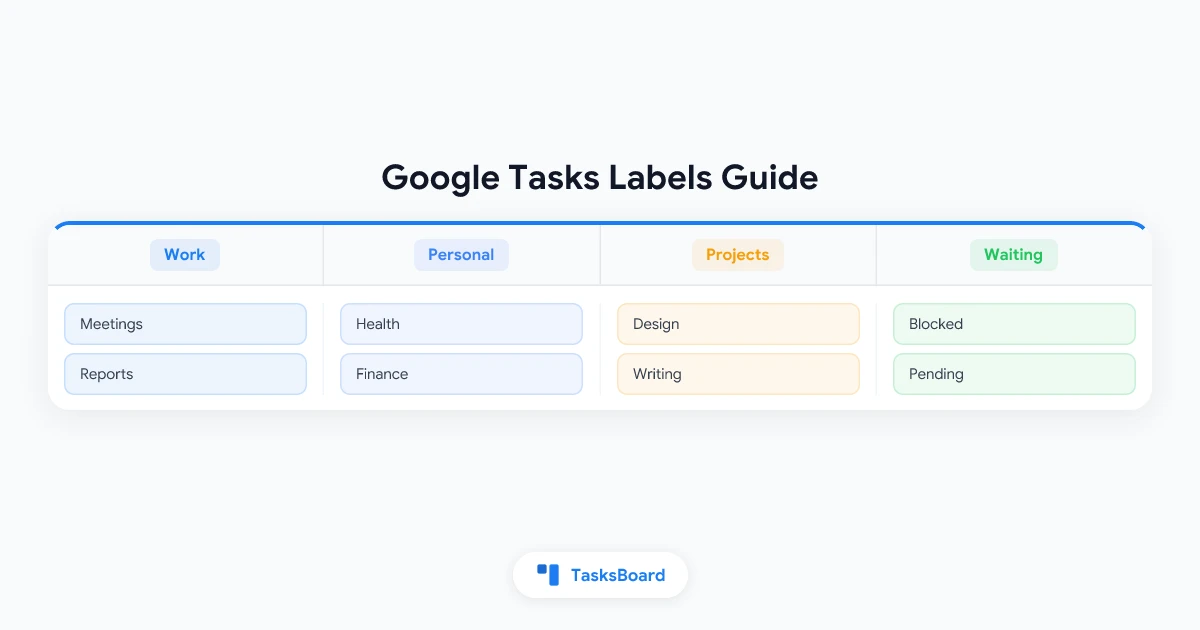
If you use four lists as label categories (Work, Personal, Projects, Waiting), giving each list a distinct color helps you orient quickly when switching between them.
Workaround 5: Use Subtasks as Tag Containers
A less obvious approach is to create a parent task that acts as a label bucket. For example, create a task called “Waiting for others” and add every waiting task as a subtask under it.
When you expand the parent task, you see all your waiting items in one place. This works especially well for status labels where you want to see all “blocked” or “waiting” tasks together.
The downside is that subtasks still appear under their parent list, and the parent task takes up space in your active view. This approach works better for temporary status categories than for long-running label systems.
 Try TasksBoard
TasksBoard turns your Google Tasks lists into kanban columns. Each column acts like a label category, and you drag tasks between columns to change their status. It is the closest thing to label-based filtering available for Google Tasks without leaving your Google account.
Get Started →When to Use Each Workaround
| Your situation | Best workaround |
|---|---|
| Tasks belong to clear, non-overlapping categories | Separate task lists |
| Tasks need multiple labels at once | Name prefixes |
| You need to see tasks across categories in one view | TasksBoard columns |
| You want status tracking (blocked, waiting, done) | Subtask containers or TasksBoard |
| You want a color visual in Calendar | List colors (Workspace accounts) |
No single workaround covers every use case. Most people combine list separation with name prefixes. Lists handle the primary category. Prefixes handle the secondary one.
Building a Label System That Sticks
The most common mistake when building a label system in Google Tasks is creating too many categories. More than six to eight label-equivalent lists or prefixes and the system becomes harder to use than having no labels at all.
Start with the minimum categories you actually need. A practical starting set for most people:
- Three to four task lists: one per major area of life or work (Work, Personal, Someday, Waiting)
- One priority prefix:
[HIGH]only. Leave medium and low tasks without a prefix so the high-priority ones stand out. - Review weekly. The system only works if you move tasks to the right list and check the waiting list regularly. See the Google Tasks priority guide for a weekly review habit that fits this structure.
Keep the list count low and the prefix set simple. A system you use beats a perfect system you do not.
How TasksBoard Solves the Labels Problem
TasksBoard does not add labels to Google Tasks. It takes a different approach: it uses your existing task lists as kanban columns.
Each column maps to one Google Tasks list. When you drag a task card from one column to another, it moves to that list in Google Tasks. Any change you make in TasksBoard instantly syncs back to your native Google Tasks data on every device.
This column-as-label system gives you several things the native app does not:
- A single view showing tasks across all your “label” lists at once
- Visual due date badges on each card
- A way to move tasks between categories by dragging without editing the task
- Real-time shared access for teams working from the same board
If you have been using task lists as label substitutes in Google Tasks, TasksBoard makes that system significantly more visual and usable without any data migration.
FAQ
Conclusion
Google Tasks does not have labels, and there is no sign that is changing soon. The good news is that the combination of separate task lists and name prefixes covers most of what labels do in practice. Lists handle broad category separation. Prefixes handle the secondary classification you need when a task belongs to more than one group.
For a more visual approach, TasksBoard turns your Google Tasks lists into kanban columns, giving you the cross-list view and drag-to-categorize workflow that the native app does not offer. It works directly with your existing Google Tasks data, so there is nothing to migrate. Start free and see if it fits your workflow.
Ready to share your Google Tasks?
Get started with TasksBoard for free, no credit card required.
Sign in