Google Tasks Notifications: How They Work on Every Platform

You expect a buzz when a task is due. Instead, silence. Before you assume the app is broken, understand how Google Tasks notifications are designed, because Google Tasks almost never pushes alerts on its own.
This guide explains the notification pipeline, platform differences, default Calendar behavior, and what you control versus what Google controls. If alerts still fail after checking these basics, jump to our fix guide: Google Tasks notifications not working.
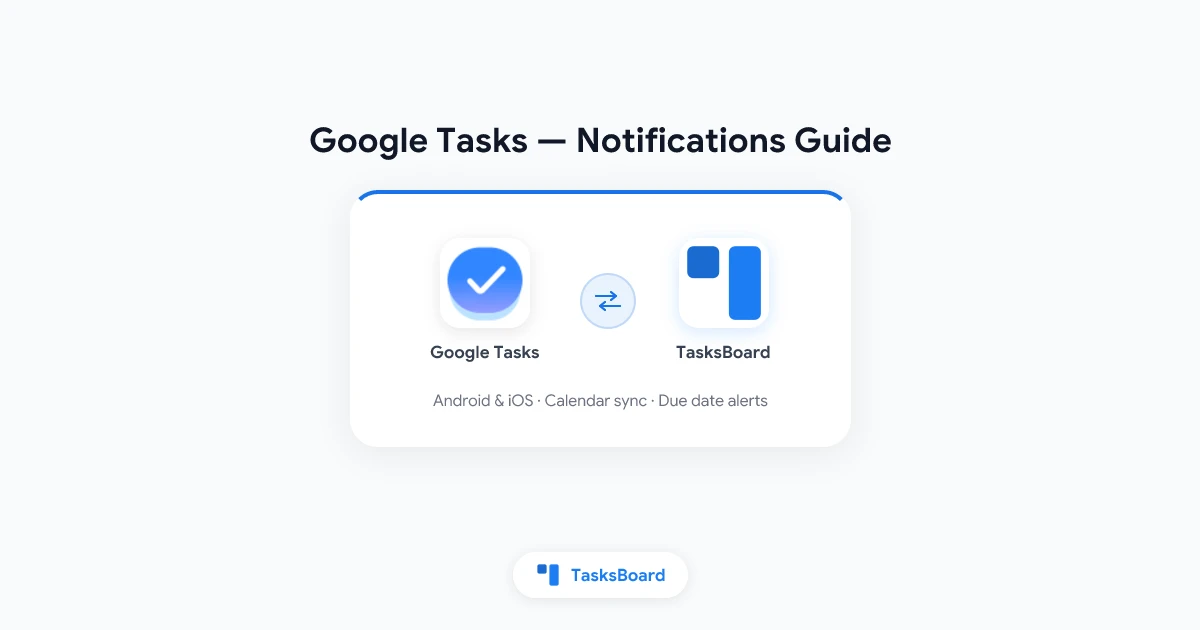
TL;DR: Google Tasks notifications are Google Calendar notifications. Set a due date with a time, ensure the Tasks calendar is synced and visible, enable Calendar app permissions on your device, and configure default event reminders. TasksBoard does not replace this pipeline, it displays the same due dates on kanban boards.
The Notification Pipeline
Google Tasks is a list manager. Google Calendar is the scheduler. Your phone’s OS is the delivery service.
Google Tasks (due date + time)
        ↓ sync
Google Calendar (Tasks calendar event)
        ↓ alert rule
Device notification system
        ↓
Lock-screen banner / sound
No step in this chain is optional. A task with no due date never enters the pipeline. A task with a date but no time usually creates an all-day Calendar entry that does not trigger a timed push.
| Layer | Responsible for | User setting location |
|---|---|---|
| Google Tasks | Storing due date/time | Task edit pane |
| Google Calendar | Creating event + alert offsets | Calendar event or default notifications |
| Android / iOS | Delivering push | System Settings → Apps → Calendar |
| Gmail sidebar | Display only | No notification controls |
What Triggers a Notification
Will notify (typically)
- Task due date and time set in Google Tasks
- Tasks calendar enabled and syncing
- Calendar default or per-event reminder not set to “None”
- Device notifications allowed for Google Calendar
- Device not in Do Not Disturb (or Calendar exempt)
Usually will not notify
- Task with no due date
- Date-only due date (all-day event, no timed alert)
- Tasks calendar disabled in Calendar settings
- Calendar app notifications blocked at OS level
- Battery saver killing Calendar background sync (common on Android)
For step-by-step repairs, see Google Tasks notifications not working.
Default Calendar Reminder Settings
When a timed task syncs to Calendar, it inherits your default notification rules for new events.
To review on web:
- Open Google Calendar
- Click the gear → Settings
- Select Notification settings (or Event settings)
- Check defaults for Events: e.g., “Notification, 10 minutes before”
Per-task overrides: Open the individual task event on the Tasks calendar and add multiple reminders (1 day before, 30 minutes before, etc.). Google Tasks itself cannot set these offsets, only Calendar can.
| Reminder config | Result |
|---|---|
| Default: 10 min before | Timed task alerts 10 minutes early |
| Default: None | Timed task due time only if manually added |
| Per-event: 1 day + 10 min | Two notifications for that task |
Platform-by-Platform Behavior
Android
Google Tasks and Google Calendar are separate apps with separate notification channels. Calendar delivers task due alerts, not the Tasks app.
Check:
- Settings → Apps → Google Calendar → Notifications → all categories on
- Settings → Apps → Google Tasks → Notifications → on (for app updates, not due alerts)
- Disable battery optimization for Calendar and Google Play Services
- Verify Tasks calendar visible in Calendar app sidebar
iPhone and iPad
Install Google Calendar alongside Google Tasks. Due-date notifications arrive through Calendar, not the iOS Reminders app.
Check:
- Settings → Google Calendar → Notifications → Allow Notifications
- Background App Refresh enabled for Calendar
- Signed into the same Google account in both apps
Desktop (web)
Browser notifications require Calendar web permissions. Many users never enable them and miss desktop alerts entirely. Gmail sidebar tasks do not pop up notifications.
Check:
- calendar.google.com → allow browser notifications when prompted
- Tasks calendar visible in week/day view so overdue work is visible even without pushes
Wear OS / Apple Watch
Alerts mirror Calendar phone notifications. Fix phone Calendar permissions first.
Google Tasks Notifications vs Other Apps
| App | Who sends the push? | Separate reminder time? |
|---|---|---|
| Google Tasks | Google Calendar | No |
| Apple Reminders | Apple Reminders | Yes |
| Todoist | Todoist app | Yes |
| Microsoft To Do | To Do app | Yes |
| Google Keep | Keep app | Yes (on notes) |
Google’s design keeps Tasks minimal and delegates scheduling to Calendar. Compare ecosystems in our Google Tasks reminders guide and vs Apple Reminders page.
Notifications and Team Workflows
Google Tasks has no shared notification rules. When a team uses TasksBoard shared boards:
- Each user sees the same task due dates
- Each user gets Calendar notifications on their own Google account
- Completing a task on the board syncs to Google Tasks and removes the Calendar event
TasksBoard does not send parallel push notifications for due dates. Your Calendar settings remain the source of truth.
For planning visibility beyond alerts, TasksBoard kanban highlights overdue cards in the board view, useful when notifications are disabled during focus blocks.
How to Test Your Notification Setup
- Create a test task due 10 minutes from now with a specific time
- Open Google Calendar and confirm the event appears on the Tasks calendar
- Tap the event, verify at least one reminder is listed
- Lock your phone and wait
- If nothing fires, open Google Tasks notifications not working and walk through the checklist
Delete the test task after confirming behavior.
What a successful test proves
When the alert fires on time, you have confirmed: Tasks wrote a timed due date, Calendar created a Tasks calendar event, default or custom reminders are attached, and your OS delivered the push. If any step fails, note where the chain broke, missing Calendar event means sync; missing push with a visible event means OS permissions. That distinction saves time in troubleshooting.
Notification Settings Checklist by Platform
Use this table during setup or when onboarding a teammate. Every row should be “yes” before expecting reliable alerts.
| Check | Android | iOS | Desktop web |
|---|---|---|---|
| Calendar app notifications enabled | ✓ | ✓ | ✓ (browser) |
| Tasks calendar visible | ✓ | ✓ | ✓ |
| Timed due date on task (not date-only) | ✓ | ✓ | ✓ |
| Default event reminder ≠ None | ✓ | ✓ | ✓ |
| Same Google account signed in | ✓ | ✓ | ✓ |
| DND allows Calendar alerts | ✓ | ✓ | N/A |
| Battery optimization off for Calendar | ✓ | N/A | N/A |
| Background App Refresh on for Calendar | N/A | ✓ | N/A |
If any row fails, fix it before assuming Google Tasks is broken. Persistent issues after a full checklist pass belong in Google Tasks notifications not working.
Notifications and Focus Modes
Focus modes (Android Digital Wellbeing, iOS Focus, macOS Focus) commonly block Calendar alerts while allowing messages or Slack. Symptoms: tasks show as overdue in TasksBoard or tasks.google.com, but your phone never buzzed.
Fix: Add Google Calendar to the allowed apps list for your Work focus mode, or schedule focus blocks after verifying Calendar exemptions. Some users disable timed reminders entirely and rely on board visibility during deep work, a reasonable trade when notifications would break concentration anyway.
Known Limitations (Not Bugs)
These are product limits, not something a settings toggle fixes:
- No second reminder field inside Google Tasks
- No location-based task alerts
- No recurring task notifications (Tasks lacks native recurrence)
- No escalation if you dismiss an alert, the task stays overdue silently
- Gmail sidebar never shows push notifications for tasks
Teams needing richer alert logic often keep Gmail capture in Google Tasks and move alert-heavy personal lists to Todoist or Apple Reminders. Work groups on Google Workspace frequently add TasksBoard for visibility instead of louder notifications.
FAQ
Does the Google Tasks app send notifications?
Rarely for due dates. Google Calendar sends them after Tasks syncs a timed due date to the Tasks calendar.
Why do I get Calendar notifications but not Tasks app notifications?
That is expected. Calendar is the notification engine for Google Tasks due dates.
Do date-only tasks notify me?
Usually no. Add a specific time to receive a timed push.
Where do I change how early reminders fire?
In Google Calendar, either default event notifications in Settings or per-event reminder rules.
My notifications stopped after a phone update, what first?
Re-check Calendar app notification permissions and battery optimization. Full guide: Google Tasks notifications not working.
Does TasksBoard send its own task reminders?
No. TasksBoard reads due dates from Google Tasks. Configure alerts in Google Calendar.
Can I get Google Tasks notifications on desktop?
Yes, if you enable browser notifications for Google Calendar web and keep a timed due date on the Tasks calendar.
The Bottom Line
Google Tasks notifications are Calendar notifications. Understand the pipeline, set due dates with times, configure Calendar defaults, and verify OS permissions per platform. When alerts still fail, use the troubleshooting playbook at Google Tasks notifications not working. For team visibility beyond push alerts, put due dates on TasksBoard kanban cards so overdue work is obvious at a glance.
Want due dates visible on a shared kanban board? Try TasksBoard free, syncs with Google Tasks and Calendar, no separate notification setup required.
Ready to share your Google Tasks?
Get started with TasksBoard for free, no credit card required.
Sign in