Google Tasks Notifications Not Working? Here's How to Fix It

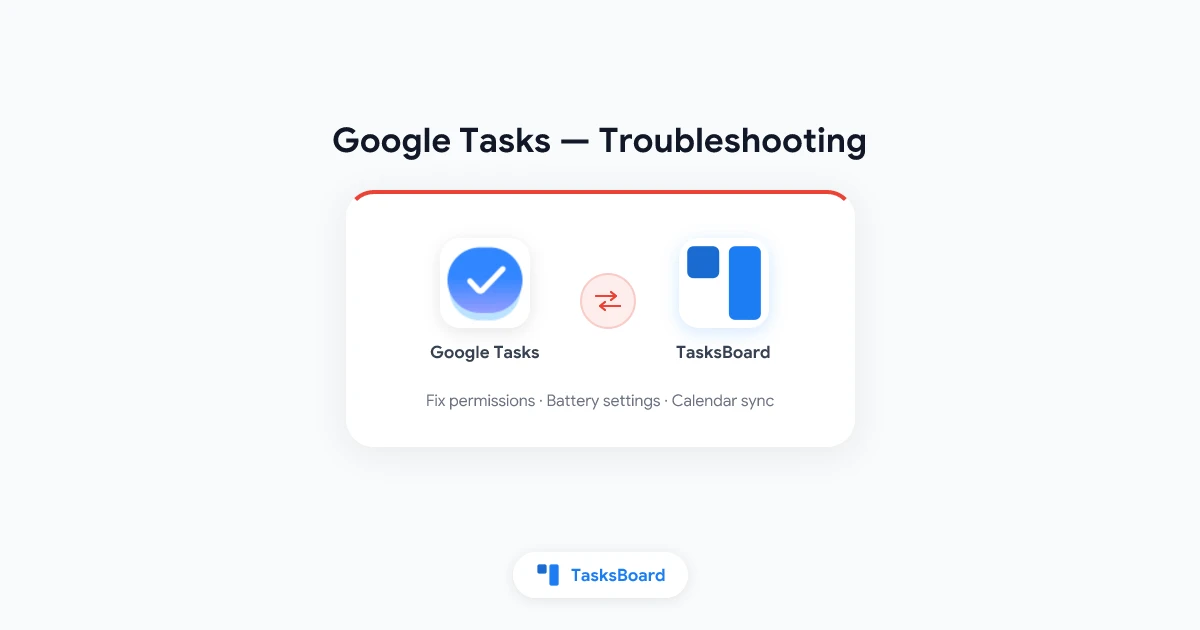
You set a due date on a Google Tasks item and expect a reminder. The deadline passes, and nothing happens. Google Tasks notifications not working is one of the most common complaints from users on Android, iPhone, and desktop.
TL;DR: Google Tasks reminders flow through Google Calendar and your device’s notification system. Most failures come from disabled notification permissions, battery optimization killing background sync, Do Not Disturb, or confusing due dates with reminders. This guide walks through fixes on every platform.
Note: If you have trouble connecting TasksBoard to your Google account (login, sync, or board loading), see our TasksBoard troubleshoot page, that covers a different issue than native Google Tasks notifications.
How Google Tasks Notifications Actually Work
Google Tasks does not send push notifications independently. Instead:
- You set a due date and time on a task
- That due date syncs to Google Calendar (if Calendar sync is enabled)
- Calendar triggers the reminder notification on your device
This means notification problems often originate in Calendar settings, OS permissions, or account sync, not in the Tasks app itself.
| Component | Role |
|---|---|
| Google Tasks app | Where you create tasks and set due dates |
| Google Calendar | Generates the actual reminder event |
| Device OS | Delivers the push notification |
| Gmail sidebar | Shows tasks but does not handle reminders |
Quick Fix Checklist
Run through these before diving into platform-specific steps:
- Notification permissions enabled for Google Tasks and Google Calendar
- Do Not Disturb / Focus mode is off (or allows Calendar alerts)
- The task has a due date with a specific time, not just a date
- Google Calendar sync is enabled for your account
- Battery optimization is disabled for Google apps (Android)
- Background App Refresh is on (iOS)
- You are signed into the same Google account on all devices
- Google Play Services / system apps are up to date
Fix Google Tasks Notifications on Android
1. Check notification permissions
Go to Settings → Apps → Google Tasks → Notifications and ensure all categories are allowed. Repeat for Google Calendar.
2. Disable battery optimization
Android aggressively kills background processes. Go to Settings → Battery → Battery optimization, find Google Tasks and Google Calendar, and set both to Not optimized.
3. Verify Calendar sync
Open Google Calendar → Settings → Tasks. Confirm that your task lists are checked and syncing. If tasks appear in Calendar but reminders do not fire, check the individual event’s notification setting.
4. Check Do Not Disturb exceptions
In Settings → Sound → Do Not Disturb, add Google Calendar to allowed apps or enable “Alarms and reminders” as an exception.
5. Clear cache (last resort)
Go to Settings → Apps → Google Tasks → Storage → Clear cache. Do not clear data unless you are prepared to re-sync. Repeat for Google Calendar if needed.
Fix Google Tasks Notifications on iPhone / iOS
1. Enable notifications for both apps
Open Settings → Notifications → Google Tasks and turn on Allow Notifications. Do the same for Google Calendar.
2. Turn on Background App Refresh
Go to Settings → General → Background App Refresh and enable it for Google Tasks and Google Calendar.
3. Check Focus modes
If you use Focus or Do Not Disturb, ensure Calendar alerts are allowed. Go to Settings → Focus and review each mode’s allowed apps.
4. Verify Calendar is syncing tasks
In the Google Calendar app, tap the menu icon and confirm your task lists are visible. Tasks with due dates should appear as all-day or timed events.
5. Re-add your Google account
If sync is broken, go to Settings → Mail → Accounts, remove your Google account, and re-add it. This forces a full Calendar and Tasks re-sync.
Fix Google Tasks Notifications on Desktop / Web
Desktop notifications depend on browser permissions and Calendar web alerts.
1. Allow browser notifications
When Google Calendar asks for notification permission in Chrome, Firefox, or Edge, click Allow. Check your browser’s site settings if you previously blocked calendar.google.com.
2. Enable Calendar desktop notifications
In Google Calendar, go to Settings → Notification settings → Desktop notifications and turn them on. Set default reminder times under Settings → Event settings.
3. Check task due dates in Calendar view
Switch Calendar to Tasks view or check the sidebar. If tasks with due dates do not appear, the sync link between Tasks and Calendar is broken, fix this on mobile first.
Due Date vs Reminder: A Common Source of Confusion
Google Tasks uses due dates, not separate reminder objects (unlike Apple Reminders or Todoist).
| What you set | What happens |
|---|---|
| Due date only (no time) | May appear as all-day event; notification timing varies |
| Due date + specific time | Calendar creates timed event with default reminder |
| No due date | No notification will ever fire |
Fix: Always set a specific time on important tasks. Open the task, tap the due date, and add a time, not just a day.
Known Google Tasks Notification Limitations
Some behaviors are not bugs, they are product limitations:
- No notification for shared list updates. Native Google Tasks does not push alerts when a collaborator changes a task. Use TasksBoard for shared board visibility instead.
- Recurring task notifications can be unreliable. Users report recurring tasks sometimes failing to generate Calendar events. Delete and recreate the recurrence if this happens.
- Subtask completion does not notify the parent task owner. Only due-date reminders trigger notifications.
- Time zone changes can shift reminder times. If you travel, verify Calendar’s time zone under Settings.
When TasksBoard Helps (and When It Does Not)
TasksBoard does not send native push notifications. It syncs with Google Tasks in real time, so you still receive alerts through the Google Tasks / Calendar apps on your phone.
Where TasksBoard helps:
- Team visibility: see task changes on a shared board without waiting for notifications
- Desktop workflow: full-screen kanban so important tasks are always visible
- Reduced reliance on reminders: visual board surfaces overdue and in-progress work
If your issue is specifically “I don’t get a ping on my phone,” fix Google Calendar notifications using the steps above. If your issue is “my team doesn’t know when tasks change,” share your board with TasksBoard.
FAQ
Why are my Google Tasks notifications not working?
The most common causes are disabled notification permissions for Google Calendar, battery optimization on Android, Do Not Disturb blocking alerts, or tasks that have a due date without a specific time. Google Tasks reminders are delivered through Calendar, so check both apps.
Do Google Tasks send push notifications?
Not directly. Google Tasks sets due dates that sync to Google Calendar. Calendar then triggers the notification on your device. If Calendar notifications are off, Tasks reminders will not fire.
How do I turn on Google Tasks notifications on Android?
Enable notifications for both Google Tasks and Google Calendar in Android Settings. Disable battery optimization for both apps. Ensure tasks have a due date with a specific time set.
Why does Google Tasks not remind me on iPhone?
Check that notifications are enabled for Google Calendar (not just Google Tasks), Background App Refresh is on, and no Focus mode is silencing Calendar alerts. Re-sync your Google account if tasks do not appear in the Calendar app.
Google Tasks recurring notifications not working, what do I do?
Recurring tasks sometimes fail to generate repeating Calendar events. Delete the recurring task, recreate it with a new due date and time, and verify the recurrence appears in Google Calendar. If it still fails, report it through Google Tasks feedback.
Can TasksBoard fix Google Tasks notifications?
TasksBoard does not replace Google Tasks notifications. It provides a shared kanban board so teams can see task updates visually. For notification fixes, follow the Calendar and OS settings in this guide.
Related Guides
- How Google Tasks notifications work, the notification pipeline explained
- How to share a Google Tasks list, team collaboration with TasksBoard
- Google Tasks vs Todoist, compare notification and reminder approaches
- TasksBoard troubleshoot, fix TasksBoard login and sync issues (not Google Tasks alerts)
Ready for a better view of your tasks? Try TasksBoard free, full-screen kanban boards synced with Google Tasks.
Ready to share your Google Tasks?
Get started with TasksBoard for free, no credit card required.
Sign in