Google Tasks Reminders: How to Set, Manage, and Never Miss a Deadline

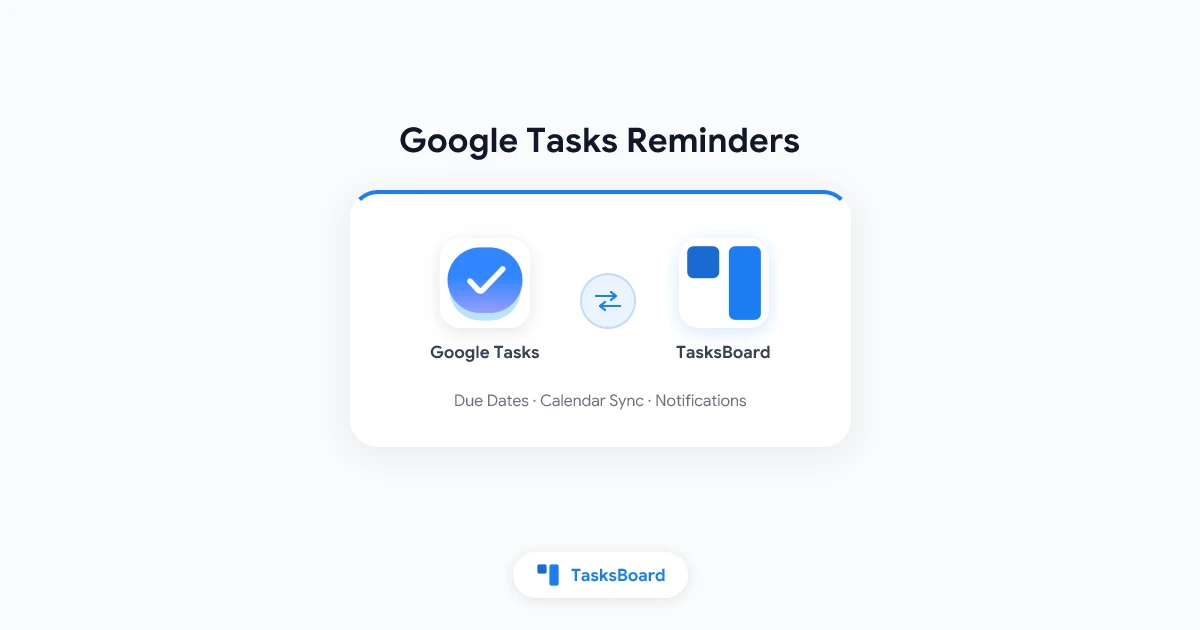
Google Tasks does not have a traditional pop-up reminder system. But it does let you set due dates that appear directly in Google Calendar, which means your tasks can still surface at the right time, in the right place.
If you have been wondering why reminders are not showing up, or how to make Google Tasks actually notify you, this guide covers everything: how due dates work, how they connect to Google Calendar, and how tools like TasksBoard fill the gaps.
How Google Tasks Reminders Actually Work
Google Tasks uses due dates rather than standalone reminders. When you assign a due date to a task, that task appears on Google Calendar on the specified day. This is the reminder mechanism: not a push notification, but a calendar-based signal that the task is due.
This is different from Google Reminders (which were sunset in 2024 and migrated to Google Tasks). If you previously used Google Reminders and switched, you may notice the experience feels slightly different.
Key things to understand:
- Due dates show on Google Calendar: tasks with due dates appear as all-day events
- No time-specific alerts by default: Google Tasks does not natively send a push notification at 9 AM reminding you of a task
- Google Calendar notifications apply: if your Google Calendar is set to notify you about all-day events, you will get a notification for tasks that day
- Repeat tasks are supported: you can set a task to repeat daily, weekly, monthly, or on a custom schedule
Every task with a due date shows up on Google Calendar as an all-day event. Enable Google Calendar notifications for that day to get an actual alert on your device.
How to Set a Due Date (Reminder) in Google Tasks
Setting a due date is the primary way to create a Google Tasks reminder.
On the Web (tasks.google.com or Gmail sidebar)
- Open Google Tasks at tasks.google.com or click the Tasks panel in Gmail or Google Calendar.
- Click on any existing task, or create a new one by typing and pressing Enter.
- Click the task to expand its details panel.
- Click “Add date/time.”
- Select a date from the calendar picker.
- Optionally, set a specific time. This enables time-based notifications via Google Calendar.
- Click Done or press Enter to save.
On Android (Google Tasks App)
- Open the Google Tasks app.
- Tap the task you want to add a reminder to.
- Tap “Add date/time.”
- Choose the date and, optionally, a specific time.
- Tap Save.
On iPhone (iOS)
- Open the Google Tasks app from the App Store.
- Tap a task to expand it.
- Tap “Add date/time.”
- Select a date and optionally a time.
- Tap Save.
Once set, the task appears on Google Calendar on that date. If you set a specific time, Google Calendar will send a notification at that time (subject to your calendar notification settings).
Setting Up Notifications So You Actually Get Alerted
Google Tasks itself does not push a notification to your phone or desktop. The notification comes from Google Calendar. Here is how to make sure it reaches you.
Enable Google Calendar Notifications for Tasks
- Open Google Calendar.
- In the left sidebar, find “Tasks” (it appears as a calendar layer).
- Click the three-dot menu next to “Tasks.”
- Select “Settings.”
- Under “Event notifications,” add a notification, for example “30 minutes before” or “on the day.”
- Save.
From this point, any Google Task with a due date and time will trigger a Calendar notification.
Mobile Notification Settings
On Android and iOS, make sure Google Calendar has notification permissions:
- Android: Settings > Apps > Google Calendar > Notifications > Allow
- iOS: Settings > Google Calendar > Notifications > Allow Notifications
If you are using the Google Tasks app separately, check its notification settings as well. The app may show badge counts on the app icon even without full push notifications.
Recurring Tasks: Setting Repeating Reminders
For tasks you do on a regular schedule (weekly check-ins, monthly reports, daily habits), Google Tasks supports repeat options.
How to Set a Repeating Task
- Open a task and tap or click “Add date/time.”
- Select your start date.
- Tap “Repeat” (available after selecting a date).
- Choose from:
- Daily
- Weekdays (Mon-Fri)
- Weekly (same day each week)
- Monthly (same date each month)
- Yearly
- Custom (every N days/weeks/months)
The task will reappear in your list each cycle, and show on Google Calendar on each occurrence. Completing the task marks only the current instance as done. The next one appears automatically.
Google Tasks vs Google Calendar Reminders: What Changed
Before 2024, Google offered two separate products: Google Tasks and Google Reminders. Google Reminders appeared in Google Assistant, Google Calendar, and Google Keep. They were migrated to Google Tasks in mid-2024.
If you used to say “Hey Google, remind me to call the dentist at 3 PM Tuesday,” that reminder now lives in Google Tasks with a due date and time.
The practical difference for users:
| Feature | Old Google Reminders | Google Tasks (current) |
|---|---|---|
| Created via Google Assistant | Yes | Yes |
| Appears in Google Calendar | Yes | Yes (with due date) |
| Time-specific notification | Yes | Yes (via Calendar) |
| Subtasks | No | Yes |
| Lists / organization | Limited | Yes (multiple lists) |
| Kanban view | No | Via TasksBoard |
The migration means all reminder functionality is now consolidated in Google Tasks. You gain subtasks and list organization. The notification behavior is identical when a time is set.
Using TasksBoard for Better Task Visibility
Google Tasks is useful, but its default interface is a simple linear list. If you manage a team or handle complex projects, that list becomes hard to scan as tasks pile up.
TasksBoard gives you a kanban board built directly on Google Tasks. Your tasks and their due dates sync in real time with no import needed. You can see all tasks across lists at once, with due dates clearly visible on each card.
 Try TasksBoard
See all your Google Tasks with due dates on a kanban board. Spot overdue tasks instantly, share boards with your team, and stay organized without leaving Google Workspace.
Get Started →This is particularly useful for deadline-heavy workflows: tasks with upcoming due dates are easy to spot, and overdue tasks stand out visually before they become a problem.
For more on sharing and collaborating on tasks, see our guide on how to share Google Tasks with your team.
Common Problems with Google Tasks Reminders
“My tasks are not showing on Google Calendar”
Check that the “Tasks” layer is turned on in Google Calendar. In the left sidebar under “Other calendars,” look for “Tasks” and make sure it is checked.
“I set a due date but did not get a notification”
You need both a due date AND a specific time for Google Calendar to trigger a time-based notification. A due date without a time shows as an all-day event, and Google Calendar’s all-day notification settings apply. Go to Google Calendar Settings > Tasks > Event notifications to configure this.
“My repeating task is not reappearing”
Once you complete a repeating task, the next instance appears in your Tasks list. If it is not showing, check if the list is filtered or if you are viewing a different task list. The new instance may be in a different position in the list sorted by date.
“Google Assistant reminders are not syncing to Tasks”
Google Assistant-created reminders now go to Google Tasks automatically. Make sure you are signed into the same Google account in the Tasks app and Google Assistant.
Tips for Better Reminder Habits in Google Tasks
A few practices that make the due-date reminder system work reliably:
- Always set a time, not just a date. A task due at “2 PM Tuesday” triggers a proper notification. A task due “Tuesday” relies on all-day event notifications, which many people have disabled.
- Use repeating tasks for recurring work. Weekly reports, daily standups, monthly reviews: set them once and let them cycle automatically.
- Pair with the Google Calendar widget. If you have the Google Calendar widget on your phone home screen, tasks with due dates appear there. You get a persistent visual reminder without a notification.
- Use subtasks for complex deadlines. If a project has a due date but multiple components, create the main task with the deadline and add subtasks for each component. See our subtasks guide for the full breakdown.
- Use TasksBoard for team deadlines. When multiple people need to track the same deadline, TasksBoard shared boards keep everyone aligned without manual status updates.
FAQ
Stay on Top of Every Deadline
Google Tasks reminders work best when you use them consistently: set due dates with specific times, enable Google Calendar notifications, and use repeating tasks for regular work.
For individuals, the built-in system is sufficient. For teams managing shared workloads, TasksBoard adds a visual layer that makes it easy to see who owns what and when it is due.
Set the due date. Enable the notification. Show up prepared.
Ready to share your Google Tasks?
Get started with TasksBoard for free, no credit card required.
Sign in