Google Tasks Recurring Tasks: Limitations and the Best Workarounds

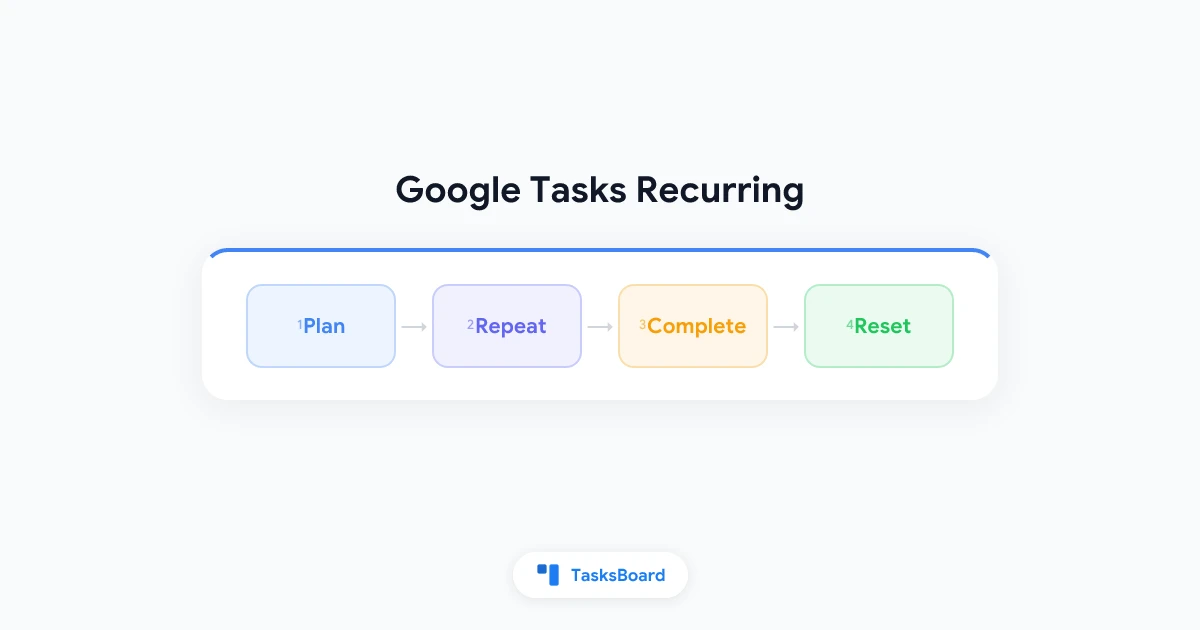
If you have searched for a way to set a task as “repeat every Monday” in Google Tasks, you already know the frustrating answer: Google Tasks has no built-in recurring task feature. There is no repeat option, no recurrence rule, no “every week” toggle anywhere in the interface.
That does not mean you are stuck. Several practical workarounds exist, and the right one depends on whether you need reminders, team visibility, or automation. This guide covers all of them.
Key takeaways:
- No native recurrence: Google Tasks intentionally omits a recurring task option. This has been a requested feature for years with no official roadmap item.
- Google Calendar is the closest native solution: Recurring events can carry tasks-style action items in their description, and the Calendar reminder system handles repeat notifications.
- Third-party tools fill the gap: Apps like TasksBoard, TickTick, and Google Tasks companion tools offer repeating task automation.
- Google Assistant shortcuts help for simple patterns: You can ask Google to remind you to complete a task on a repeating schedule without touching the Tasks app.
Why Google Tasks does not support recurring tasks
Google Tasks was designed as a simple, fast list inside Gmail and Calendar. The product philosophy prioritizes speed and minimal UI over feature depth. Recurring tasks add complexity: you need to decide whether to complete one instance or all future instances, how to handle missed occurrences, and how to display them in a list view.
Google has acknowledged this gap through user feedback forums but has not shipped native recurrence. As of 2026, the feature remains absent.
Understanding this helps set expectations. Workarounds work, but none of them are as seamless as a native “repeat this task” toggle would be.
Workaround 1: Google Calendar recurring events with task descriptions
This is the most reliable workaround that stays entirely within Google’s ecosystem.
Google Calendar supports full recurrence rules: daily, weekly, monthly, every weekday, custom patterns, and more. You can turn a recurring event into a functional task reminder by treating the event title as the action item.
How to set it up:
- Open calendar.google.com and click the time slot when you want the recurring task to appear.
- Give the event a title that matches the task, for example “Send weekly team status report.”
- Click More options to open the full event editor.
- Under the date, click Does not repeat and choose your recurrence pattern.
- In the description, add any context, checklist items, or links the task needs.
- Set a reminder notification so you get an alert before the task is due.
- Save.
The event will appear at the scheduled time each cycle. When you complete the task, you can mark that instance as done or simply ignore the event. Future instances remain on the calendar.
Limitations of this approach:
- Events are not checkboxes. You cannot “complete” a calendar event the way you tick off a task.
- Events do not appear in your Google Tasks list view, so if you review tasks in one place, this splits your workflow.
- Editing one instance without affecting future ones requires the standard “this event” vs “all events” choice.
Calendar events with recurrence work best when the task is time-anchored, like a weekly report, a monthly invoice review, or a quarterly planning session. They pair well with Google Meet links in the description.
Workaround 2: Duplicate the task manually on completion
Simple but effective for low-frequency recurring tasks.
When you complete a task, immediately create a new instance with the next due date. You can speed this up by:
- Keeping a “Templates” list in Google Tasks with your recurring task templates, never completing those items, just copying them when needed.
- Adding a note to each completed task with the text “Next: [date]” so you know when to create the next instance.
This approach keeps everything inside Google Tasks and requires no additional tools. It works for tasks that recur monthly or quarterly and where you can tolerate a small amount of manual overhead.
Not suitable for: daily or weekly tasks where manual creation adds friction faster than it saves time.
Workaround 3: Google Apps Script automation
For users comfortable with a small amount of code, Google Apps Script can create tasks on a schedule via the Google Tasks API.
A script can:
- Run on a time-based trigger (daily, weekly, monthly).
- Create a new task in a specified Google Tasks list.
- Set a title, due date, and notes automatically.
Basic setup:
- Go to script.google.com and create a new project.
- Write a function that calls
Tasks.Tasks.insert()with your task parameters. - Set a time-based trigger under Triggers for the recurrence interval you need.
- Authorize the script once when it first runs.
This is the most flexible native option. You can create complex patterns, add different notes each cycle, or even pull data from a Google Sheet to populate task details dynamically.
Limitations:
- Requires writing and maintaining a script.
- No UI for non-technical users.
- Script quotas apply (though task creation is well within free limits for personal use).
For teams that already use Google Workspace with Apps Script, this is often the cleanest solution because it produces real Google Tasks entries that show up everywhere Tasks appear.
Workaround 4: TickTick or other apps synced alongside Google Tasks
Several third-party task managers support true recurring tasks and can run alongside your Google Tasks workflow.
TickTick is the most popular companion for Google Tasks users who need recurrence. It supports flexible repeat rules, habit tracking, and completion streaks. You can use TickTick for repeating items while keeping project-based work in Google Tasks.
Todoist also supports recurring tasks with natural language syntax (“every Monday,” “every last day of the month”). Its Google Calendar integration can create Tasks-visible events when recurring Todoist tasks are due.
The downside is a split workflow: some tasks live in one app, others in another. For users who review everything in a single kanban view through TasksBoard, switching between apps adds friction.
Workaround 5: Use TasksBoard with structured naming
TasksBoard adds kanban boards and team sharing on top of Google Tasks. While TasksBoard itself does not add native recurrence (it is limited by what Google Tasks supports), teams often build a recurring task system using a naming convention and a dedicated list.
A common pattern:
- Create a list called “Weekly Recurring” or “Every Monday.”
- Put all tasks that repeat on that schedule in the list.
- At the end of each week, review the list, check off completed items, and reopen them for the next cycle by clearing the completion state.
This works because TasksBoard shows completed and active tasks in board and list views, making it easy to audit what was done and reset for the next cycle.
For teams, this pattern also creates accountability. Managers can see whether recurring tasks were completed before the next cycle begins.
See our guide on sharing Google Tasks with your team for the setup steps that make this work across a team.
Handling missed recurring tasks
Whatever workaround you use, you need a strategy for missed cycles. A recurring task that was not completed last week should not just vanish.
For Google Calendar events: The previous occurrence stays on your calendar as an untouched event. You can review it and either retroactively complete it or reschedule.
For manual task recreation: If you use the duplicate-on-completion method, a missed task stays in your list with an overdue date. The red due date indicator in Google Tasks makes overdue items visible.
For Apps Script: The script creates a new task regardless of whether the last one was completed. You may end up with two instances of the same task if you miss a cycle. Add a cleanup step to your script that archives incomplete past-due instances.
For TasksBoard users: The board view makes it easy to spot stale recurring tasks. A card that has sat in “In Progress” for two weeks when it should take one day is a visible signal that something was missed.
Google Assistant as a lightweight recurring reminder
For personal use, Google Assistant offers a simpler path than any of the above.
You can say: “Hey Google, remind me every Monday at 9am to review my task list.”
This creates a recurring reminder in Google Assistant, which appears as a notification on your phone. It is not a task in Google Tasks, but it triggers you to open the app and work through your list.
This is best for workflow-level habits rather than individual tasks. Use it as a prompt that kicks off a review, not as a replacement for task management itself.
FAQ
Conclusion
Google Tasks recurring tasks are not a native feature. The app was built for simplicity, and recurrence adds complexity that does not fit that model.
The best workaround depends on your situation: Google Calendar recurring events for time-anchored work, Apps Script for automation-friendly teams, TickTick for individual habit tracking, and TasksBoard’s list conventions for teams that share work on a kanban board.
None of these match a native “repeat this task” toggle, but each covers the core need. Until Google ships recurrence natively, these workarounds are the practical path forward. Start with the Google Calendar approach if you are already deep in the Google ecosystem; it requires no extra tools and keeps your workflow in one place.
For related setup, see how to configure Google Tasks reminders and due dates so your workaround stays aligned with your calendar notifications.
Ready to share your Google Tasks?
Get started with TasksBoard for free, no credit card required.
Sign in