
Логотип Google Tasks
Логотип и иконка Google Tasks: бесплатное скачивание SVG
Нужен логотип Google Tasks для презентации, документации по интеграции или страницы сравнения? Скачайте SVG-иконку ниже и узнайте, как правильно ее использовать.
Формат SVG. Масштабируется до любого размера.
Обзор актива логотипа Google Tasks
Формат SVG, четкое масштабирование
Иконка Google Tasks — это синий круг с белой галочкой. Наша версия в формате SVG масштабируется до любого размера без потери качества, от фавиконок до слайдов презентаций.
Мгновенное скачивание
Нажмите кнопку загрузки, чтобы сохранить google-tasks-logo.svg напрямую. Учетная запись не требуется, без ограничений по email.
Работает везде
Используйте SVG в Figma, PowerPoint, Notion, Confluence или на любой веб-странице. Вставляйте его через тег img или как фон.
Руководство по использованию в комплекте
Google Tasks является товарным знаком Google. На этой странице объясняются принципы добросовестного использования логотипа в сравнениях и документации по интеграции.
Скачать
Иконка Google Tasks: синий круг с галочкой

Скачать
Иконка Google Tasks: синий круг с галочкой
Логотип Google Tasks — это простой синий круг с белой галочкой, та же иконка, которую вы видите в Gmail, Google Calendar и мобильном приложении. Скачайте файл SVG и используйте его в своем проекте. Файл хранится по адресу /images/google-tasks-logo.svg на этом сайте.
- Файл: google-tasks-logo.svg
- Формат: SVG (векторный, масштабируемый)
- Путь: /images/google-tasks-logo.svg
Где он появляется
Иконка Google Tasks в приложениях Google
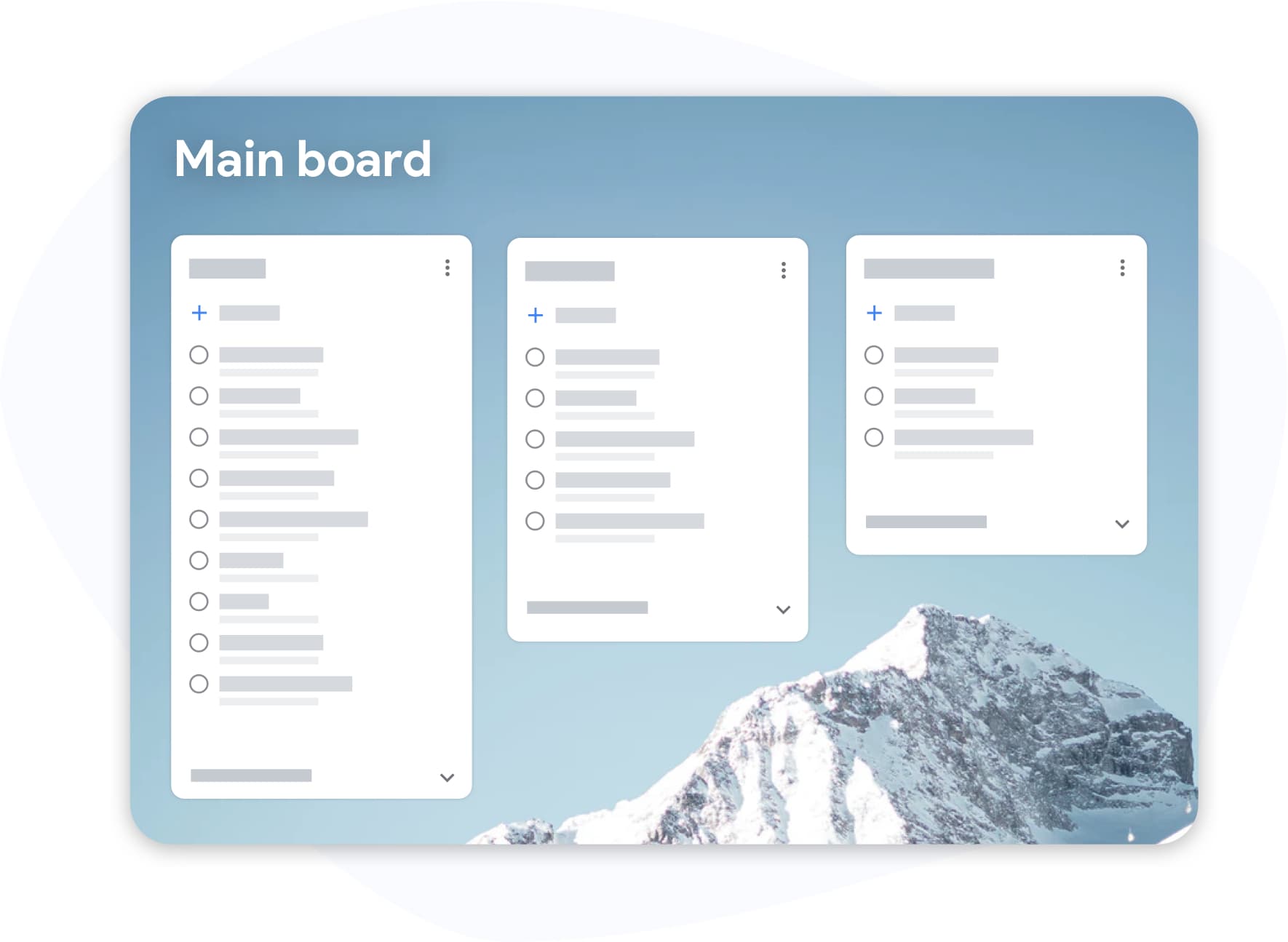
Где он появляется
Иконка Google Tasks в приложениях Google
Вы увидите иконку галочки Google Tasks на правой боковой панели Gmail, на панели задач Google Calendar, в отдельном мобильном приложении Tasks и в интеграциях Google Chat. Она представляет собой легкий инструмент управления задачами от Google, отдельный от Google Keep (желтая лампочка) и Google Calendar (цветная сетка календаря).
- Боковая панель Gmail: иконка галочки на правой панели
- Google Calendar: та же иконка на боковой панели задач
- Мобильное приложение: отдельное приложение Google Tasks с этой иконкой
TasksBoard
Используйте логотип при сравнении или интеграции с TasksBoard
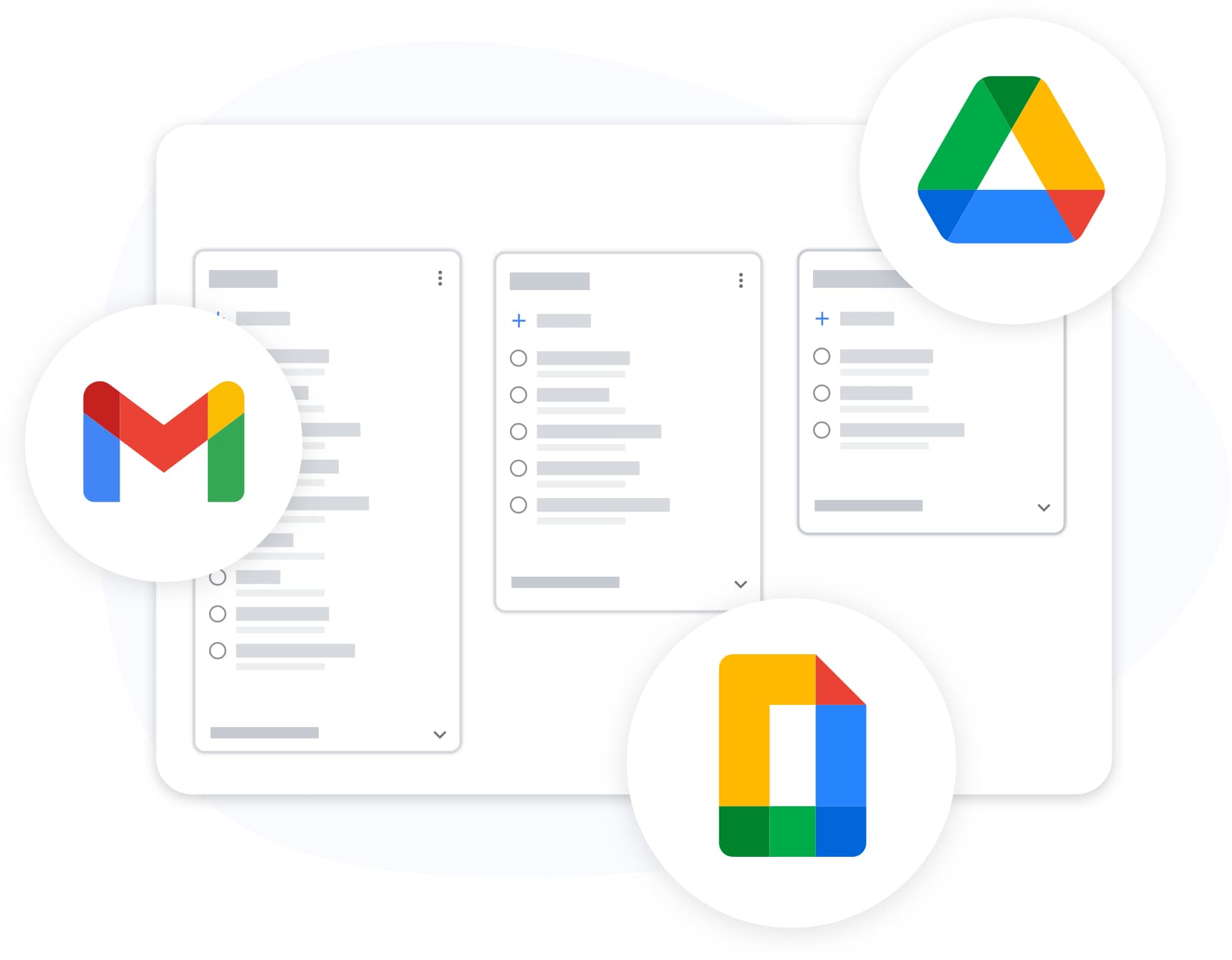
TasksBoard
Используйте логотип при сравнении или интеграции с TasksBoard
Если вы пишете статью-сравнение, руководство по интеграции или внутренний документ, в котором упоминается Google Tasks наряду с TasksBoard, этот SVG-актив обеспечит единообразие иконок. Подробности о функциях см. в нашем руководстве по функциям Google Tasks. Для интеграции API см. руководство для разработчиков.
- Добросовестное использование для сравнений и образовательного контента
- Сочетайте со скриншотами TasksBoard для сравнения приложений
- Google Tasks — товарный знак Google LLC
Как скачать и использовать логотип Google Tasks
-
Скачайте SVG
Нажмите кнопку загрузки или откройте /images/google-tasks-logo.svg в браузере. Сохраните файл в папку ресурсов вашего проекта.
-
Добавьте в документ или на сайт
Импортируйте SVG в свой инструмент дизайна или вставьте его с помощью тега img. Векторный формат остается четким при любом разрешении.
-
Следуйте правилам использования
Используйте логотип для ссылки на Google Tasks в сравнениях, учебных пособиях и документации по интеграции. Не подразумевайте одобрение со стороны Google. См. правила бренда Google для коммерческого использования.
Любим тысячами пользователей
4.8 / 5 на основе 1000+ отзывов в Chrome Web Store
"Always have 101 things to do and this helps me organize and prioritize like no other app can. It syncs to my phone and laptop, and when I add dates to tasks, they automatically integrate into my Google Calendar, which is immensely convenient. I can look at my daily, weekly, and monthly overview in Google Calendar and clearly see how much I was able to accomplish! Great tool indeed. Excited to see how it will evolve over time."

"Seriously, makes my tasks easier to share with the team, and the free version is quite nice for our little office. Eventually, we will expand, and this is definitely a great tool to do that! Syncs with my Workspace and Calendar."

"I love the simple, intuitive interface and the Add to Tasks feature, especially as I work through my emails! Sharing my tasks is also easy. Overall, outstanding and simple to use, and that means a lot with too many complex tasks out there!"

"Great too for managing daily routine and plan tasks. Would be perfect if it was updated for generating reports for statistics. For google tasks and google calendar"





Часто задаваемые вопросы
Где можно скачать логотип Google Tasks?
Скачайте SVG с этой страницы по адресу /images/google-tasks-logo.svg. Нажмите кнопку загрузки или щелкните правой кнопкой мыши по изображению и сохраните его напрямую.
Как выглядит иконка Google Tasks?
Иконка Google Tasks — это синий круг с белой галочкой внутри. Она появляется в Gmail, Google Calendar, мобильном приложении и интеграциях Google Workspace.
Является ли логотип Google Tasks тем же самым, что и иконка Google Keep?
Нет. Google Tasks использует синий круг с галочкой. Google Keep использует иконку желтой лампочки. Это отдельные продукты Google с разными логотипами.
Могу ли я использовать логотип Google Tasks в статье-сравнении?
Да, для добросовестного образовательного и сравнительного контента. Не изменяйте логотип и не подразумевайте спонсорство со стороны Google. Для коммерческого использования бренда обратитесь в официальный центр ресурсов бренда Google.
В каком формате скачивается логотип Google Tasks?
Загрузка представляет собой файл SVG (Scalable Vector Graphics). SVG масштабируется до любого размера без потери качества и работает в браузерах, дизайнерских инструментах и редакторах документов.
Чем иконка Google Tasks отличается от логотипа TasksBoard?
Иконка Google Tasks — это официальный дизайн Google (галочка в круге) для их приложения задач. TasksBoard имеет собственный логотип бренда. Используйте SVG Google Tasks при упоминании продукта Google в частности.
Исследуйте Google Tasks
Узнайте, что Google Tasks может делать помимо иконки
Прочитайте наше руководство по функциям, чтобы понять все возможности Google Tasks, и посмотрите, что добавляет TasksBoard поверх них.
Бесплатное скачивание SVG. Учетная запись не требуется.