
Google Tasks vs Google Keep

Google Tasks против Google Keep

Google Tasks против Google Keep, в чем разница и что подходит для вашего рабочего процесса?

Оба инструмента бесплатны с вашим аккаунтом Google, но они решают разные задачи. Это руководство объясняет, когда использовать каждый из них, и как TasksBoard делает Google Tasks очевидным победителем для структурированной работы.

Более 2 млн пользователей. Начните бесплатно.


Google Tasks против Google Keep, сравнение функций

Feature Google Tasks Google Keep
Сроки выполнения и напоминания
Due dates and reminders
Только напоминания (через Keep Reminders)
Подзадачи
Subtasks
Организация по проектам / спискам
Organize by project/list
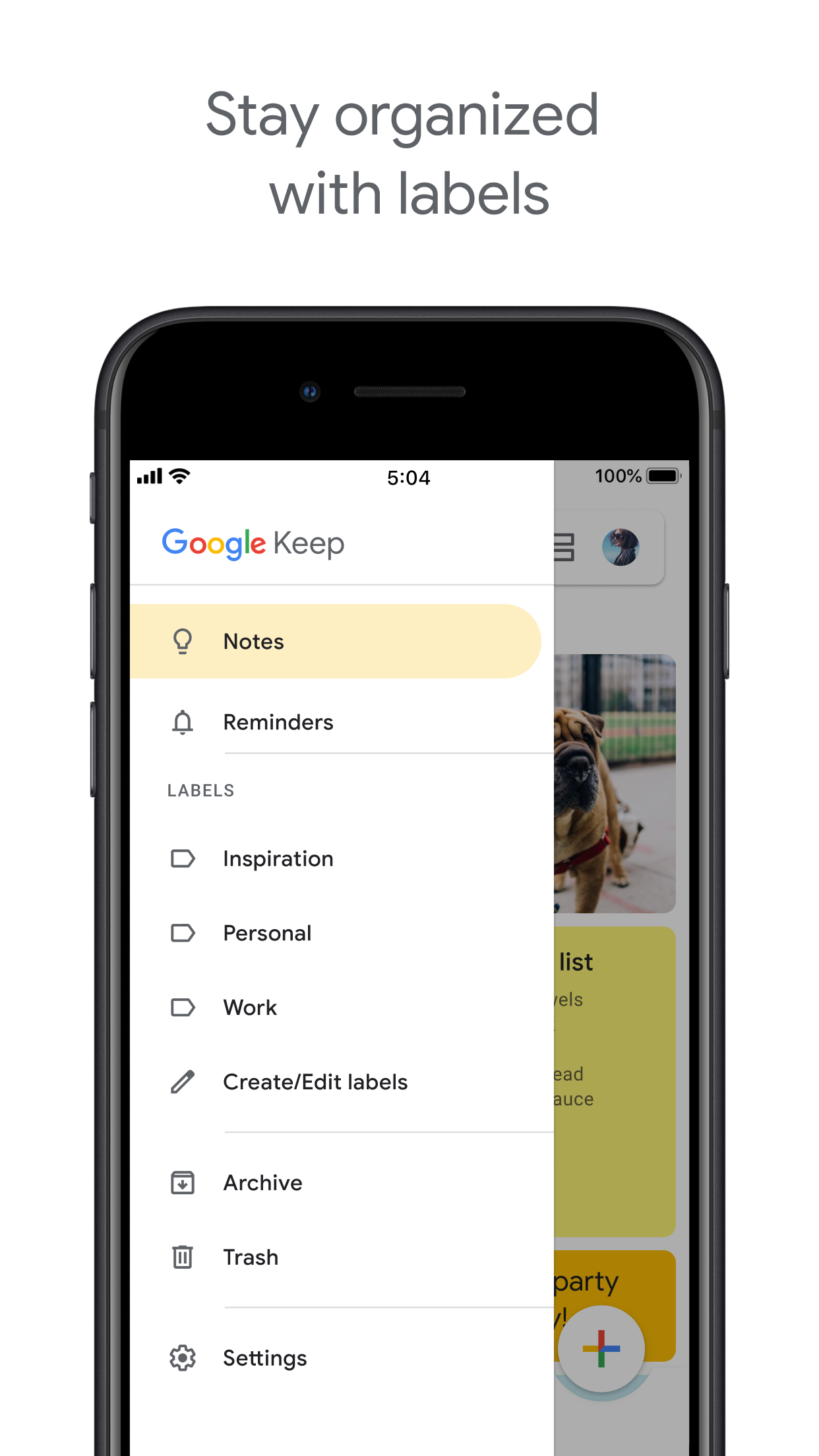
Только метки
Интеграция с Google Calendar
Google Calendar integration
Свободные заметки
Freeform notes
Захват изображений
Image capture
Голосовые заметки
Voice memos
Вид Kanban-доски
Kanban board view
Через TasksBoard
Совместный доступ к доске
Team board sharing
Через TasksBoard Только совместные заметки
Интеграция с Gmail
Gmail integration

Feature-by-feature comparison

Google Tasks is for actionable to-dos; Google Keep is for notes and capture. See how each tool handles reminders, lists, and collaboration.

Feature 1

Due dates and reminders

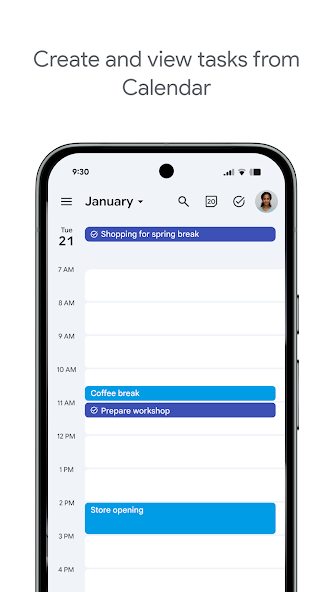
Google Tasks is built around due dates, deadlines, and notifications synced through Google Calendar.

Google Keep supports note reminders; newer flows save reminders in Google Tasks and surface them in Calendar.

Google Tasks
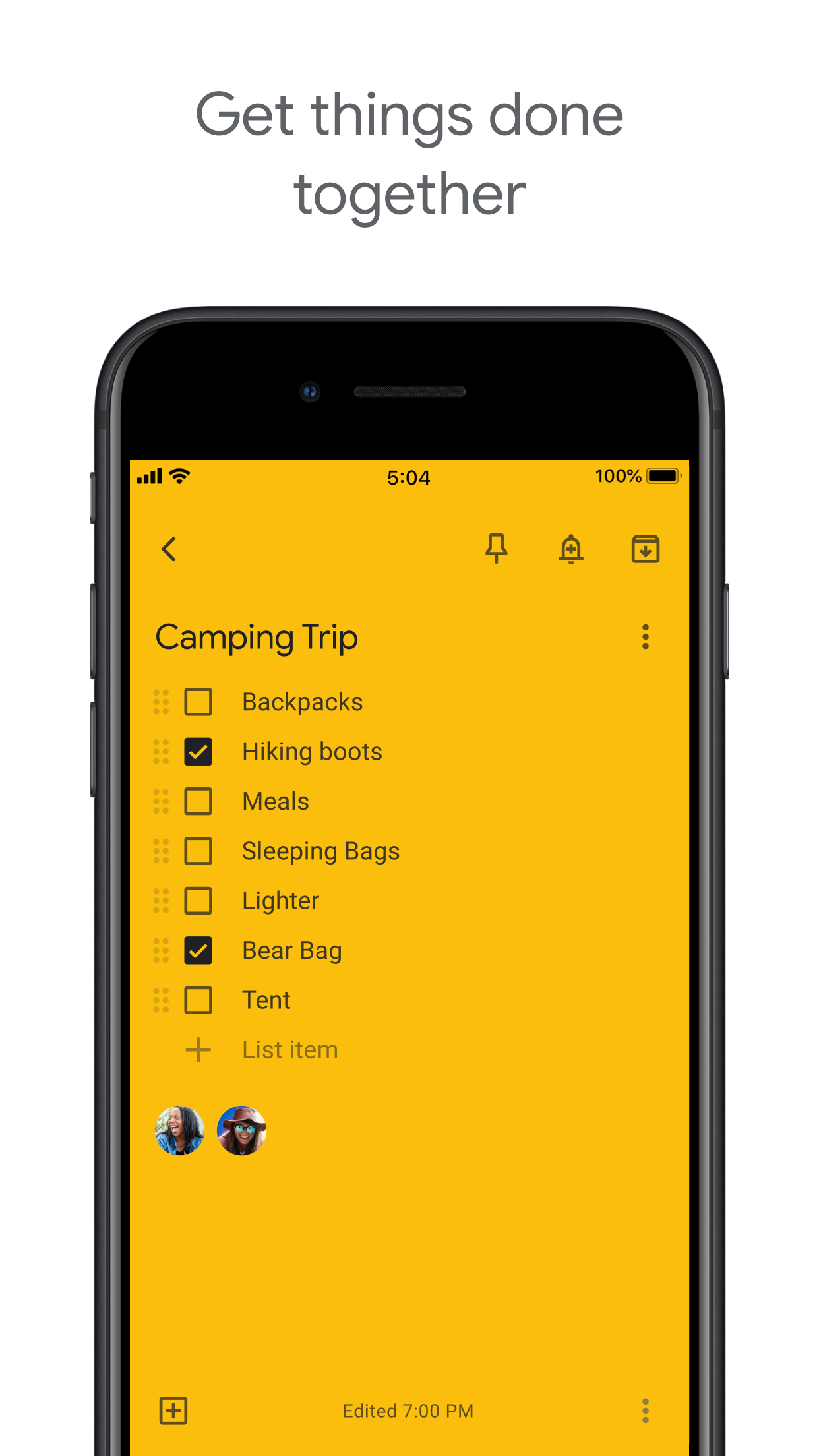
Due dates and reminders — left column screenshot
Task due dates in Calendar.
Google Keep
Due dates and reminders — right column screenshot
Note reminders linked to Tasks.

Winner: Google Tasks

Google Tasks is purpose-built for due dates, deadlines, and Calendar-synced reminders.

Feature 2

Subtasks

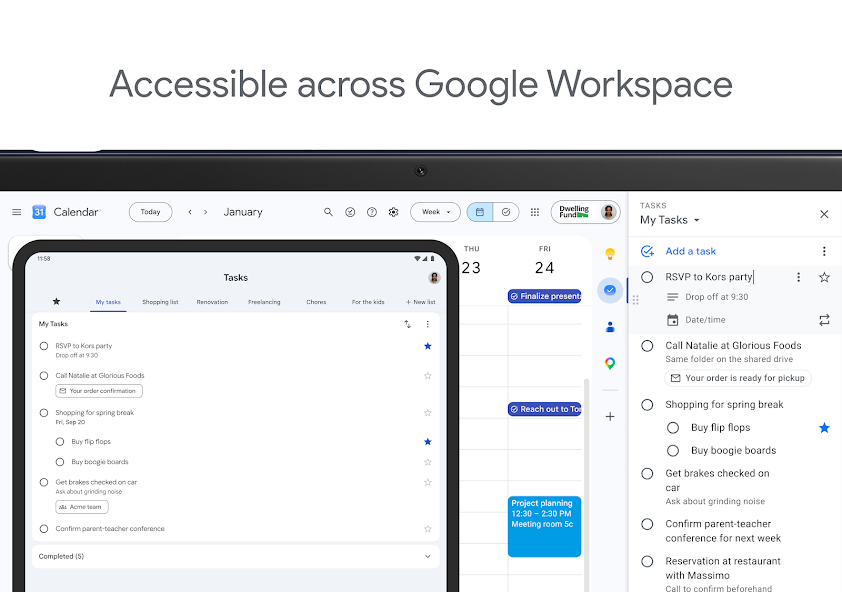
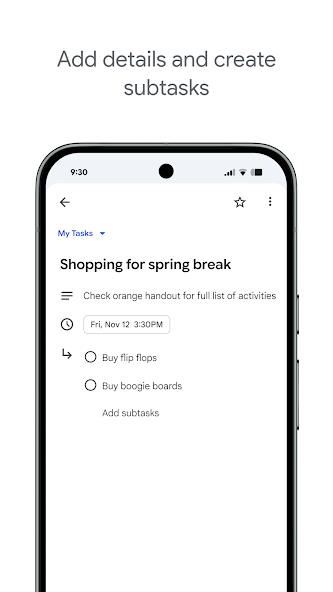
Google Tasks nests true subtasks under a parent task for step-by-step execution.

Keep supports checklists inside a note, but not dedicated parent-child task entities.

Google Tasks
Subtasks — left column screenshot
Parent task with subtasks.
Google Keep
Subtasks — right column screenshot
Checklist items in a note.

Winner: Google Tasks

True parent-child subtask entities beat checklist items inside a note for step-by-step execution.


Feature 3

Organize by project or list

Google Tasks uses multiple named lists with drag-and-drop reordering and sorting.

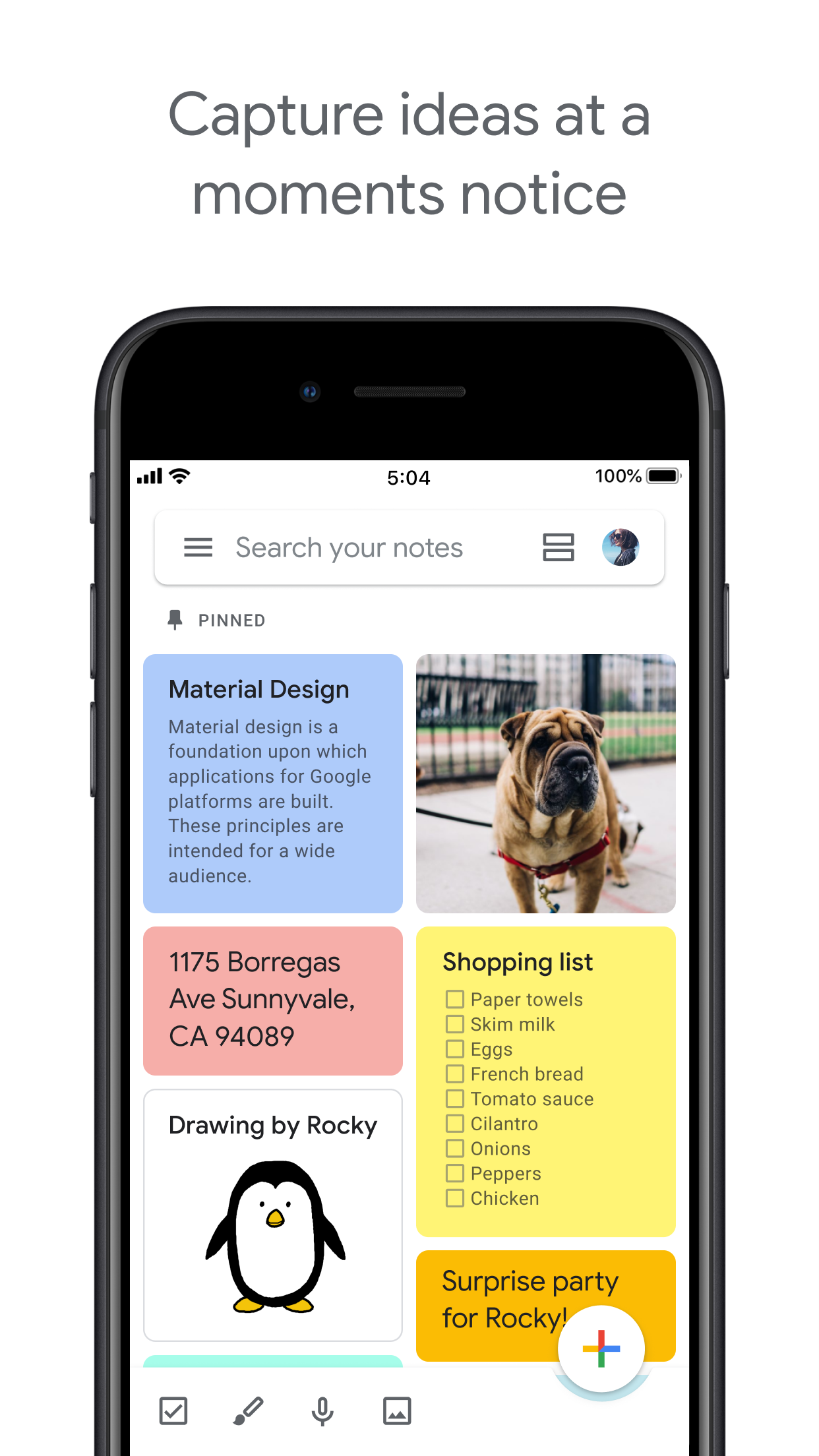
Keep organizes by labels, colors, and pinned notes in a card grid.

Google Tasks
Organize by project or list — left column screenshot
Named task lists.
Google Keep
Organize by project or list — right column screenshot
Labels and pinned notes.

Winner: Google Tasks

Named task lists with drag-and-drop ordering suit project workflows better than a note card grid.


Feature 4

Google Calendar integration

Dated tasks appear in Google Calendar natively. Plan events and to-dos together.

Keep reminders can appear in Calendar when saved through the Google Tasks integration.

Google Tasks
Google Calendar integration — left column screenshot
Tasks on your Calendar grid.
Google Keep
Google Calendar integration — right column screenshot
Reminders via Tasks bridge.

Winner: Google Tasks

Dated tasks appear on your Google Calendar grid natively — the core planning integration for to-dos.


Feature 5

Freeform notes

Google Tasks has lightweight detail fields optimized for completion, not long-form writing.

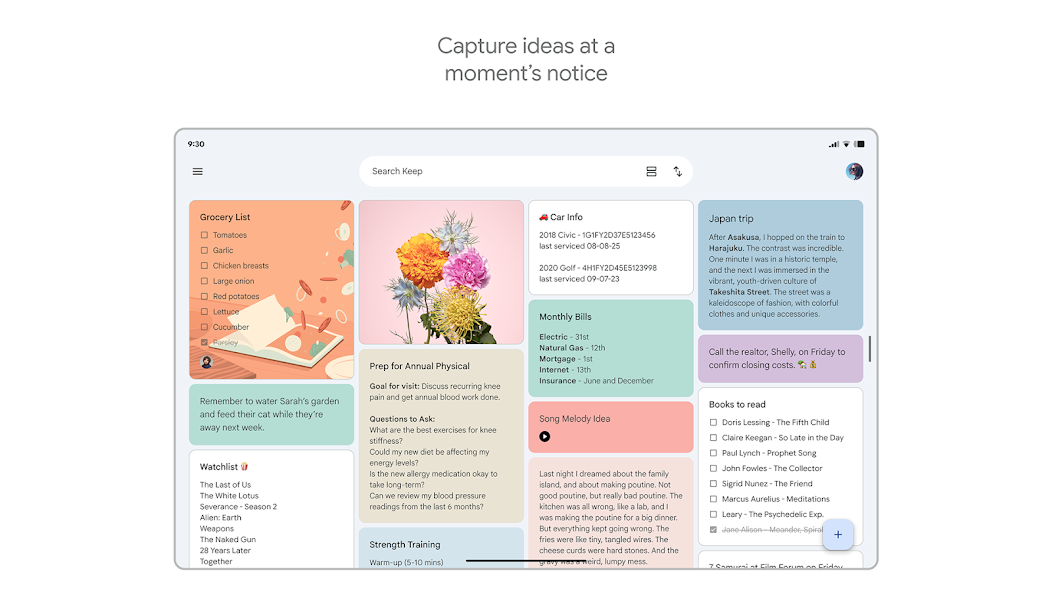
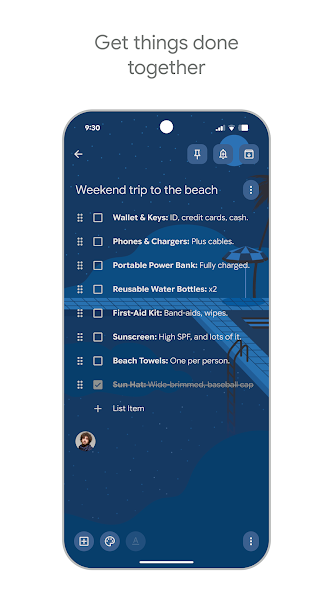
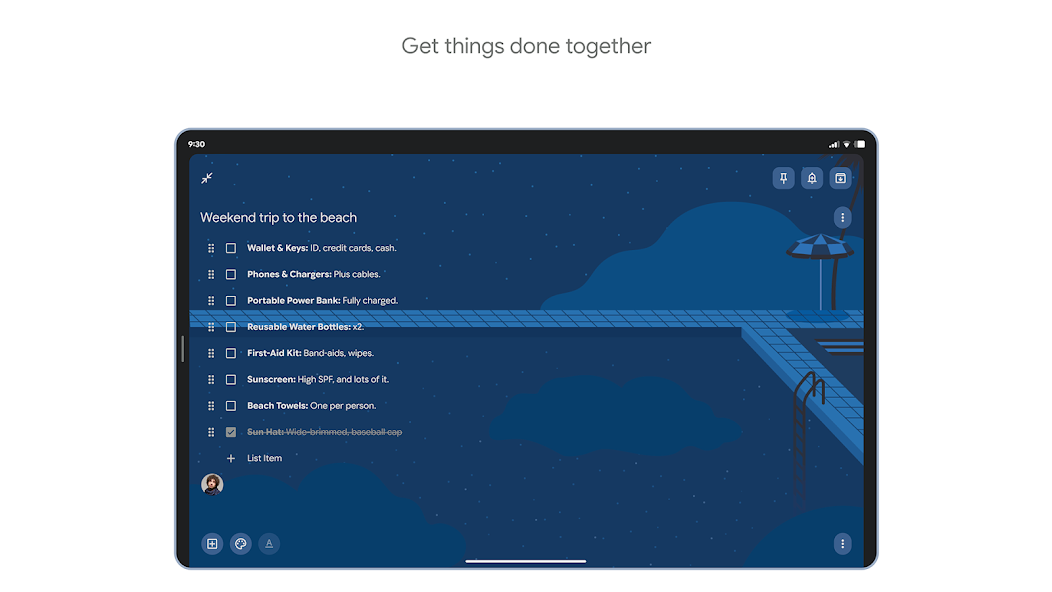
Keep is purpose-built for freeform notes, brainstorming, and quick capture.

Google Tasks
Freeform notes — left column screenshot
Task detail fields.
Google Keep
Freeform notes — right column screenshot
Freeform note editor.

Winner: Google Keep

Keep is purpose-built for freeform notes, brainstorming, and quick unstructured capture.


Feature 6

Image capture

Google Tasks does not support image attachments on tasks.

Keep lets you snap photos, attach images from your library, or scan documents directly into a note.

Google Tasks
Image capture — left column screenshot
Text-based tasks only.
Google Keep
Image capture — right column screenshot
Image notes and scans.

Winner: Google Keep

Keep lets you snap photos, attach images, and scan documents — Google Tasks is text-only.


Feature 7

Voice memos

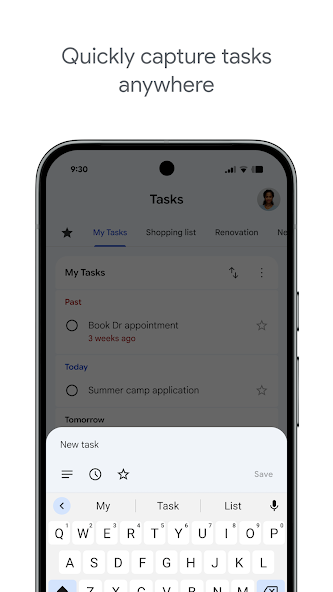
Google Tasks focuses on typed task entry with optional Assistant on Android.

Keep records audio notes you can play back and transcribe later.

Google Tasks
Voice memos — left column screenshot
Typed task capture.
Google Keep
Voice memos — right column screenshot
Audio note recording.

Winner: Google Keep

Keep records audio notes you can play back; Google Tasks focuses on typed task entry.


Feature 8

Kanban board view

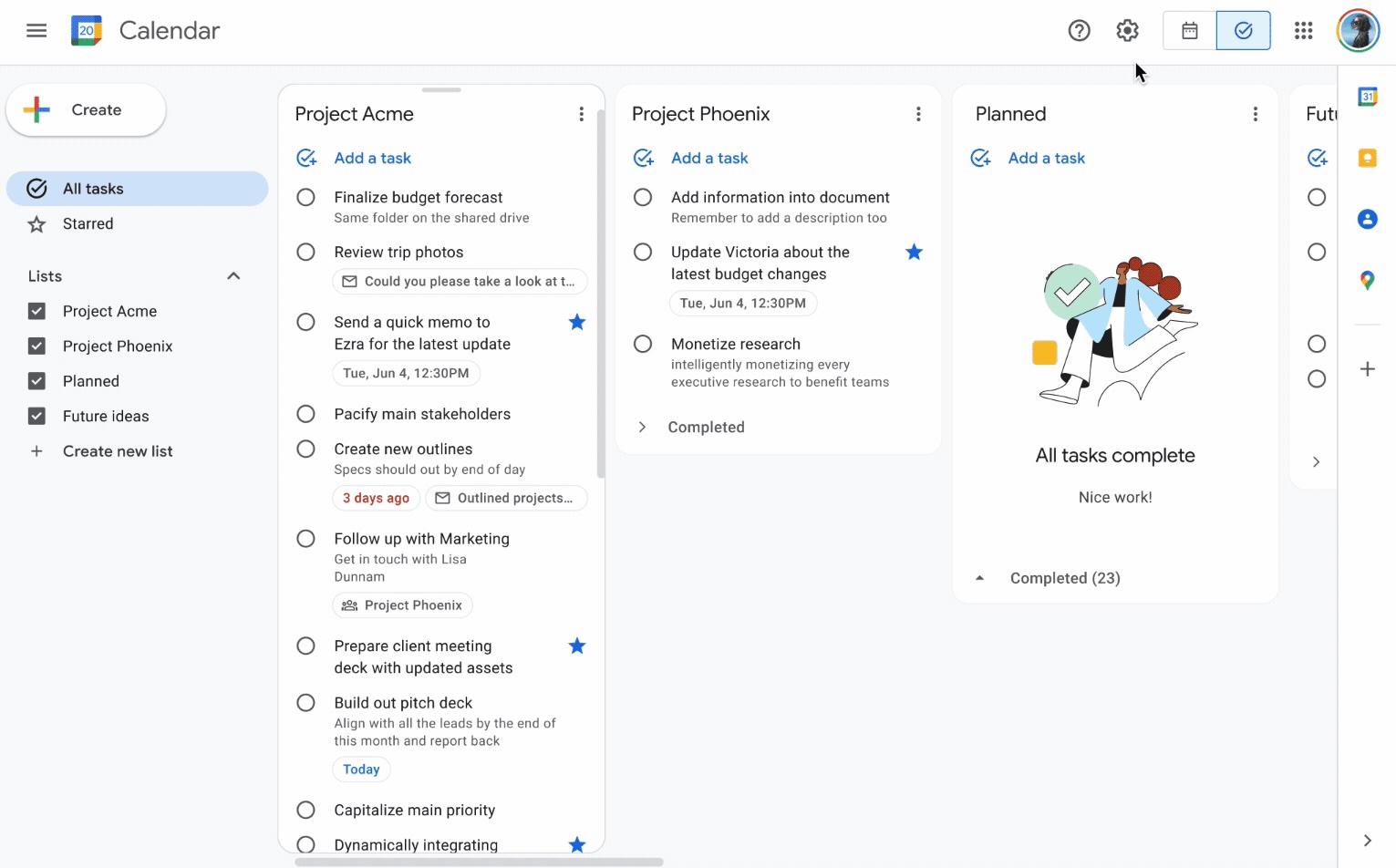
Google Tasks is list-based. TasksBoard adds kanban columns for project-stage visibility.

Keep shows notes in a grid or list — no column-based workflow board.

Google Tasks
Kanban board view — left column screenshot
Kanban via TasksBoard.
Google Keep
Kanban board view — right column screenshot
Grid and list note views.

Winner: Google Tasks

TasksBoard adds kanban columns for project-stage visibility; Keep has no workflow board.


Feature 9

Team board sharing

TasksBoard enables shared kanban boards on Google Tasks for cross-platform teams.

Keep supports real-time collaborative notes and checklists with other Google accounts.

Google Tasks
Team board sharing — left column screenshot
Shared boards via TasksBoard.
Google Keep
Team board sharing — right column screenshot
Collaborative Keep notes.

It's a tie

Both support collaboration — TasksBoard for shared task boards, Keep for real-time collaborative notes. Different jobs.


Feature 10

Gmail integration

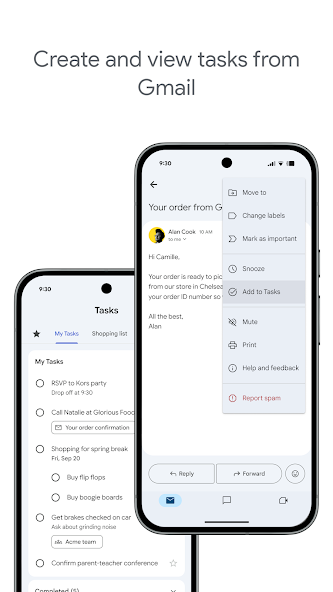
Turn any email into a Google Task with one click. The task links back to the original message.

Keep is available in the Gmail side panel for note-taking, but not for structured task workflows.

Google Tasks
Gmail integration — left column screenshot
Add to Tasks from Gmail.
Google Keep
Gmail integration — right column screenshot
Keep side panel in Gmail.

Winner: Google Tasks

Turn any Gmail message into a linked Google Task in one click — structured task workflows from email.


Любим тысячами пользователей

4.8 / 5 на основе 1000+ отзывов в Chrome Web Store

"Always have 101 things to do and this helps me organize and prioritize like no other app can. It syncs to my phone and laptop, and when I add dates to tasks, they automatically integrate into my Google Calendar, which is immensely convenient. I can look at my daily, weekly, and monthly overview in Google Calendar and clearly see how much I was able to accomplish! Great tool indeed. Excited to see how it will evolve over time."

PR Parina Ramjee avatar
Parina Ramjee

"Seriously, makes my tasks easier to share with the team, and the free version is quite nice for our little office. Eventually, we will expand, and this is definitely a great tool to do that! Syncs with my Workspace and Calendar."

CC Chase Cattrall avatar
Chase Cattrall

"I love the simple, intuitive interface and the Add to Tasks feature, especially as I work through my emails! Sharing my tasks is also easy. Overall, outstanding and simple to use, and that means a lot with too many complex tasks out there!"

GC Greg Cantori avatar
Greg Cantori

"Great too for managing daily routine and plan tasks. Would be perfect if it was updated for generating reports for statistics. For google tasks and google calendar"

NV Nick Vlasov avatar
Nick Vlasov

Часто задаваемые вопросы

В чем главное различие между Google Tasks и Google Keep?

Google Tasks, это инструмент для структурированных списков дел со сроками, подзадачами и интеграцией с Google Calendar. Google Keep, это приложение для заметок в свободной форме с поддержкой текста, изображений, голосовых заметок и цветовых меток. Tasks, для действий, Keep, для фиксации.

Что лучше для рабочих задач, Google Tasks или Google Keep?

Google Tasks лучше подходит для рабочих задач. Он поддерживает дедлайны, подзадачи, интеграцию с Gmail и синхронизацию с Google Calendar. Keep лучше подходит для быстрой фиксации заметок и идей, но не обеспечивает структуру, необходимую для надежного управления работой.

Могу ли я конвертировать заметку Google Keep в задачу Google Task?

Напрямую в приложениях, нет. Рекомендуемый рабочий процесс: вручную создать задачу в Google Tasks на основе информации из заметки Keep. Некоторые пользователи копируют содержимое заметки Keep в описание задачи.

Поддерживает ли Google Tasks напоминания, как Google Keep?

Google Tasks поддерживает сроки выполнения, которые вызывают напоминания в Google Calendar. У Google Keep есть собственная система напоминаний, включая напоминания по местоположению. Для напоминаний по времени, привязанных к календарю, Google Tasks со сроками выполнения, более надежный вариант.

Можно ли делиться задачами в Google Tasks, как заметками в Google Keep?

Стандартный Google Tasks не поддерживает совместный доступ. Google Keep позволяет делиться заметками с другими пользователями Google. Однако TasksBoard добавляет командный доступ в реальном времени к Google Tasks, вы можете поделиться всей доской с коллегами и назначать задачи.

Что добавляет TasksBoard к Google Tasks, что делает его лучше Keep?

TasksBoard предоставляет Google Tasks полноэкранную Kanban-доску, командный доступ, управление задачами перетаскиванием и вид «Сегодня», объединяющий задачи с событиями Google Calendar. Это превращает структурированную природу Tasks в полноценную систему продуктивности, с которой Keep не может сравниться.

Есть ли приложение, объединяющее Google Tasks и Google Keep?

Ни одно приложение не объединяет их нативно. Практический рабочий процесс, которому следуют многие опытные пользователи: фиксировать в Keep, обрабатывать в Tasks, а затем использовать TasksBoard для управления задачами с полноэкранным Kanban-интерфейсом и командным доступом.


Начало работы

Сделайте Google Tasks своим основным инструментом продуктивности

Войдите через Google и получите полноэкранную Kanban-доску для своих Google Tasks. Бесплатный план включает неограниченные задачи, вид доски и синхронизацию с Календарем.

Кредитная карта не требуется. Ваши данные Google Tasks остаются в Google.