Google Tasks Integrations: Connect Tasks to Your Favorite Apps (2026)

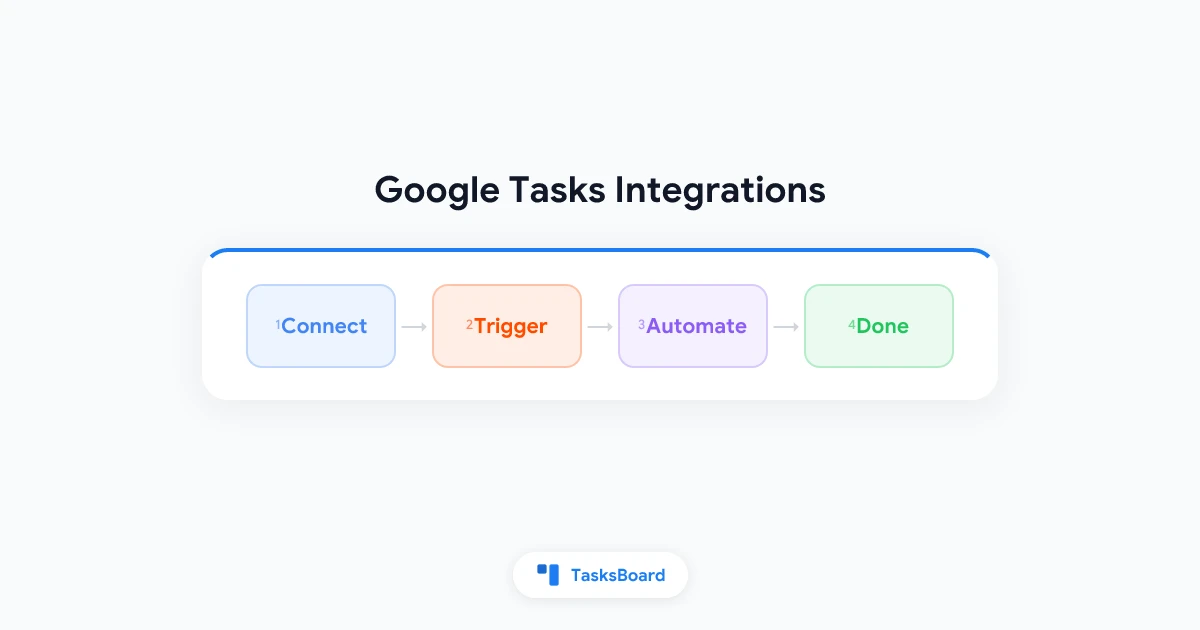
Google Tasks integrations let you connect your to-do list to the other tools you already use every day. Whether you want tasks to appear in Slack, trigger from incoming emails, or flow into a shared kanban board, there are more options than most people know about.
Google Tasks ships with two native connections: Gmail and Google Calendar. Beyond those, third-party automation platforms like Zapier and Make unlock hundreds more. And for teams that want something that works without any setup, TasksBoard adds kanban boards, shared lists, and real-time collaboration directly on top of your existing Google Tasks data.
This guide covers every major integration option available in 2026, from built-in Google connections to no-code automation platforms and custom scripts.
Native Google Tasks integrations
Google Tasks connects to several Google apps out of the box. You do not need to configure these. They work automatically as long as you are signed into the same Google account across all surfaces.
Gmail
The Google Tasks panel sits inside Gmail’s right sidebar. You can turn any email into a task by dragging it to the panel, or by opening the More menu on an email and choosing Add to Tasks.
The task title fills in automatically with the email subject. The original email stays linked inside the task detail view, so you can open it again without searching your inbox. This makes the Google Tasks Gmail integration the fastest way to capture follow-ups without leaving your inbox.
Google Calendar
Every task with a due date shows up as an all-day item on Google Calendar. Mark the task complete and it disappears from the calendar. Change the due date and the calendar entry moves with it.
The Tasks panel also lives inside Google Calendar’s right-hand sidebar. You can create and edit tasks directly from the calendar without opening a separate app. For a full walkthrough of how the sync works and how to fix missing tasks, see our Google Tasks calendar integration guide.
Google Chat
Google Workspace accounts with Chat enabled can access a Tasks integration directly from conversations. You can create and view tasks from a chat thread without switching apps. This is useful during stand-ups or quick check-ins where action items come up naturally in discussion.
Google Assistant
On Android, you can say “Hey Google, add a task” and the assistant adds it to your default Google Tasks list. You can also ask what tasks are due today and get a spoken summary. This requires the Google Tasks app installed on your phone.
Google Tasks Zapier integration
Zapier connects over 7,000 apps. Google Tasks has a dedicated Zapier connector with both trigger and action options, making it one of the most flexible ways to automate your task workflow without writing any code.
What Zapier can do with Google Tasks
Triggers (events that start a Zapier workflow):
- New task created in Google Tasks
- Task completed in Google Tasks
- New list created in Google Tasks
Actions (things Zapier can do in Google Tasks):
- Create a new task
- Complete an existing task
- Update a task
Popular Google Tasks Zapier automations
These are the workflows people set up most often.
Email to task: when a new email arrives matching a filter (a specific label, sender, or keyword), Zapier creates a task in Google Tasks. Customer support teams use this to make sure every inbound request gets a follow-up item.
Task to Slack message: when a new task is created in a specific list, Zapier sends a message to a Slack channel. Teams use this to alert the right people when new work is added to a shared queue.
Completed task to spreadsheet row: when a task is marked done, Zapier logs it to a Google Sheet with the task name, completion date, and list name. Freelancers use this to track billable work by project without manual data entry.
Calendar event to prep task: when a new Google Calendar event is created, Zapier adds a preparation task due the day before. This is helpful for meetings that always require some advance work.
Form response to task: when a Google Form or Typeform is submitted, Zapier creates a task from the response. Marketing teams use this to route inbound requests into a review queue automatically.
How to set up a Google Tasks Zapier automation
Setting up your first automation takes about five minutes.
- Create a free account at zapier.com
- Click Create and choose Zaps
- Search for and select Google Tasks as your trigger app
- Choose the trigger event, for example “New Task”
- Connect your Google account and select which task list to watch
- Add an action step and search for the app you want, such as Slack or Google Sheets
- Map the fields: use the task title as the Slack message text, for example
- Click Test to confirm the connection works, then turn the zap on
Zapier’s free plan allows up to 100 automation runs per month and two-step zaps. Paid plans start at $20 per month and remove both limits.
Google Tasks Make (formerly Integromat) integration
Make is a visual automation platform that competes with Zapier. It tends to cost less per run at higher volumes and supports more complex branching logic.
Make’s Google Tasks module supports:
- Watching for new or updated tasks
- Creating, updating, and completing tasks
- Listing tasks from any task list
Make’s drag-and-drop canvas is well suited for multi-step flows with conditions. For example, you could build a flow that checks if a task title contains a priority label, then routes it to different lists based on the result. Zapier handles simpler two-step flows more easily for beginners. Make handles multi-branch logic more cleanly for experienced builders.
Make’s free plan includes 1,000 operations per month. Paid plans start at $9 per month.
Other Google Tasks automation options
IFTTT (If This Then That) offers basic Google Tasks triggers and actions. It is simpler than Zapier but limited to single-step applets. IFTTT works well for one-action automations like saving an article to Pocket and creating a read-later task at the same time.
n8n is an open-source automation tool you can self-host. It has a Google Tasks node and suits technical teams that want full control over their data. There are no per-run fees when you host it yourself.
Google Apps Script lets you write JavaScript that calls the Google Tasks API directly. You can set it to run on a schedule from Google Drive. A simple script can email you a daily summary of overdue tasks or move completed tasks to a log sheet. No third-party platform is needed, but basic coding knowledge is required.
 Try TasksBoard
Skip the automation setup. TasksBoard gives your Google Tasks a kanban board, real-time sharing, and subtasks without any third-party tools required.
Get Started →TasksBoard: the native Google Tasks upgrade
Zapier and Make are powerful for connecting Google Tasks to external apps. But every automation you build adds cost and maintenance. When a connection breaks, your workflow breaks.
TasksBoard takes a different approach. It reads and writes directly to the Google Tasks API using your existing Google account. There is no sync to manage, no third-party account to maintain, and no per-run cost. Your tasks stay in Google Tasks. TasksBoard adds everything that Google Tasks is missing.
What TasksBoard adds on top of Google Tasks:
- Kanban boards: drag task cards across columns like Backlog, In Progress, and Done
- Shared task lists: invite teammates to the same board with real-time updates
- Subtasks: break big items into smaller steps without losing the parent task context
- Bulk actions: reassign, reschedule, or complete groups of tasks at once
The data lives in your Google account. Open Gmail or the native Tasks app and your changes are already reflected there. TasksBoard is the view layer, not a separate task manager. For most teams asking whether to learn Zapier or to upgrade their task tool, TasksBoard is the right first move.
If you also need to connect Google Tasks to external tools like Slack or Jira after that, you can still layer Zapier on top. The two approaches work well together.
Choosing the right Google Tasks integration
| Goal | Best option |
|---|---|
| See tasks in Google Calendar | Built-in (add due dates) |
| Capture emails as tasks | Gmail sidebar (built-in) |
| Notify Slack on new tasks | Zapier or Make |
| Route form responses to tasks | Zapier or Make |
| Share a kanban board with a team | TasksBoard |
| Add subtasks to existing tasks | TasksBoard |
| High-volume or multi-branch flows | Make |
| Custom scripts or API access | Google Apps Script |
Native integrations cover the basics at no cost. Zapier or Make work best for connecting Google Tasks to tools outside the Google ecosystem. TasksBoard is the upgrade when you want boards and team collaboration without adding another external dependency.
For more on building a reliable everyday task workflow, read our guide on how to use Google Tasks effectively.
FAQ
Conclusion
Google Tasks integrations cover a wide range. The native Gmail and Calendar connections handle the basics at no cost and work across all Google accounts. Zapier and Make extend Google Tasks to hundreds of external tools, from Slack and Notion to custom spreadsheets and forms.
For teams that need better visibility and shared boards rather than external connections, TasksBoard is the most direct upgrade. It adds kanban boards, shared lists, and subtasks to the Google Tasks data you already have, with no automation platform in the middle.
Start with the integration that solves your biggest pain today. If tasks are getting lost in email, the Gmail sidebar is the fix. If your team needs shared boards, TasksBoard is the answer. If you need to route data between multiple tools, Zapier is ready when you need it.
Ready to share your Google Tasks?
Get started with TasksBoard for free, no credit card required.
Sign in