Google Tasks Gmail Integration: How to Add and Use Tasks in Gmail

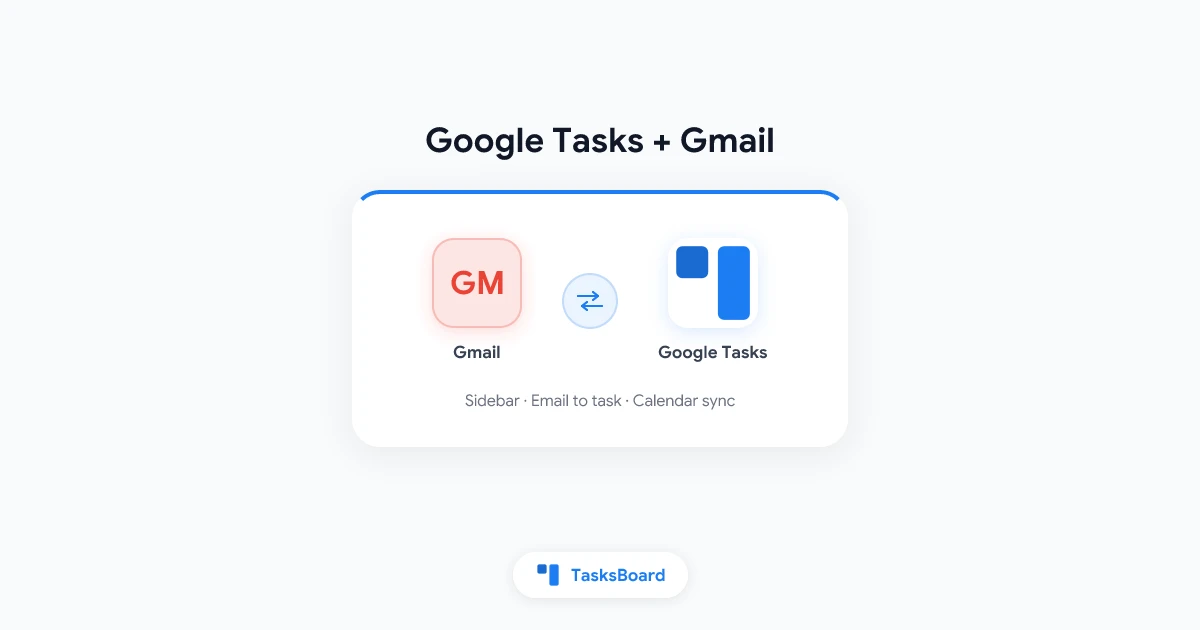
Google Tasks Gmail integration puts your to-do list inside the inbox you already open all day. You can capture action items from email, check due dates without switching tabs, and keep tasks synced with Google Calendar on every device.
Most people never turn the panel on, or they turn it on once and forget it exists. This guide shows how to add Google Tasks to Gmail, use the sidebar well, fix common problems when tasks do not show up, and know when the built-in panel is enough versus when a full-screen tool like TasksBoard makes more sense.
TL;DR: Open the Tasks icon in Gmail’s right sidebar, drag emails to create tasks, use due dates for Calendar reminders, and switch to TasksBoard kanban boards when you need visual workflow or shared lists beyond the narrow Gmail panel.
What Google Tasks Gmail Integration Actually Does
Gmail and Google Tasks share the same Google account and the same task data. A task you create in Gmail appears in the Google Tasks app, on tasks.google.com, and in the Google Calendar side panel. Edit it anywhere and the change syncs within seconds.
The Gmail integration is the right-hand Tasks panel. It is not a separate app inside Gmail. It is a live view of your Google Tasks lists, embedded next to your inbox.
| Feature | In Gmail sidebar | In Google Tasks app |
|---|---|---|
| Create and complete tasks | Yes | Yes |
| Multiple lists | Yes | Yes |
| Subtasks (one level) | Yes | Yes |
| Due dates | Yes | Yes |
| Drag email to task | Yes | No (Gmail only) |
| Kanban board view | No | No |
| Full-screen layout | No | Yes (mobile app / web) |
That last row matters. Gmail gives you speed and context. It does not give you space. When your list grows past a dozen active items, the sidebar starts to feel cramped. That is the usual moment people look for a full-screen Google Tasks desktop experience or a kanban overlay.
Gmail is where requests land. Google Tasks is where follow-ups live. The integration keeps both in one window so you process email and capture next steps without losing context.
How to Add Google Tasks to Gmail
Google Tasks is built into Gmail for personal Google accounts and most Google Workspace plans. You do not install an extension to get the basic integration.
Show Google Tasks in the Gmail sidebar (web)
- Open Gmail in a desktop browser.
- Look at the right edge of the screen for the app strip (Calendar, Keep, Tasks, and other icons).
- Click the Tasks icon (blue circle with a checkmark).
- The Tasks panel opens on the right. Your lists load from the same account.
If you do not see the Tasks icon:
- Click the + or Get add-ons area at the bottom of the app strip and pin Tasks.
- On some Workspace accounts, an admin may need to allow Google Tasks in Gmail settings.
- Try a hard refresh (Ctrl+Shift+R on Windows, Cmd+Shift+R on Mac) after signing in.
Add Google Tasks to Gmail on mobile
The Gmail app on Android and iOS does not show the same sidebar panel. Instead:
- Install the Google Tasks app from the Play Store or App Store.
- Sign in with the same Google account as Gmail.
- Use the Tasks app for list management, and Gmail’s Add to Tasks action when you need to capture from email.
Mobile Gmail can send items to Tasks through the email menu. The dedicated Tasks app handles everything else.
Turn Emails into Tasks (The Most Useful Gmail Feature)
The strongest part of Google Tasks Gmail integration is turning messages into tracked work. You stop relying on starred emails or an unread pile as a pseudo to-do list.
Method 1: Drag and drop (fastest)
- Open the Tasks panel in Gmail.
- Drag an email from the inbox onto the Tasks panel.
- Gmail creates a new task with the email subject as the title and a link back to the message.
Method 2: Add to Tasks from the menu
- Open the email.
- Click the three-dot menu (More).
- Choose Add to Tasks.
- Edit the task title, pick a list, and set a due date if needed.
Method 3: Keyboard shortcut (when enabled)
Gmail power users often map Add to Tasks to a shortcut in Gmail settings under Keyboard shortcuts. Pair that habit with the capture workflow in our guide to using Google Tasks effectively.
Tip: After you create the task, archive or label the email. The task holds the link. Your inbox stays clean.
Organize Lists and Due Dates from Gmail
The Gmail Tasks panel supports the same core structure as the standalone app.
Working with lists
- Click the list name at the top to switch lists or create a new one.
- Use separate lists for Work, Personal, and Waiting For so inbox captures do not mix contexts.
- Move tasks between lists by editing the task and changing its list assignment.
Google Tasks does not offer priority flags or custom tags. People usually simulate priority with list names (Today, This week) or due dates. For reminder behavior tied to dates, see our Google Tasks reminders guide.
Due dates and Calendar
When you add a due date in Gmail, the task appears on Google Calendar as an all-day item. That is how time-sensitive email follow-ups surface on the right day. Enable Calendar notifications if you want a device alert, not just a silent calendar entry.
Google Tasks Not Showing in Gmail? Fixes That Work
If Google Tasks is not showing in Gmail, work through these checks in order.
- Confirm the Tasks icon is pinned in the right app strip. It is easy to hide during a sidebar cleanup.
- Check you are on mail.google.com, not an older inbox UI or a third-party client. The integration is web-only in Gmail proper.
- Verify account sync: sign out and back in if lists appear empty but Tasks works at tasks.google.com.
- Workspace admin settings: some organizations disable Tasks in Gmail while leaving Tasks available elsewhere. Ask IT if the icon never appears for your whole team.
- Browser extensions: ad blockers or privacy tools sometimes hide Google side panels. Test in an incognito window with extensions disabled.
If tasks sync everywhere except Gmail, the issue is almost always panel visibility, not lost data.
When the Gmail Sidebar Is Not Enough
The integration is excellent for capture and quick checks. It breaks down when you need overview, collaboration, or visual workflow.
| Limitation in Gmail | What teams usually need instead |
|---|---|
| Narrow panel, no resize | Full-screen task board |
| List view only | Kanban columns by status |
| Personal lists by default | Shared Google Tasks for teams |
| No assignee field in native Tasks | Delegation on a shared board |
 Try TasksBoard
Keep capturing tasks from Gmail, then open TasksBoard for kanban columns, subtasks, and shared boards that still sync with Google Tasks.
Get Started →TasksBoard connects to the same Google Tasks account. Email-to-task habits stay the same. Planning and team visibility happen on a board that updates in real time. Changes still flow back to Gmail and Calendar.
Gmail + Tasks Workflow for a Typical Workday
A simple routine that uses Google Tasks Gmail integration without overload:
- Morning: Open Gmail, open Tasks panel, scan
Todaylist (tasks with due dates). - During email triage: Drag actionable messages to Tasks, set due dates, archive the email.
- Midday: Complete tasks from the panel, move stalled items to
Waiting For. - Afternoon project block: Switch to TasksBoard or tasks.google.com for deeper planning.
- End of day: Clear completed items, move unfinished work to tomorrow’s due date.
This keeps Gmail for communication and Google Tasks for commitments. You are not treating your inbox as a task manager.
Upgrade from the sidebar
Sign in with Google at tasksboard.com. Your Gmail tasks appear as board columns in under a minute.
Open TasksBoard →FAQ
Conclusion
Google Tasks Gmail integration keeps your task list one click away from your inbox. Turn on the Tasks panel, drag emails into actionable items, and use due dates so follow-ups show up on Google Calendar.
When the sidebar feels too small for real planning, add TasksBoard for kanban boards and shared lists without leaving the Google Tasks ecosystem. Your Gmail habits stay the same. Your visibility gets much better.
Ready to share your Google Tasks?
Get started with TasksBoard for free, no credit card required.
Sign in