Subtasks: The Complete Guide to Breaking Down Big Tasks
Every ambitious project starts as a single overwhelming item on your to-do list. “Launch the website.” “Finish the report.” “Plan the event.” The task looks manageable until you sit down and realize it actually contains dozens of smaller steps, each with its own dependencies and deadlines.
That is precisely why a good subtasks app is one of the highest-leverage productivity tools you can adopt. Breaking work into subtasks transforms vague goals into concrete, executable steps — and dramatically increases the chance you will actually finish them.
What Is a Subtask?
A subtask is a smaller, specific unit of work that belongs to a larger parent task. Where a parent task describes an outcome (“Build the onboarding flow”), a subtask describes a discrete action (“Write copy for welcome email,” “Design confirmation screen,” “Set up email trigger in backend”).
Subtasks serve three functions:
- Clarification — they force you to think through exactly what “done” means for a complex task.
- Progress visibility — you can see how much work remains without guessing.
- Delegation — individual subtasks can be assigned to different people.
Without subtasks, tasks tend to balloon in scope and stall in progress. With them, you always have a clear next action.
Why Most Productivity Systems Break Without Subtasks
Many people manage tasks in flat lists: one item, one row. This works well for simple to-dos like “buy milk,” but it fails when projects grow. The common failure modes are:
Tasks that never get started
When a task is too vague or too large, the brain naturally avoids it. You scroll past “Redesign the homepage” for weeks because it is not clear where to begin. Breaking it into subtasks removes that friction by giving you an obvious first step.
False completion signals
Marking a parent task “done” when underlying work is still in progress distorts your project view. Subtasks provide honest, granular completion tracking.
Context switching without structure
Without subtasks, you switch between different mental models of “what needs to happen” every time you return to a task. Subtasks act as a persistent external memory — the structure is already there when you come back.
How Google Tasks Handles Subtasks
Google Tasks added native subtask support in 2018 and has improved it since. Here is how it works:
- Open any task in the Google Tasks panel (in Gmail, Google Calendar, or the Tasks app).
- Click “Add subtasks” beneath the task details.
- Each subtask appears as an indented item under the parent task.
- You can check off subtasks individually. The parent task remains open until you manually mark it complete.
Limitations of native Google Tasks subtasks
Google Tasks subtasks are single-level only — you cannot nest subtasks within subtasks. You also cannot assign due dates to individual subtasks, only to the parent task. And the default list view in Google Tasks does not show subtasks at a glance; you need to open each task to see them.
These limitations matter in practice. For complex projects, you want to see the full subtask tree at once, not buried in a detail panel.
How TasksBoard Improves Subtask Management
TasksBoard is a full-screen kanban board built on top of Google Tasks. It syncs your tasks in real time, so everything you create in TasksBoard is instantly available in Google Tasks and vice versa. For subtasks specifically, TasksBoard offers meaningful improvements over the default Tasks interface:
- Visible at a glance — subtasks appear directly on the card in the kanban column, with a completion count (e.g., “3/5 subtasks done”) so you see progress without opening the task.
- Full-screen workspace — the expanded card view gives you space to manage long subtask lists without the cramped sidebar interface.
- Board-level overview — you can see all parent tasks across multiple lists side by side, making it easy to compare progress across different projects.
Because TasksBoard uses the official Google Tasks API, there is no data migration or sync setup required. Sign in with your Google account and your existing tasks — with all their subtasks — appear immediately.
Best Practices for Writing Effective Subtasks
"Launch feature X"
"Write unit tests"
"Update docs"
Start with a verb
Every subtask should begin with an action word: “Write,” “Design,” “Review,” “Send,” “Schedule.” This makes the task immediately executable. Compare “Homepage copy” (ambiguous) with “Write homepage hero section copy” (clear and actionable).
Keep subtasks to one to two hours of work
If a subtask would take more than two hours, break it down further. If it would take less than five minutes, consider whether it needs to be tracked at all or can simply be done immediately.
Include enough context to act without opening the parent task
A subtask should be self-contained enough that you can act on it even if you have forgotten the parent task’s broader context. “Write introduction paragraph” is too sparse. “Write 150-word introduction paragraph for Q2 report executive summary” is actionable.
Use consistent naming conventions across a project
When multiple people contribute subtasks to shared tasks, inconsistent naming creates confusion. Agree on a convention — “verb + object + qualifier” works well for most teams.
Subtask Structures for Common Work Types
For writing projects
- Research topic and gather sources
- Create outline with main sections
- Write first draft
- Self-edit for clarity and structure
- Request peer review
- Incorporate feedback
- Final proofread
- Publish or submit
For software features
- Write requirements document
- Design mockup or wireframe
- Implement backend logic
- Build frontend component
- Write unit tests
- Code review
- QA testing on staging
- Deploy to production
For event planning
- Define event goals and format
- Choose and confirm venue
- Send invitations and track RSVPs
- Arrange catering
- Prepare agenda
- Send day-before reminder to attendees
- Run the event
- Send follow-up notes
These templates illustrate how breaking a vague parent task into seven to ten concrete subtasks makes the entire project manageable.
Subtasks vs. Checklists: When to Use Which
Both subtasks and checklists decompose larger work into smaller steps. The distinction lies in tracking and visibility.
| Feature | Subtasks | Checklist |
|---|---|---|
| Individual due dates | Depends on tool | No |
| Assignable to different people | In most tools | No |
| Visible in project views | Yes | Often not |
| Suitable for recurring processes | Yes | Yes |
| Complexity | Can be deeply nested | Flat list |
Use checklists for simple, repetitive procedures (like a pre-publication checklist or a meeting prep routine). Use subtasks for project work where each step is a meaningful piece of output that might take hours or span multiple days.
Integrating Subtasks with Your Planning System
Subtasks are most powerful when integrated with your broader planning workflow. A few practical patterns:
Weekly review
Each Sunday, open your parent tasks and review the subtasks due in the coming week. Move any blocked subtasks to the end of the list and identify the one subtask per parent task that is your top priority.
Daily planning
Each morning, pick three to five subtasks — not parent tasks — as your focus for the day. Subtasks are the unit of daily execution. Parent tasks are the unit of weekly planning.
Time blocking with subtasks
Subtasks pair naturally with time blocking. Estimate the duration of each subtask and assign it to a time block in your calendar. This prevents the common trap of scheduling tasks that are actually much larger than a single focused session.
Kanban columns for subtask status
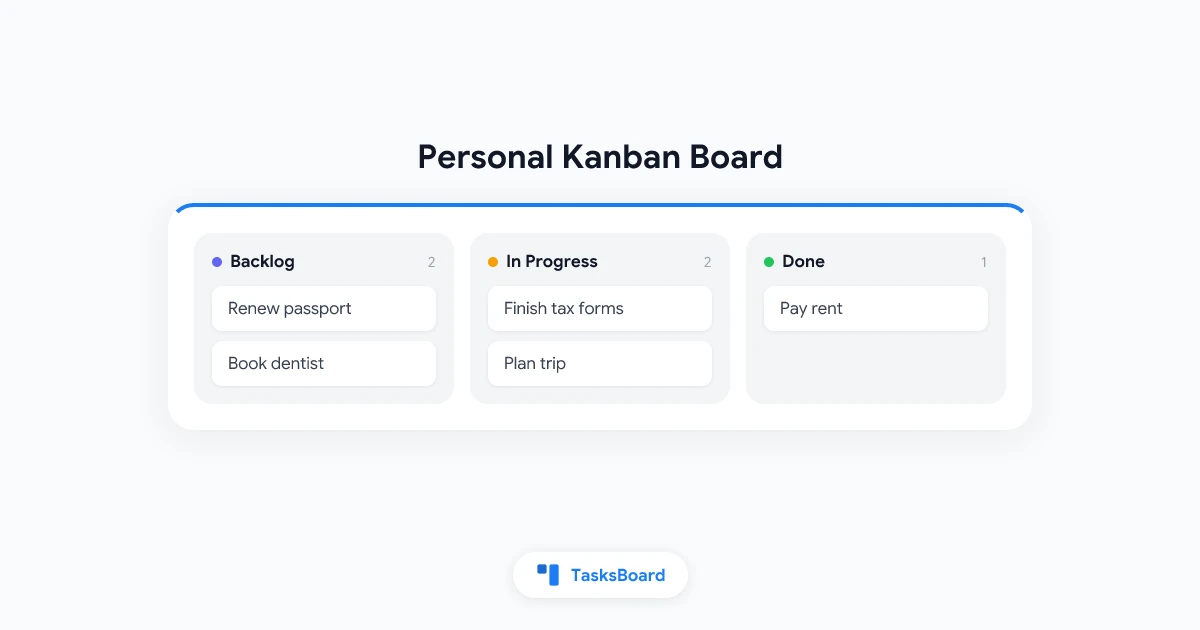
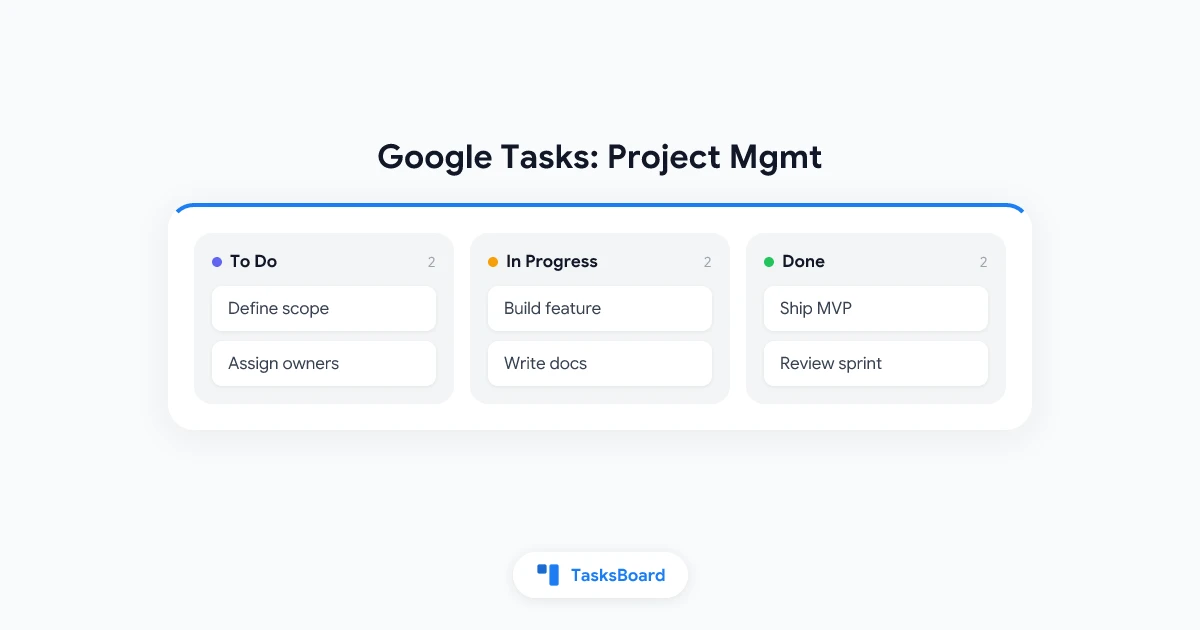
In TasksBoard, you can create lists named “To Do,” “In Progress,” and “Done,” and move subtasks — represented as separate tasks linked to a parent — through those stages. This gives you the visual flow tracking of a kanban board applied to granular work.
Common Mistakes to Avoid
Creating subtasks but never reviewing them
Subtasks only help if you look at them. If your workflow does not include a step for reviewing subtask lists, they become a graveyard of good intentions.
Over-decomposing
Not every task benefits from subtasks. Turning “Reply to John’s email” into five subtasks is overhead, not productivity. Reserve subtask decomposition for work that spans more than a few hours.
Forgetting to mark subtasks complete
Incomplete subtask lists give a false sense of how much remains. Make it a habit to check off subtasks as you finish them, not just the parent task.
Treating subtasks as a substitute for a proper project plan
For large, multi-person projects, subtasks in a task manager are a starting point, not a complete project management solution. You may also need a timeline, dependency map, and resource allocation — tools like a project planner or dedicated project management software provide that additional structure.
The Right Subtasks App for Your Workflow
The best subtasks app is the one that fits your existing workflow without requiring you to learn a new ecosystem. A few considerations:
- If you are already in Google Workspace, Google Tasks with TasksBoard gives you native subtasks, real-time sync across all Google apps, and a kanban interface — without migrating to a new platform.
- If your team needs assignments and deadlines per subtask, you may want a dedicated task manager for teams that supports those features natively.
- If you work solo and want simplicity, a basic to do list app with a checklist feature may be enough for your needs.
The goal is not to find the most feature-rich tool. It is to find the tool that makes subtask creation and review frictionless enough that you actually use it consistently.
Frequently Asked Questions
Does Google Tasks support subtasks?
Yes. Google Tasks has supported single-level subtasks since 2018. You can add subtasks to any task in the Tasks panel within Gmail, Google Calendar, or the standalone Google Tasks app. However, subtasks in the native interface are only visible when you open the parent task, and they do not support individual due dates or assignees.
Can I add subtasks in TasksBoard?
Yes. TasksBoard syncs with Google Tasks, so any subtasks you create in Google Tasks are visible in TasksBoard and vice versa. In TasksBoard, subtasks are displayed on the card face with a progress count, so you can see how many subtasks remain without opening the full task detail view.
What is the difference between a subtask and a checklist?
A subtask is a tracked work item with its own completion status, and in some tools its own due date and assignee. A checklist is a flat list of items inside a single task, with no independent tracking. Subtasks are better for project work where each step is a meaningful deliverable; checklists are better for simple recurring procedures.
How many levels of subtasks should I use?
One level of nesting handles most professional work. Two levels can be useful for complex projects (“Feature > Component > Specific action”). More than two levels usually indicates that what you have is a full project plan, not a task list, and you should use dedicated project planning tools instead.
How do I decide whether to make something a subtask or a separate task?
Make it a subtask if it is part of a single coherent deliverable and has no value independent of the parent task. Make it a separate task if it could be meaningful on its own, has a different owner, or needs to appear on a different board or project view.
Can I share subtasks with my team using TasksBoard?
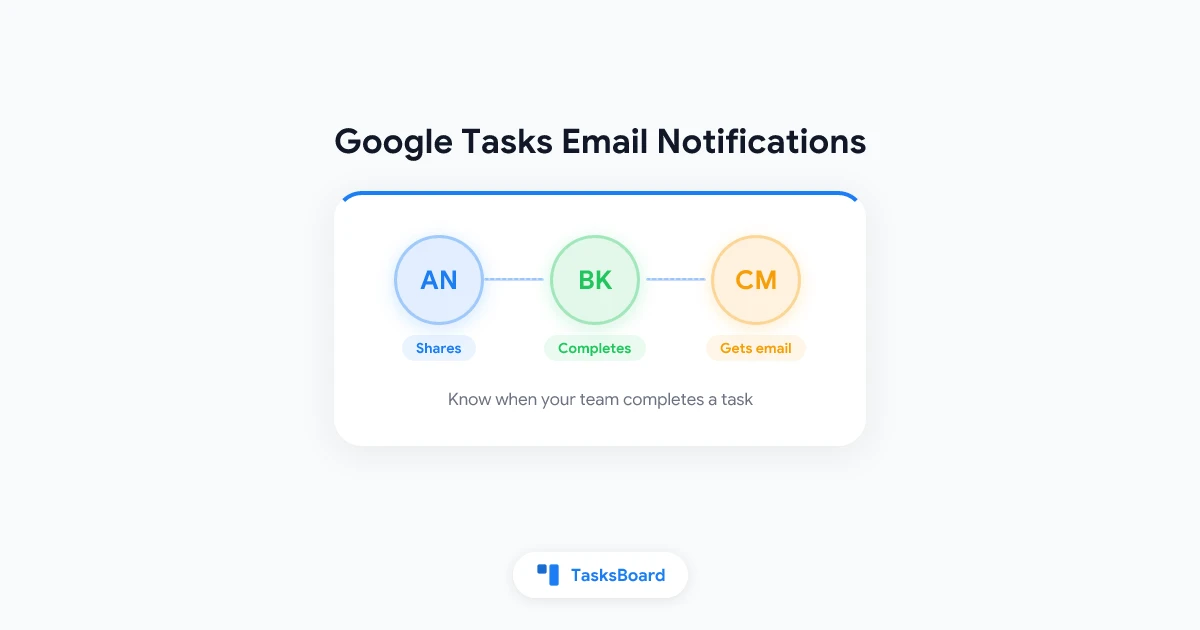
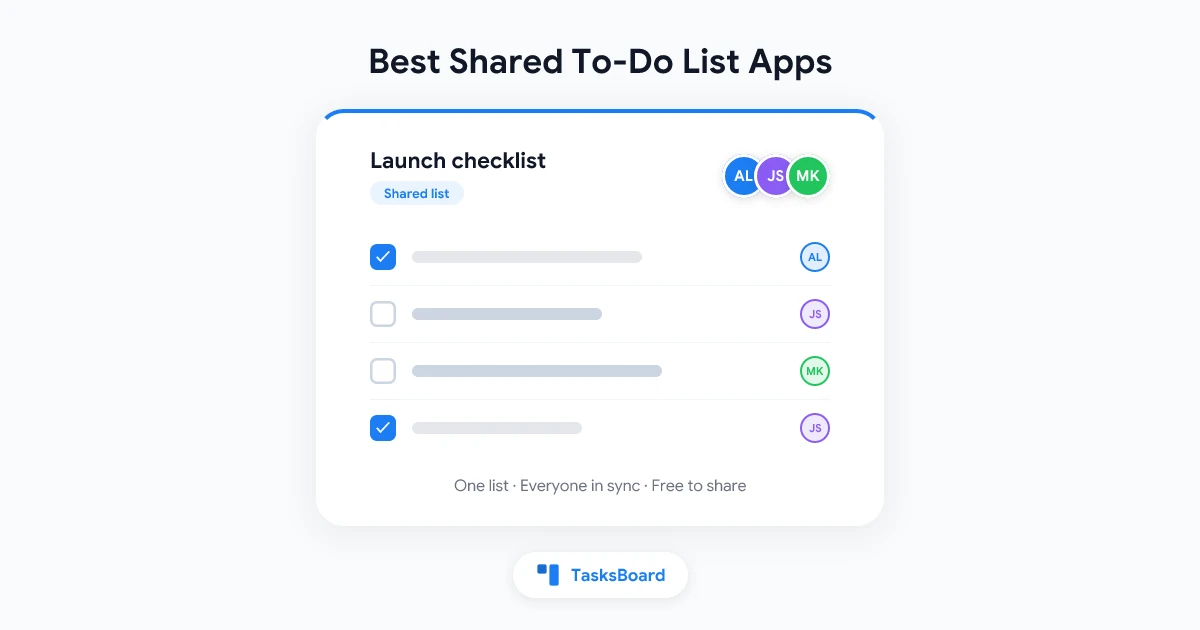
Yes. TasksBoard supports sharing Google Tasks lists and boards with collaborators. When you share a board, all tasks — including their subtasks — are visible and editable by your collaborators in real time.
Start Managing Subtasks More Effectively
Subtasks are not a productivity hack. They are a fundamental unit of how serious work gets done. The teams and individuals who ship consistently are not the ones who set the biggest goals — they are the ones who break those goals into the smallest possible concrete steps and work through them one at a time.
If you are already using Google Tasks, TasksBoard gives you the best-in-class interface for managing subtasks: visible on every card, synced in real time, and organized across a full-screen kanban board. Try it free — your existing Google Tasks data is already there.
Ready to share your Google Tasks?
Get started with TasksBoard for free, no credit card required.
Sign in