How to Sort Google Tasks by Due Date, Priority, and Name

How to Sort Google Tasks by Due Date, Priority, and Name
Getting your task list in the right order can mean the difference between a focused workday and a scattered one. Google Tasks keeps things simple, but its native sorting options are limited. This guide covers everything you can do within Google Tasks to sort and organize your list, plus the workarounds people use when the built-in options are not enough.
What Sorting Options Does Google Tasks Have?
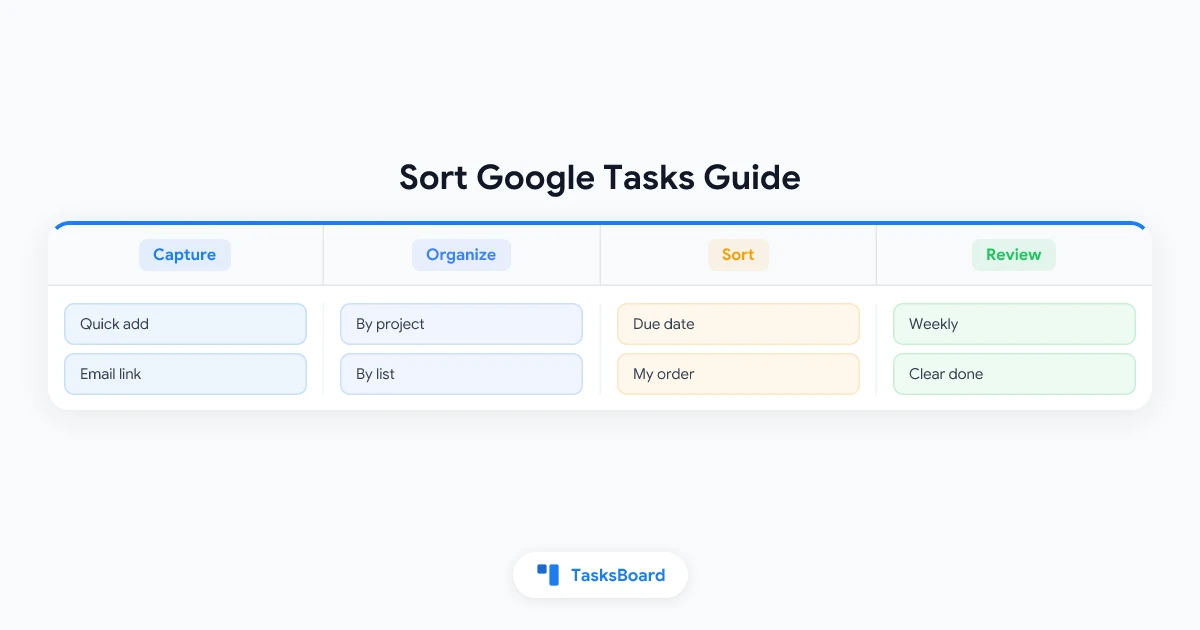
Google Tasks offers exactly two sorting modes. Nothing more, nothing less.
- Sort by date: tasks with the nearest due dates rise to the top. Tasks with no due date drop to the bottom.
- Sort by my order: tasks appear in the order you set manually by dragging them up or down.
To switch between these modes, open Google Tasks in your browser or in the Gmail sidebar, click the three-dot menu at the top of your list, and choose your preferred sort option.
That is the complete sorting feature set in Google Tasks. There is no built-in alphabetical sort, no priority sort, and no sort by creation date.
How to Sort Google Tasks by Due Date (Step by Step)
Sorting by due date is the most practical built-in option and the one most people use for daily planning.
- Go to Google Tasks or open the Tasks panel in Gmail.
- Click on the list you want to sort.
- Click the three-dot icon near the top of the list.
- Select Sort by date from the dropdown.
Tasks with the earliest due dates move to the top of the list. If a task shares a due date with another, the order within that date group is determined by your manual arrangement.
One important limitation: tasks without a due date are always pushed to the bottom when you use date sorting. If you want every task to appear in the sorted view, assign a due date to each one.
How to Reorder Google Tasks Manually
When Sort by my order is active, you can drag tasks into any sequence you want.
- Switch to Sort by my order via the three-dot menu.
- Hover over a task and look for the six-dot drag handle on the left side.
- Click and drag the task to a new position.
Manual ordering gives you full control, but it does not scale well. Once a list grows past fifteen to twenty tasks, dragging items around becomes slow and error-prone. For longer lists, a consistent naming convention (such as numbering tasks at the start of each name) helps you stay organized even in manual mode.
Can You Sort Google Tasks Alphabetically?
No. Google Tasks has no A-Z or Z-A sort option. Alphabetical sorting is not available in the native app or the mobile apps on Android and iOS.
The most common workaround is to add a numbered or lettered prefix to your task names so that manual order produces a predictable sequence. For example:
1 - Research competitors2 - Draft outline3 - Write first section
This approach works well for ordered workflows where task names describe sequential steps.
How to Sort Google Tasks by Priority
Google Tasks does not have a priority field. There are no P1-P4 labels, no High/Medium/Low flags, and no star ratings. Without a priority field, there is nothing to sort by.
Workarounds that work in practice:
Separate lists by urgency. Create task lists named Today, This Week, and Backlog, then move tasks between them as their priority changes. This mirrors the approach covered in the Google Tasks priority guide.
Prefix task names with priority tags. Adding [HIGH], [MED], or [LOW] to the start of task names makes your list scannable at a glance without needing a sort feature.
Use manual order as a proxy for priority. With Sort by my order active, your most important task goes to position one, the second-most-important goes to position two, and so on. This is simple and effective for short to medium-length lists.
 Try TasksBoard
Get a full kanban board view on top of your Google Tasks with visual columns, due date badges, and real-time team sharing. No data migration needed.
Get Started →Sorting Across Multiple Lists
Google Tasks sorts each list independently. If you have several lists and want to see tasks in a combined sorted view, the native app does not offer that option. Each list lives in its own sorted view.
For people managing work across multiple Google Tasks lists, this is a real limitation. You cannot merge or cross-sort lists in the native interface.
One practical strategy is to consolidate tasks that need to be done this week into a single This Week list and sort that list by date. Everything else stays in project-specific lists until it becomes active.
When Sort by Date and Sort by My Order Conflict
A question that comes up often: if I set a manual order and then switch to date sorting, what happens to my custom order?
When you switch from Sort by my order to Sort by date, Google Tasks overrides your manual positions and reorders everything by due date. If you switch back to Sort by my order, your original manual order is restored. Google Tasks remembers the last manual order you set.
This means you can safely toggle between the two modes without permanently losing your custom arrangement.
Better Sorting with TasksBoard
If you need more control over sorting and organization than Google Tasks provides, TasksBoard adds a kanban board view on top of your existing Google Tasks data.
Instead of a flat sorted list, you get visual columns you can name and organize however you want. Move tasks between columns by dragging, and see due dates highlighted as badges on each card. Changes sync instantly back to Google Tasks.
For teams using the how to use Google Tasks effectively system, TasksBoard adds the shared board layer that makes collaboration visible without requiring everyone to switch to a different app.
Tips for Staying Organized Without Better Sorting
Good habits reduce the need to sort constantly. These practices help keep lists clean and easy to work through:
- Add a due date to every task. Tasks without dates disappear to the bottom when you sort by date and are easy to forget.
- Keep lists short. Aim for fifteen tasks or fewer per list. If a list grows beyond that, split it by project or time period.
- Archive completed tasks weekly. Completed tasks left in an active list add visual noise. Use the Clear completed tasks option in the three-dot menu to remove them and keep your list focused.
- Review and reorder every morning. A five-minute daily review keeps your manual order current without requiring any advanced sort feature.
- Use consistent naming. A naming convention that includes the project name or a date makes your list readable at a glance, even in manual order.
FAQ
Conclusion
Google Tasks offers date sorting and manual ordering. For personal task management and daily planning, those two options are usually enough. For anything more advanced, like alphabetical sorting, priority ranking, or cross-list views, the native app does not have the tools.
TasksBoard extends Google Tasks with a kanban board view that gives teams and power users the visual sorting and organization layer they need. It works on top of your existing Google Tasks data with no migration required. Try it free and see how it changes the way you work with tasks.
Ready to share your Google Tasks?
Get started with TasksBoard for free, no credit card required.
Sign in