Google Tasks Dependencies: Mark a Task as Blocked by Another

Some tasks cannot start until another one is done. You cannot send the proposal until legal has reviewed it. You cannot book the venue until the budget is approved. In Google Tasks there is no way to say so. Both tasks sit in their lists looking equally ready, and the only record of the order is in your head or in a note.
Project tools call this a dependency. Google Tasks has none, and it never will through the Google Tasks API, which stores a title, notes, a due date and one level of subtasks and nothing else.
TasksBoard adds dependencies on top of Google Tasks. You mark a task as “blocked by” one or more other tasks, the card shows a lock until those are complete, completing a blocked task asks you to confirm, and you are told when the last blocker is finished. It also lets you nest subtasks three levels deep instead of one. This guide explains how both work, and exactly how they are stored so that Google’s own apps keep working.
What a dependency is in TasksBoard
A dependency is a one-way link: task B is blocked by task A. Until A is completed, B shows a lock icon on its card. A can be in any list of the same board, so a task in your “Marketing” list can wait on a task in “Legal”.
A task can have several blockers. It stays locked while at least one of them is open. The reverse view exists too: open a task that others wait on and a “Blocks:” line lists them.
Adding a blocker is a Premium feature (“Dependencies”). The locks, the “Blocks:” line and the search filter described below are how the links show up once they exist.
- Lock icon on the card while any blocker is open; hover it to see which tasks still block it
- "Blocked by" list in the task editor, with a cross on each blocker to remove it
- "Blocks:" line on a task that other tasks wait on
- "is now unblocked" message when you complete the last blocker of a task
How to mark a task as blocked
- Open the task that has to wait.
- In the row of buttons under the details, click the lock button (“Blocked by…”).
- Start typing the name of the task it waits on. The search covers the open tasks of the whole board, in every list. Pick the task.
- Repeat step 3 for any other blockers.
- Close the editor. The card now shows a lock icon.
The blockers are listed in the editor under “Blocked by”. Hover one and click the cross to remove it. A completed blocker stops blocking as soon as it is checked off, but it stays in the list (shown as checked) until you remove it, so you can see what the task used to wait on.
Completing a blocked task
Sometimes the order was wrong, or the blocker turned out not to matter. You can still complete a blocked task, but TasksBoard asks first. Click the checkbox and a dialog says “This task is still blocked”. Click “Complete anyway” to go ahead, or cancel to leave it open.
This is a confirmation, not a hard stop. Dependencies in TasksBoard record intent; they do not prevent work.
When a task becomes unblocked
When you complete the last open blocker of a task, a message appears: ”… is now unblocked”, naming the task that can start. On a shared list this is the moment the next person’s task is ready, so it pairs well with completion emails for shared lists.
The lock icon disappears from the card at the same time.
Finding blocked tasks
Open the search filters (the filter icon at the right end of the search bar) and use the “Dependencies” filter. It has two options: “Blocked tasks” and “Tasks that are not blocked”.
The second option is the useful one for daily planning. Filter to tasks that are not blocked, add a due date range, and you have the list of what you can actually work on today. Combine it with the “Priority” filter to see unblocked P1 tasks only. The search filters page lists every filter available.
 Try TasksBoard
TasksBoard shows your Google Tasks lists as columns on one board. Link tasks that wait on each other, see at a glance what is blocked, and keep everything in Google Tasks.
Get Started →How dependencies are stored in Google Tasks
Google Tasks has no field for this, so TasksBoard writes the dependency into the task’s details as a line that starts with ⛔ blocked by: followed by the ids of the blocking tasks. The line sits at the top of the details alongside the other lines TasksBoard uses for things Google cannot hold, such as ⚑ P1 for a priority.
In the Google Tasks app, the Gmail side panel or Google Calendar, that line shows as plain text in the task’s details. The ids are not readable to a person, but they are harmless. Leave the line alone and TasksBoard keeps reading it on every device. Delete it in another app and the dependency is gone.
A few more details worth knowing:
- Blockers can live in any list of the same board. If you move a task to another board, it keeps blocking the tasks that reference it.
- If a blocker is deleted, the reference is ignored, and it is dropped the next time you save the blocked task from its editor.
- Dependencies sync through Google Tasks like everything else, so they follow the task to every device where you use TasksBoard.
Nested subtasks: three levels instead of one
Dependencies describe order. Subtasks describe structure. Google Tasks allows exactly one level: a task can have subtasks, but a subtask cannot have its own. For a project with phases and steps, one level runs out quickly.
TasksBoard lets you nest subtasks three levels deep, on every plan. A task can have a subtask, which can have a subtask, which can have a subtask. Nested subtasks are indented further under their parent, follow it when it moves, and are completed with it.
How to nest a subtask
- Add subtasks to a task as usual (the “Add subtask” button in the editor, or “Add a subtask” in the task’s three dots menu).
- While editing a subtask’s title, press Tab to nest it under the task directly above it at the same level. Press Shift+Tab to move it one level up again.
- Or open the three dots menu (⋮) of a subtask: “Set as subtask of …” nests it under the subtask above, and “Move one level up” brings a nested subtask back out. A first-level subtask shows “Set as standalone task” instead.
“Add a subtask” on a subtask creates a nested subtask under it. The limit is three levels below the top-level task.
When a list is sorted by due date, tasks are grouped by date and the subtask items of the menu are not available. Switch the list back to “Custom order” to manage subtasks with the menu; Tab and Shift+Tab in the editor keep working either way.
How nested subtasks appear in Google’s apps
This is the part to understand before you build a deep structure. Google Tasks stores one level, so TasksBoard keeps the deeper levels as a ↳ parent: line in the nested subtask’s details, followed by the id of its real parent. To Google, every subtask is a direct subtask of the top-level task.
In the Google Tasks app you therefore see all the subtasks flat under the top-level task, in order, each nested one carrying the ↳ parent: line in its details. Nothing is lost, the hierarchy is just not drawn there. Open the same task in TasksBoard and the three levels are back. As with the other lines, leave it alone and TasksBoard keeps the nesting.
One more rule: a nested subtask you drag under a different task becomes a plain, first-level subtask of that task. For the full picture of subtasks in Google Tasks and TasksBoard, including collapsing a parent and the keyboard shortcuts, see the subtasks guide.
Dependencies and subtasks together
A small example shows how the two fit. A product launch board has three lists: Content, Design and Legal.
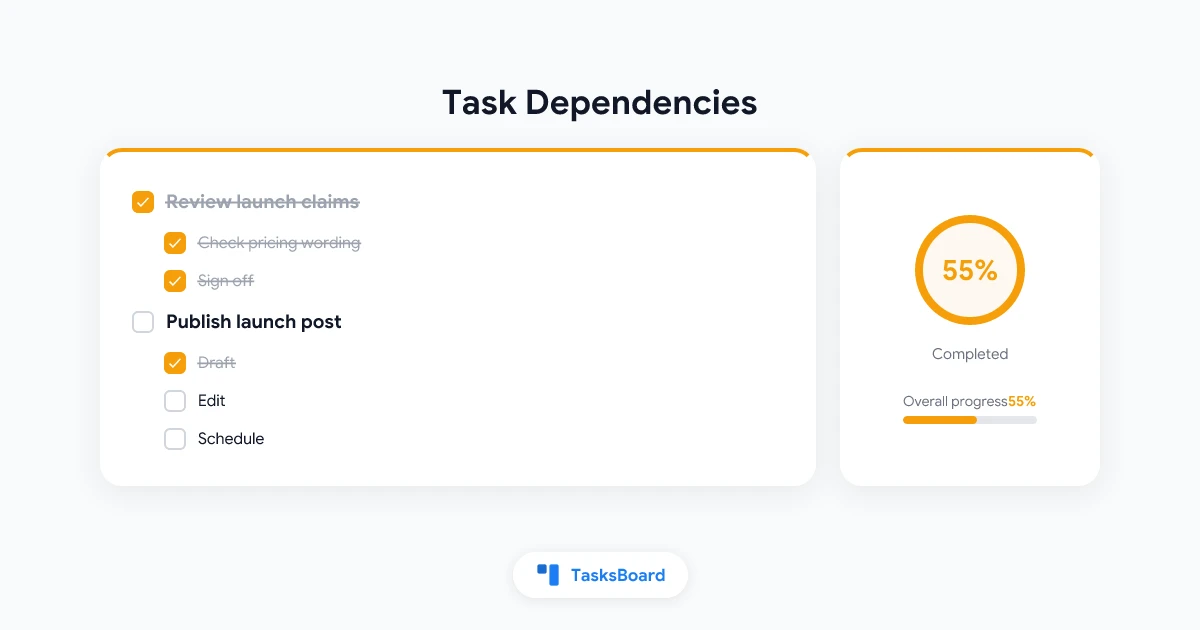
- In Legal: “Review launch claims”.
- In Content: “Publish launch post”, blocked by “Review launch claims”. It has subtasks “Draft”, “Edit” and “Schedule”; “Edit” has nested subtasks “Fact check” and “Proofread”.
- In Design: “Export social images”, blocked by “Publish launch post” because the images use the final headline.
On the board, “Publish launch post” shows a lock until Legal checks off the review. The moment they do, you see the “is now unblocked” message. You work through the subtasks, complete the post, and “Export social images” becomes unblocked in turn. In the Google Tasks app the same three tasks appear in their lists with their subtasks flat, and the lock and nesting are recorded as lines in the details.
This gives you a light form of project sequencing without leaving Google Tasks. It is not a Gantt chart and there is no critical path calculation. For more than that, compare the options in Google Tasks for project management.
Frequently asked questions
Conclusion
Google Tasks will not tell you that one task waits on another, and it will not nest a subtask inside a subtask. TasksBoard adds both: “blocked by” links with a lock icon, a confirmation when you complete a blocked task, a notice when the last blocker is done, and three levels of subtasks.
Everything is stored as lines in the task’s details, so the Google Tasks app, the Gmail side panel and Calendar keep working, and nothing is locked away in a separate system. Start with one chain of two or three tasks on a real project and see whether the locks change how you plan the day. The help center has the reference pages for dependencies and subtasks.
Ready to share your Google Tasks?
Get started with TasksBoard for free, no credit card required.
Sign in