Google Tasks Subtasks: How to Break Down Tasks Step by Step

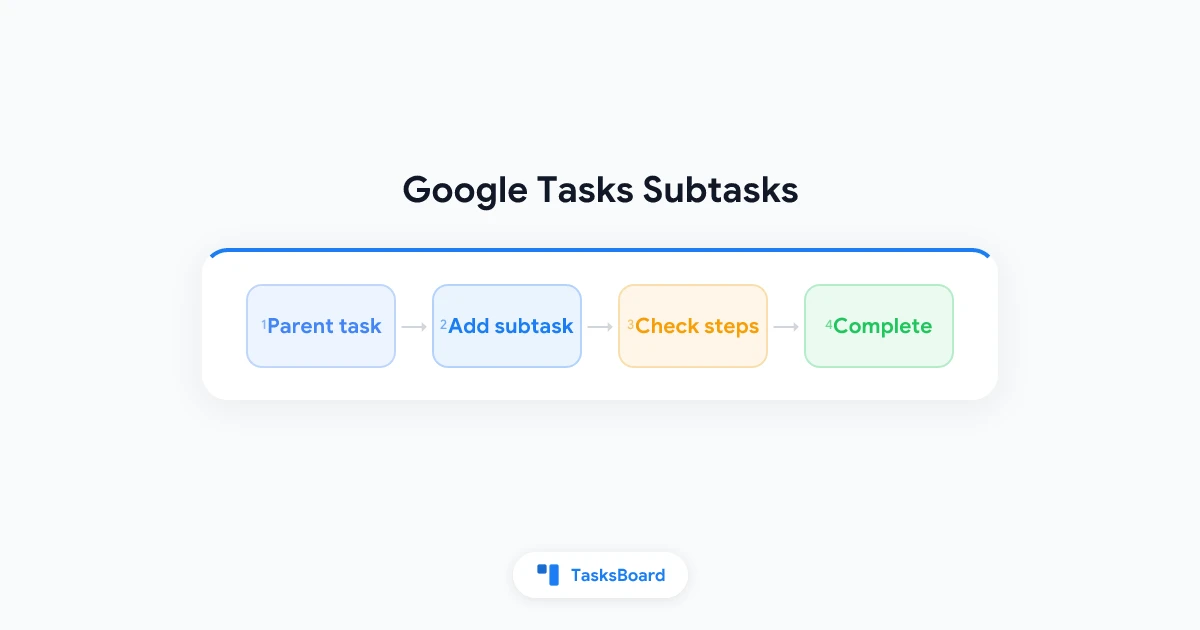
Google Tasks subtasks let you break one big task into smaller steps without leaving Gmail, Calendar, or the Tasks app. You add a parent task, nest checklist items underneath it, and check them off one at a time until the whole job is done.
The catch is that Google Tasks keeps subtasks simple. You get one level of nesting, no due dates on individual subtasks, and no repeating tasks once subtasks exist. This guide shows exactly how to create and manage subtasks, what the limits are, and how to stay organized when a project needs more structure.
Key takeaways:
- Add subtasks from the three-dot menu, with keyboard shortcuts, or by indenting an existing task
- One level only: you cannot nest a subtask inside another subtask (Google Workspace Blog)
- Parent tasks get due dates: subtasks inherit visibility when you open the parent, not on Calendar on their own
- No repeats with subtasks: if you need recurrence, use a flat task or a separate list (Google Tasks Help)
- Deeper projects: use multiple lists or a kanban view with TasksBoard on top of your existing Google Tasks data
What are Google Tasks subtasks?
A subtask in Google Tasks is a smaller action tied to a parent task. The parent might be “Prepare quarterly report.” Subtasks could be “Pull sales data,” “Draft executive summary,” and “Send to finance for review.”
Each subtask has its own checkbox. When you mark every subtask complete, you can finish the parent task. Subtasks appear indented under the parent in the task list. They stay hidden in the main list view until you expand or open the parent task.
This is different from a separate task list. Subtasks belong to one parent. They move with that parent if you reorder tasks manually. They do not show up as independent rows on your Google Calendar unless the parent has a due date.
For a broader look at why subtasks matter across different tools, see the subtasks app guide.
Parent task: One title, optional notes, due date, and star. Shows on Calendar when dated.
Subtasks: Indented checklist items with their own completion state. No separate due dates or assignees.
Depth: One level only. Google enforces this in the Tasks API, not just in the user interface.
How to add subtasks in Google Tasks
You can create subtasks in Gmail, Google Calendar, Drive side panels, or the standalone Tasks app. The steps are nearly identical everywhere.
On the web (Gmail, Calendar, or tasks.google.com)
- Open Google Tasks in the side panel or at tasks.google.com.
- Click an existing task to open it, or create a new parent task first.
- Click the three-dot menu next to the task and choose Add a subtask.
- Type the subtask name and press Enter to save.
- Repeat for each step you need under that parent.
Alternative: indent an existing task
If you already wrote a task that should be a subtask, drag it directly below the parent task. Open the three-dot menu and choose Indent. The task moves one level to the right under the item above it.
To turn a subtask back into a normal task, choose Unindent from the same menu.
On Android and iOS
- Open the Google Tasks app and tap a task to open its detail view.
- Tap Add subtasks or the plus icon under the parent title.
- Enter each step and tap Done or Return.
- Swipe or tap to mark subtasks complete as you finish them.
On mobile, subtasks appear when you open the parent. They do not clutter your main list, which keeps daily views clean but hides progress until you tap in.
 Try TasksBoard
TasksBoard shows your Google Tasks on a kanban board. Parent tasks and their subtasks stay synced, so your team can see multi-step work without opening every task one by one.
Get Started →Keyboard shortcuts for Google Tasks subtasks
If you work from a laptop, shortcuts save time. Google documents these in its keyboard shortcuts help page.
| Action | Windows / Chrome OS | Mac |
|---|---|---|
| Indent task (make subtask) | Ctrl + ] | Command + ] |
| Remove indent | Ctrl + [ | Command + [ |
| Add sub-item below | Ctrl + Alt + Return | Command + Option + Return |
| Mark complete | Space | Space |
| Move task up or down | Ctrl + Up / Down | Command + Up / Down |
The Google Workspace Learning Center also notes that you can add a new task under a parent and press Ctrl + ] (or Command + ] on Mac) to indent it immediately (organize tasks guide).
Tip: Switch the list to My order before you drag or indent tasks. If the list is sorted by date or title, manual reordering and indenting may not work until you change sort mode back.
What Google Tasks subtasks can and cannot do
Google Tasks subtasks are checklist items, not mini-projects. Knowing the limits upfront saves frustration.
What works well
- Breaking vague tasks into steps: “Plan team offsite” becomes venue, agenda, and travel subtasks
- Progress tracking: each subtask checkbox shows partial completion before you finish the parent
- Sync everywhere: subtasks follow the parent across Gmail, Calendar, mobile, and third-party clients that use the Google Tasks API
- Stars and notes on the parent: flag the whole project important while subtasks stay focused on actions
Hard limits to remember
- One nesting level: you cannot create subtasks of subtasks. Google limited nesting in the Tasks API in 2019, and the rule still applies today
- No due dates on subtasks: only the parent task accepts a date. Calendar shows the parent, not each subtask deadline
- No assignees on subtasks: Google Tasks does not assign individual subtasks to different people
- No repeating parent with subtasks: once you add subtasks, the repeat option disappears for that parent. Plan recurring work as flat tasks or use a recurring tasks workflow without nested steps
- Hidden in list view: you must open the parent to see subtasks, which makes large projects harder to scan
Workarounds when one level is not enough
Many projects need phases, owners, or dates on each step. Google Tasks subtasks alone will feel tight. These patterns work without leaving Google Workspace.
Use multiple lists as a second level
Create lists that represent phases instead of nesting deeper. Example: a list called “Website launch” holds parent tasks, and each parent uses subtasks for same-day steps. For phase-level grouping, add lists like “Launch: Content” and “Launch: Engineering.” The multiple lists guide walks through naming and ordering lists so they stay easy to scan.
Promote important subtasks to full tasks
When one step needs its own due date or Calendar block, unindent it or create a new top-level task. Link back in the parent notes (“See task: Send legal review”). You lose automatic grouping but gain scheduling.
Keep subtasks short
Aim for three to seven subtasks per parent. If you need fifteen steps, split into two parent tasks (“Report: research” and “Report: writing”). Shorter lists are easier to finish and match how Google Tasks works best for daily planning.
Add a visual layer with TasksBoard
TasksBoard reads your Google Tasks lists and displays them on a shared kanban board. Parent tasks appear as cards. Subtasks stay attached to those cards in sync with Google Tasks. Teams see column-based progress instead of opening each task in a sidebar.
This does not add a second nesting level in Google Tasks itself. It makes the one level you have easier to review during standups or weekly planning.
Troubleshooting common subtask problems
Subtasks will not indent
Check your sort order first. Open list options and select My order. Sorting by date or title locks row order and blocks drag-and-drop indenting until you switch back (organize tasks help).
Subtasks disappeared after sync
Confirm you are viewing the correct list. Subtasks live under the parent task, not as standalone rows. Search the parent title in the list or reopen the task from Google Calendar if the parent had a due date.
Cannot set repeat on a task with subtasks
This is expected behavior. Remove subtasks temporarily if you need a repeating flat task, or duplicate the parent as a template without subtasks and copy steps manually each cycle.
Need deeper nesting like Todoist
Google Tasks stops at one level by design. If your workflow depends on multi-level hierarchies, compare options in the Google Tasks vs Todoist guide before rebuilding your system.
Try TasksBoard
Connect TasksBoard to Google Tasks in one click. Map lists to kanban columns, track multi-step work with your team, and keep every subtask synced with Google.
Get Started →Frequently asked questions
Conclusion
Google Tasks subtasks are the fastest way to turn one overwhelming item into a short checklist inside Gmail or Calendar. Add them from the menu, indent with keyboard shortcuts, and check steps off until the parent is done.
Remember the tradeoffs: one nesting level, no subtask due dates, and no repeats once subtasks exist. When projects grow beyond that, combine multiple lists, promote key steps to full tasks, or open your lists on a kanban board with TasksBoard.
Pick one parent task you have been avoiding, break it into three subtasks today, and finish the first step before you close the tab. Small structure beats a perfect system you never start.
Ready to share your Google Tasks?
Get started with TasksBoard for free, no credit card required.
Sign in