Google Tasks vs Apple Reminders: Which Task App Wins in 2026?

Apple Reminders and Google Tasks are two of the most widely used task managers in the world. Both are free. Both come preinstalled with their respective platforms. Both handle the basics of creating and checking off tasks.
The differences emerge when you look at where these apps were designed to live. Apple Reminders is built for the Apple ecosystem: iPhone, iPad, Mac, and Apple Watch. Google Tasks is built for the Google ecosystem: Gmail, Google Calendar, and Google Workspace.
This guide compares Google Tasks vs Apple Reminders across every dimension that matters, so you can choose the right tool for your workflow in 2026.
Google Tasks vs Apple Reminders at a Glance
| Feature | Google Tasks | Apple Reminders |
|---|---|---|
| Price | Free | Free (built into Apple devices) |
| Platforms | Web, iOS, Android | iOS, macOS, iPadOS, watchOS |
| Google Calendar sync | Automatic (live) | No |
| Gmail integration | Native sidebar | No |
| Location reminders | No | Yes |
| Time-based reminders | Via Google Calendar | Yes (direct) |
| Subtasks | One level | Nested subtasks |
| Priority flags | No | Yes (4 flags) |
| Collaboration | No native sharing | Shared lists (Apple ID required) |
| Natural language input | No | Yes |
| Smart lists | No | Yes (Today, Scheduled, Flagged, All) |
| iCloud sync | No | Yes |
| Android support | Yes | No |
| Siri integration | Limited | Yes (native) |
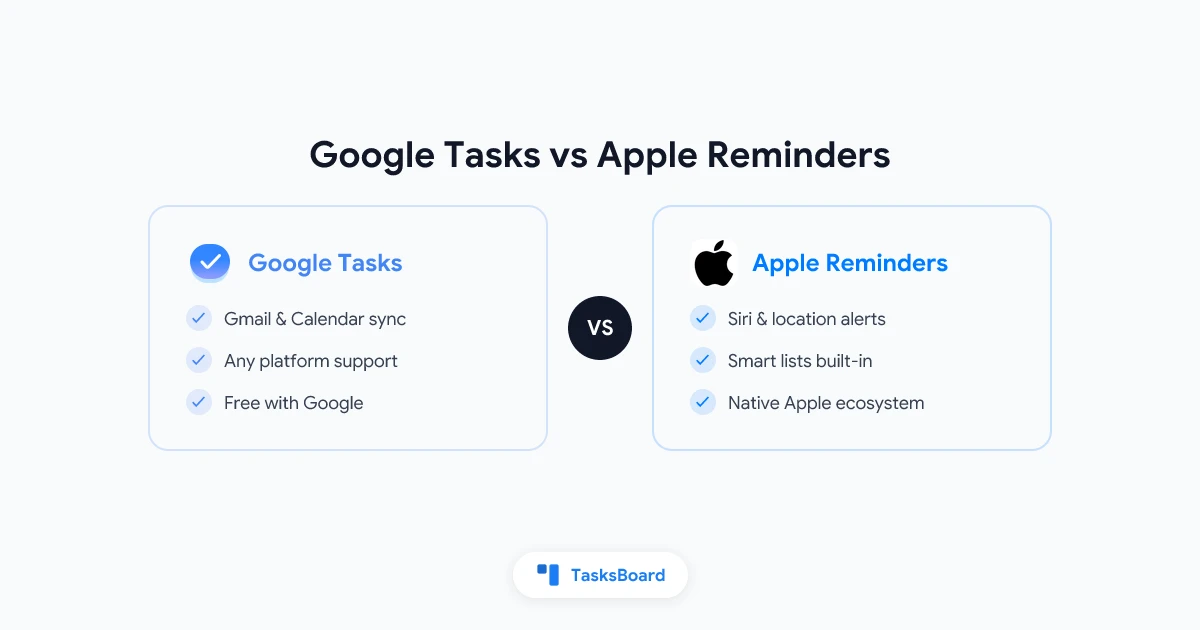
The clearest takeaway from this table: Google Tasks wins if you live in Gmail and Google Workspace. Apple Reminders wins if you rely on Apple devices and want native reminders with Siri support.
Google Tasks: Built for Gmail and Workspace Users
Google Tasks shows up as a sidebar panel inside Gmail, Google Calendar, Google Docs, and Google Chat. No separate account, no new app to install, no configuration. If you have a Google account, you already have access.
The feature set is intentionally lean. You get task lists, tasks with due dates, one level of subtasks, and notes. That is the full set.
Tasks with due dates appear on your Google Calendar automatically. You can create a task directly from a Gmail email in two clicks. The same task then syncs across every Google surface you open.
The trade-offs are real. Google Tasks has no priority flags. No filters. No smart lists to surface what is due today. There is no native way to share a list with a teammate. Direct push notifications require an extra step through Google Calendar.
For teams that need more, TasksBoard builds on top of Google Tasks to add kanban boards, shared lists, and real-time collaboration. Your tasks stay in Google Tasks and keep syncing with Gmail and Calendar. TasksBoard provides the visual workflow layer that Google Tasks does not.
Apple Reminders: Built Deep into the Apple Ecosystem
Apple Reminders is not just a standalone app. It is connected at the operating system level. Siri can create a reminder from a voice command. You can set a reminder that fires when you arrive at or leave a specific location. Widgets appear on your iPhone Home Screen and Mac menu bar without any extra setup.
The app has grown significantly in recent years. Smart lists sort your reminders automatically into Today, Scheduled, All, Flagged, and Assigned to Me views. Subtasks can be nested multiple levels deep. You can flag reminders with priority levels. Lists can be shared with other Apple users, and assigned reminders show each person’s name.
Natural language works well. Typing “dentist appointment tomorrow at 3pm” creates the reminder with the date and time already filled in.
The core limitation is platform lock-in. Apple Reminders does not exist on Android or Windows. If you switch to an Android phone or work on a Windows PC, your Reminders data stays on your Apple devices. There is no web version to fall back on.
Feature-by-Feature: Where Each App Wins
Platform Support
Google Tasks runs on any device with a browser. The mobile app is available for both iOS and Android. The web app works on Windows, Mac, Linux, and Chromebooks.
Apple Reminders runs on iPhone, iPad, Mac, and Apple Watch. There is no Android app and no web interface. If any device in your workflow runs outside Apple’s ecosystem, Reminders is not accessible there.
Winner: Google Tasks. It works everywhere.
Notifications and Reminders
Apple Reminders sends push notifications directly. You tap a task, set a time, and your iPhone or Mac notifies you at that moment. Location-based reminders fire when you arrive at or leave a place. This works without any extra setup.
Google Tasks does not send push notifications directly for due dates. To receive an alert, you set a due date on a task, and then add a reminder in Google Calendar for the same time. The Calendar notification then fires on your device. It works, but it requires an extra step every time.
Winner: Apple Reminders. Notifications are native and effortless.
Google Workspace Integration
Google Tasks integrates natively with Gmail, Google Calendar, Google Docs, and Google Chat. A task created anywhere in Google Workspace appears everywhere. Due dates sync to Calendar automatically without any export or subscription link.
Apple Reminders has no connection to Google apps. Reminders due dates do not appear on Google Calendar. You cannot create a reminder from a Gmail email.
Winner: Google Tasks. For anyone whose workday runs through Google, this difference is significant.
Smart Lists and Filtering
Apple Reminders shows smart lists in its sidebar by default: Today, Scheduled, Flagged, All, and Assigned to Me. These automatically surface the most relevant tasks without any manual configuration.
Google Tasks shows your lists in a flat view. There is no built-in “tasks due today” filter. If you want to see all tasks due this week across multiple lists, you need to check Google Calendar or scroll through each list manually.
Winner: Apple Reminders. Smart lists make it much easier to stay on top of work across multiple lists.
Collaboration
Apple Reminders lets you share lists with other iCloud users. You can assign reminders to specific people in a shared list. Assignments and completions sync in real time across all participants.
The catch: every participant must have an Apple ID and an Apple device.
Google Tasks has no native sharing features at all. There is no way to share a list or assign a task to another person through the built-in app.
If you need shared task lists for your team, neither app handles this cleanly at scale. For Google Workspace teams, TasksBoard solves this by adding full kanban boards and shared boards on top of Google Tasks. Every team member keeps using Google Tasks with Gmail sync, and TasksBoard adds the collaboration layer on top.
 Try TasksBoard
Add kanban boards and real-time team sharing to Google Tasks. Your tasks stay in Google's ecosystem, with shared boards and visual workflow on top.
Get Started →Subtasks
Apple Reminders supports nested subtasks with multiple levels of depth. You can build a full task hierarchy within a single project.
Google Tasks supports one level of subtasks only. You can create a parent task with child tasks, but you cannot nest subtasks further.
Winner: Apple Reminders. More complex task structures are possible.
Siri and Voice Input
Apple Reminders works seamlessly with Siri. You can say “Remind me to call the vet tomorrow at 10am” and Apple creates the reminder with the time already set. This works on iPhone, iPad, Mac, and Apple Watch.
Google Tasks does not have a dedicated voice interface. You can ask Google Assistant to create a reminder, but these go into Google Assistant reminders or Google Calendar events rather than Google Tasks directly.
Winner: Apple Reminders.
Quick Verdict
- Gmail and Calendar sync (automatic)
- Cross-platform support (web, Android, iOS)
- Google Workspace integration
- Native push notifications and location alerts
- Siri integration and voice entry
- Smart lists and automatic filtering
Who Should Use Google Tasks?
Google Tasks is the right fit if you work in a Google Workspace environment.
If your day involves Gmail, Google Calendar, and Google Docs, Google Tasks is already built into every app you open. Creating a task from an email takes two clicks. Due dates appear on Calendar automatically. There is no migration, no new subscription, and no extra app to manage.
Google Tasks is also the practical choice for any mixed-device environment. If your team uses a combination of Android phones, Windows laptops, and Mac computers, Google Tasks runs on all of them through a browser or mobile app. Apple Reminders simply does not exist on Windows or Android.
The main gap for teams: Google Tasks has no built-in sharing. If you need to assign tasks or share lists, you will need an additional tool. Our guide to assigning tasks in Google Tasks covers the options available. For teams wanting kanban boards and shared workflows, TasksBoard is the most direct solution.
Who Should Use Apple Reminders?
Apple Reminders is the right fit if you are fully within the Apple ecosystem and want reminders that feel native to your devices.
If your iPhone, MacBook, iPad, and Apple Watch are your primary devices, Reminders works exactly how you would expect. Siri creates reminders from voice. Location alerts fire when you arrive home or at the office. Smart lists surface what is due today without any manual effort.
Apple Reminders has also become a capable tool for shared household or personal project lists. If you want to share a grocery list with a family member who uses an iPhone, Reminders handles this natively and cleanly.
The limitation is the same as the advantage: it only works if everyone you are sharing with uses Apple devices. For professional teams that include Windows or Android users, Reminders is not a practical collaboration tool.
Can You Use Both?
There is no official sync between Google Tasks and Apple Reminders. Apple’s iCloud Reminders use their own format, and Google Tasks uses a different API.
Some third-party automation tools like Zapier or Make can bridge the two apps, but these require a paid subscription and manual setup. For most users, the effort is not worth it.
The simpler approach: pick one app based on your primary device and workflow, and stick with it. If you use Google Workspace at work and an iPhone personally, Google Tasks is the clearer choice for work tasks because of Gmail sync. For personal reminders on your phone, Apple Reminders is equally good.
If you are comparing Google Tasks to Apple Reminders because you want better notifications, visual boards, or team sharing, consider extending Google Tasks instead of switching apps.
TasksBoard adds a kanban view, shared boards, and team collaboration on top of Google Tasks. You keep Gmail sync and Calendar integration while gaining the visual features that make Apple Reminders appealing for shared projects. Read our guide to using Google Tasks effectively to see how to get the most out of both approaches.
Frequently Asked Questions
Conclusion
Google Tasks and Apple Reminders are both free, both clean, and both effective for personal task management. The right choice comes down to one question: which ecosystem do you live in?
Choose Google Tasks if you use Gmail, Google Calendar, or Google Workspace. Your tasks will sync with Calendar automatically, you can create tasks from emails in seconds, and the app works on every platform including Android and Windows.
Choose Apple Reminders if you work entirely on iPhone, iPad, or Mac and want native push notifications, Siri integration, and location-based reminders without any extra setup.
Consider TasksBoard if you want Google Tasks but with kanban boards, shared lists, and team collaboration. TasksBoard extends Google Tasks with the features that make Apple Reminders appealing for shared projects, while keeping everything inside the Google ecosystem. Explore more in our Google Tasks alternatives guide to see how the options compare.
TasksBoard is free to start, and you will not need to move a single task out of Google.
Ready to share your Google Tasks?
Get started with TasksBoard for free, no credit card required.
Sign in