Google Tasks vs Trello: Which Tool Fits Your Team in 2026?

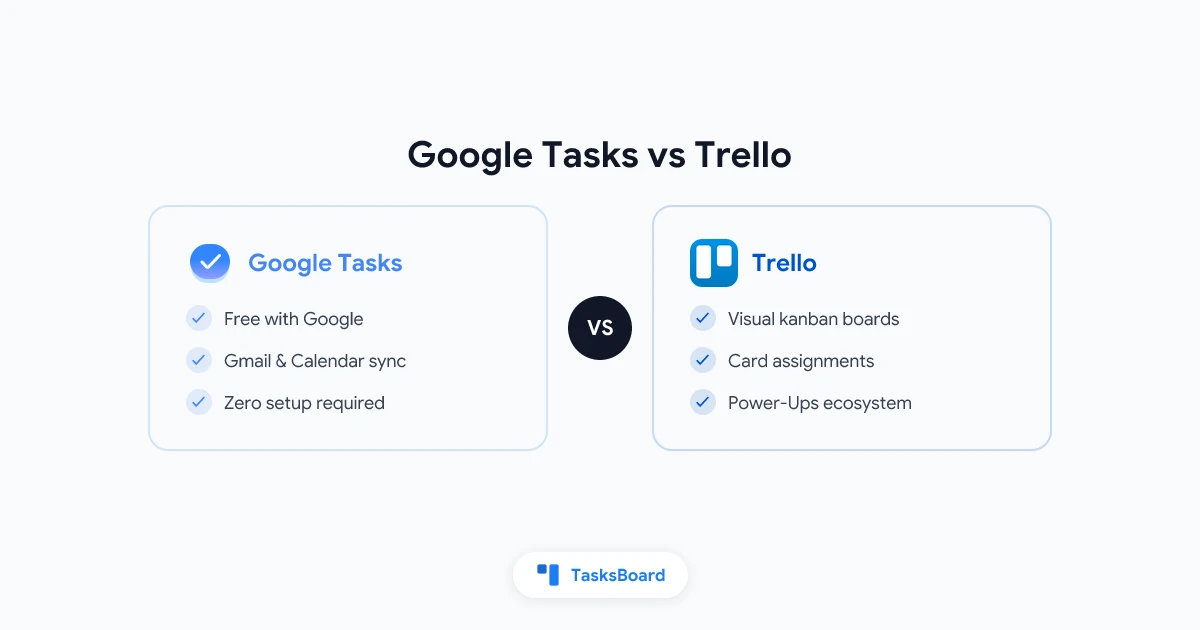
Google Tasks and Trello both help you track work. But they approach task management from opposite directions. Google Tasks is a lightweight list tool built into Gmail and Google Calendar. Trello is a visual kanban board built for teams that want to move cards through stages.
Choosing between them depends on how you work, who you work with, and whether you live in the Google ecosystem. This guide compares Google Tasks vs Trello across features, pricing, team fit, and real-world use so you can pick the right tool in 2026.
Google Tasks vs Trello at a Glance
| Feature | Google Tasks | Trello |
|---|---|---|
| Price | Free | Free (limited) / Standard $5/user/mo |
| Platform | Web, iOS, Android | Web, iOS, Android, Windows, Mac |
| Kanban board | No | Yes |
| Gmail integration | Native sidebar | Via Power-Up only |
| Google Calendar sync | Automatic | Manual or third-party |
| Subtasks | Yes (one level) | Yes (checklists on cards) |
| Due dates | Yes | Yes |
| Task assignments | No | Yes (card members) |
| Priority labels | No | Via labels/colors |
| File attachments | No | Yes |
| Team sharing | No native sharing | Yes |
| Automation | No | Yes (Butler, limited on free) |
| Learning curve | None | Low |
What Google Tasks Does Well
Google Tasks is built for speed and simplicity. It lives inside Gmail, Google Calendar, Google Drive, and other Google apps as a sidebar panel. Every Google account includes it for free with no limits.
Zero friction. There is nothing to install or configure. Open Gmail and Google Tasks is already in the right panel. Creating a task takes two seconds.
Calendar sync. Any task with a due date appears on your Google Calendar automatically. You see your meetings and tasks in one place without any setup. This makes Google Tasks feel like a natural extension of your existing workflow.
Speed. You can turn an email into a task in one click from the Gmail sidebar. This is one of the most underrated features for people who manage their work through their inbox.
Cost. Google Tasks is completely free. There are no tiers, no seat limits, and no trial periods. It is part of your Google account.
For solo users who want to capture action items alongside their email and calendar, Google Tasks is hard to beat.
What Trello Does Well
Trello takes a different approach. It is a visual kanban board where you move cards (tasks) across columns (stages). The model is simple: cards represent work items, columns represent workflow states like To Do, In Progress, and Done.
Visual clarity. Trello gives you an immediate overview of everything in progress. At a glance, you can see what is waiting, what is being worked on, and what is finished. This is very useful for teams coordinating multiple ongoing pieces of work.
Team collaboration. Every Trello board can have multiple members. Cards can be assigned to people, given due dates, labeled by priority, and commented on. This makes Trello genuinely useful for small to mid-size teams.
Power-Ups. Trello has a large library of Power-Ups (integrations) that extend its functionality. You can connect Trello to Slack, Google Drive, GitHub, Jira, and many other tools. On the free plan you get one Power-Up per board. Paid plans remove that limit.
Free tier. Trello’s free plan is generous. You get unlimited cards, up to 10 boards per workspace, and basic automation through its built-in Butler feature. For small teams or individuals, the free plan covers most needs.
Strengths: free, zero setup, automatic Calendar sync
Limits: no kanban, no assignments, no team sharing
Strengths: visual clarity, card assignments, Power-Ups
Limits: not Google-native, paid for advanced features
Where Each Tool Falls Short
Neither tool is perfect. Understanding the gaps helps you make a better decision.
Google Tasks limitations:
- No kanban board. There is no visual board view. You see a flat list of tasks in each list.
- No team collaboration. You cannot share a task list with another person natively.
- No task assignments. You cannot assign a task to a colleague.
- No priority levels or labels. Everything in your list looks the same.
- No file attachments. You cannot attach documents or images to a task.
Trello limitations:
- Not native to Google Workspace. Trello is a separate product owned by Atlassian. It does not integrate with Gmail or Google Calendar the way Google Tasks does. Adding a Trello integration for Google services requires a Power-Up.
- Board limit on the free plan. The free tier caps you at 10 boards per workspace. This is enough for many small teams, but it can become a constraint as your team grows.
- Automation limits. Butler (Trello’s built-in automation) is available on the free plan, but you are limited to 250 command runs per month. Complex workflow automation requires a paid plan.
- Not built for document-heavy work. Trello cards can hold text, links, and attachments, but there is no rich document editing inside a card. Teams that need meeting notes or detailed specs alongside tasks often find Trello limiting.
The Trello Alternative Built for Google Workspace
If you use Google Tasks and want visual boards and team collaboration without leaving the Google ecosystem, TasksBoard is the natural next step.
TasksBoard adds a kanban board view, shared task lists, and real-time collaboration on top of Google Tasks. Your tasks stay in Google Tasks. Gmail and Google Calendar sync works exactly as before. But now you also have a board view where you can drag cards between columns, assign work to teammates, and track progress visually.
The key difference from Trello: TasksBoard does not create a separate database of tasks. It reads and writes your actual Google Tasks data. That means one source of truth for everything in your Google account.
With TasksBoard you get:
- Kanban board view for any Google Tasks list
- Shared boards your whole team can view and update in real time
- Subtasks with a clear hierarchy inside each task
- Multiple list views so you can see all lists at once
For a deeper look at how to set up a visual board with your existing Google Tasks, see the guide on Google Tasks kanban boards.
 Try TasksBoard
Get Trello-style kanban boards on top of your Google Tasks. Share boards with your team, drag cards across columns, and stay in sync with Gmail and Google Calendar.
Get Started →How to Choose Between Google Tasks and Trello
Here is a straightforward way to make the decision.
Choose Google Tasks if:
- You manage tasks mostly alone and do not need to share them
- You rely on Gmail and Google Calendar throughout your workday
- You want a zero-setup task list that is already in your Google account
- Simplicity matters more than visual workflow management
Choose Trello if:
- Your team needs a shared visual board to track work in progress
- You manage projects with clear stages that cards can move through
- You need to assign cards to specific team members and track who owns what
- Your team uses tools outside the Google ecosystem and needs broad integrations
Choose TasksBoard if:
- Your team lives in Google Workspace and you want Trello-like features
- You want kanban boards that stay in sync with Gmail and Google Calendar
- You need shared task lists without paying for a separate tool
- You already use Google Tasks and want to add collaboration on top
For teams already using Google Workspace, moving to Trello means introducing a completely separate tool with its own login, data silo, and pricing. TasksBoard extends what you already have without that friction. See how sharing Google Tasks with a team works in practice.
If you are coming from Trello and looking for what else is available, the best Trello alternatives guide covers the full landscape.
Frequently Asked Questions
Conclusion
Google Tasks and Trello are both solid tools, but they serve different users. Google Tasks is the right choice for individuals who want a fast, free task list inside Gmail and Google Calendar. Trello works better for teams that need a visual kanban board with card assignments and Power-Up integrations.
If you use Google Workspace and want the visual, collaborative features of Trello without leaving the Google ecosystem, TasksBoard is the practical answer. It adds kanban boards and team sharing directly on top of Google Tasks, so you get the best of both tools without the overhead of managing two separate systems.
Start with what fits your current workflow. You can always expand your toolset as your team grows.
Ready to share your Google Tasks?
Get started with TasksBoard for free, no credit card required.
Sign in