Google Tasks vs Microsoft To Do: Which Task App Wins in 2026?

Both Google Tasks and Microsoft To Do are free, clean, and built into ecosystems that billions of people use every day. If you live in Gmail and Google Calendar, Google Tasks is already sitting in your sidebar. If you work in Outlook and Teams, Microsoft To Do is tightly woven into Microsoft 365.
Choosing between them is mostly an ecosystem question. But the details matter once you start collaborating, adding structure to your work, or running into the limits of a basic task list.
This guide compares Google Tasks vs Microsoft To Do side by side so you can make the right call for your workflow in 2026.
Google Tasks vs Microsoft To Do at a Glance
| Feature | Google Tasks | Microsoft To Do |
|---|---|---|
| Price | Free | Free |
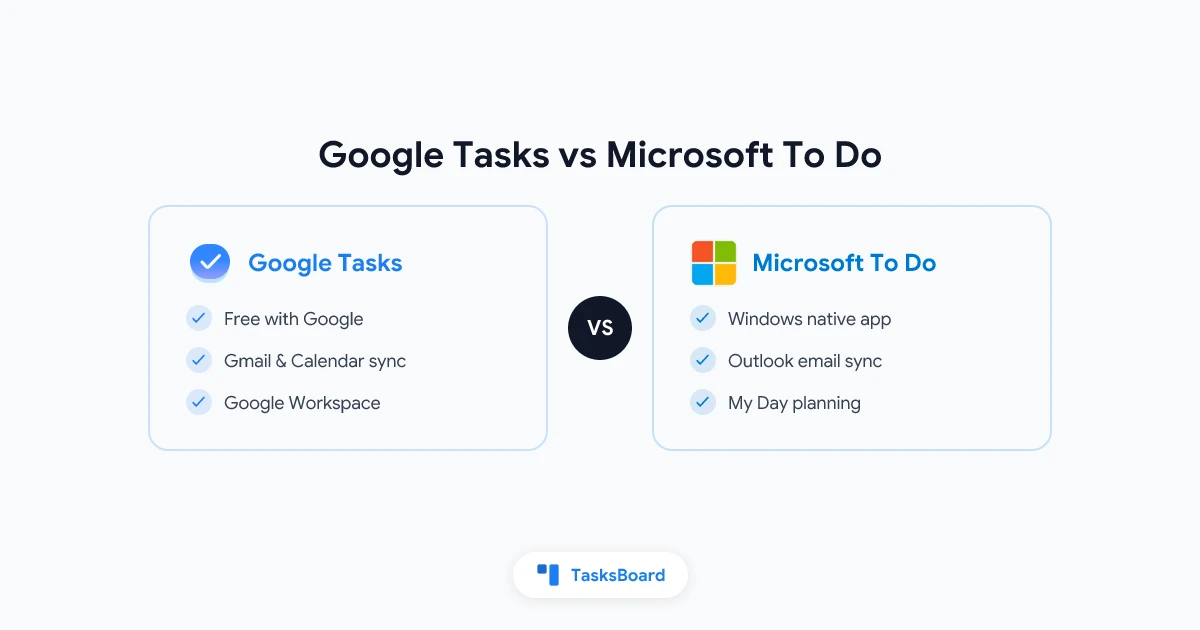
| Ecosystem | Google Workspace (Gmail, Calendar, Drive) | Microsoft 365 (Outlook, Teams, Planner) |
| Platform support | Web, iOS, Android, Gmail sidebar | Web, iOS, Android, Windows, Mac |
| Recurring tasks | Yes | Yes |
| Subtasks | One level | One level |
| Due dates | Yes | Yes |
| Reminders | Via Calendar sync | Built-in time-based alerts |
| List sharing | No native sharing | Basic shared lists |
| Attachments | No | File attachments (via Microsoft cloud) |
| My Day planning view | No | Yes |
| Tags or labels | No | No |
| Kanban view | No | No |
| Offline support | Limited | Yes (native desktop app) |
Both apps are intentionally minimal. You get tasks, lists, subtasks, and due dates. Neither offers advanced project management features by default. The biggest split is the ecosystem each one lives inside.
How Each App Fits Its Ecosystem
Tasks with a due date appear automatically in Google Calendar. You can create a task from a Gmail email with one click, and the Google Tasks panel is accessible from Gmail, Google Calendar, and most Google Workspace apps. No extra app or account needed if you already have Google.
Google Tasks: Built into Google Workspace
Google Tasks works best when your life already runs on Google. Every task with a due date shows up on your Google Calendar, so your schedule and your to-do list stay aligned without any extra configuration. You can create a task from a Gmail email in one click, turning action items from your inbox into trackable to-dos.
The dedicated mobile app is available for iOS and Android. The sidebar is always accessible in Gmail, Google Calendar, and Google Docs. For anyone on Google Workspace, the biggest advantage is zero setup. Your tasks are already there, integrated with the apps you open every morning.
The downside is deliberate minimalism. Google Tasks has no time-based reminders of its own, no file attachments, no tags, and no way to share lists with another user. For personal to-do lists, this simplicity is often enough. For teams, it becomes a friction point.
Microsoft To Do: Built into Microsoft 365
Microsoft To Do replaced Wunderlist after Microsoft acquired it and rebuilt the product into the Microsoft 365 stack. Today it connects directly to Outlook tasks, Microsoft Teams, and Microsoft Planner, making it the task hub for anyone on a Windows or Microsoft-first workflow.
The standout feature is My Day: a daily focus view where you manually drag tasks you want to tackle today, keeping them separate from your full backlog. Microsoft To Do also supports file attachments (through Microsoft cloud storage), in-app reminder alerts at specific times, and an Outlook integration that turns flagged emails into tasks automatically.
On Windows, Microsoft To Do is a native desktop app with full offline support, which is useful if your internet connection is unreliable or you prefer a standalone app experience over a browser tab.
Feature-by-Feature Comparison
Reminders and alerts
Microsoft To Do wins this category. You can set a reminder for a specific time directly in the app, and it sends a push notification. Google Tasks relies on Google Calendar for reminder behavior. If you add a due date, the task appears on your calendar as an event, but you will not get a dedicated notification from Google Tasks itself.
For users who depend on timed alerts to stay on top of their work, Microsoft To Do is more reliable out of the box.
Sharing and collaboration
Neither app handles team collaboration well. This is the most frequently cited limitation for both products. Microsoft To Do offers basic shared lists between Microsoft accounts, but it does not support task assignment or a full multi-user collaborative view. Google Tasks has no native sharing at all.
If your team needs to work on shared task lists with visibility into who is responsible for what, you will need a third-party layer on top of whichever app you choose.
Integration depth
Google Tasks connects with Gmail and Google Calendar natively, and a public API lets third-party tools build on top of it. Tools like TasksBoard use this API to add kanban boards, sharing, and labels to your existing Google Tasks data without any migration.
Microsoft To Do integrates with Outlook (flagged emails become tasks), Microsoft Teams (via the built-in Tasks by Planner and To Do app), and Microsoft Planner for more structured project work. For Microsoft 365 organizations, this ecosystem integration is a real productivity advantage.
Platform availability
Both apps have iOS and Android apps. The gap shows up on desktop.
- Google Tasks is web-based. It lives in the Gmail and Google Calendar sidebars. There is no standalone Windows or macOS desktop app from Google.
- Microsoft To Do has native apps for Windows, macOS, iOS, and Android, plus full web access. All apps support offline use.
If you prefer a native desktop app with full offline support, Microsoft To Do has a clear edge.
Which App Is Right for You?
Choose Google Tasks if you…
- Use Google Workspace for email and calendar (Gmail, Google Calendar, Google Drive)
- Want tasks to appear in Google Calendar when you set a due date
- Like turning Gmail emails into tasks with a single click
- Prefer a minimal, distraction-free task list
- Plan to add a kanban layer or team sharing through a tool built on the Google Tasks API
Choose Microsoft To Do if you…
- Use Microsoft 365 (Outlook, Teams, OneDrive)
- Want a native desktop app with full offline access on Windows or Mac
- Use the My Day habit to plan your focus each morning
- Rely on Outlook email flags that automatically appear in your task list
- Need time-based push reminders from within the app
When neither is enough
Both apps share the same ceiling. There is no task assignment, no kanban board, no advanced filtering, and no collaborative view where a team can see who is working on what. If your team needs that coordination layer, you will have to build it on top of one of these apps or switch to a dedicated project management tool.
For Google Workspace teams, the fastest path is TasksBoard. It turns your existing Google Tasks lists into a full-screen kanban board with real-time sharing, drag-and-drop columns, and labels. Your tasks still live in Google Tasks (so they still show up in Gmail and Calendar), and TasksBoard adds the team planning surface on top.
Adding Team Collaboration to Google Tasks
Google Tasks becomes a solid team coordination tool when you pair it with TasksBoard. The workflow is straightforward.
- Create your task lists in Google Tasks as you normally would.
- Open them in TasksBoard to see a full kanban board with all your lists as columns.
- Share the board with teammates using a link. Collaborators sign in with their Google accounts.
- Organize tasks by owner using columns or labels, so everyone can see their responsibilities at a glance.
- Track progress in real time as team members update cards on their end.
The key advantage here is that all tasks remain in Google Tasks. Teammates can still check their work from Gmail, Google Calendar, or the Google Tasks mobile app. TasksBoard is the shared planning layer on top, not a replacement for the underlying data.
 Try TasksBoard
Get a full kanban board and team sharing on top of Google Tasks. Free to start, no migration required.
Get Started →Frequently Asked Questions
Conclusion
The comparison between Google Tasks vs Microsoft To Do is really a question of which ecosystem you are already in.
Google Tasks is the right choice for Google Workspace users who want tasks in the same place as their email and calendar. It is minimal by design and connects seamlessly with everything Google builds.
Microsoft To Do is the right choice for Microsoft 365 users who want a native Windows desktop app, Outlook email integration, and time-based push reminders built in from day one.
Both apps share one significant limitation: they are built for personal use. Neither offers real team collaboration out of the box. If you are on Google Workspace and need to add kanban boards, task sharing, or a real-time team view to your Google Tasks, TasksBoard is built specifically to fill that gap.
For a broader look at the task management landscape, see our guide on the best Google Tasks alternatives in 2026.
Ready to share your Google Tasks?
Get started with TasksBoard for free, no credit card required.
Sign in