Google Tasks vs Microsoft Planner: Which Team Task Manager Wins in 2026?

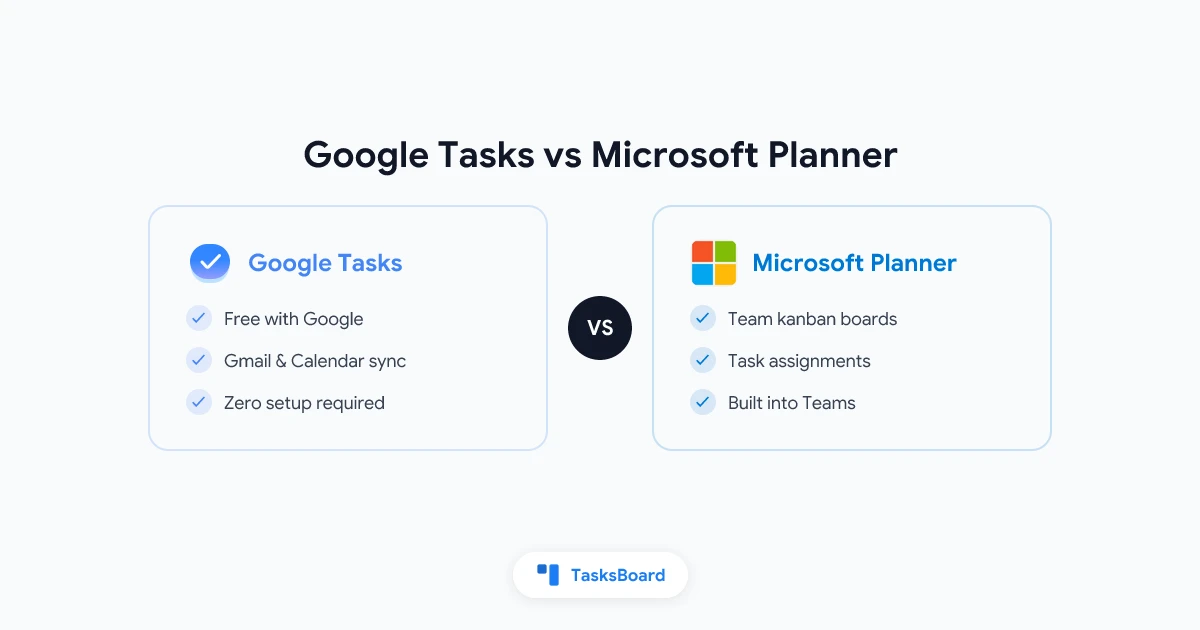
Google Tasks and Microsoft Planner are both free task management tools built into major productivity ecosystems. But they solve different problems. Google Tasks is a personal to-do list woven into Gmail and Google Calendar. Microsoft Planner is a team task board built into Microsoft Teams and Microsoft 365.
If your organization runs on Google Workspace, the choice feels obvious. If your team uses Microsoft 365, Planner is already waiting in Teams. But the real question is which tool actually gets the job done for your specific workflow in 2026.
This guide compares Google Tasks vs Microsoft Planner on features, team collaboration, integrations, and real-world fit so you can make the right call.
Google Tasks vs Microsoft Planner at a Glance
| Feature | Google Tasks | Microsoft Planner |
|---|---|---|
| Price | Free | Free with Microsoft 365 |
| Ecosystem | Google Workspace (Gmail, Calendar, Drive) | Microsoft 365 (Teams, Outlook, SharePoint) |
| Platform support | Web, iOS, Android | Web, iOS, Android, Windows |
| Task lists | Yes (multiple lists) | Yes (plans with buckets) |
| Kanban board | No | Yes (built-in) |
| Subtasks | One level | Checklists within tasks |
| Due dates | Yes | Yes |
| Reminders | Via Calendar sync | Via Outlook or Teams alerts |
| Shared tasks / team use | No native sharing | Yes (team plans) |
| File attachments | No | Yes |
| Priority labels | No | Yes (Urgent, Important, Medium, Low) |
| Task assignments | No | Yes (assign to team members) |
| Progress tracking | No | Yes (Not started, In progress, Completed, Late) |
| Calendar integration | Google Calendar (automatic) | Outlook Calendar |
| Mobile app | Google Tasks app | Microsoft Planner app |
The gap is significant when it comes to team features. Google Tasks is intentionally minimal. Microsoft Planner is designed for coordinating work across a group.
Google Tasks: Fast and Free for Google Workspace Users
Google Tasks is a focused, no-frills task manager. It lives inside Gmail, Google Calendar, Google Drive, and most Google Workspace apps as a sidebar panel. Any Google account includes it at zero cost.
The core feature set is simple: task lists, one level of subtasks, due dates, and short notes. Every task with a due date appears automatically on your Google Calendar, so your schedule and your to-do list stay in sync without any setup.
Where Google Tasks excels:
- Speed. Adding a task takes two seconds. You can create a task from a Gmail thread in one click using the “Add to Tasks” button.
- Zero setup. Open Gmail and Google Tasks is already there. Nothing to install, configure, or pay for.
- Calendar alignment. Tasks with due dates show up on your Google Calendar alongside meetings, making it easy to see what you need to do on any given day.
- Sync everywhere. Tasks sync across the Google Tasks mobile app, Gmail sidebar, Google Calendar, and any other Google Workspace app.
Where Google Tasks falls short:
Google Tasks has no shared lists, no task assignments, no priority labels, no file attachments, no kanban board, and no built-in reminders (notifications rely on Google Calendar). For personal productivity inside a Google-first workflow, it is excellent. For team coordination, it runs out of features quickly.
 Try TasksBoard
TasksBoard adds kanban boards, shared task lists, and real-time team collaboration to Google Tasks. Keep your Google Tasks data, get the team features you need.
Get Started →Microsoft Planner: Team Task Management Inside Microsoft 365
Microsoft Planner is a project management tool built into Microsoft 365. It gives teams a shared kanban board (called a “Plan”) where tasks live in columns (called “buckets”) and can be assigned to specific team members.
Planner is included at no extra cost with most Microsoft 365 subscriptions. If your organization pays for Microsoft 365 Business or Enterprise, Planner is already available through the Teams app or at planner.microsoft.com.
What Microsoft Planner includes:
- Kanban board view. Drag tasks between buckets like “To Do,” “In Progress,” and “Done.”
- Task assignments. Assign tasks to one or more team members and track who owns what.
- Priority labels. Mark tasks as Urgent, Important, Medium, or Low priority.
- Progress tracking. Tasks have a status field (Not started, In progress, Completed, Late).
- Checklists. Add step-by-step checklists within each task card.
- File attachments. Attach files from SharePoint, OneDrive, or your local machine.
- Due dates and alerts. Set due dates that show up in Outlook Calendar and trigger reminders via Teams or email.
- Charts and reporting. A built-in Charts view shows task status, priority breakdown, and bucket distribution for each plan.
- Teams integration. Add a Planner tab directly inside a Microsoft Teams channel so the whole team can see the board without leaving Teams.
No kanban board, no task assignments, no team sharing
Free with any Google account
Kanban boards, assignments, priority labels, file attachments
Free with Microsoft 365 subscription
Where Microsoft Planner falls short:
Planner is good for team-level task tracking but it is not a full project management tool. It lacks Gantt charts, time tracking, budget tracking, and advanced automation. For complex projects, teams often need to pair Planner with other Microsoft 365 tools like Project for the web or Azure DevOps.
Planner also has limited value if your organization does not use Microsoft 365. The tool requires a Microsoft account and works best when your team already lives in Teams and Outlook.
Feature-by-Feature Comparison
Kanban board
Microsoft Planner wins this comparison decisively. Every Plan in Planner is a kanban board. You can drag tasks between buckets, customize column names, and track progress visually.
Google Tasks has no kanban view. It is a list-only tool. If you want kanban on top of Google Tasks, you need TasksBoard, which adds a full board view to your existing Google Tasks data.
Task assignments
Microsoft Planner lets you assign any task to one or more team members. Assignments show up in that person’s “My Tasks” view inside Planner and in their Microsoft To Do app.
Google Tasks has no assignment feature. Tasks you create in Google Tasks are visible only to you. To assign work in a Google Workspace team, you either need to use a third-party tool or use TasksBoard to share boards and assign tasks to team members.
Integration depth
Google Tasks integrates natively with Gmail (create tasks from emails), Google Calendar (due dates sync automatically), and all Google Workspace apps via the sidebar panel.
Microsoft Planner integrates natively with Microsoft Teams (as a tab), Outlook Calendar (due dates sync), Microsoft To Do (tasks appear in My Tasks), and SharePoint (file attachments link to SharePoint documents).
Both tools are deeply integrated with their own ecosystems. The better choice depends entirely on which ecosystem your team uses day to day.
Pricing and availability
Google Tasks is free with any Google account. No subscription required.
Microsoft Planner is free with most Microsoft 365 plans (Business Basic, Business Standard, Business Premium, E3, E5). It is not available without a Microsoft 365 subscription, and it is not offered as a standalone free product.
If your organization is evaluating Google Workspace vs Microsoft 365 broadly, task management is just one factor. But if you already have either subscription, the corresponding task tool costs nothing extra.
Mobile apps
Both tools have mobile apps for iOS and Android. Google Tasks has a dedicated app that is clean and fast. Microsoft Planner has a mobile app that mirrors the web experience, including the kanban board view.
Quick Pick: Which Tool Fits Your Team?
Add TasksBoard for team kanban boards
No Microsoft account needed
Free with your M365 subscription
Integrated with Outlook and SharePoint
Who Should Use Google Tasks
Google Tasks is the right choice if:
- You use Gmail and Google Calendar every day
- You want a personal to-do list that requires zero setup
- You need tasks to appear on your Google Calendar automatically
- Your productivity workflow is individual, not team-based
If you hit the limits of Google Tasks (no kanban, no sharing, no assignments), TasksBoard adds those features without leaving Google. It turns your Google Tasks lists into a shared kanban board your whole team can see and update in real time.
For more on getting started with Google Tasks, see how to use Google Tasks effectively.
Who Should Use Microsoft Planner
Microsoft Planner is the right choice if:
- Your team is already on Microsoft 365
- You manage projects with multiple people and need task assignments
- You want a visual kanban board inside Microsoft Teams
- You need file attachments, priority labels, and progress tracking at no extra cost
Planner works best as a lightweight team board for teams that live in Teams and Outlook. It is not a replacement for Jira, Asana, or full project management software, but for everyday sprint-style work tracking inside a Microsoft 365 environment, it is a solid free option.
The Middle Ground: Google Tasks Teams
There is a third option worth mentioning. If your team prefers Google Workspace but wants the team features that Planner offers, TasksBoard bridges that gap. It wraps Google Tasks in a shared kanban board, adds real-time collaboration, and lets you manage tasks across your team without switching ecosystems.
For a deeper look at team task management with Google Tasks, read Google Tasks for teams.
TasksBoard: Team Features for Google Tasks
Add shared boards, kanban view, and team collaboration to Google Tasks. A free alternative to Microsoft Planner for Google Workspace teams.
Try TasksBoard Free →FAQ
Conclusion
Google Tasks and Microsoft Planner are not really competing for the same user. Google Tasks is a personal to-do list for individuals who live in Gmail and Google Calendar. Microsoft Planner is a team kanban board for groups that work inside Microsoft Teams and Microsoft 365.
The right tool is the one that fits your existing ecosystem:
- Google Workspace team? Start with Google Tasks. Add TasksBoard when you need kanban boards and sharing.
- Microsoft 365 team? Use Microsoft Planner inside Teams. It is already included in your subscription.
- Evaluating both ecosystems? Factor in the full suite of tools, not just the task manager.
If you want to go deeper on how Google Tasks compares to other popular tools, check out Google Tasks vs Microsoft To Do or Google Tasks vs Todoist.
Ready to share your Google Tasks?
Get started with TasksBoard for free, no credit card required.
Sign in