Google Tasks Widget: How to Add It on Android, iPhone, and Desktop (2026)

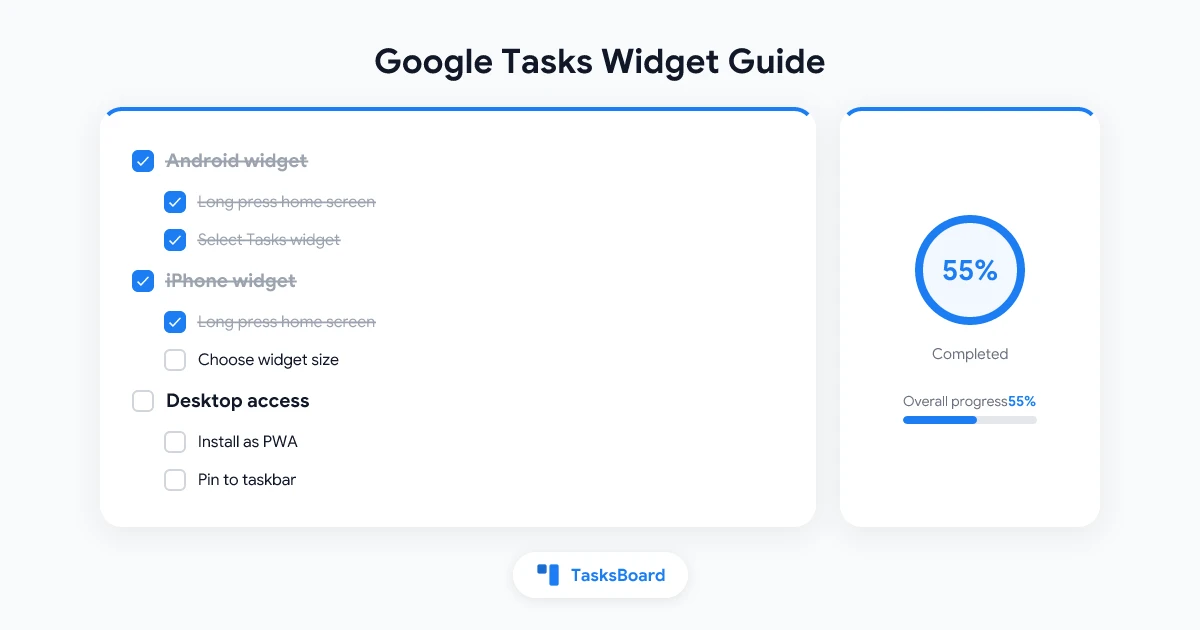
A Google Tasks widget puts your to-do list directly on your home screen, so your tasks are always one glance away. No app-opening, no tab-switching, no distraction.
The good news: Google Tasks has native widgets on both Android and iPhone. The not-so-great news is that the widgets vary between platforms, and desktop support is limited. This guide covers everything you need to set up a widget on every device you use.
What Is a Google Tasks Widget?
A widget is a persistent tile that sits on your home screen or lock screen, showing live data from an app without requiring you to open it. A Google Tasks widget displays your upcoming or overdue tasks at a glance.
Google Tasks offers official widgets on:
- Android (multiple size options, interactive task completion)
- iPhone and iPad (iOS 14 and later, view-only)
- iOS lock screen (iOS 16 and later, compact task count)
There is no native Google Tasks widget for macOS or Windows. For desktop users, the best alternatives are installing tasks.google.com as a Progressive Web App (PWA) or using TasksBoard, which keeps your task board visible in a persistent window on any screen.
Google Tasks Widget on Android
Adding a Google Tasks widget on Android takes about 60 seconds. Here is the full process:
Step 1: Install the Google Tasks app. Open the Play Store and search for “Google Tasks” if you do not already have it. The app is free.
Step 2: Long press an empty area on your home screen. This activates widget mode. Most Android launchers show a “Widgets” button at the bottom or in a context menu.
Step 3: Tap Widgets and search for “Tasks.” Google Tasks offers several widget sizes. The task list widget is the most popular because it shows multiple upcoming tasks in a scrollable view.
Step 4: Drag the widget to your preferred position. Release to place it. The widget will prompt you to choose which task list to display.
Step 5: Select your list and tap Save. Your widget is now active and updates automatically whenever you check off tasks or add new ones.
Widget sizes available on Android:
- Small (1x1): Tasks icon with a shortcut to create a new task quickly
- Medium (2x2): Shows a short list of your upcoming tasks
- Large (4x4): Extended task list with due dates and task names
Google Tasks Widget Not Updating on Android
If your widget stops refreshing, try these fixes in order:
- Disable battery optimization for Google Tasks. Go to Settings > Apps > Google Tasks > Battery, then set it to “Unrestricted.” Battery optimization is the most common reason widgets go stale.
- Open the Tasks app and let it sync. Then return to your home screen. The widget should refresh within a few seconds.
- Remove and re-add the widget. This resets the widget connection and usually resolves persistent refresh issues.
- Check account sync. Go to Settings > Accounts > Google and confirm that sync is turned on for your account.
Google Tasks Widget on iPhone and iPad (iOS)
Apple added third-party widget support in iOS 14. Google Tasks supports this, giving iPhone and iPad users a clean task view on the home screen.
Adding a Home Screen Widget on iPhone
- Long press an empty area on your home screen until the icons start jiggling.
- Tap the ”+” icon in the top left corner.
- Type “Google Tasks” in the widget search field.
- Pick a widget size: small (one task), medium (short list), or large (full list with due dates).
- Tap “Add Widget.”
- Drag it to your preferred spot and tap Done.
Adding a Lock Screen Widget (iOS 16 and Later)
On iOS 16 and later, you can add a compact Google Tasks widget to your lock screen:
- Long press your lock screen and tap “Customize.”
- Choose “Lock Screen” from the options.
- Tap the widget row below the clock.
- Search for “Tasks” and select the Google Tasks widget.
- Tap Done to save.
This lock screen widget shows your upcoming task count or your next due item. It is one of the fastest ways to stay aware of what needs attention without unlocking your phone.
iOS Widget Limitations
The Google Tasks widget on iPhone does not allow task completion directly from the widget. Tapping opens the full app. This is a platform-level restriction from Apple, not a Google Tasks limitation. For a more interactive experience on Apple hardware, the Google Tasks desktop app guide shows how to set up a persistent PWA on Mac that lets you work with tasks without switching apps.
Platform Comparison: Where the Widget Works
Google Tasks on Mac and Windows: Alternatives to a Widget
Google has not released a native tasks widget for macOS or Windows. That means no drag-and-drop from the widget gallery and no system tray integration. But there are practical workarounds that get you close to the same result.
Option 1: Install as a PWA
A Progressive Web App gives you a standalone window that behaves like a native desktop app.
On Chrome or Edge (Mac and Windows):
- Go to tasks.google.com.
- Click the install icon in the browser address bar (looks like a screen with a download arrow).
- Click Install in the prompt.
- Google Tasks launches in its own window and adds an icon to your taskbar or dock.
Once installed, you can launch it like any other app. It runs independently from your browser and stays open while you work.
Option 2: Keep a Tab Open
The simplest option: open tasks.google.com, pin the tab in Chrome, and leave it open throughout your workday. It is not a widget, but it achieves the same goal of keeping tasks visible with a single click.
Option 3: Use TasksBoard for a Persistent Kanban View
TasksBoard is a full-featured task board that works on top of your Google Tasks data. It runs in the browser, but many users install it as a PWA and keep it open in a separate desktop space or on a second monitor.
 Try TasksBoard
Get a persistent kanban board for your Google Tasks on any screen. Install as a PWA on Mac or Windows and keep it open alongside your other apps.
Get Started →Go Beyond Widgets with TasksBoard
Widgets are perfect for a quick glance. But if you want to actively manage your work, track progress, and collaborate with others, a widget alone is not enough.
TasksBoard adds a visual management layer on top of your Google Tasks without replacing them. Your tasks stay in Google’s infrastructure and sync across all your devices. TasksBoard adds the structure that the standard widget view cannot provide.
Key features that go beyond any widget:
- Kanban board view: drag tasks across columns (To Do, In Progress, Done)
- Shared task boards: invite teammates to view and edit the same lists
- Subtasks: break any task into smaller, trackable steps
- Real-time sync: all changes appear instantly across every device
If you work with a team inside Google Workspace, read the Google Tasks for teams guide for a deeper look at how shared boards work in practice.
Try TasksBoard
Kanban boards, shared lists, and subtasks built on top of Google Tasks. Free to start and no data migration needed.
Get Started →Frequently Asked Questions
Conclusion
A Google Tasks widget is one of the quickest ways to keep your task list front and center. On Android it is both visible and interactive. On iPhone it is clean and glanceable on the home screen and lock screen. On desktop there is no native widget, but a PWA install or TasksBoard gives you the same persistent access.
The widget works best for a quick daily glance. When you need to plan, reorganize, or collaborate, open the full app or switch to TasksBoard for a richer view that still syncs with your Google Tasks in real time.
For more ways to get the most from Google Tasks, read the complete guide to using Google Tasks effectively.
Ready to share your Google Tasks?
Get started with TasksBoard for free, no credit card required.
Sign in