











Google Tasks + Calendar
在日历中查看您的 Google Tasks - 无需切换应用即可规划您的一天
Google Tasks 直接存在于 Google Calendar 中。TasksBoard 让这种集成变得更好——全屏看板、实时同步,以及结合了会议和待办事项的“今日”视图。
超过 200 万人使用。免费开始。
为什么选择 TasksBoard 来处理 Google Tasks + Calendar
任务显示在日历侧边栏中
无需切换标签页。您的任务就在事件旁边,因此您可以在一个地方规划您的一天。
截止日期成为日历锚点
为任何任务设置截止日期,它就会自动出现在 Google Calendar 的正确日期上,无需手动输入。
直观地规划您的一周
TasksBoard 为您提供全屏看板,让您可以按列表查看所有任务、将它们拖动到新列,并立即发现逾期工作。
实时双向同步
您在 TasksBoard 中所做的一切都会立即同步回 Google Tasks 和 Calendar。无需导出,无需插件。
今日视图
您的任务与会议——并排显示
今日视图
您的任务与会议——并排显示
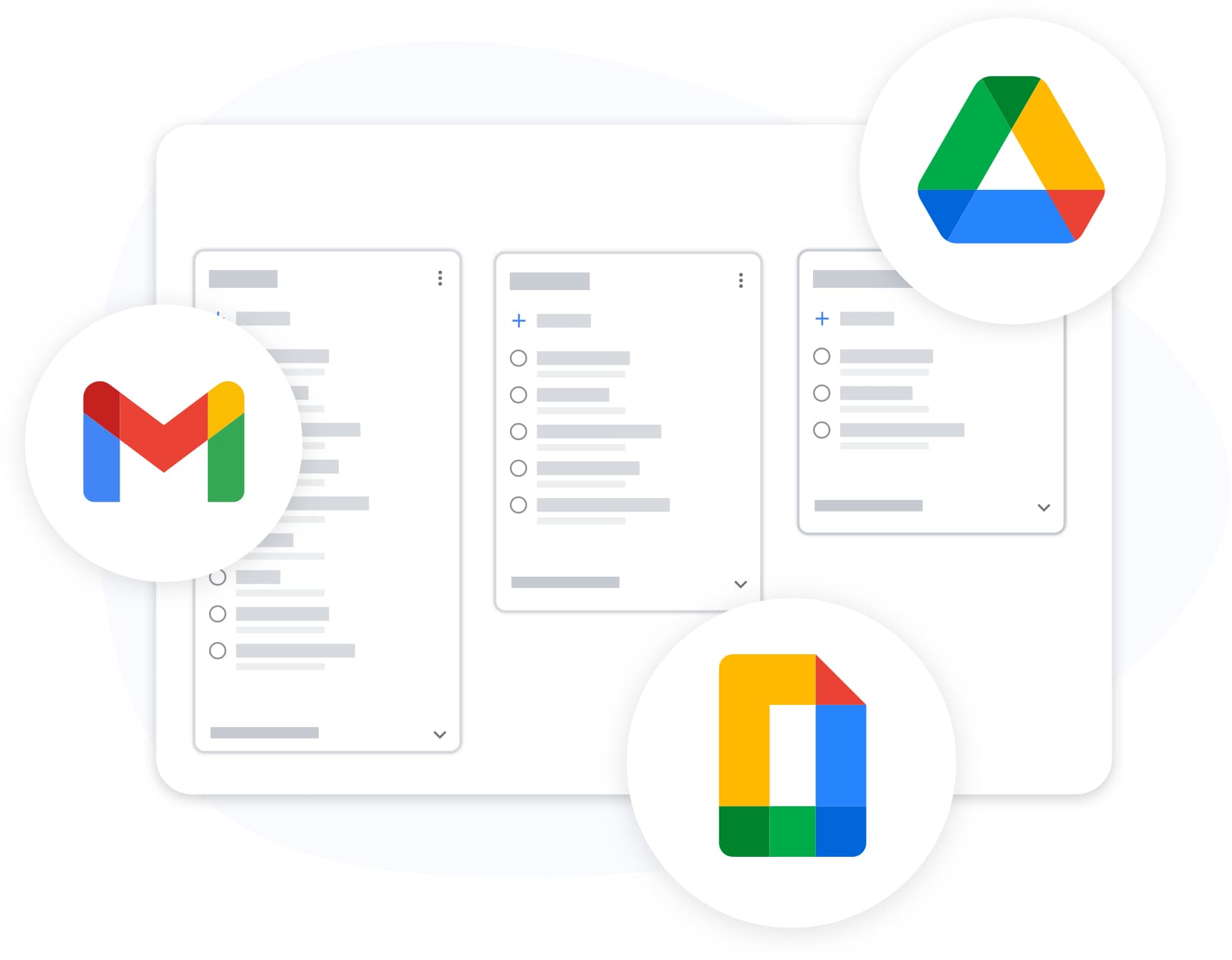
TasksBoard 将您的 Google Tasks 和 Google Calendar 事件整合到一个“今日”视图中。查看您上午 9 点的晨会以及您计划在午餐前完成的三项任务——无需离开当前屏幕。
- 截止日期为今天的任务显示在顶部
- 日历事件按时间顺序显示
- 逾期任务以红色标记——确保万无一失
全屏看板
停止在狭小的侧边栏中工作
全屏看板
停止在狭小的侧边栏中工作
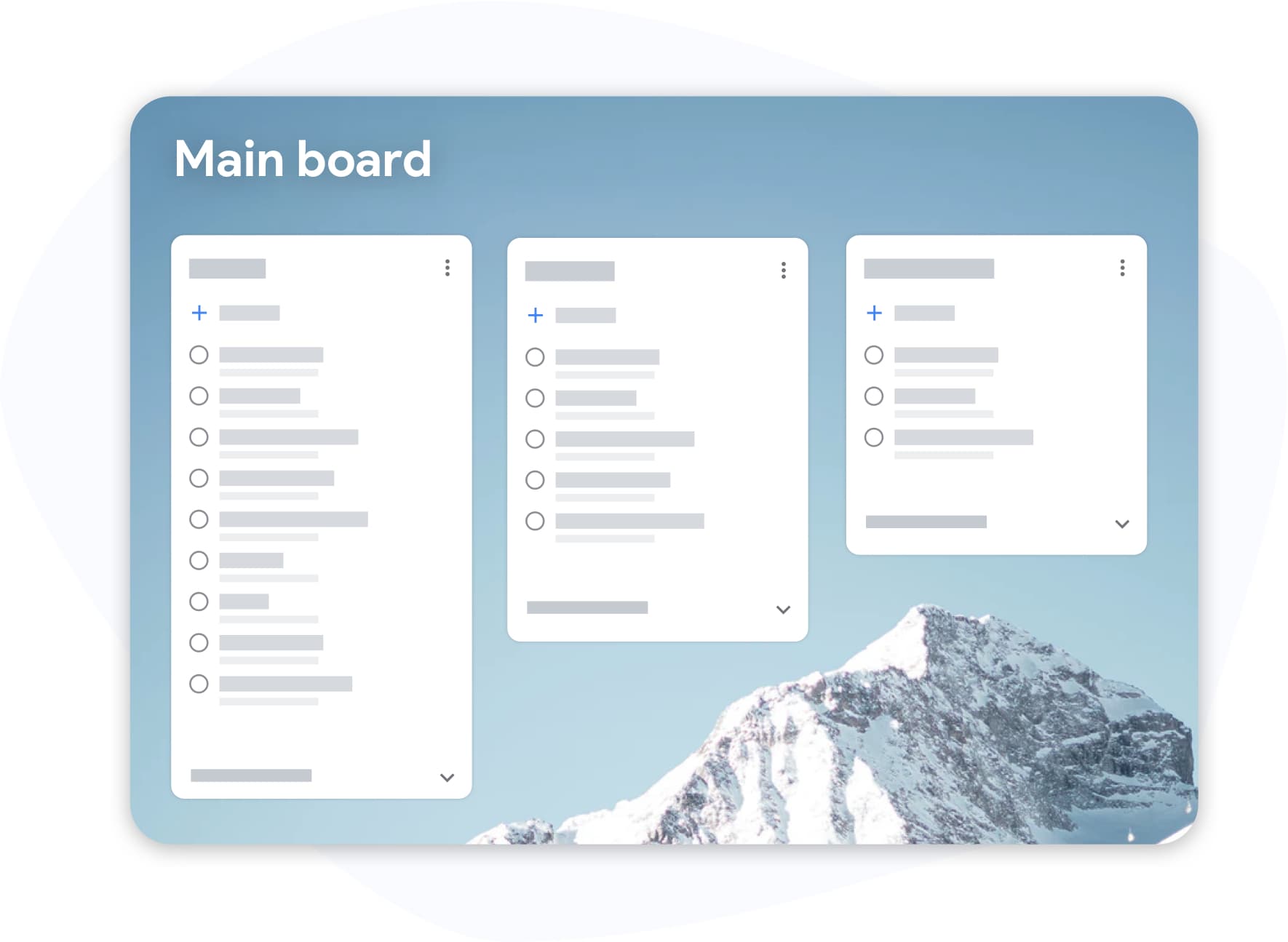
日历侧边栏中的 Google Tasks 虽然有用,但空间局促。TasksBoard 将您的任务打开为全屏——查看所有列表、在列之间拖动卡片,无需眯眼查看。
- 同时显示多个列表
- 跨列和列表进行拖放
- 用于快速输入任务的键盘快捷键
Google Tasks 和 Calendar 如何协同工作
-
添加带有截止日期的任务
在 TasksBoard 或 Google Tasks 中,创建一个任务并设置截止日期。它将出现在您 Google Calendar 的相应日期上。
-
打开 Google Calendar
点击 Google Calendar 右侧边栏中的 Tasks 图标。您的任务将显示在事件旁边的面板中。
-
从看板规划您的一天
使用 TasksBoard 的全屏看板将任务拖动到正确的顺序,标记完成情况,并以明确的计划开始您的一天。
深受数千名用户喜爱
在 Chrome Web Store 上获得 1,000+ 条评价,评分 4.8 / 5
"Always have 101 things to do and this helps me organize and prioritize like no other app can. It syncs to my phone and laptop, and when I add dates to tasks, they automatically integrate into my Google Calendar, which is immensely convenient. I can look at my daily, weekly, and monthly overview in Google Calendar and clearly see how much I was able to accomplish! Great tool indeed. Excited to see how it will evolve over time."

"Seriously, makes my tasks easier to share with the team, and the free version is quite nice for our little office. Eventually, we will expand, and this is definitely a great tool to do that! Syncs with my Workspace and Calendar."

"I love the simple, intuitive interface and the Add to Tasks feature, especially as I work through my emails! Sharing my tasks is also easy. Overall, outstanding and simple to use, and that means a lot with too many complex tasks out there!"

"Great too for managing daily routine and plan tasks. Would be perfect if it was updated for generating reports for statistics. For google tasks and google calendar"





常见问题解答
如何查看 Google Calendar 中的 Google Tasks?
在浏览器中打开 Google Calendar,然后点击右侧边栏中的 Tasks 图标(复选标记)。您的 Google Tasks 列表将出现在那里。带有截止日期的任务会显示在日历的对应日期上。
Google Tasks 会作为事件显示在日历上吗?
带有截止日期的任务会显示在 Google Calendar 的正确日期上,但它们的显示方式与事件不同——除非您设置了时间,否则它们不会占用时间段。它们会作为任务项显示在日期列中。
我可以直接从 Google Calendar 添加任务吗?
是的。点击 Google Calendar 中的任何空白时间段,选择“任务”而不是“事件”。该任务将以您选择的日期添加到您的 Google Tasks 列表中。
TasksBoard 增加了哪些 Google Calendar 没有的功能?
TasksBoard 为您的 Google Tasks 提供全屏看板、与队友共享看板的能力、结合了任务和事件的“今日”视图,以及拖放重排序等批量操作——这些都是日历侧边栏不支持的功能。
TasksBoard 是免费的吗?
是的。TasksBoard 的免费计划包括无限任务、看板、Google Tasks 同步和移动应用。高级计划增加了团队共享和高级功能。
TasksBoard 是否与 Google Calendar 实时同步?
是的。您在 TasksBoard 中创建或更新的任何任务都会立即反映在 Google Tasks 中,进而同步到 Google Calendar。无需手动导出步骤。
开始使用
将 Google Tasks 和 Calendar 结合起来规划您的一天
使用您的 Google 账户登录,并在全屏看板中查看您的任务。永久免费,无需信用卡。
无需信用卡。适用于您现有的 Google Tasks。