How to View and Clear Completed Tasks in Google Tasks

How to View and Clear Completed Tasks in Google Tasks
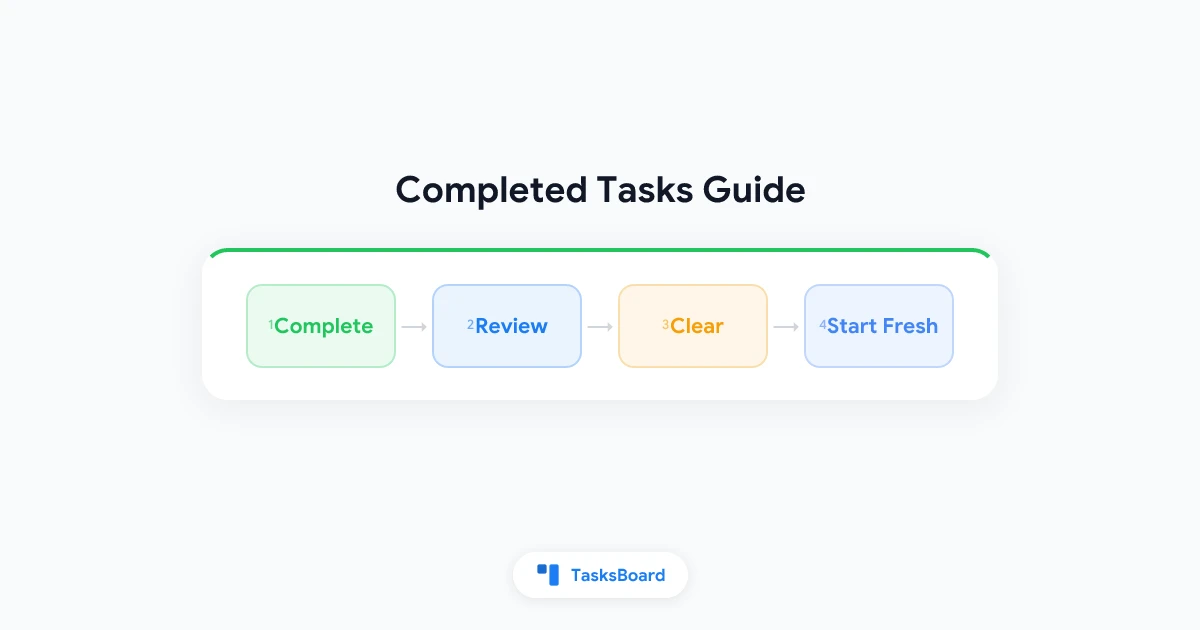
Completing a task in Google Tasks feels great. But what happens to all those checked-off items? They pile up at the bottom of your list, making your active tasks harder to find. This guide explains how completed tasks work in Google Tasks, how to view them, and how to clean them up when you are ready.
What Happens When You Complete a Task in Google Tasks?
When you check off a task in Google Tasks, it does not disappear. It moves to a “completed” section at the bottom of your current list. A strikethrough line appears across the task name to show it is done.
Completed tasks stay in your list indefinitely unless you take action to remove them. If you have been using Google Tasks for a while without clearing them, your list may have dozens of completed items stacked below your active work.
How to View Completed Tasks in Google Tasks
Completed tasks appear at the bottom of each task list by default. To see them:
- Open Google Tasks in your browser or in the Gmail sidebar.
- Scroll to the bottom of any task list.
- You will see a section called Completed with a count in parentheses, for example “Completed (12).”
- Click or tap that section header to expand or collapse the list of completed items.
On the Google Tasks mobile app (Android and iOS), the same pattern applies. Scroll to the bottom of your list and tap the Completed section to toggle it.
How to Hide Completed Tasks Without Deleting Them
If your completed tasks are cluttering your view but you are not ready to delete them, you can collapse the section. This keeps the tasks in the list but hides them from view.
Click or tap the Completed section header to collapse it. The tasks remain there, the count shows how many are waiting, and you can expand the section again any time you want to review them.
There is no toggle to automatically hide completed tasks across all lists in the native Google Tasks settings. You manage the visibility list by list, session by session.
How to Restore a Completed Task
Completed tasks can be unchecked and restored to your active list at any time.
- Expand the Completed section.
- Click or tap the checkbox next to the completed task you want to restore.
- The task moves back to the active section of your list with the strikethrough removed.
This is useful when you realize a task was marked done too early or when a recurring situation comes back up and you want to reuse the same task.
How to Clear Completed Tasks in Google Tasks
Clearing completed tasks removes them from your list permanently. You cannot undo this action, so only use it when you are sure you do not need to reference those tasks again.
On the web (tasks.google.com or Gmail sidebar):
- Click the three-dot menu icon at the top of the task list.
- Select Delete completed tasks from the dropdown.
- Confirm the deletion when prompted.
All completed tasks in that list are removed immediately.
On the mobile app (Android and iOS):
- Tap the three-dot icon at the top of the list.
- Tap Delete all completed tasks.
- Confirm.
Important: This action deletes ALL completed tasks in the current list at once. There is no option to delete individual completed tasks using the “clear all” function. To delete a single completed task, expand the Completed section, tap the task, and use the delete (trash) icon.
 Try TasksBoard
See your team's completed tasks on a shared kanban board. Track progress in real time and keep your active work visible without losing the completed history.
Get Started →Can You Search Completed Tasks?
No. Google Tasks does not have a search feature in the native app. You cannot search across completed tasks or active tasks by keyword. The only way to find a specific completed task is to scroll through the Completed section manually.
If you need to reference past work by keyword, you might consider keeping a separate log in Google Docs or another notes app alongside your Google Tasks list.
Can You Export Completed Task History?
Not directly from the Google Tasks interface. Google Tasks does not have a built-in export feature. However, you can use Google Takeout to export all your Google data, including your tasks. The export comes in a .zip file containing your task data in JSON format.
For more detail on exporting task data, see the Google Tasks export guide.
How Often Should You Clear Completed Tasks?
There is no right answer, but a weekly rhythm works for most people. A five-minute Friday cleanup where you scroll through completed tasks, restore anything that needs follow-up, and then clear the rest keeps your list from growing too long.
Some people prefer to clear completed tasks daily as part of their daily task management routine. Others prefer to let them accumulate and do a monthly review. The main thing is to have a habit rather than letting them build up for months.
Completed Tasks and the “Sort by Date” View
When you sort your list by date (see the Google Tasks sort guide for how to do this), completed tasks still appear at the bottom in the Completed section. They are separated from your active tasks regardless of their due dates.
This means clearing completed tasks does not affect your sort order or your active task arrangement. Your active list stays exactly as it was.
Managing Completed Tasks as a Team
One of the limitations of native Google Tasks is that the “completed” view is personal. Each team member sees their own completed tasks but cannot see who on the team completed what, or when.
If you are sharing tasks with colleagues through TasksBoard, completed tasks appear as “done” cards on the shared kanban board. You can see which team member moved a card to the Done column and when it happened, giving you a real audit trail without any extra setup.
This is particularly useful for teams managing shared task lists where progress visibility matters.
Tips for Managing Completed Tasks Cleanly
A few practices that keep your task history useful without cluttering your active view:
- Review before clearing. Before deleting completed tasks, quickly scan them. Sometimes a completed task has a note or a due date you want to reference.
- Clear list by list. The delete action applies to one list at a time. If you have multiple lists, work through them one at a time to avoid accidentally clearing the wrong one.
- Use separate lists for permanent records. If you want to keep a record of completed work (for example, tasks you invoice clients for), create a separate “Completed Archive” list and move important tasks there before clearing your main list.
- Restore before you review. If a completed task has a subtask you want to check, restore the parent task first. Subtasks of completed tasks are sometimes hidden until the parent is unchecked.
FAQ
Conclusion
Completed tasks in Google Tasks are kept in a collapsible section at the bottom of each list. You can view them, restore any that need follow-up, or clear them all with the “Delete completed tasks” option in the three-dot menu. There is no undo after clearing, so a quick review first is worth the extra thirty seconds.
For teams, TasksBoard adds shared visibility into who completed what and when, turning Google Tasks into a collaborative board where nothing falls through the cracks. Start free and see the difference a kanban view makes for your team.
Ready to share your Google Tasks?
Get started with TasksBoard for free, no credit card required.
Sign in