Google Tasks Export: How to Back Up, Move, and Share Your Lists

Google Tasks does not include a one-click export button. If you need a backup, a spreadsheet copy, or a way to move tasks to another account, you have to use workarounds. This guide covers every practical Google Tasks export method in 2026, from Google Takeout to CSV conversion and team-friendly alternatives.
Key takeaways:
- No native CSV export: Google Tasks has no built-in “Export to CSV” option inside the app.
- Google Takeout works: You can download all your tasks as JSON through Google Takeout.
- CSV requires a conversion step: Takeout JSON can be converted to CSV or opened in Excel with a simple script or third-party tool.
- Sharing beats exporting for teams: If your goal is collaboration, sharing Google Tasks with TasksBoard is faster than exporting and re-importing.
Why you might need to export Google Tasks
People look for ways to back up or move their task lists for a few common reasons. Understanding yours helps you pick the right method.
- Backup before switching accounts: You are leaving a job or moving from a personal Gmail to a Workspace account and want a copy of your task history.
- Spreadsheet reporting: Your manager wants task status in Google Sheets or Excel for a weekly review.
- Migration to another app: You are testing Todoist, Notion, or another task manager and need your existing lists as a starting point.
- Audit trail: You want a dated snapshot of what was on your plate at a specific point in time.
For day-to-day team work, exporting is usually the slow path. Most teams get better results by keeping tasks in Google Tasks and adding a shared kanban view on top. That is what TasksBoard is built for.
What Google Tasks lets you export (and what it does not)
Google Tasks is intentionally simple. That simplicity shows up in what you can and cannot export.
What you can get out:
- Task titles, notes, due dates, and completion status via Google Takeout
- List names and task ordering within each list
- Subtask relationships (parent and child tasks)
What you cannot get with a single click:
- A CSV file directly from tasks.google.com
- A scheduled automatic backup
- Selective export of one list only through Takeout (it exports all Tasks data for the account)
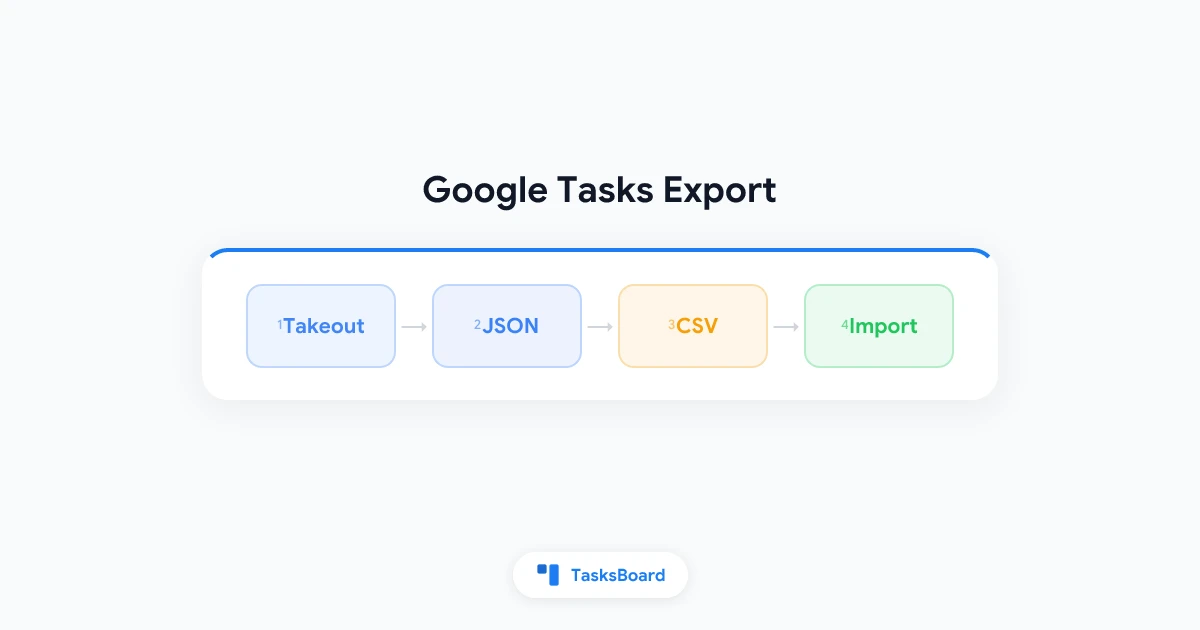
Google Tasks data leaves your account through Google Takeout as JSON. From there, you convert to CSV or Excel if you need a spreadsheet format.
If you are new to the Google productivity stack, our Google Workspace tutorial walks through how Tasks connects to Gmail and Calendar.
How to export Google Tasks with Google Takeout
Google Takeout is Google’s official data export service. It is free, works for personal and Workspace accounts, and includes Google Tasks.
Step 1: Open Google Takeout
- Go to takeout.google.com.
- Sign in with the Google account that holds your tasks.
- Click Deselect all to start with a clean slate.
Step 2: Select only Google Tasks
- Scroll down and check the box next to Tasks.
- Click All Tasks data included if you want to confirm the scope.
- Leave everything else unchecked unless you need additional data.
Step 3: Configure the export
- Click Next step.
- Choose delivery method: Send download link via email is the most common option.
- Set frequency to Export once.
- Pick a file type: .zip works for most people.
- Set file size: if you have thousands of tasks, choose a larger split size (2 GB).
- Click Create export.
Step 4: Download and unpack
Google prepares the archive. This can take minutes or hours depending on account size. When the email arrives:
- Click the download link before it expires (links typically last about one week).
- Unzip the archive on your computer.
- Look for a
Tasksfolder containing JSON files, one per list.
Each JSON file holds the tasks from a single list, including titles, notes, due dates, completion status, and subtasks.
Export Google Tasks to CSV or Excel
Takeout gives you JSON, not CSV. To get a spreadsheet, you need one more step. Here are three approaches.
Option A: Use a JSON-to-CSV converter
Several free online converters accept Takeout JSON and output CSV. Before uploading anything, check the tool’s privacy policy if your tasks contain sensitive work data.
A typical workflow:
- Export via Takeout as described above.
- Open the JSON file for the list you want.
- Upload it to a trusted converter or run a local script.
- Download the resulting CSV.
- Open the CSV in Excel, Google Sheets, or Numbers.
Option B: Import JSON into Google Sheets with Apps Script
If you prefer to stay inside Google Workspace:
- Create a new Google Sheet.
- Open Extensions > Apps Script.
- Paste a short script that parses the Takeout JSON and writes rows (title, notes, due date, status, list name).
- Run the script and authorize it once.
- Your tasks appear as rows you can filter, sort, and share.
This approach is best if you export regularly and want a repeatable process.
Option C: Manual copy for small lists
For a list with fewer than 30 tasks, manual copy may be faster than setting up Takeout.
- Open the list in Google Tasks.
- Select and copy task titles into a spreadsheet column.
- Add due dates and notes in adjacent columns.
This does not preserve subtask hierarchy well, but it works for quick snapshots.
Move Google Tasks to another account or app
Exporting is often just the first half of a migration. Here is how to handle common destinations.
Export Google Tasks to another Google account
Google does not offer a direct account-to-account transfer for Tasks. The practical path:
- Export with Takeout from the source account.
- Sign in to the destination account.
- Re-create lists manually, or use a migration script that reads the JSON and creates tasks via the Google Tasks API.
For most individuals, re-creating active lists (not every completed task from five years ago) saves time.
Export Google Tasks to Todoist or other task apps
Third-party apps like Todoist, TickTick, and Microsoft To Do do not import Takeout JSON natively. Typical options:
- CSV import: Convert Takeout JSON to CSV, then use the destination app’s CSV import feature if available.
- Third-party migration tools: Some services specialize in Google Tasks migrations. Review permissions carefully before granting access.
- Start fresh with structure: Export only your active lists and rebuild in the new app with cleaner organization.
If you are comparing whether to leave Google Tasks at all, weigh what you lose: native Gmail integration, Calendar due dates, and Workspace SSO. Our guide on breaking work into subtasks shows how much structure Google Tasks already supports when you use it well.
Keep tasks in Google Tasks and add a better view
Many export requests come from teams that need visibility, not a new task engine. Before migrating:
- Try a shared kanban board that reads from Google Tasks
- Use TasksBoard to share lists with teammates in real time
- Keep due dates and reminders synced through Google Calendar
This avoids the export-import cycle entirely.
 Try TasksBoard
Skip the export cycle. TasksBoard adds shared kanban boards and real-time collaboration on top of your existing Google Tasks lists.
Get Started →Best practices for Google Tasks backups
A one-time export is useful. A backup habit is better.
- Schedule quarterly Takeout exports if you rely on Google Tasks for critical project data.
- Name your lists clearly before exporting so JSON filenames map to meaningful list names.
- Export before account changes such as leaving a company or deleting a Gmail address.
- Store backups securely because task notes may contain passwords, client names, or internal project details.
- Test a restore by importing one list into a test account to confirm the process works.
For teams, shared access reduces backup anxiety. When everyone works from the same synced board, there is no single point of failure on one person’s laptop export.
Export vs sharing: which do you need?
| Goal | Best approach |
|---|---|
| Personal backup | Google Takeout |
| Spreadsheet report | Takeout JSON to CSV |
| Team collaboration | TasksBoard shared board |
| Switch to another app | Takeout JSON to CSV to import |
| Move to a new Google account | Takeout plus manual or API migration |
If your main problem is “my team cannot see my tasks,” exporting is the wrong tool. Sharing is. See our team task list guide for the faster path.
FAQ
Conclusion
A Google Tasks export starts with Google Takeout, not a button inside the Tasks app. Download your data as JSON, convert to CSV or Excel if you need a spreadsheet, and use migration tools or manual steps to move tasks to another account or app.
For personal backups, schedule a Takeout export every few months. For team collaboration, skip the export cycle and share your lists directly. TasksBoard keeps your tasks in Google Tasks while adding the shared board view and real-time sync your team actually needs.
Ready to share your Google Tasks?
Get started with TasksBoard for free, no credit card required.
Sign in