
AI assistants are good at planning work. Until recently they could not put that plan where you would see it tomorrow morning: in your Google Tasks.
A Google Tasks MCP server fixes that. It gives an AI agent a small set of tools to read your lists, add tasks, tick them off and tidy up, all on your real Google Tasks account.
TasksBoard now runs one for you at https://mcp.tasksboard.com/mcp. This guide explains what MCP is, what the server can and cannot do, how to connect it to the main AI clients, which prompts work well and how access is kept under control.
What Is MCP, in Two Paragraphs
MCP stands for Model Context Protocol. The official MCP documentation describes it as an open-source standard for connecting AI applications to external systems, and compares it to a USB-C port for AI applications. One plug, many devices.
An MCP server offers tools, which the MCP architecture overview defines as executable functions that AI applications can invoke to perform actions. A local server runs as a program on your own computer, while a remote server runs on the provider’s platform and is reached over the Streamable HTTP transport. The TasksBoard server is the remote kind, so there is nothing to install.
What the Google Tasks MCP Server Does
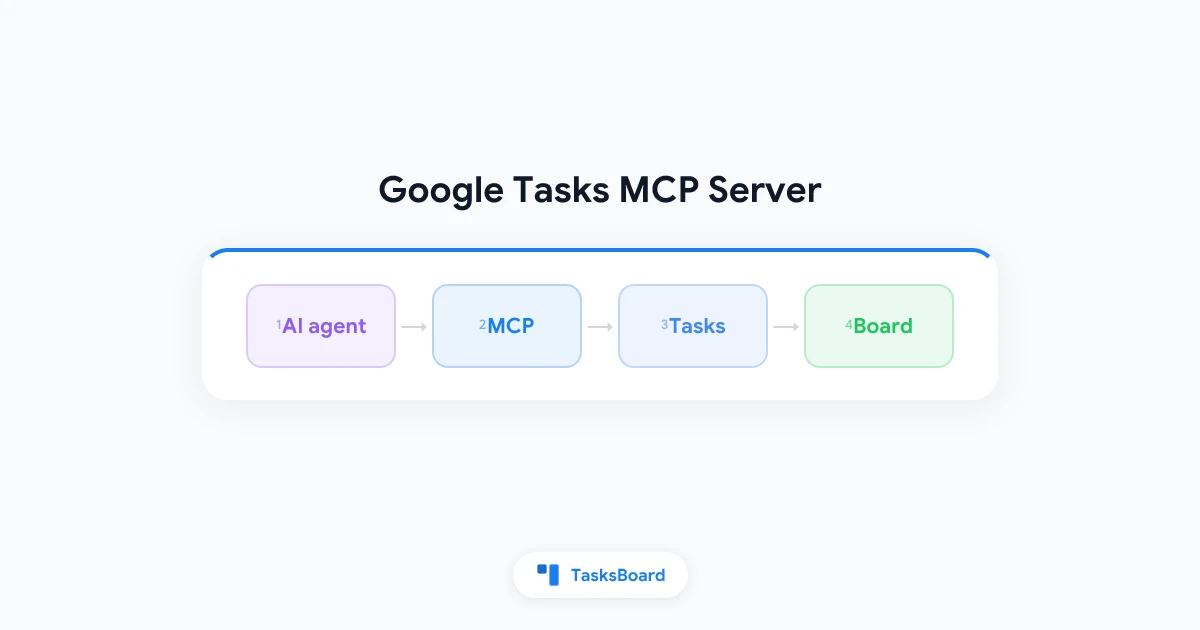
 From a prompt to your Google Tasks
list_task_lists call to find the list and one create_task call.
The server works on your own Google Tasks data, not on a copy. A task that an agent creates shows up in the Google Tasks app, in the side panel of Gmail and Calendar, on your phone and on your TasksBoard board.
It exposes 12 tools. Four only read, and the other eight change something.
Lists
- See your lists:
list_task_listsandget_task_list. - Create a list with a title:
create_task_list. - Rename a list:
update_task_list. - Delete a list:
delete_task_list. This also deletes every task in it.
Tasks
- Read tasks:
list_tasksreturns the open tasks of one list, with subtasks nested under their parents. It can also include completed tasks and filter by due date, completion date or last change. - Open one task:
get_taskreturns the title, notes, due date, status and links. - Add a task:
create_tasktakes a title, optional notes, an optional due date, and an optional parent task to create a subtask. - Edit or complete:
update_taskchanges the title, notes or due date, marks a task completed, or reopens it. - Reorganize:
move_taskreorders a task, turns it into a subtask, or moves it to another list. - Clean up:
delete_taskremoves one task, andclear_completed_tasksclears the completed tasks out of a list.
What it cannot do
The tools follow the public Google Tasks API, so they share its limits. Google’s Tasks API reference says a due date holds only a date and that it is not possible to read or write the time a task is scheduled for.
- No due time. “Friday” works. “Friday at 3pm” is saved as Friday.
- No recurring tasks. The API has no field for repeats, and a recurring task cannot be moved between lists.
- Two statuses only. A task is either open or completed.
- Board features stay on the board. There are no MCP tools for sharing a list, attaching files or setting reminders. You do that in TasksBoard itself.
How to Connect Google Tasks to Your AI Client
Every client needs the same single value:
https://mcp.tasksboard.com/mcpThe first time a client connects, a browser window asks you to sign in with Google and approve access to Google Tasks. There is no API key to copy and no Google Cloud project to create.
The TasksBoard MCP page keeps all the snippets below in one place, ready to copy.
Claude
Claude calls a remote MCP server a custom connector. According to Claude’s help article on custom connectors, they are available on every plan, and Free users are limited to one.
- Go to Customize > Connectors.
- Click + Add, then Add custom connector.
- Enter a name such as TasksBoard and paste the server URL.
- Follow the remaining prompts, click Add and sign in with Google.
On Team and Enterprise plans an owner adds the connector in the organization settings first. Members then find it under Connectors and click Connect.
Claude Code
The Claude Code MCP documentation gives the syntax claude mcp add --transport http <name> <url>. For TasksBoard that is:
claude mcp add --transport http tasksboard https://mcp.tasksboard.com/mcpThen run /mcp inside Claude Code and follow the steps in your browser to log in. Our Google Tasks and Claude integration guide goes deeper on both Claude and Claude Code.
Cursor
Cursor’s MCP documentation describes two config files: .cursor/mcp.json in a project, or ~/.cursor/mcp.json in your home directory for every project. A remote server needs only a url:
{
  "mcpServers": {
    "tasksboard": {
      "url": "https://mcp.tasksboard.com/mcp"
    }
  }
}
The same page says Cursor supports OAuth for servers that require it. Sign in with Google when Cursor asks you to.
VS Code
Run MCP: Add Server from the Command Palette, choose the HTTP option, paste the URL and save it to Copilot Global. The VS Code MCP configuration reference stores that choice in ~/.copilot/mcp-config.json, which you can also edit by hand:
{
  "mcpServers": {
    "tasksboard": {
      "type": "http",
      "url": "https://mcp.tasksboard.com/mcp",
      "tools": ["*"]
    }
  }
}
The older workspace file .vscode/mcp.json belongs to a mode that VS Code will remove in February 2027, so new setups should use the file above. Sign in with Google when VS Code asks you to authorize the server.
Codex CLI
The Codex MCP documentation adds a streamable HTTP server with --url and logs in with a separate command:
codex mcp add tasksboard --url https://mcp.tasksboard.com/mcp
codex mcp login tasksboard
Antigravity and Gemini CLI
Google moved Gemini CLI users to Antigravity on June 18, 2026. The Antigravity MCP documentation keeps global servers in ~/.gemini/config/mcp_config.json. Note the key name, serverUrl:
{
  "mcpServers": {
    "tasksboard": {
      "serverUrl": "https://mcp.tasksboard.com/mcp"
    }
  }
}
Antigravity runs the sign-in on its own for servers like this one. In the app, open Customizations, then Installed, and click Authenticate next to the server.
Gemini CLI still works with a paid API key or a Code Assist Standard or Enterprise licence. The Gemini CLI MCP documentation gives this command:
gemini mcp add --transport http tasksboard https://mcp.tasksboard.com/mcpRun /mcp auth tasksboard inside the CLI if you need to start or repeat the sign-in.
For project-level setup, team configs and coding workflows, see our guide to Google Tasks in Cursor, VS Code and other coding agents.
ChatGPT
ChatGPT users do not need any of this. The TasksBoard app for ChatGPT connects the same Google Tasks account from inside a conversation.
Example Prompts for a Google Tasks MCP Server
You never call a tool by name. You describe what you want, and the agent picks the tools.
Capture
- “Add a task to my Work list: send the Q4 report, due Friday.”
- “Create a list called Lisbon trip and add a task for each item in the plan we just wrote.”
- “Turn these meeting notes into tasks. Put the decisions in the notes of each task.”
Review
- “What is still open in my Personal list?”
- “Which tasks in my Work list are due this week?”
- “What did I complete in the Launch list since Monday?”
Organize
- “Break the task Prepare offsite into five subtasks.”
- “Move Renew passport from Personal to the Lisbon trip list.”
- “Mark Book flights as done and push Book hotel to next Tuesday.”
Clean up
- “Clear the completed tasks from my Shopping list.”
- “Delete the list Old ideas.” Read this one twice before you approve it.
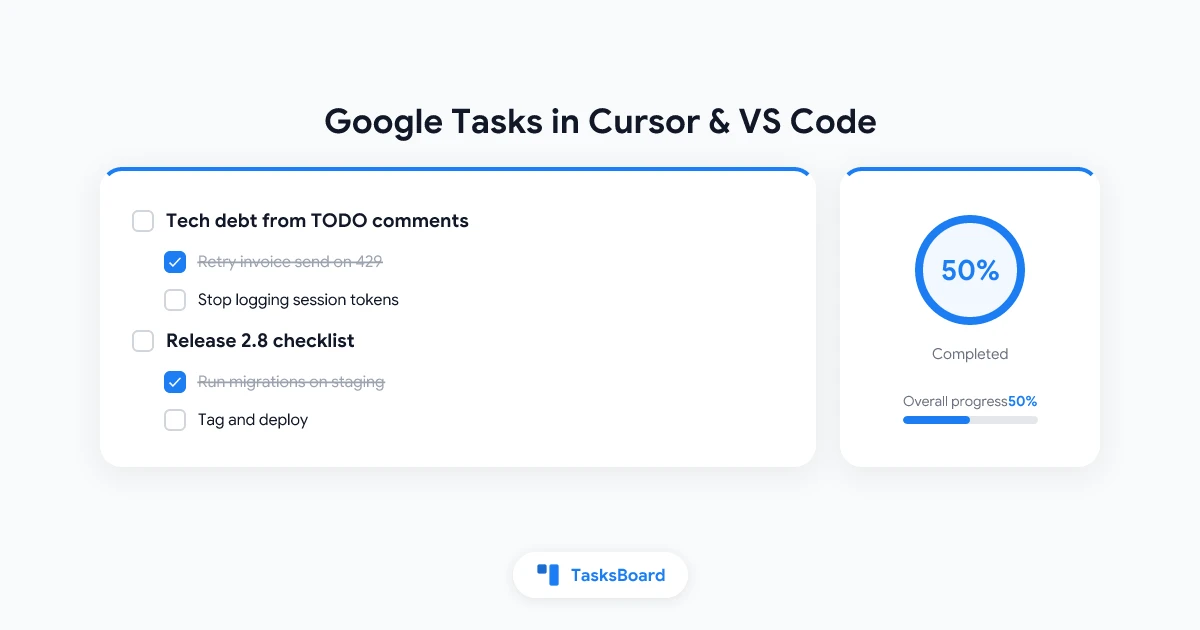
Coding agents add a twist of their own. Ask Claude Code or Cursor to “add a task for every TODO you left in this branch” and the follow-ups are waiting in Google Tasks when you close the editor.
 Try TasksBoard
Tasks your AI agent adds to Google Tasks appear on your TasksBoard board. Turn lists into kanban columns, drag tasks between them and share a list with your team.
Get Started →Hosted vs Self-Hosted Google Tasks MCP Servers
Three ways to run a Google Tasks MCP server
Search for a Google Tasks MCP server and most results are open-source projects that you run yourself. They are a fair choice, and it helps to know what the trade is.
The zcaceres/gtasks-mcp README is typical. It asks you to create a Google Cloud project, enable the Google Tasks API, configure an OAuth consent screen, create an OAuth client ID, save the key file into the repository and build the server before your client can start it.
The ebmurha/google-tasks-mcp README states that the project is for self-hosted use and that you provide your own Google Cloud OAuth credentials. In return, your tokens stay on a machine you control, and it offers 19 tools.
Choose self-hosted if you want to read every line of the code that touches your account and you are comfortable with the Google Cloud console.
Choose the hosted TasksBoard server if you want to be connected in a minute, on a phone or a work laptop where you cannot install anything.
No server gets around the API itself. The ebmurha README lists the same two limits you read above: due dates are date-only, and recurring tasks cannot be created or read.
Security: What the Agent Can Access
Giving an AI agent write access to your to-do list deserves a careful look. Here is how the TasksBoard server handles it.
- You sign in with Google. The connection uses OAuth, so your password never reaches the AI client and there is no long-lived API key sitting in a config file.
- The request is narrow. The server asks Google for your basic profile, to know which account is connecting, and for Google Tasks. It does not ask for Gmail, Drive or Calendar.
- You approve it in plain words. Before a client is connected, a consent page names the client and the Google account, and states that it will be able to read, create, change and delete your Google Tasks until you disconnect it.
- Tools are labelled. Each tool tells the client whether it only reads or can change data, which lets a client ask for your approval before a change.
- You can disconnect at any time. Remove the connector or the server entry in your AI client and the agent loses its tools.
Two habits matter more than any setting. Claude’s help article advises connecting only to servers hosted by organizations you trust, and reviewing tool approval requests carefully before you choose to always allow one.
Keep approval switched on for the tools that delete. Deleting a list removes all of its tasks, and an agent that misreads “clean up my lists” can do that quickly.
Where the Tasks Go Next
An agent is a fast way to get tasks into Google Tasks. It is a poor place to see a whole week or a whole project at once.
Open TasksBoard and the same tasks sit on a kanban board, one column per list. According to the TasksBoard sync help page, the board pulls your lists from Google when it opens and whenever you return to its tab.
From there the usual TasksBoard tools apply. Drag a task to another list, add labels and priorities, or share a list with a colleague.
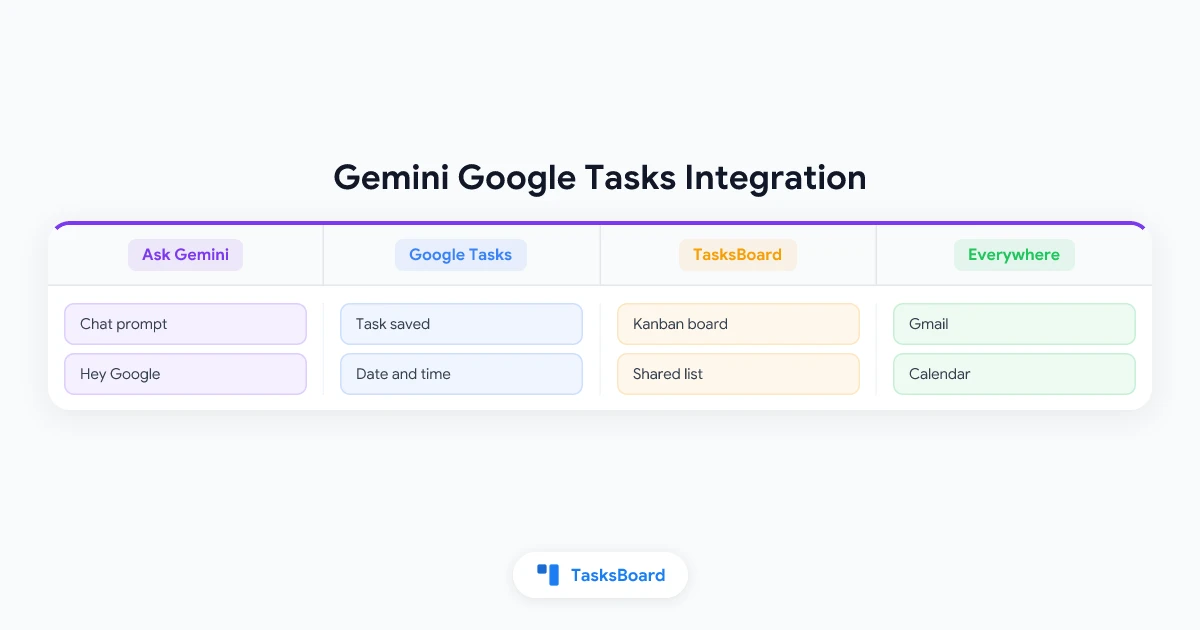
If you would rather talk to Google’s own assistant, our Gemini and Google Tasks integration guide covers that route. Developers who want raw HTTP instead of an agent can read about the TasksBoard API and webhooks.
Frequently Asked Questions
Conclusion
A Google Tasks MCP server turns your AI assistant from an adviser into a helper that writes things down. With the TasksBoard server it takes one URL and one Google sign-in, and the agent gets 12 tools for lists, tasks and subtasks.
Pick your client on the MCP page, connect it, and try a first prompt such as “What is still open in my Work list?”. Then open TasksBoard to see everything the agent captured on one board, ready to plan and share.