
A coding agent finds work all day long. A TODO it should not fix right now, a review comment that needs its own change, a migration to run after the release. Most of it stays in the chat window and is gone by the next session.
The fix is to let the agent write to the task list you already use. With Google Tasks in Cursor, VS Code, Codex or Antigravity, a follow-up becomes a real task that also shows up on your phone and on your TasksBoard board.
This guide gives the exact setup for each client, a prompt that makes the agent connect itself, six developer workflows with ready prompts, and the limits you should know before you rely on it.
One URL for Every Coding Agent
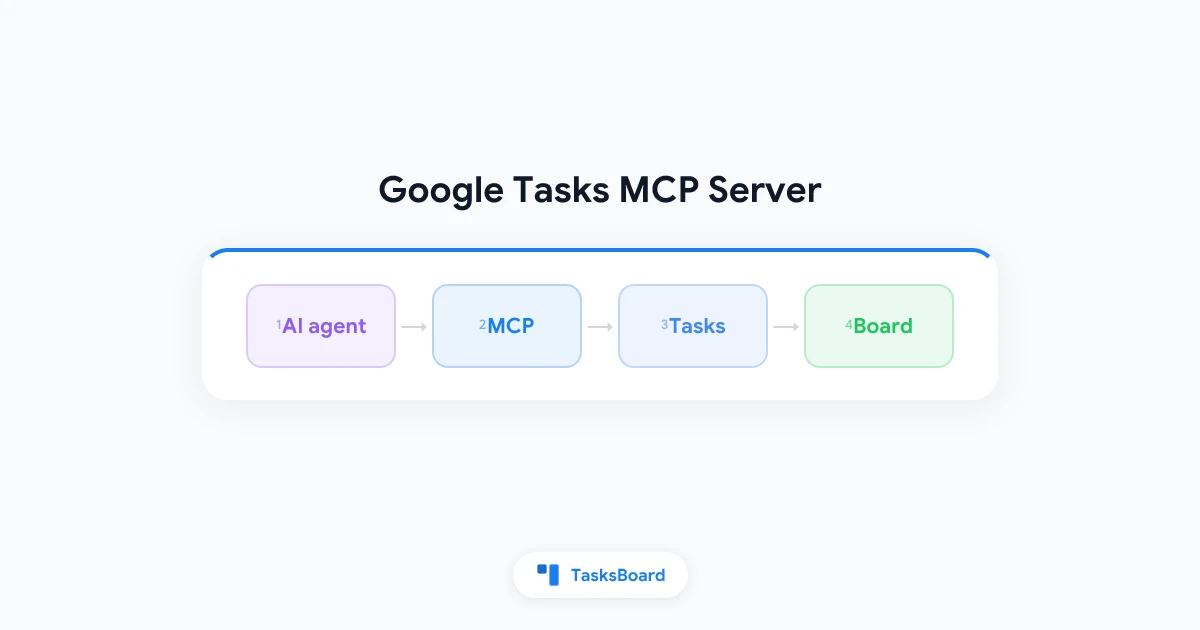
TasksBoard runs a remote MCP server for Google Tasks. MCP (Model Context Protocol) is the standard that coding agents use to call external tools, and this server speaks its Streamable HTTP transport at one address:
https://mcp.tasksboard.com/mcpThere is nothing to install and no API key. The server uses OAuth with Dynamic Client Registration, so the client registers itself, opens your browser, and you sign in with Google. Connecting is free.
The agent then works on your real Google Tasks through 12 tools: it can list, read, create, rename and delete task lists, and list, read, create, update, complete, move and delete tasks. Our Google Tasks MCP server overview describes every tool, and the /mcp page keeps all connection snippets in one place.
 Where each coding agent keeps the Google Tasks server
Using Claude Code? One command does it, and our Claude and Google Tasks guide covers it together with Claude on the web and desktop. For ChatGPT there is a separate TasksBoard app for ChatGPT.
Google Tasks in Cursor
Cursor’s MCP documentation names two config files: .cursor/mcp.json in a project, and ~/.cursor/mcp.json in your home directory for tools available everywhere. Your task list is personal, so use the home directory file:
{
  "mcpServers": {
    "tasksboard": {
      "url": "https://mcp.tasksboard.com/mcp"
    }
  }
}
That is the whole entry. Cursor’s docs describe a static auth object with a client ID, but it is only for providers that hand out a fixed client ID. This server registers Cursor dynamically, and Cursor signs in with the authorization code flow with PKCE as a public client with no secret.
- Save the file. Then open Customize in the Cursor sidebar, where MCP servers are enabled and disabled.
- Sign in. Complete the sign-in the tasksboard server asks for. Your browser opens, you pick your Google account and approve access to Google Tasks.
- Confirm. The server’s tools appear under Available Tools. Ask the agent: “List my Google Tasks lists. Do not change anything.”
Cursor asks for approval before it uses an MCP tool by default. Keep that on for a while and you will see every call with its arguments.
Google Tasks in VS Code with GitHub Copilot
VS Code changed how it stores MCP servers in 2026, so older tutorials are partly out of date. The current VS Code guide to adding MCP servers uses a guided flow:
- Run MCP: Add Server from the Command Palette (or open Chat: Open Customizations, choose MCP Servers and click Add Server).
- Choose HTTP (HTTP or Server-Sent Events) and paste
https://mcp.tasksboard.com/mcp. - Enter a server ID such as
tasksboard. - Select Global, then Copilot Global, so the server follows you across workspaces.
- Review the trust request, then use the Authenticate action when VS Code offers it and sign in with Google in the browser.
Copilot Global writes to ~/.copilot/mcp-config.json. If you prefer to edit the file, the MCP configuration reference documents this format:
{
  "mcpServers": {
    "tasksboard": {
      "type": "http",
      "url": "https://mcp.tasksboard.com/mcp",
      "tools": ["*"]
    }
  }
}
The older .vscode/mcp.json file uses a different top-level key:
{
  "servers": {
    "tasksboard": {
      "type": "http",
      "url": "https://mcp.tasksboard.com/mcp"
    }
  }
}
The reference says to use the Copilot destinations for new setups. It also says the Local harness that reads .vscode/mcp.json directly is deprecated and will be removed in February 2027.
To confirm the connection, follow Microsoft’s own advice: name the server in a harmless request and expand the tool call in the chat. “Use the tasksboard MCP tools to list my task lists. Do not change anything.” An answer without a tool call proves nothing.
Google Tasks in Codex, Antigravity and Gemini CLI
OpenAI Codex CLI
The Codex MCP documentation covers both a command and a config file. From a terminal:
codex mcp add tasksboard --url https://mcp.tasksboard.com/mcp
codex mcp login tasksboard
The second command is the OAuth step. Codex supports Dynamic Client Registration, so no client ID is needed. On a machine without a local browser, add --no-browser.
The same server as a table in ~/.codex/config.toml:
[mcp_servers.tasksboard]
url = "https://mcp.tasksboard.com/mcp"
default_tools_approval_mode = "writes"
The last line is optional. In writes mode Codex prompts only for tools that are not marked read-only, which fits a task list well. Run codex mcp list to see configured servers, or type /mcp inside Codex. The Codex CLI, the IDE extension and the ChatGPT desktop app share this configuration.
Antigravity (the Gemini CLI successor)
Google moved Gemini CLI users to Antigravity CLI on June 18, 2026. Gemini CLI stopped serving Google AI Pro, Ultra and free individual accounts that day and stays available with paid API keys.
The Antigravity MCP documentation puts global servers in ~/.gemini/config/mcp_config.json and workspace servers in .agents/mcp_config.json. Note the key name, serverUrl:
{
  "mcpServers": {
    "tasksboard": {
      "serverUrl": "https://mcp.tasksboard.com/mcp"
    }
  }
}
Antigravity handles OAuth with PKCE automatically for servers that support Dynamic Client Registration. In the app, open Customizations, then Installed, and click Authenticate next to the server under MCP Servers. Sign in, copy the code the browser shows and paste it back.
In the CLI, type /mcp to open the MCP manager with each server’s status. Google’s docs describe the sign-in for the app only, so authenticate there first if the CLI does not prompt you.
Gemini CLI with an API key
If you still run Gemini CLI, the Gemini CLI MCP documentation gives this command:
gemini mcp add --transport http --scope user tasksboard https://mcp.tasksboard.com/mcpThen start gemini and run /mcp auth tasksboard. The CLI discovers the OAuth configuration, registers itself and listens for the redirect on localhost, so it needs a machine with a browser. /mcp shows the server as connected together with its tools.
Let the Agent Connect Itself
Config formats differ between clients and change between versions. An agent that can edit files can add the server to its own configuration. Paste this:
Add the TasksBoard MCP server to your own MCP configuration so you can manage my Google Tasks.

Server name: tasksboard
Type: remote MCP server, Streamable HTTP, nothing to install
URL: https://mcp.tasksboard.com/mcp
Auth: OAuth in the browser with Dynamic Client Registration. Do not add an API key, a token or headers.

Steps:
1. Find the user-level MCP config this client reads (not the repository) and show me the change before you save it.
2. Add the server in this client's own format. Leave every other server untouched.
3. Tell me exactly how to start the sign-in. I will sign in with Google myself.
4. When I confirm, call list_task_lists and print the list names. Do not create, change or delete anything.
Most clients load a new server only after a restart or a reload, so expect to run step 4 in a fresh session.
Six Developer Workflows with Ready Prompts
 From a TODO comment to a Google task
The tools take list IDs, not names, so the agent first looks up your lists and then works in the one you named. Name the list in every prompt.
1. Plan the day before you start
Read my Google Tasks lists "Work" and "Tech debt". Show every open task due today or earlier, then the undated ones. Ask for more than the default page so nothing is cut off. Suggest an order for today. Do not change anything.The list tool returns open tasks only and 20 per call unless the agent asks for more, which is why the prompt says so.
2. Turn TODO and FIXME comments into tasks
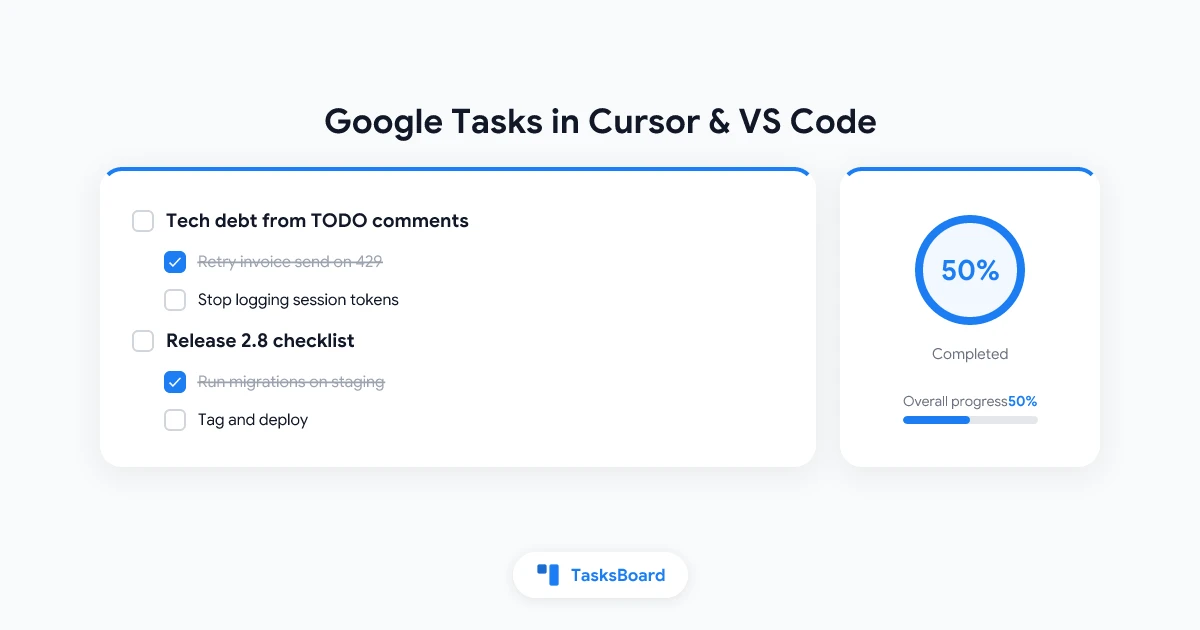
Search this repository for TODO and FIXME comments, skipping node_modules and generated files. Show me the list first. After I confirm, create one task per comment in my Google Tasks list "Tech debt": a short imperative title, and the file path, line number and comment text in the notes. Skip anything that already has an open task with the same file and line.3. Turn a PR review into tasks
Read the review comments on the pull request for this branch. Create one parent task named "PR review: <PR title>" in my "Work" list and one subtask per requested change, with the reviewer, the file and the comment link in the notes. Ignore comments that are already resolved.The agent reads the review with its own tools, such as the GitHub CLI. The MCP server only stores the result, and subtasks are regular tasks with a parent.
4. File follow-ups at the end of a session
Before we stop: list everything we postponed, left broken or agreed to do later in this session. Create a task for each in "Work" with enough notes that I can pick it up cold: branch name, files and the next concrete step. Set the due date only where I gave one.5. Close tasks when a branch merges
The branch fix/invoice-retry is merged. Find the open tasks in "Work" and "Tech debt" that mention this branch or src/billing/invoice.ts, show them to me, and after I confirm mark them completed.This works because the notes from workflows 2 and 4 carry the branch and the file path. There is no search tool, so the agent lists tasks and matches them itself.
6. Keep a release checklist list
Create a Google Tasks list called "Release 2.8". Add these steps as tasks in this order: freeze main, update changelog, run migrations on staging, smoke test, tag and deploy, announce. Under "smoke test" add subtasks for login, checkout and export.After the release, ask the agent to clear the completed tasks or delete the list. Both are destructive, so read the confirmation.
Each list is also a column on your board, and our guide to the Google Tasks kanban board shows how a release list and a tech debt list look side by side.
Try TasksBoard
Every task your coding agent files lands in Google Tasks and on your TasksBoard board. See "Tech debt", "Work" and "Release 2.8" as kanban columns, drag tasks between them and share a list with your team.
Get Started →Limits to Know Before You Rely on It
- Dates, not times. The Google Tasks API reference says only date information is recorded for a due date and the time portion is discarded. An agent cannot set “Friday at 3pm” through the API. Our guide to due times in Google Tasks explains where times do work.
- Four editable fields. A task has a title, notes, a due date and a status, plus its position and parent. The server has no tools for reminders, recurrence, attachments, sharing or assigning.
- Length caps. Google allows 1,024 characters in a title and 8,192 in notes. Tell the agent to link to a long review comment instead of pasting it.
- No search tool. The agent lists tasks and filters them, optionally by due, completion or update date.
- Recurring tasks stay put. They cannot be moved between lists.
- Cleared is hidden. Clearing completed tasks hides them from the list. Deleting a list deletes every task in it.
If you need task events pushed to your own code rather than an agent in the loop, see our guide to the Google Tasks API, webhooks and Zapier.
Security for a Task List Inside Your Editor
- No secret in the repository. The config holds a URL and nothing else. Tokens are stored by the client after the browser sign-in, so the entry is safe to commit. A user-level file is still the better place, because each developer has a personal task list.
- Tasks only. Every one of the 12 tools works on Google Tasks lists and tasks. The server has no tools for Gmail, Calendar or Drive.
- Keep approvals for writes. Leave your client’s approval prompt on for create, update and delete calls. In Codex that is
default_tools_approval_mode = "writes". - Remove what you do not need. Codex has
disabled_tools, Gemini CLI hasexcludeTools, and VS Code accepts atoolslist instead of["*"]. Droppingdelete_task_listandclear_completed_taskscosts you little. - Treat task text as data. Notes can contain text from emails or shared lists. If a task’s notes read like instructions to the agent, they are not from you.
- Disconnecting. Remove the server from the client config, then revoke the access in the third-party connections page of your Google Account.
Frequently Asked Questions
Conclusion
Google Tasks in Cursor, VS Code, Codex or Antigravity takes one URL and one Google sign-in. After that the agent that finds the work can also write it down: TODO comments, review feedback, session follow-ups and release steps become tasks with the file and branch in the notes.
Start read-only, keep approvals on for writes, and name the list in every prompt. Then open TasksBoard to see what your agent filed as a board, and pick up the first card.