
Claude is good at turning a messy conversation into a plan. The plan then stays in the chat, and your real to-do list in Google Tasks never hears about it.
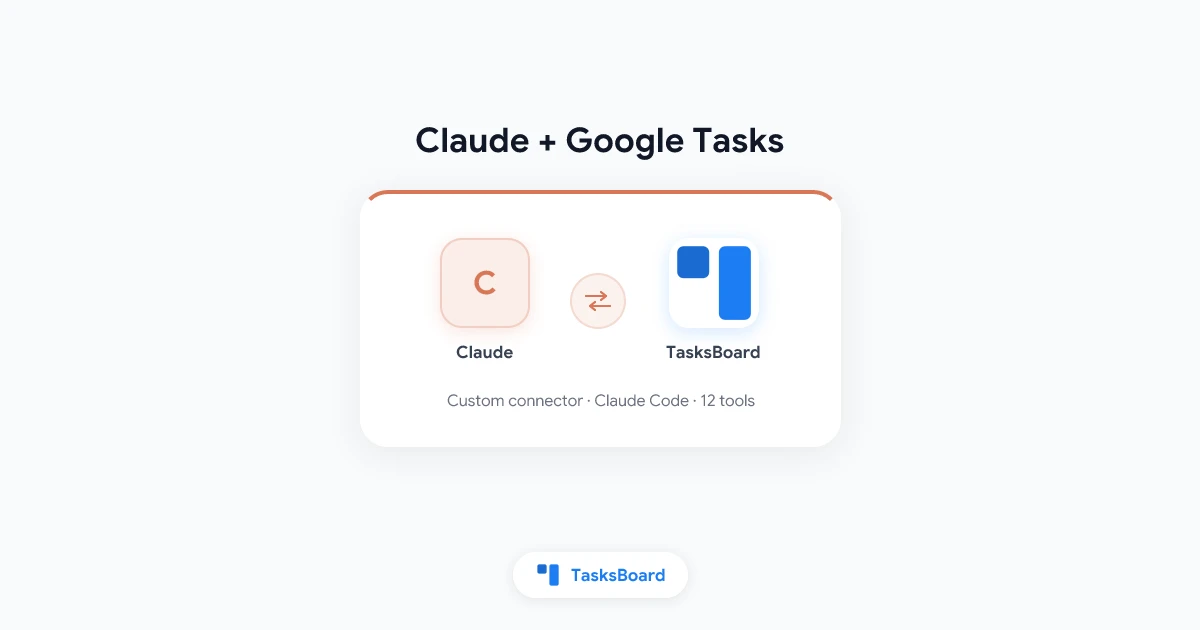
A Claude Google Tasks integration closes that gap. With the TasksBoard connector, Claude can read your lists, add tasks with due dates and subtasks, complete them, move them and tidy up, all in your real Google Tasks account.
This guide covers the setup for Claude on the web, Claude Desktop and Claude Code, then the prompts worth saving, the limits you should know about and the security settings to check.
Does Claude Work with Google Tasks?
Not out of the box. Anthropic’s help page on Google Workspace connectors covers Gmail, Google Calendar and Google Drive, with separate connectors for Docs, Sheets and Slides. Google Tasks is not on that page.
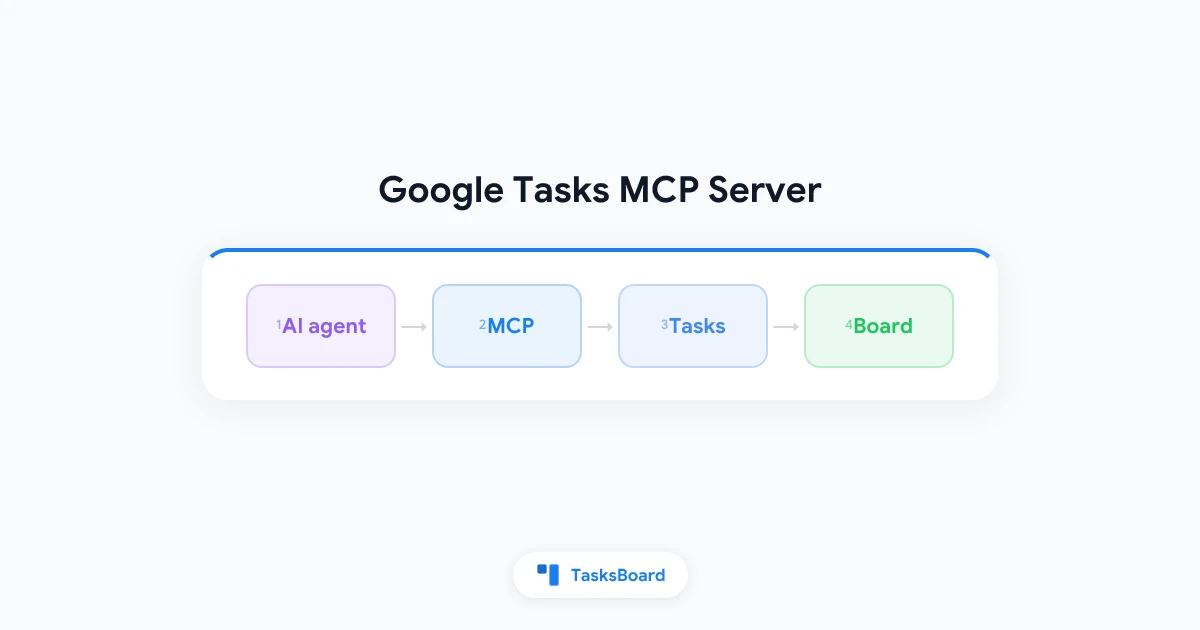
What Claude does support is custom connectors. A custom connector is a remote server that speaks the Model Context Protocol (MCP), and you add it to Claude by pasting its URL.
TasksBoard runs such a server for Google Tasks at https://mcp.tasksboard.com/mcp. You sign in with Google in the browser, and there is no API key to copy and nothing to install. Connecting is free on the TasksBoard side.
Because the connector works on your real Google Tasks data, every change Claude makes shows up in Google Tasks, in the Google Tasks mobile app and on your TasksBoard board.
 The TasksBoard connector for Claude at a glance
https://mcp.tasksboard.com/mcp
Sign in with Google, no API key
The connector exposes 12 tools in total. The Google Tasks MCP server overview lists each one and covers every supported AI client, so this article stays with Claude.
Connect Google Tasks to Claude on the Web and Desktop
The steps below follow Anthropic’s documentation on adding a connector that isn’t in the directory. Claude’s menus change from time to time, so trust the labels on your screen if they differ slightly.
- Open your connectors. Go to claude.ai/customize/connectors. In the Claude desktop app, select Customize in the sidebar, then Connectors.
- Start a custom connector. Select Add, then Add custom connector.
- Enter the details. Name it “TasksBoard”, paste
https://mcp.tasksboard.com/mcpas the server URL and click Continue. - Keep the detected settings. Claude reads the server’s sign-in settings and marks them Detected. Leave them as they are and click Add.
- Connect and sign in. If the connector shows Connect, click it. A Google sign-in page opens, where you pick the account that holds your tasks and approve access.
- Turn it on in a chat. In a conversation, click + in the message box, open Connectors and switch TasksBoard on.
Then ask something simple, such as “What task lists do I have?”. Claude asks for approval before it uses a tool. Choose Allow once, or Always allow for tools you trust.
Which Claude plans can add it
According to Anthropic’s help center article on custom connectors using remote MCP, custom connectors are available on Free, Pro, Max, Ultra, Team and Enterprise plans. Free users are limited to one custom connector.
Team and Enterprise workspaces
On these plans a member cannot add a custom connector alone. An Owner adds it once under Organization settings, then Connectors, by selecting Add, then Custom, and choosing Web if Claude asks for a type.
After that, each member opens their own connectors, finds the one labelled as custom and clicks Connect. Everyone signs in with their own Google account, so nobody sees a colleague’s tasks.
Claude on your phone
A connector you set up on the web is available in your conversations on mobile too. Anthropic’s article on using connectors says a connected service is ready the next time you log in to Claude for iOS or Android.
The same article calls installing connectors on mobile a beta and names desktop and web as the primary path for custom connectors. Add TasksBoard on a computer first, then use it from your phone.
 Where to add the Google Tasks connector in each Claude app
Add Google Tasks to Claude Code
Claude Code is Anthropic’s coding agent for the terminal. Its MCP documentation gives the syntax for remote HTTP servers, which for TasksBoard looks like this:
claude mcp add --transport http tasksboard https://mcp.tasksboard.com/mcpThen start Claude Code and authenticate:
- Type
/mcpinside Claude Code. - Select the
tasksboardserver and follow the steps in your browser to sign in with Google. - Back in the terminal, ask “List my Google Tasks lists” to confirm it works.
Claude Code stores the tokens and refreshes them automatically. To sign out later, use Clear authentication in the /mcp menu, and to drop the server run claude mcp remove tasksboard.
Pick a scope
The --scope flag decides where the server is saved. The documentation describes three values:
local(the default): available only to you, in the current project.project: shared with everyone in the project through a.mcp.jsonfile.user: available to you across all your projects.
A personal to-do list belongs to you rather than to one repository, so user scope is usually the right choice:
claude mcp add --transport http --scope user tasksboard https://mcp.tasksboard.com/mcpProject scope is safe to share as well. The .mcp.json file holds only the URL, and every teammate signs in with their own Google account.
Already connected on claude.ai?
Then you may not need the command at all. The same documentation says that connectors you add in claude.ai are automatically available in Claude Code when you log in with your claude.ai account, and they appear in the /mcp list.
Other coding tools use the same server URL with a different config format. See the guide to Google Tasks in Cursor, VS Code, Codex CLI and Antigravity, or copy a ready snippet from the TasksBoard MCP page.
Prompts and Workflows That Earn Their Keep
Claude picks the right tools on its own. You describe the outcome, and naming the list removes most of the guesswork.
Plan the day
- “Show my open tasks due today or overdue across all my lists, grouped by list.”
- “I have three hours of focus time. Which five of these should I do first, and why?”
- “Move everything I will not reach today to Friday.”
Claude reads the lists, proposes an order and updates due dates after you agree. For the planning method itself, see our guide to using Google Tasks as a daily planner.
Turn a conversation into tasks
This is the workflow that makes the integration worth having. After a long planning chat, write:
- “Create a list called Website relaunch and add every action item we just agreed on. Put the reasoning in the notes and add subtasks where a step has parts.”
Claude creates the list, then the parent tasks, then the subtasks under them. Nothing has to be copied by hand.
Paste a meeting note
- “Here are my notes from today’s call. Add each action item that belongs to me to my Work list, with the due dates that were mentioned. List the ambiguous ones first and ask me before adding them.”
Asking Claude to check the unclear items first keeps vague tasks out of your list.
Run a weekly review
- “What did I complete in the last 7 days? Summarize it by list.”
- “Which open tasks are more than two weeks overdue? For each one, suggest whether to reschedule, split or delete it.”
The connector can filter by completion date and by due date, so Claude answers from the data rather than from memory.
Clean up lists
- “Find duplicate tasks in my Personal list and show them to me before you change anything.”
- “Move all tasks that mention the Berlin trip into the Travel list.”
- “Clear the completed tasks from Groceries.”
Start cleanup prompts with “show me first”. Deleting is real, and our guide to recovering deleted Google Tasks explains what can and cannot be brought back.
Send coding TODOs to Google Tasks
In Claude Code, the connector sits next to your repository. At the end of a session, try:
- “Add a task to my Dev backlog list for each follow-up we did not finish, with the file path and a one-line summary in the notes.”
- “Check my Dev backlog list and tell me which tasks this branch already resolves, then mark those completed.”
The follow-ups leave the terminal and land where you plan the rest of your week.
Try TasksBoard
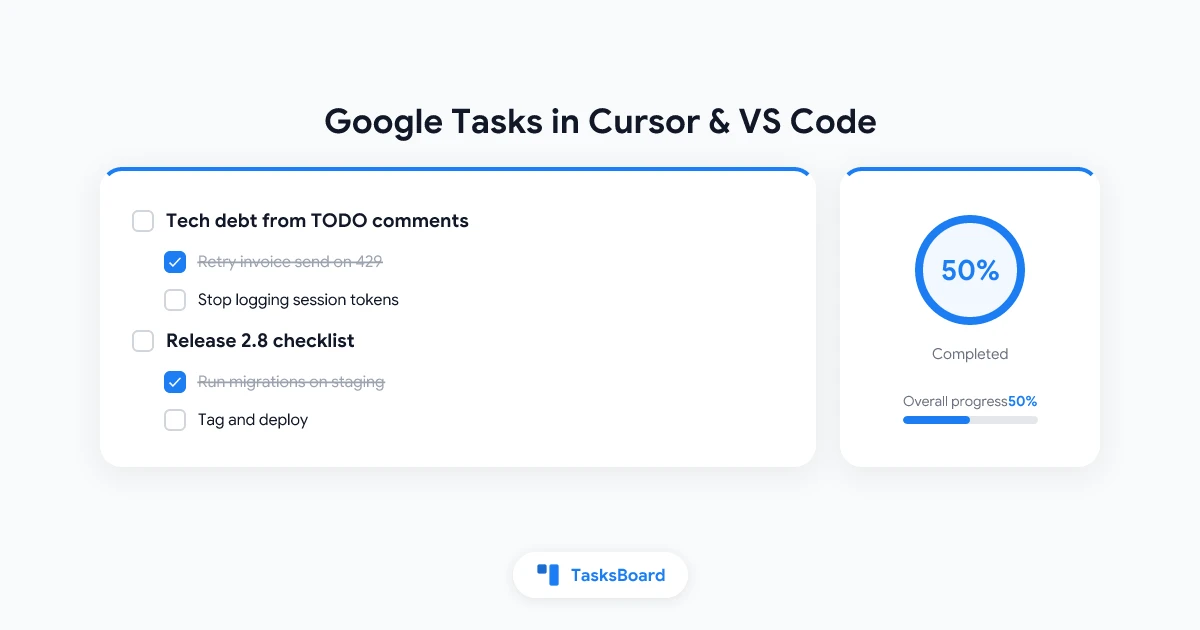
Everything Claude adds to Google Tasks appears on your TasksBoard board. See your lists as kanban columns, drag tasks between them and share a list with the people who need it.
Get Started →Limits to Know Before You Rely on It
The connector does what the Google Tasks API allows, and that API is narrower than the Google Tasks app.
- Due dates have no time of day. Through the API, Google Tasks stores the date only. If you ask for “Friday at 3pm”, the task is due on Friday, and you set the time yourself as described in our due time guide.
- No repeating tasks. There is no tool for creating a recurring task, and recurring tasks cannot be moved between lists. Set repeats in the app, as the recurring tasks guide shows.
- No reminders, attachments or sharing. The 12 tools cover lists and tasks. Notification settings, files and shared-list permissions are managed in Google Tasks and on your TasksBoard board.
- No search tool. Claude finds a task by reading the list and matching the title, so name the list in your prompt when you have many.
- Open tasks by default. A listing returns open tasks unless Claude asks for completed ones, and it comes in pages. For a full review of a long list, say “go through the whole list”.
- Deletes are real. Deleting a list deletes the tasks in it. Clearing completed tasks hides them from the list.
Claude’s own usage limits still apply, since every tool call is part of a conversation on your Claude plan.
Security and Permissions
Anthropic’s documentation warns that custom connectors connect Claude to unverified services, and recommends reviewing the access a server asks for before approving it. Here is what to check with this one.
What the sign-in asks for. The Google consent screen requests your basic identity (email and profile) and access to Google Tasks. It does not ask for Gmail, Calendar or Drive.
Who sees what. The connection is tied to the Google account you sign in with. On a Team plan the Owner adds the connector, yet each member authorizes it separately.
Per-tool approval. On the connector’s page in Claude, Tool permissions lets you set each tool to Always allow, Needs approval or Blocked. A sensible setup allows the read tools and keeps the delete, clear and move tools on approval.
Automatic runs. Anthropic notes that in Research, Claude can invoke connector tools without further approval. Switch the connector off in the + menu for chats where it has no business.
Disconnecting. Select Disconnect or Remove on the connector’s page in Claude. You can also revoke the access from the third-party connections page of your Google Account, and your tasks stay exactly where they are.
Claude, ChatGPT or Gemini for Google Tasks?
All three can now reach your tasks, in different ways.
- Claude uses the TasksBoard connector described here. It suits long planning conversations and developers who work in Claude Code.
- ChatGPT has the TasksBoard app for ChatGPT, which is free and adds tasks to a named list from a ChatGPT conversation.
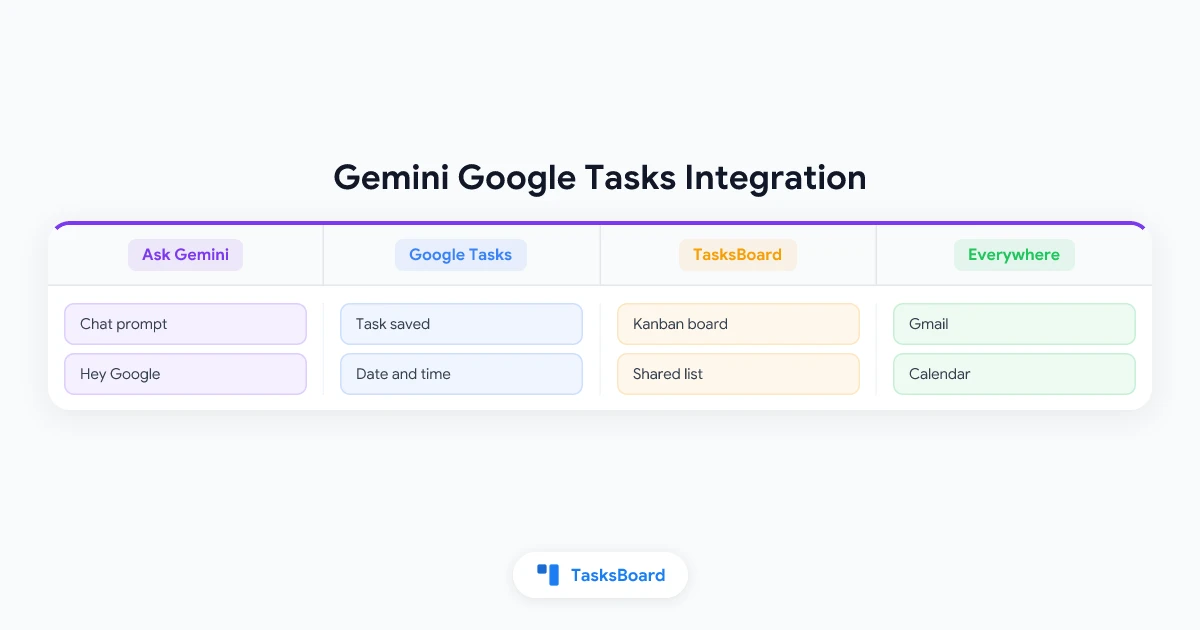
- Gemini talks to Google Tasks through Google’s own Workspace connection, with voice capture on phones and speakers. Our Gemini Google Tasks integration guide covers it.
You do not have to choose. They all write to the same Google Tasks account, so a task captured in one shows up for the others.
Frequently Asked Questions
Conclusion
A Claude Google Tasks integration takes one URL and one Google sign-in. Add https://mcp.tasksboard.com/mcp as a custom connector on the web or desktop, or with a single command in Claude Code, and Claude can plan your day, file action items and clean up lists in your real account.
Keep the delete tools on approval, name your lists in prompts, and set times and repeats in the app. Then open TasksBoard to see what Claude captured as a board you can drag, share and plan from.